Toggle navigation

MT Telecoms - Instructions for F&W Home Installs

Version 1.0.0

This platform is designed to support engineers with clear, step-by-step instructions and resources for successful job completion. Inside, you’ll find:

Job Map - Checklist to guide you through the process and highlight the key details.

Photo Lists to ensure all necessary documentation is captured.

Text Message Templates for quick, professional customer communication.

JOB STATUS for every job in real time.

TYPE OF JOBS for each job type to ensure you are using the right equipment.

New Duct (blocked duct) for any scenario you might face on the day.

Explore each section to find everything you need to deliver reliable, top-quality work on every assignment.
CALL / TEXT - the customer the day before to confirm appointment (I am automating this for each morning).

VERY IMPORTANT - ENROUTE / ARRIVED - every job in real time. Enroute the first job when you leave for work.

RISK ASSESSMENT - included in Safety Culture on every report

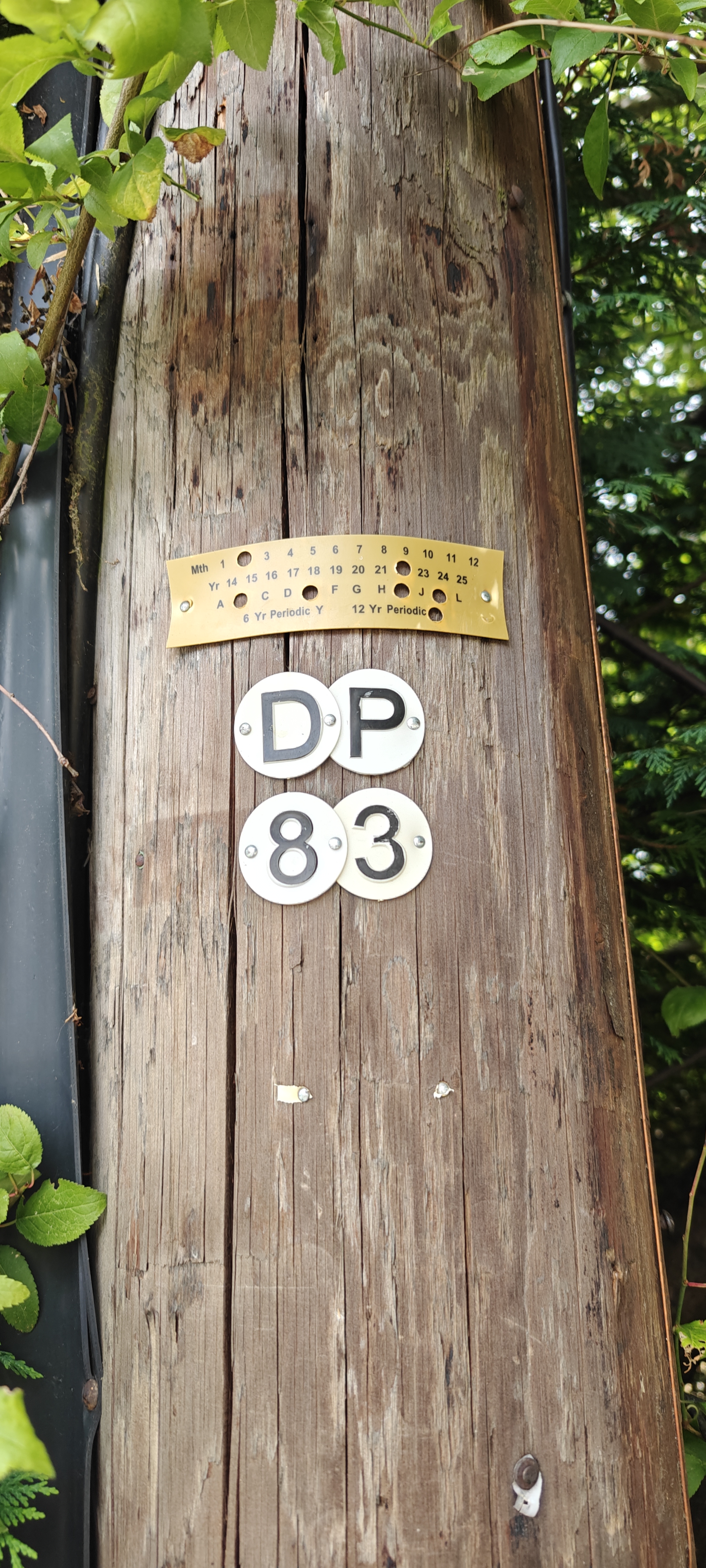
PHOTOS - always take photos BEFORE you do anything and AFTER you've done your job

LOCATION - agree with the customer the location of the services. GET THE SIGNATURE for agreed signaturein Safety Culture.

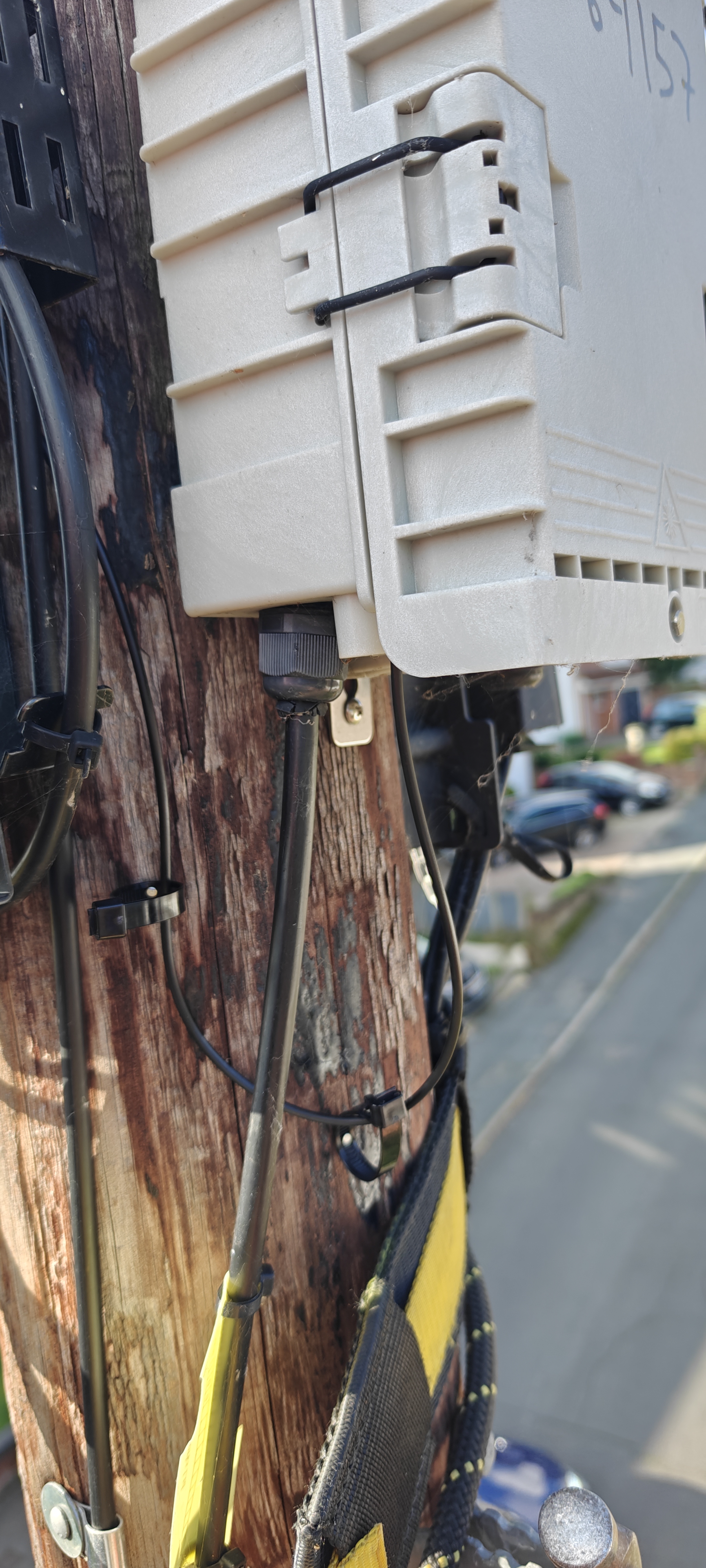
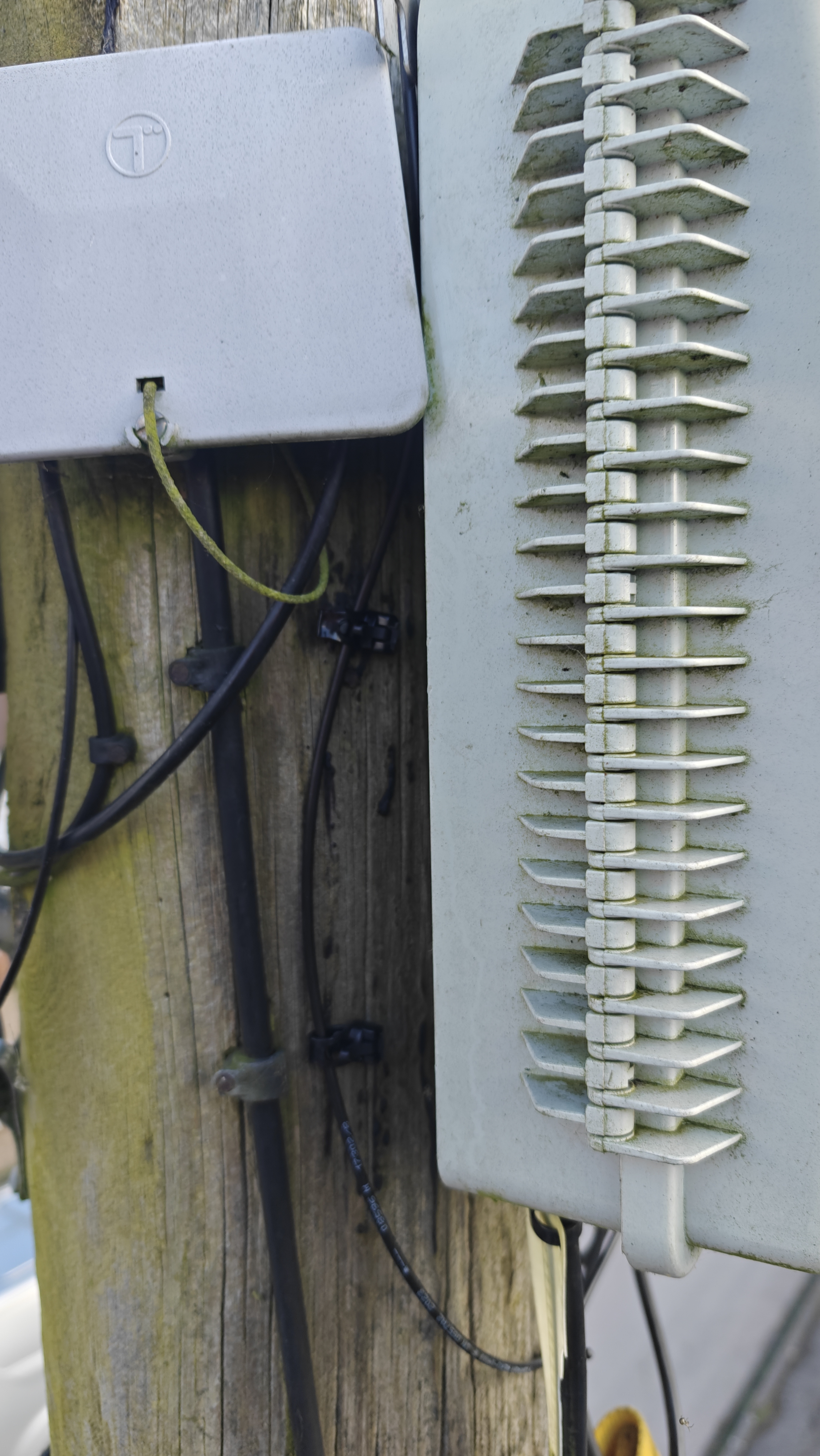
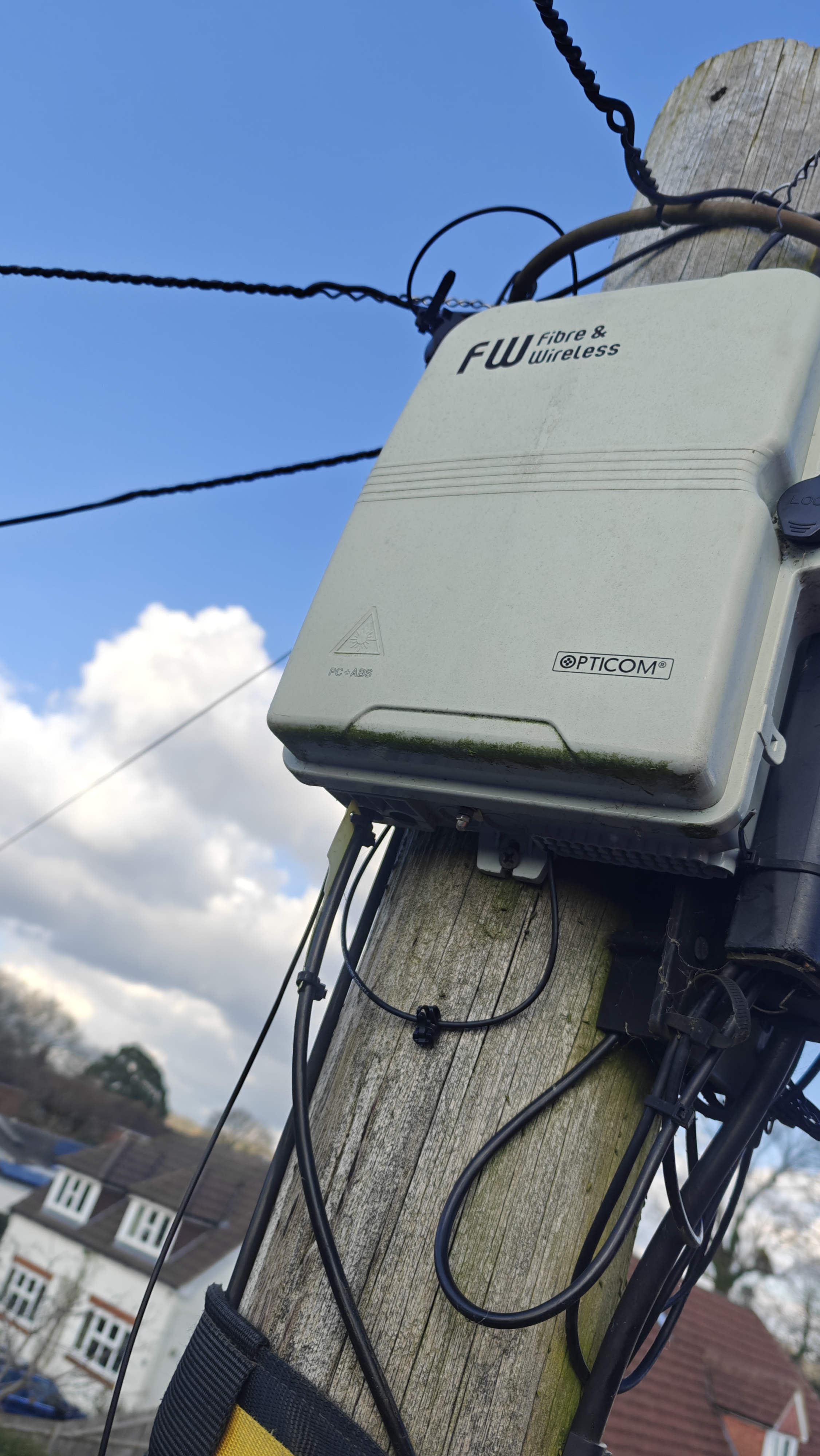
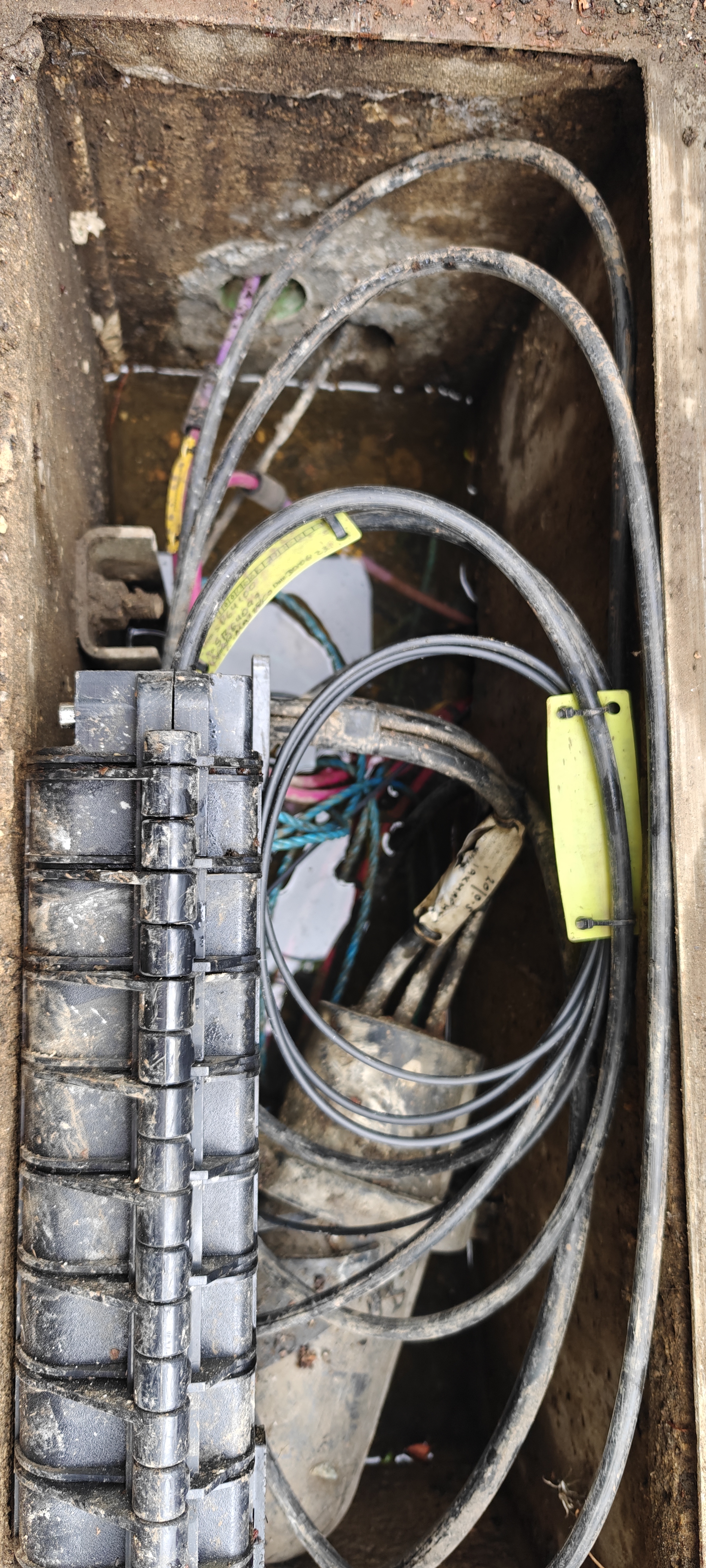
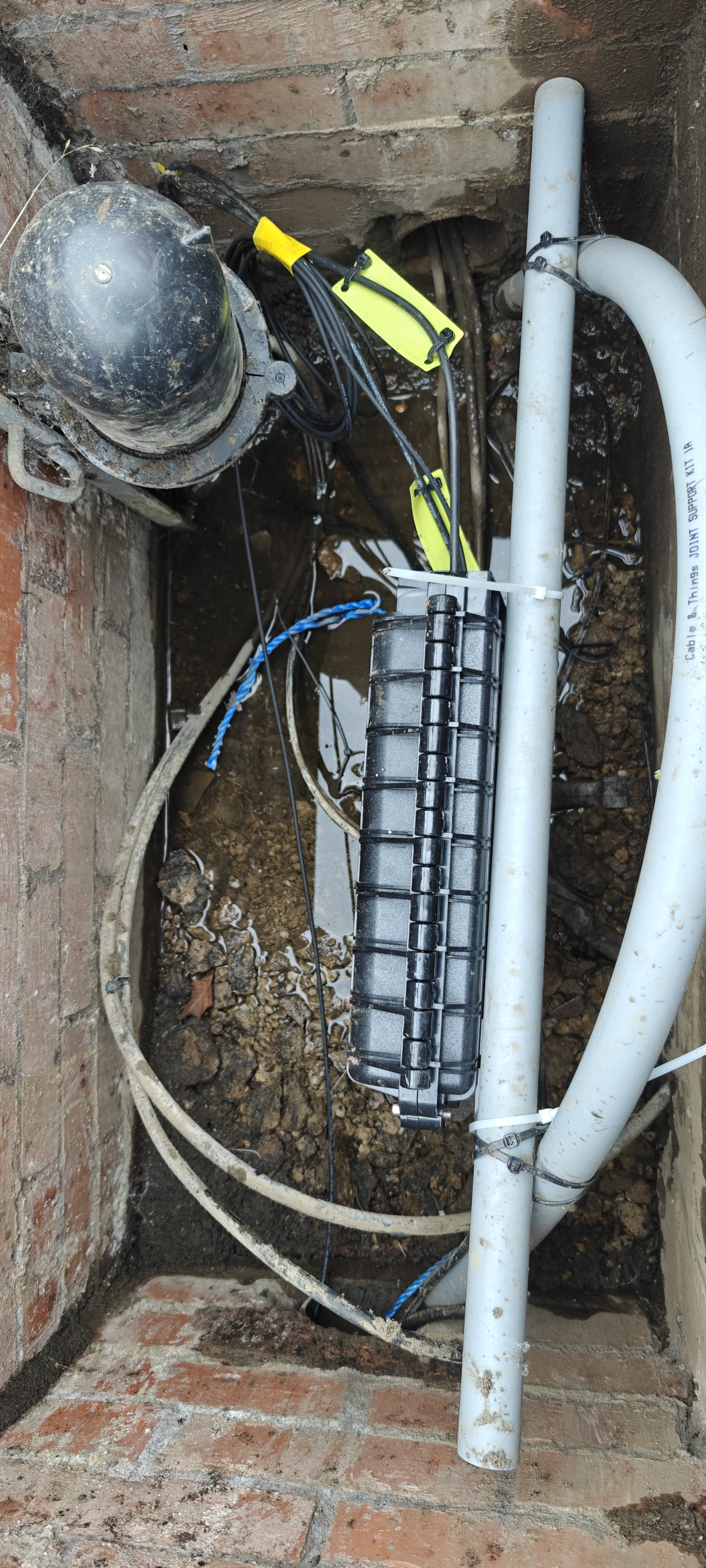
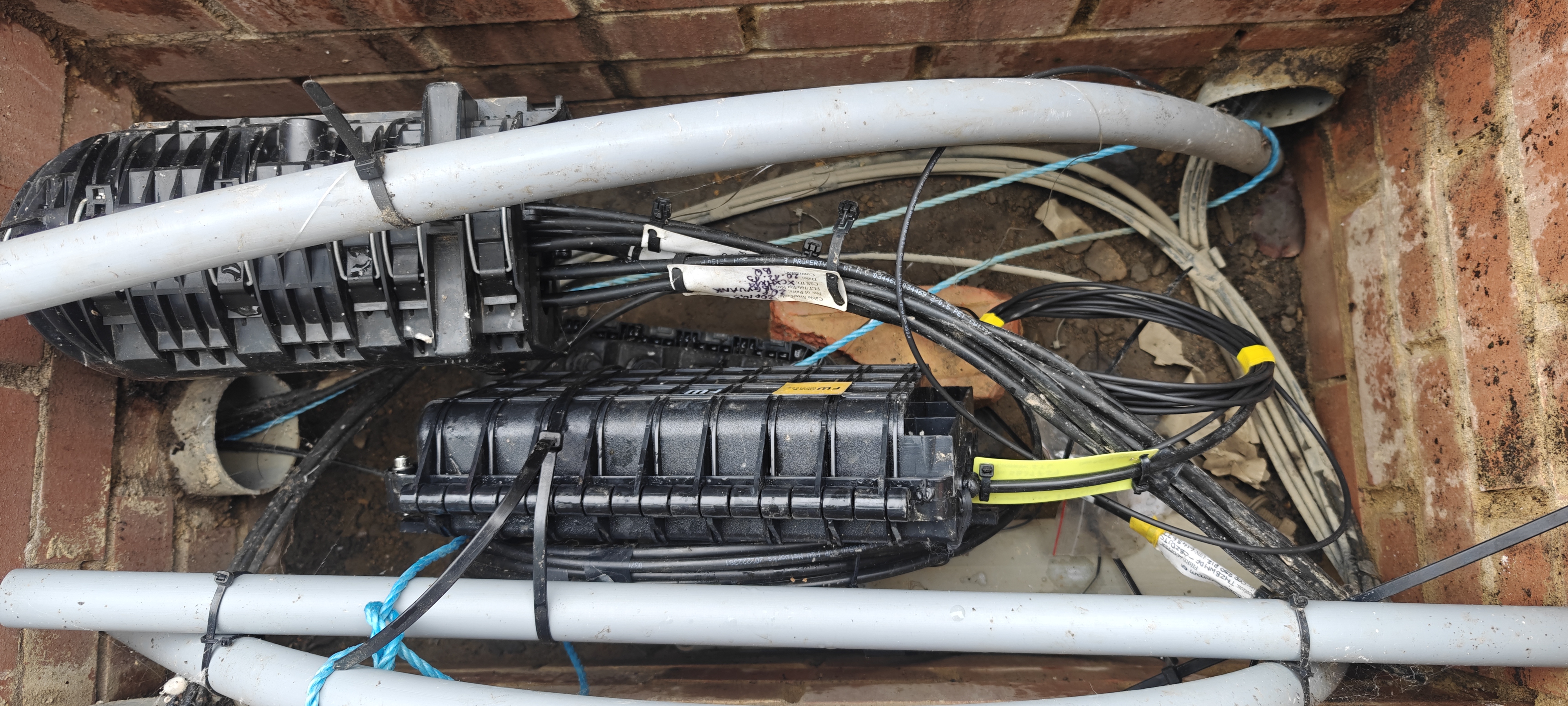
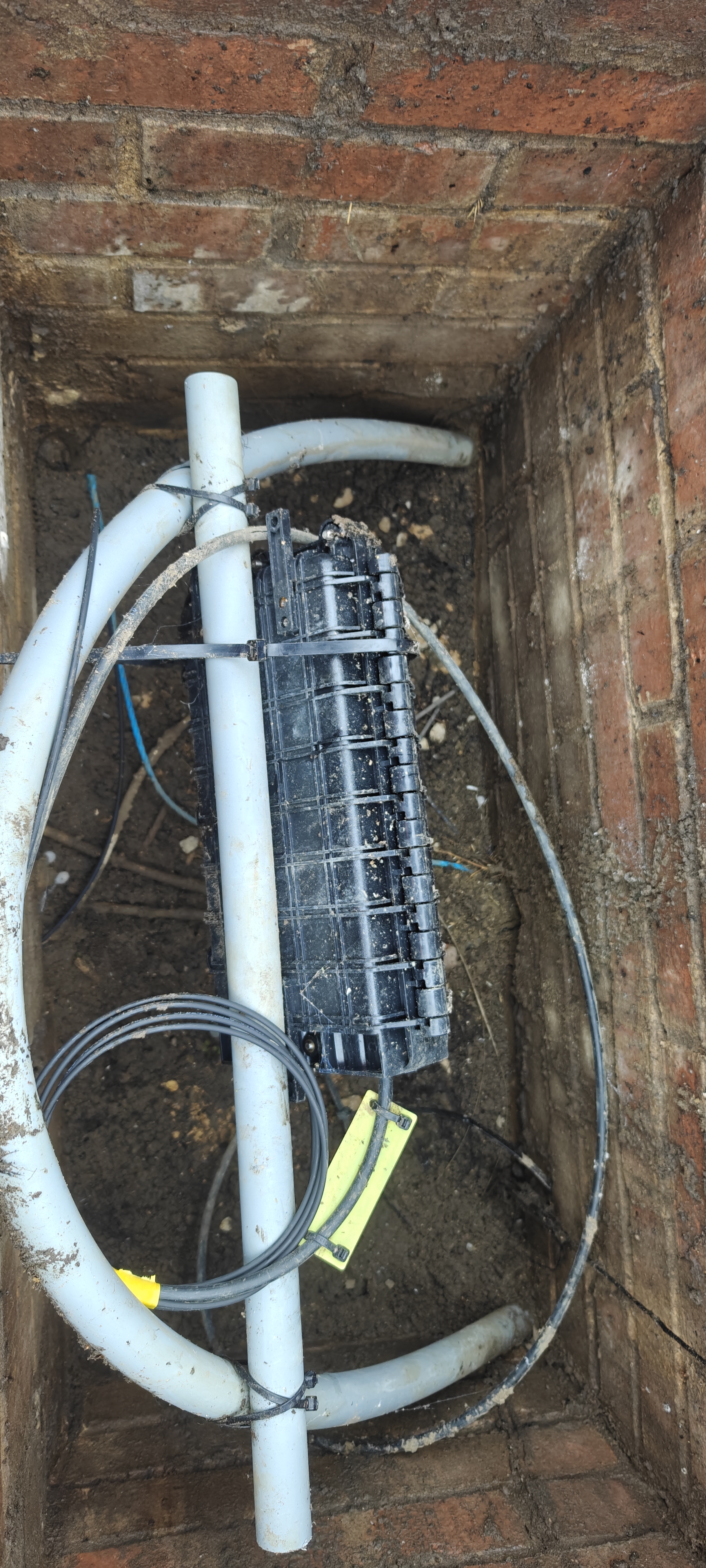
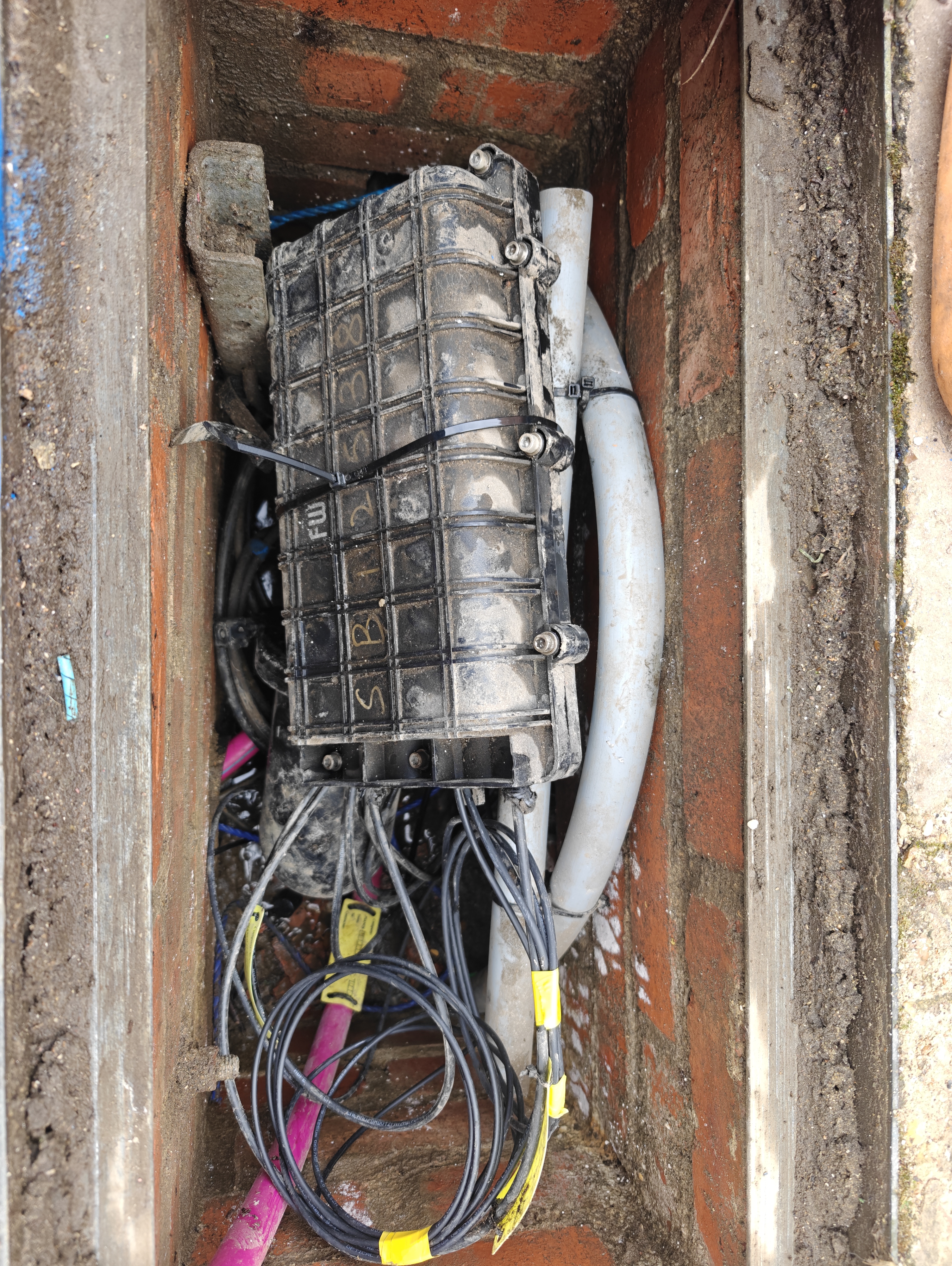
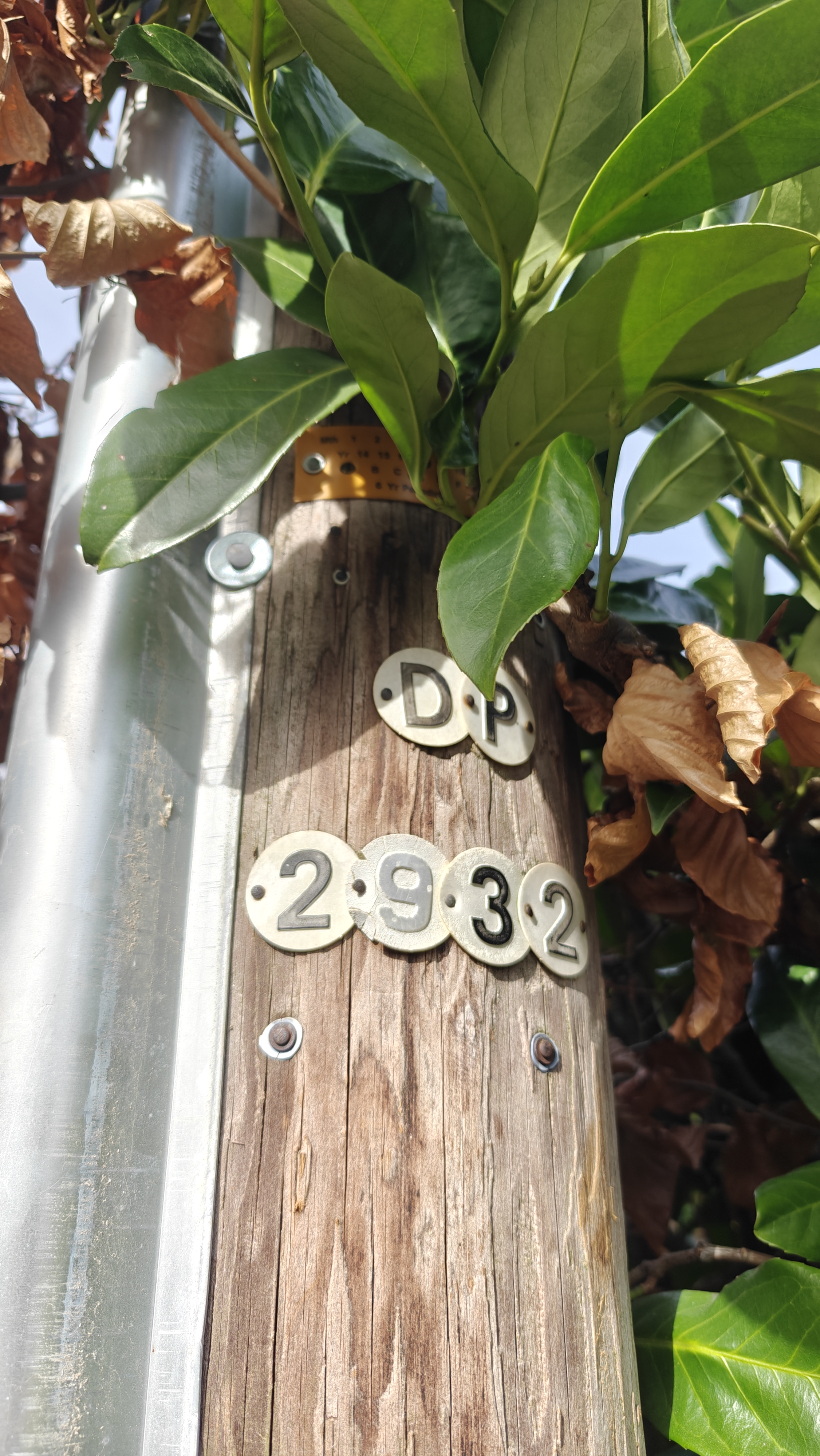
POLE/CHAMBER WORK - check your pole/chamber and run the cable

NO POWER - dry install, let the customer know, take photos of labels on the boxes for remote provision

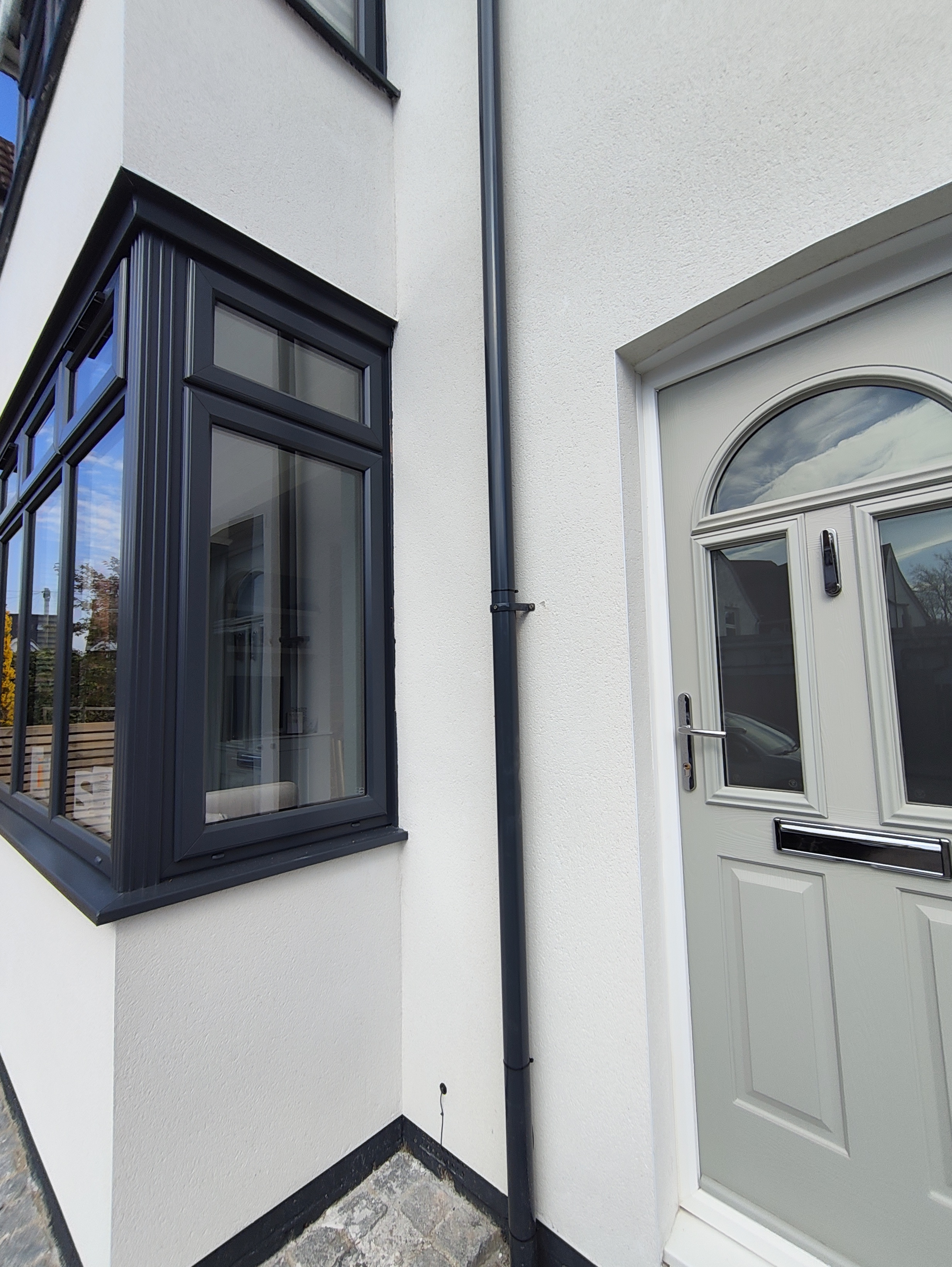
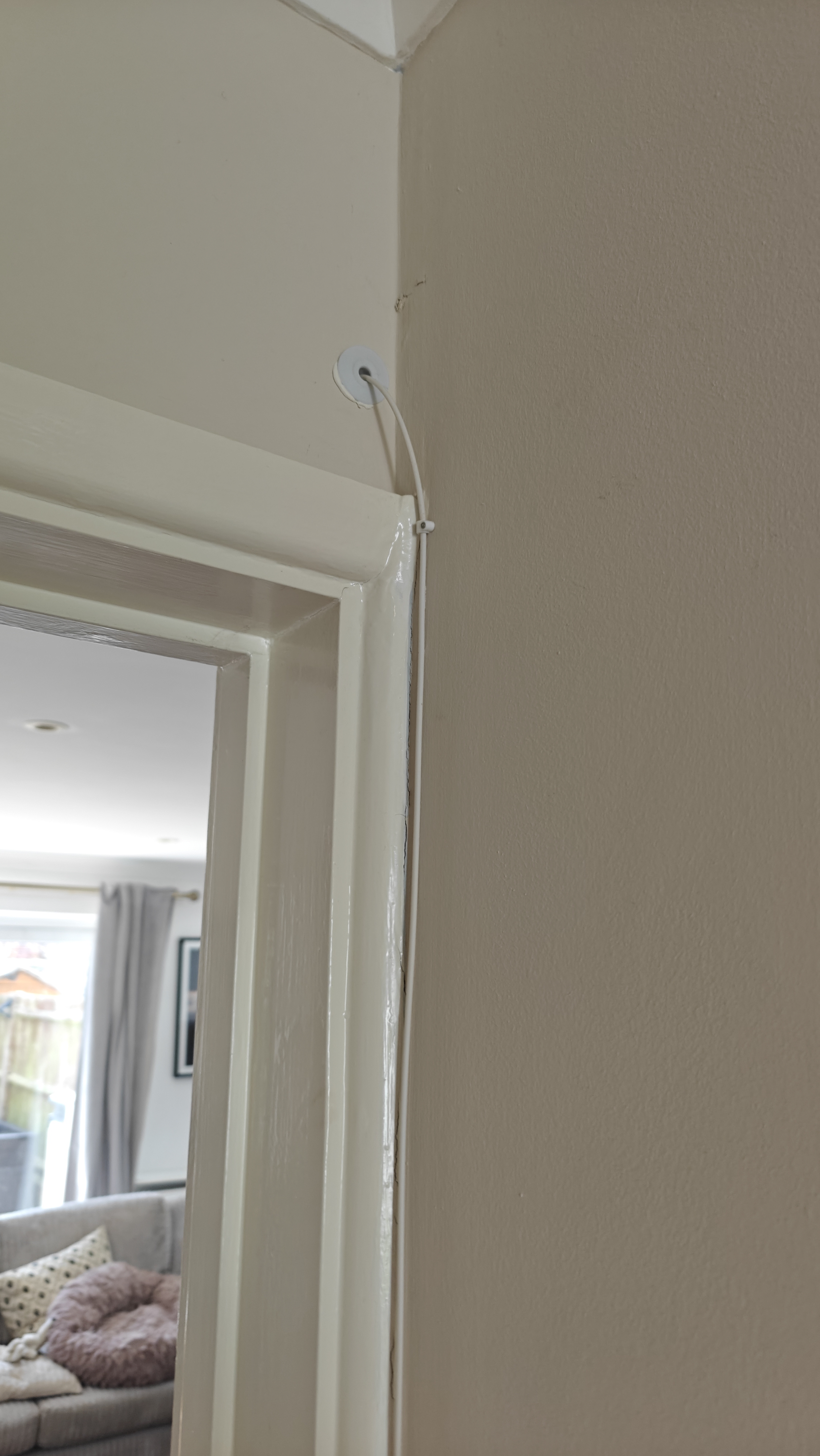
HOUSE END - take note of what is outside the wall where you want to drill, use stud detector inside for pipes and power

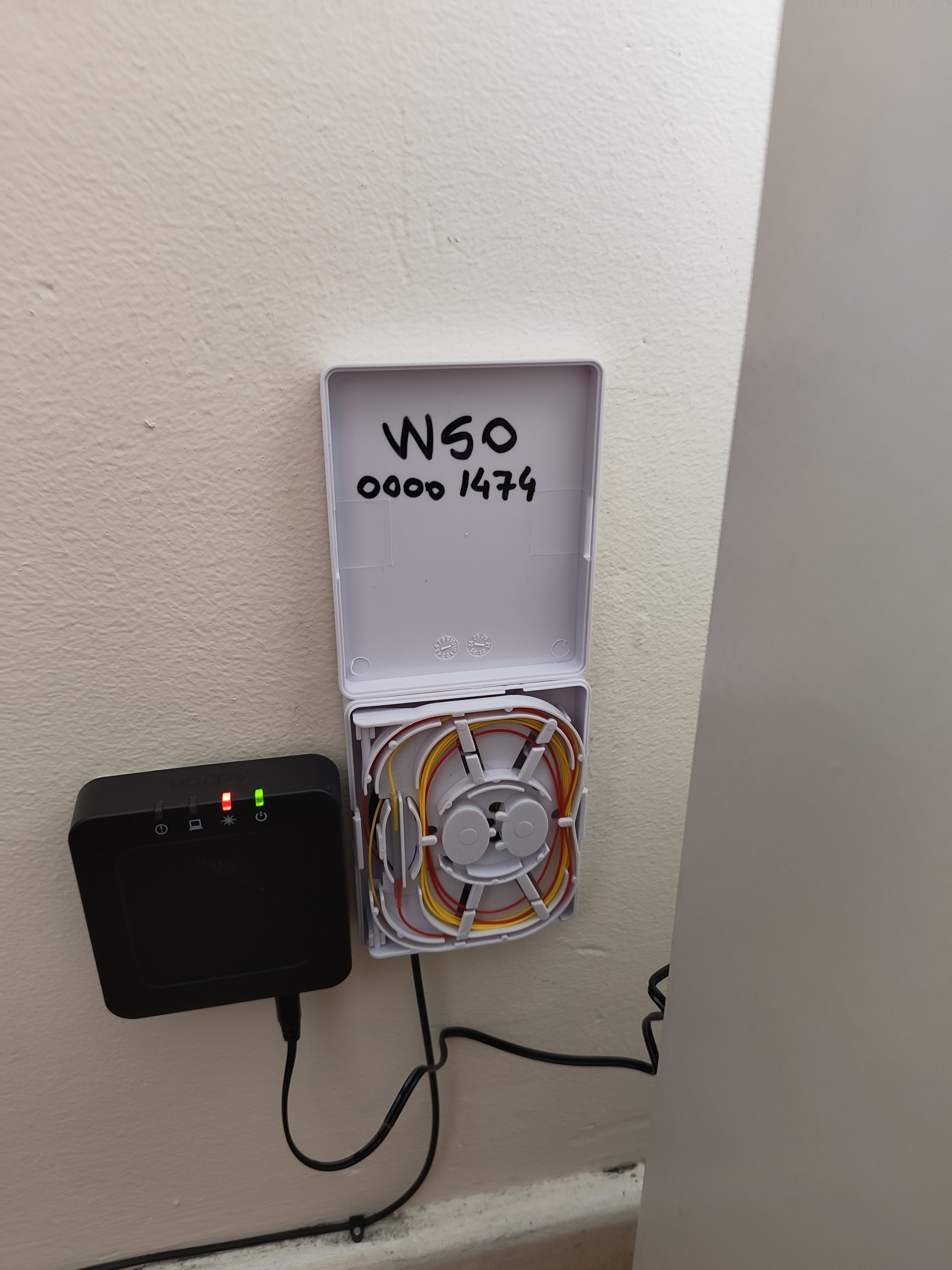
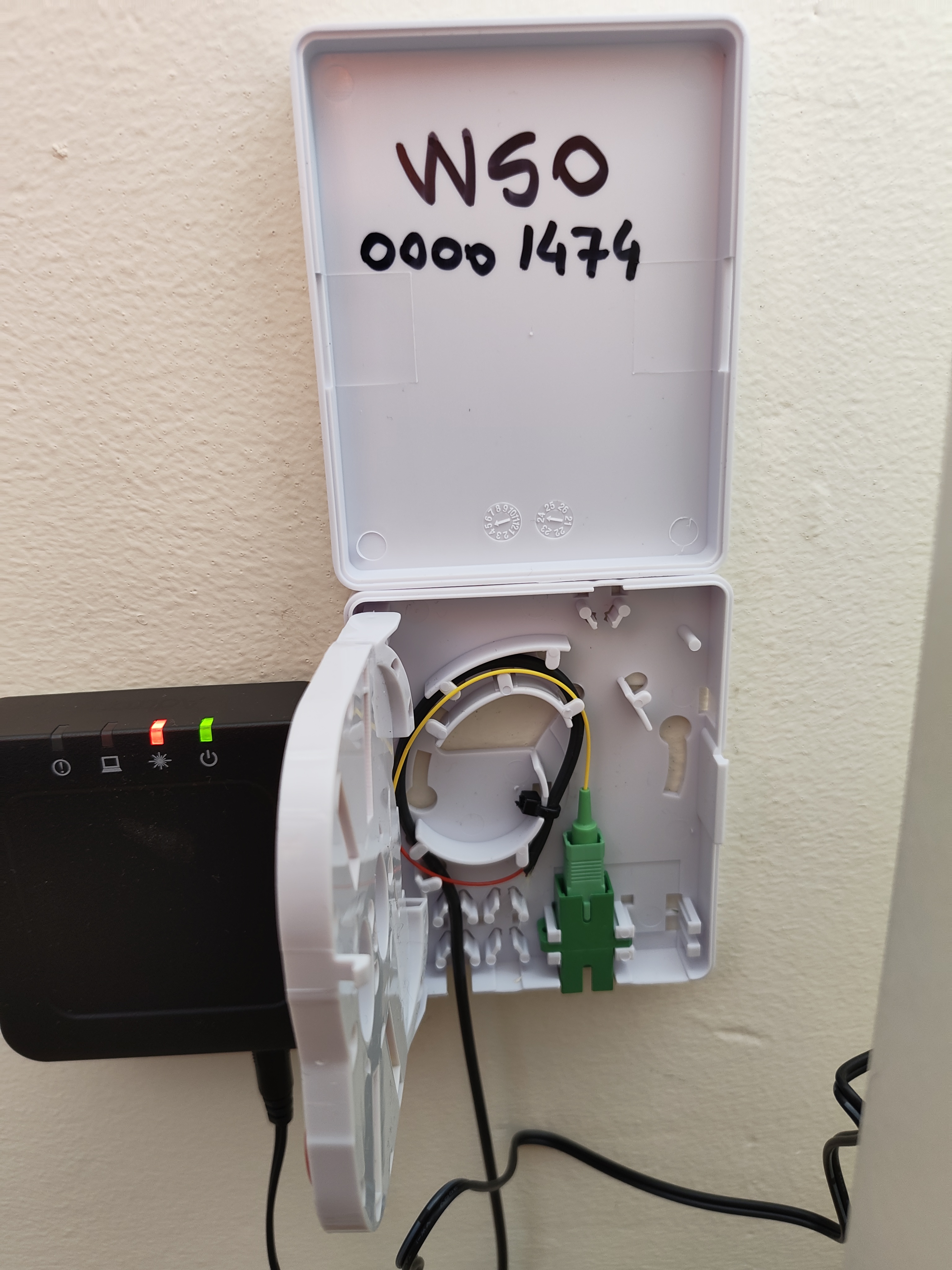
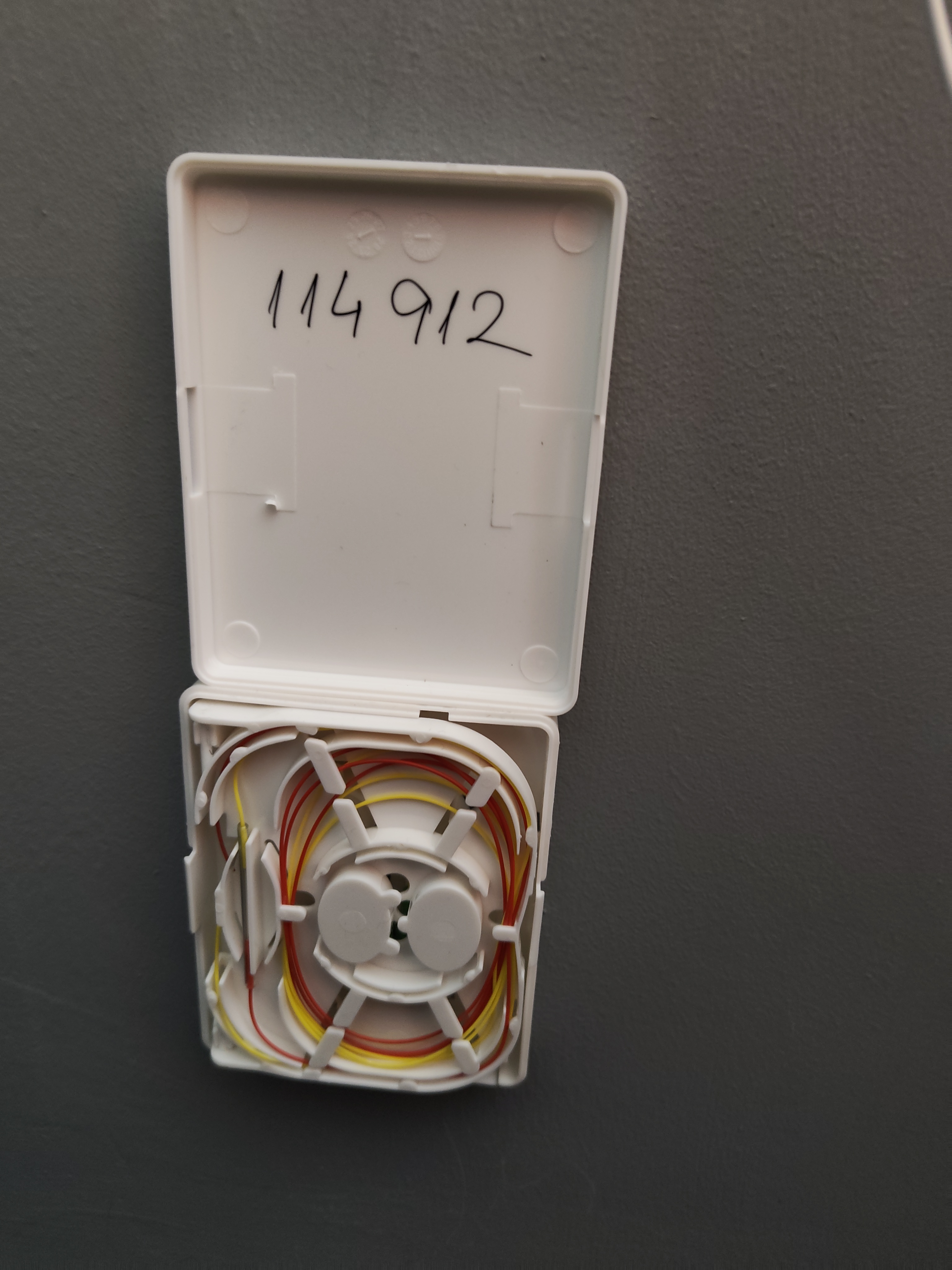
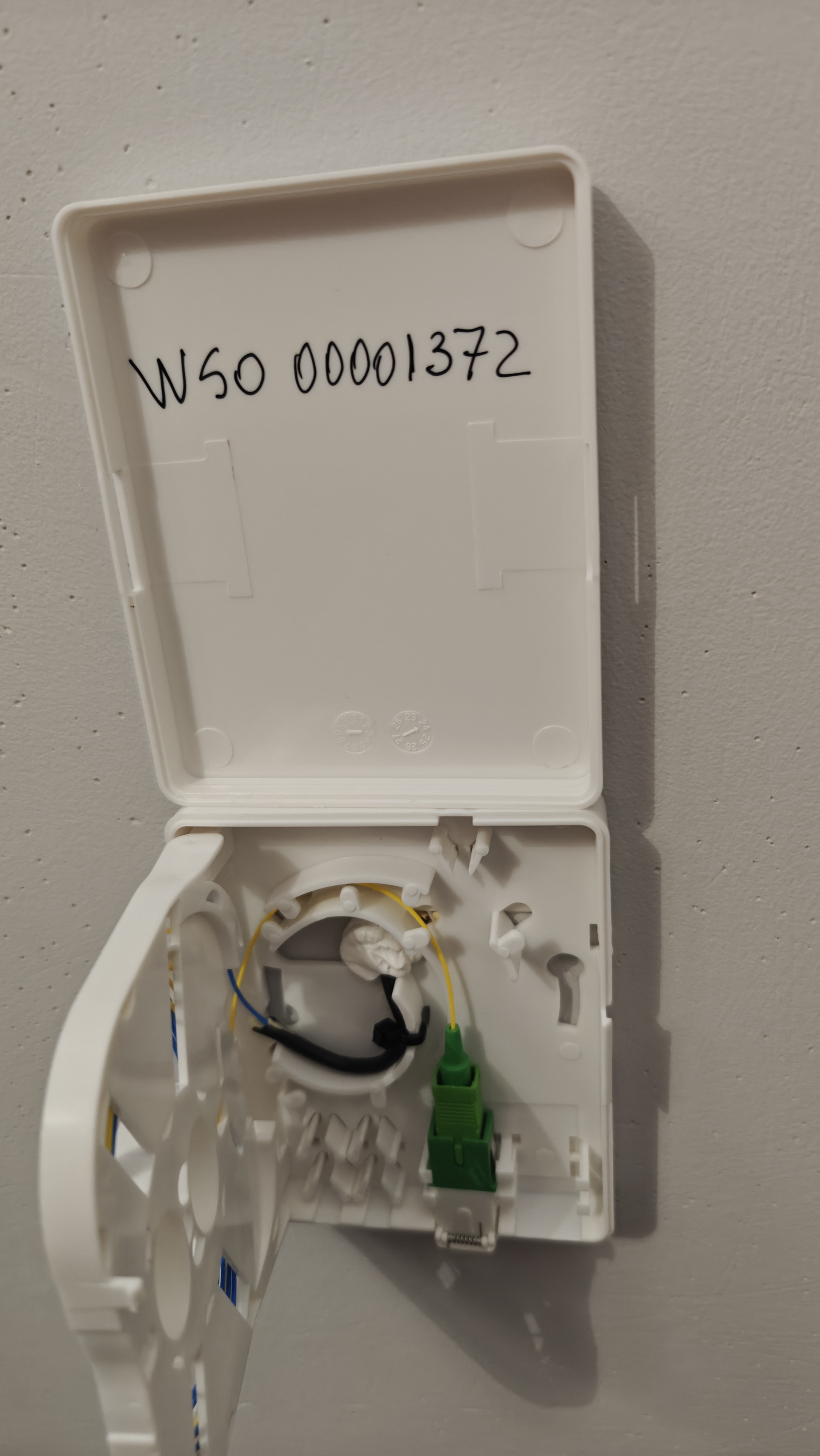
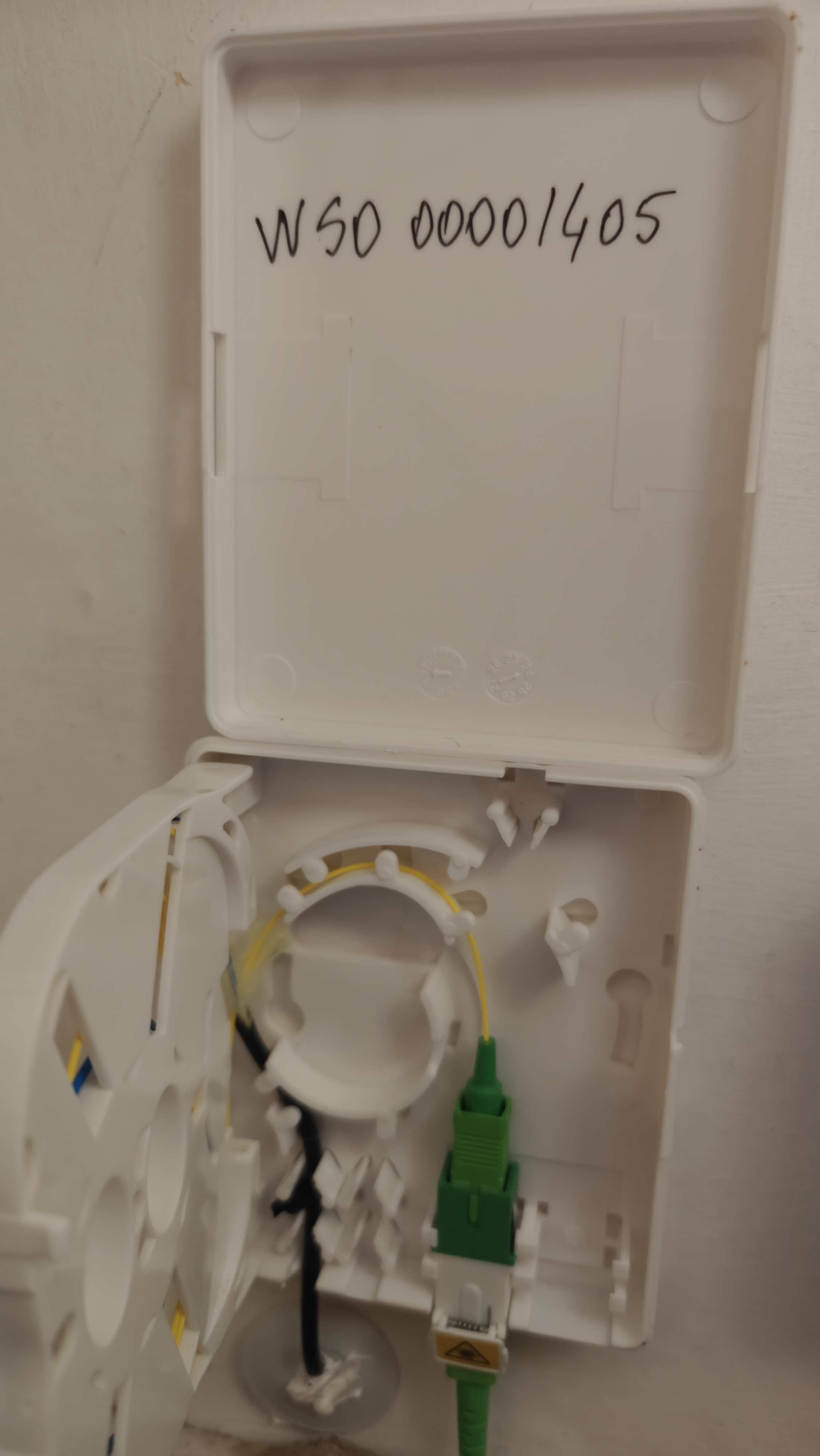
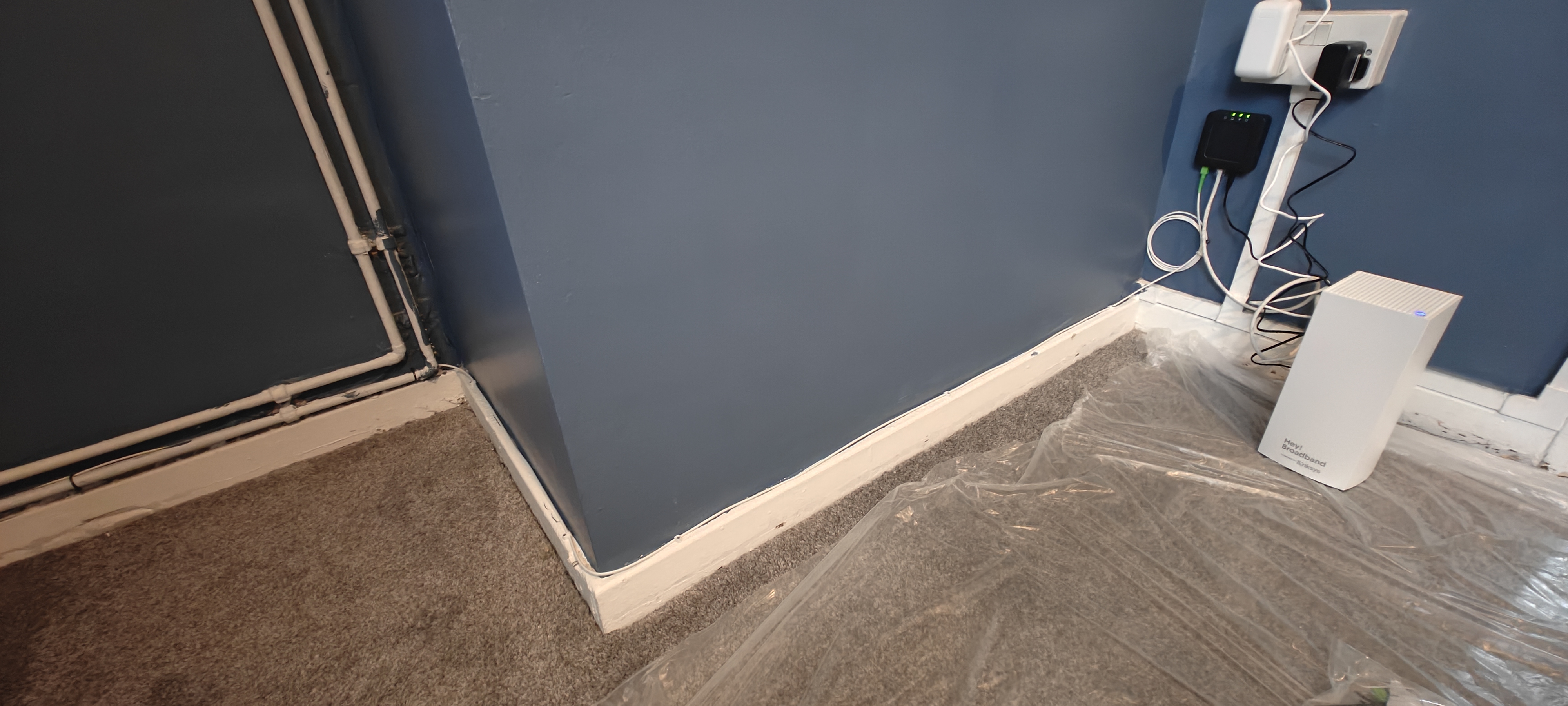
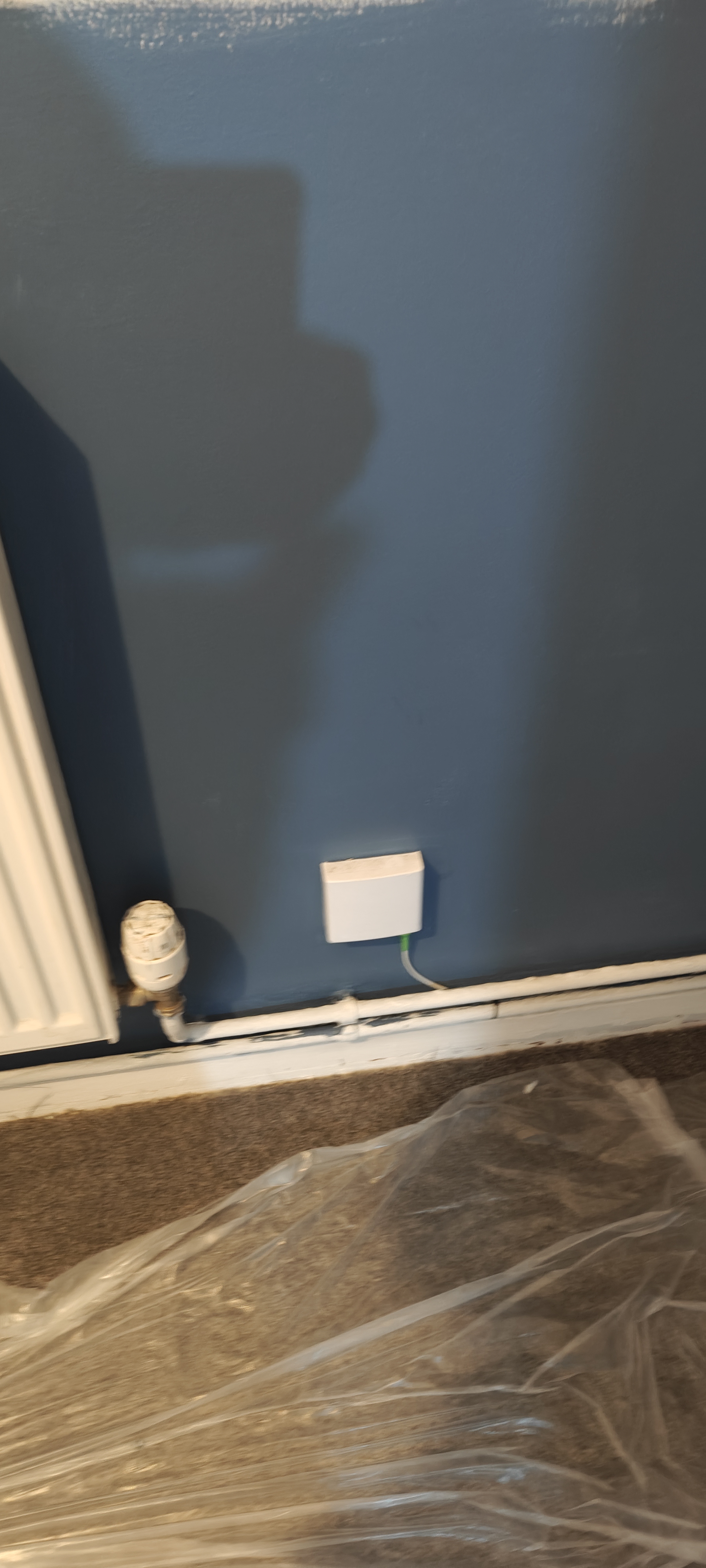
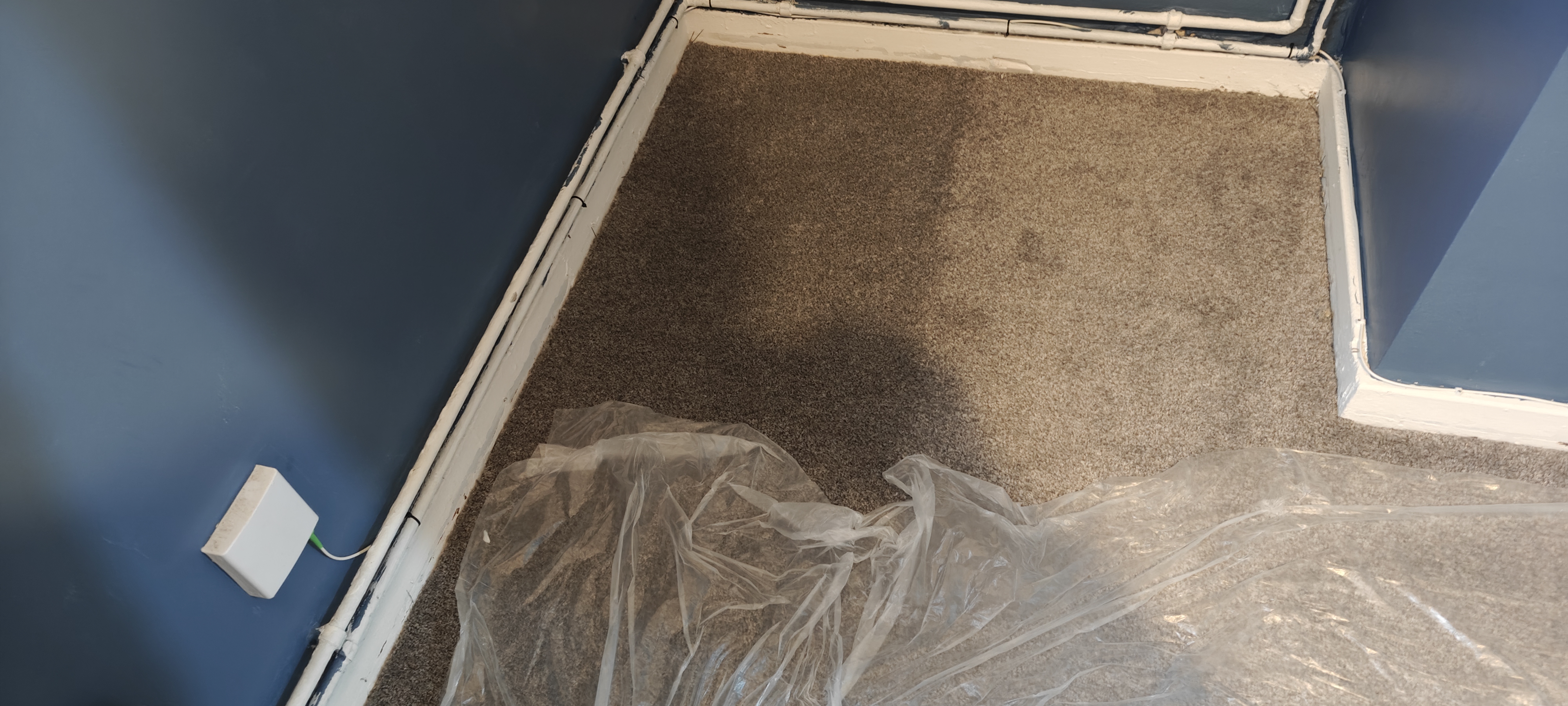
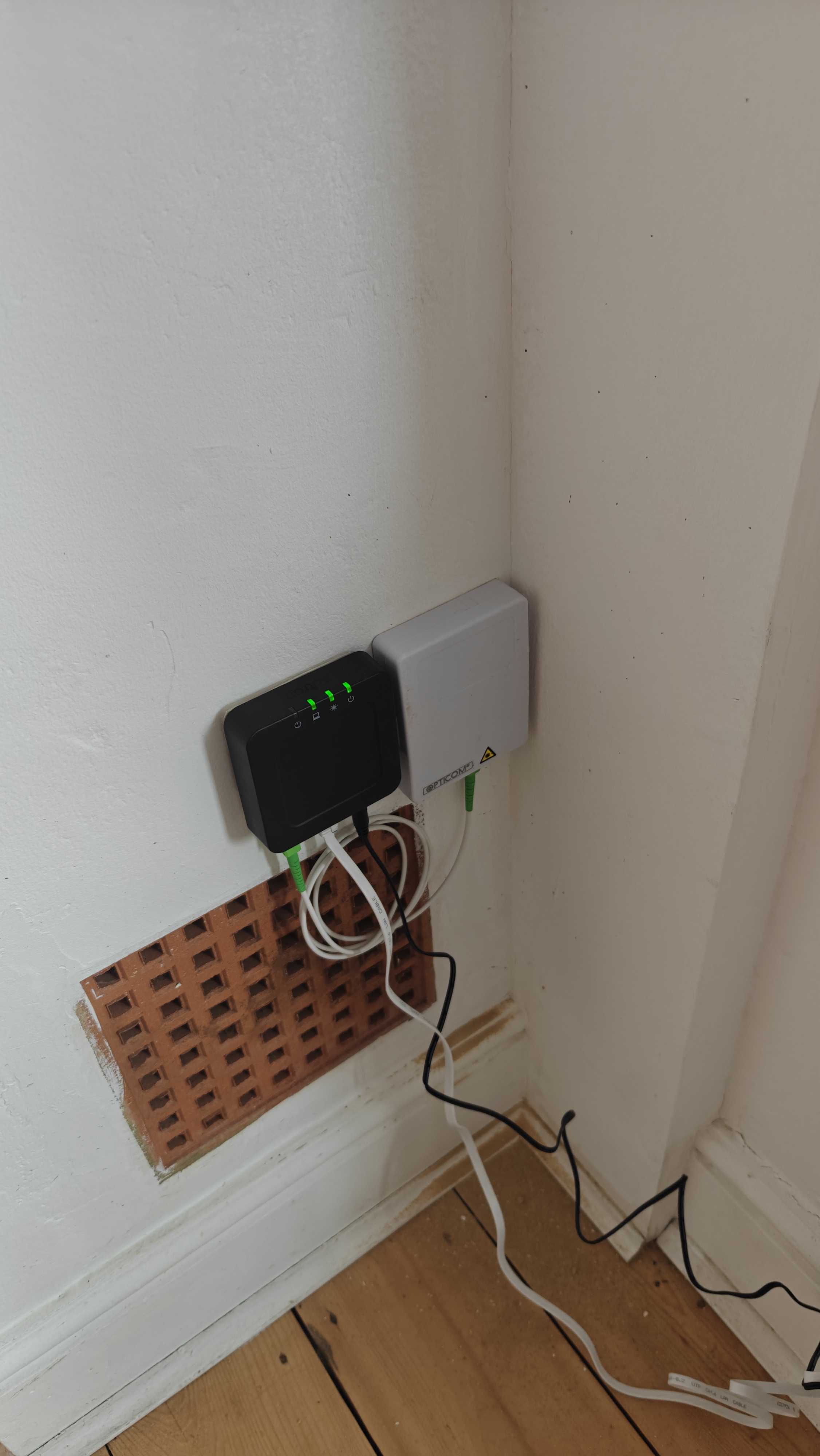
ROSSETA - should be placed 20cm above the skirting board to allow natural bend of the patch lead

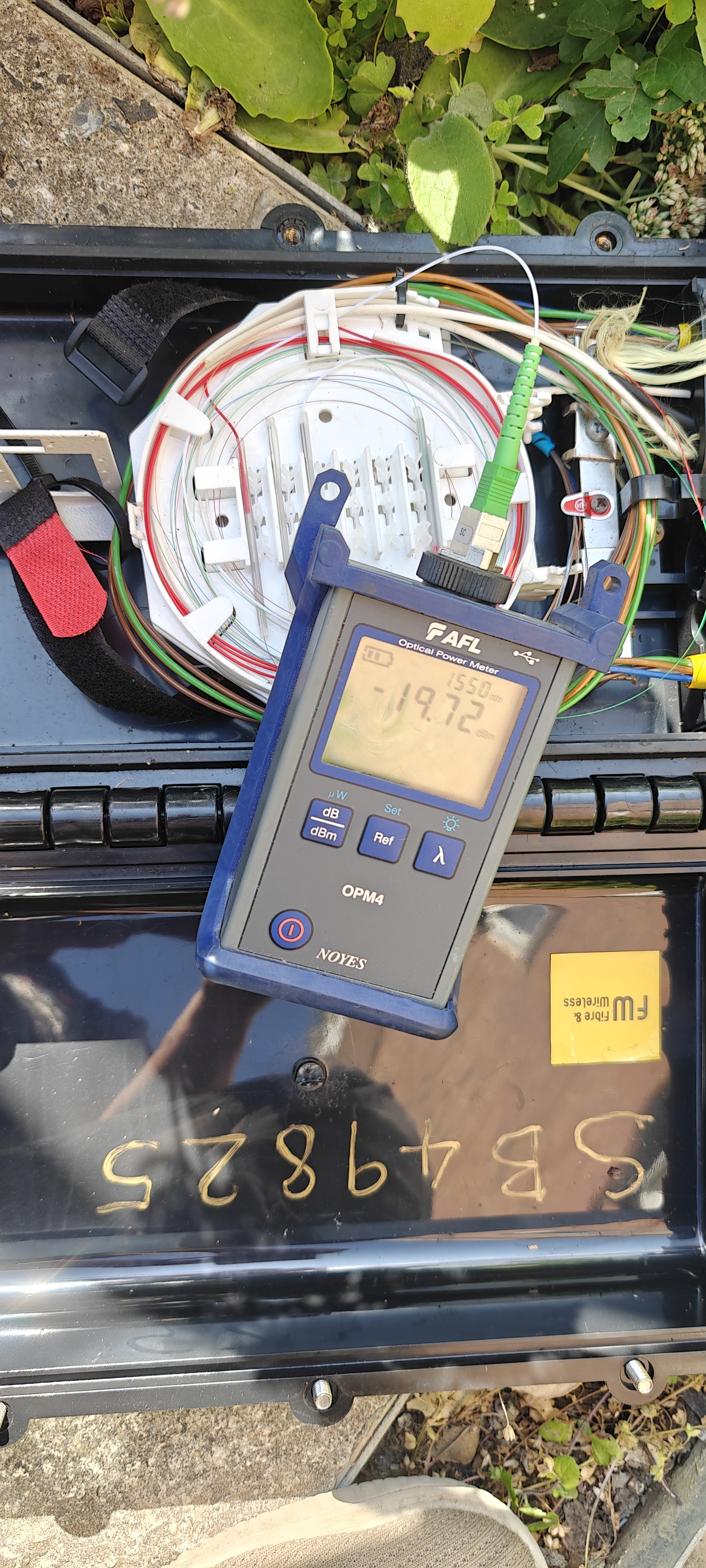
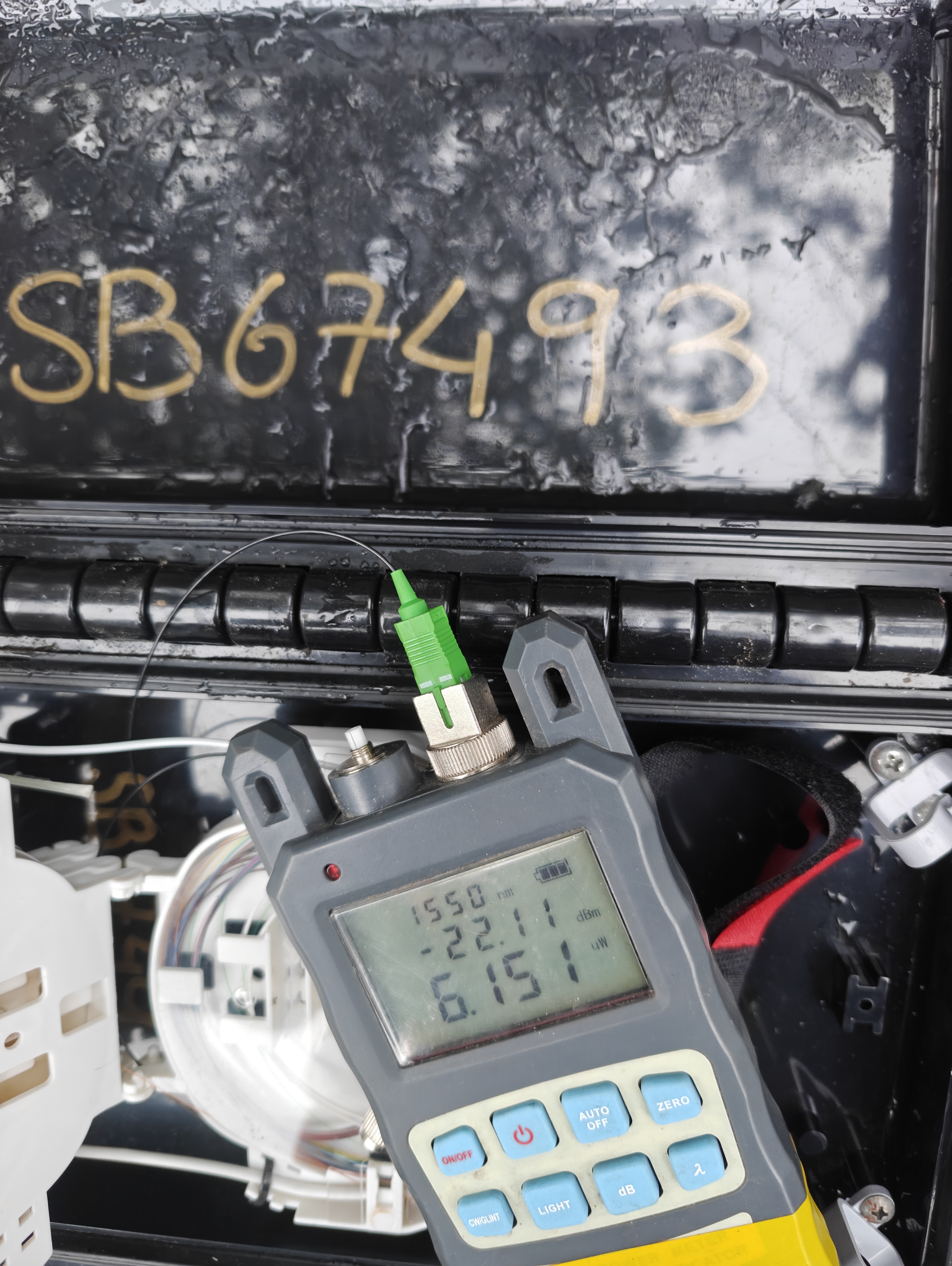
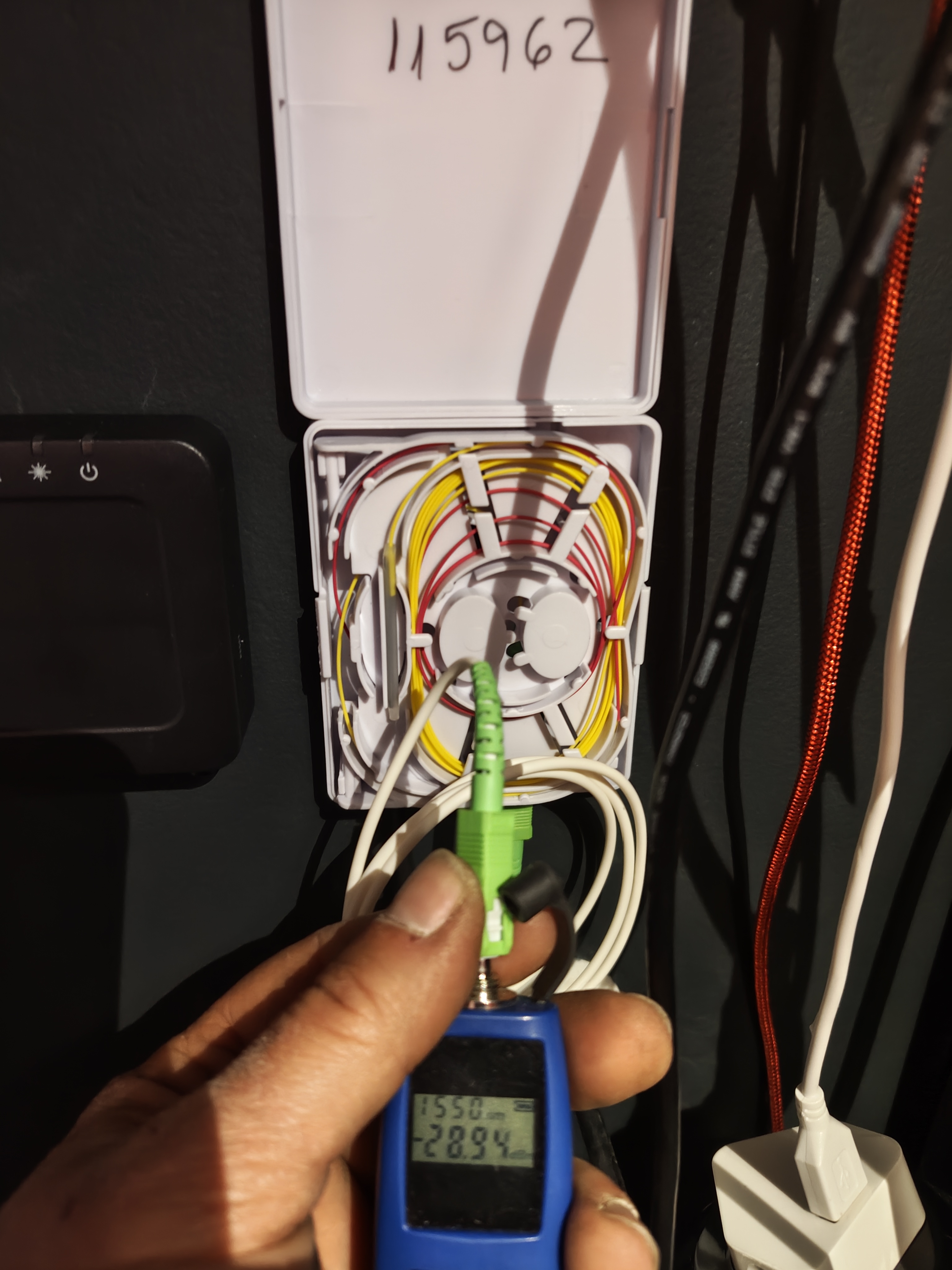
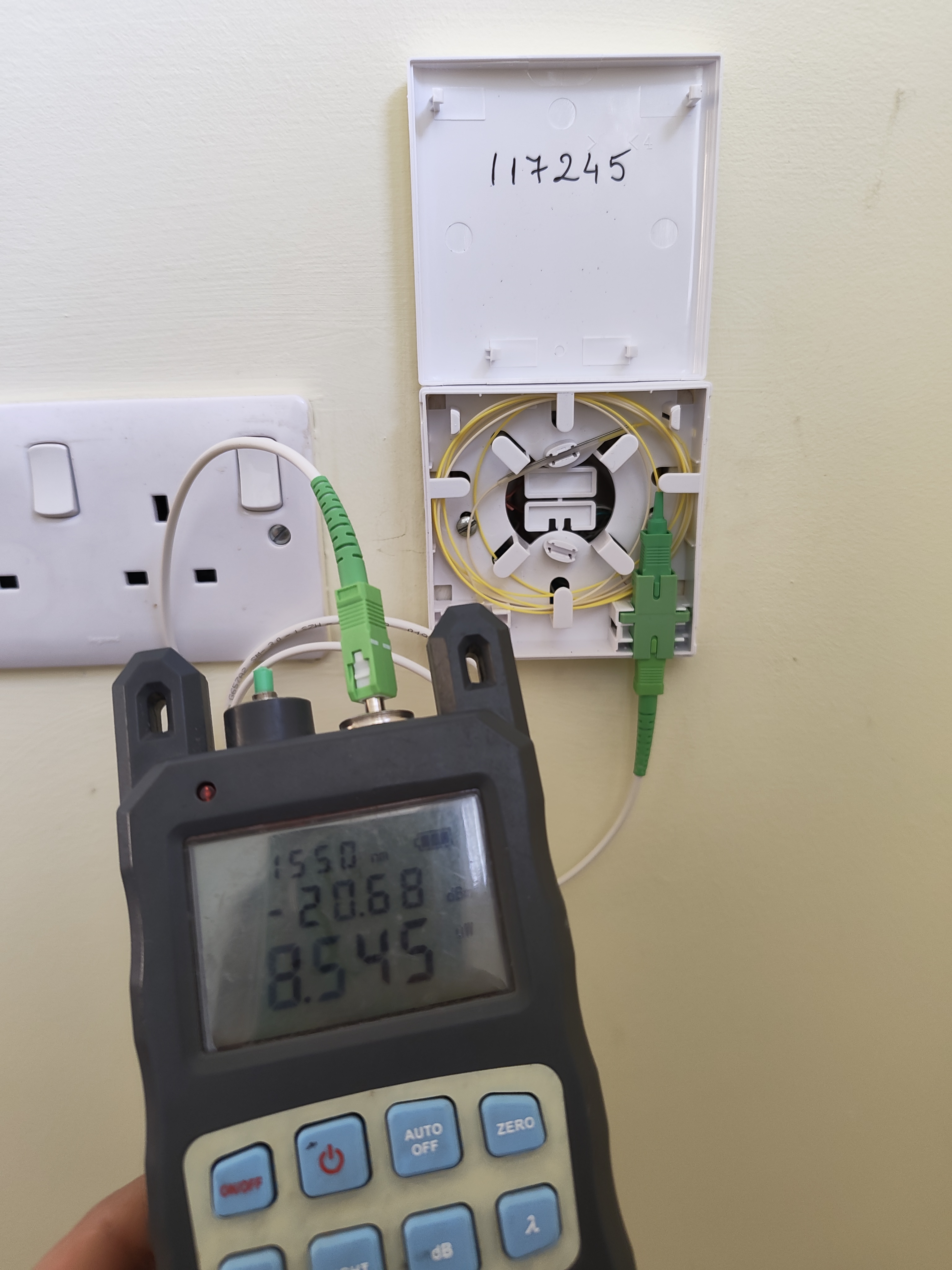
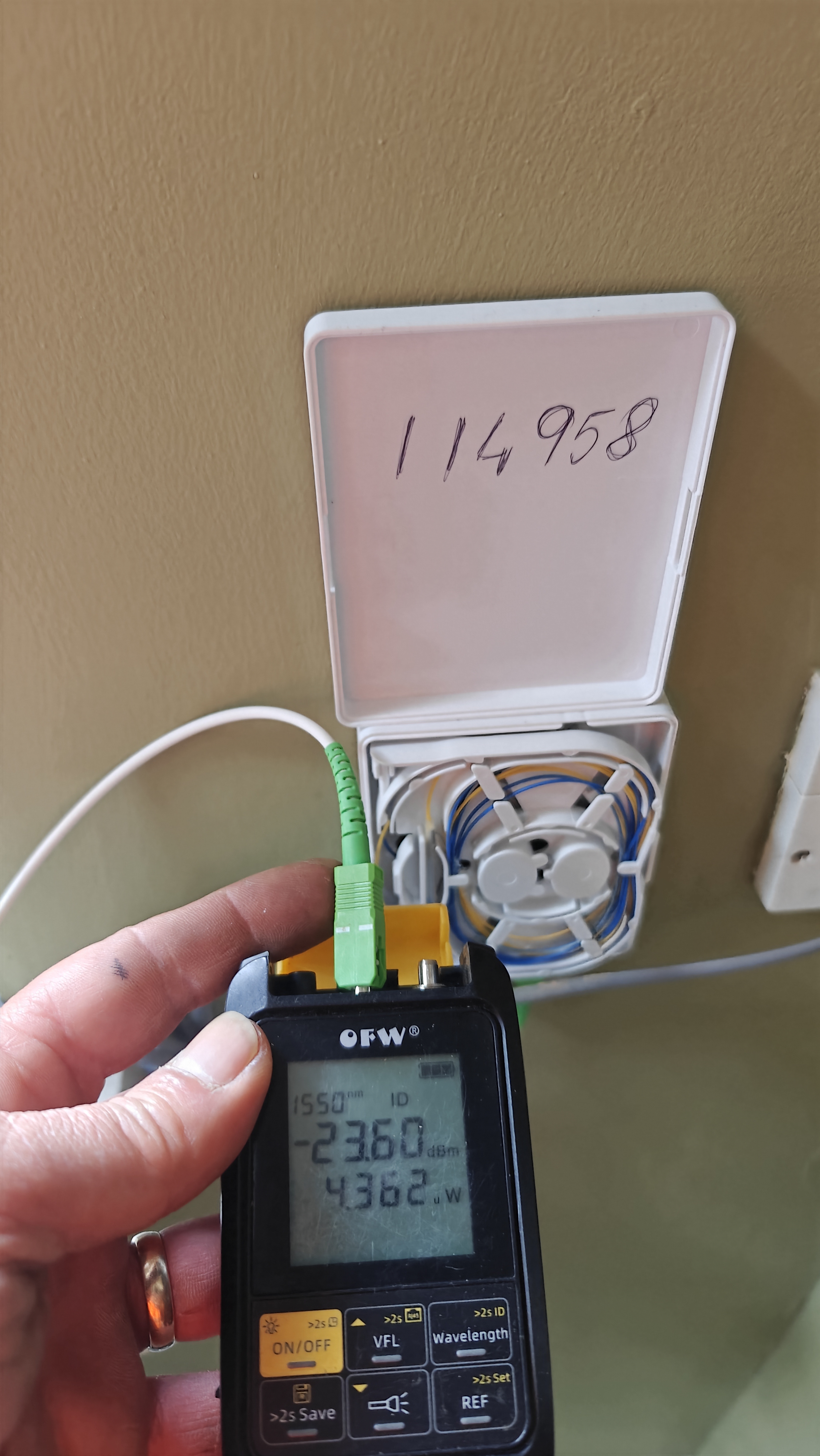
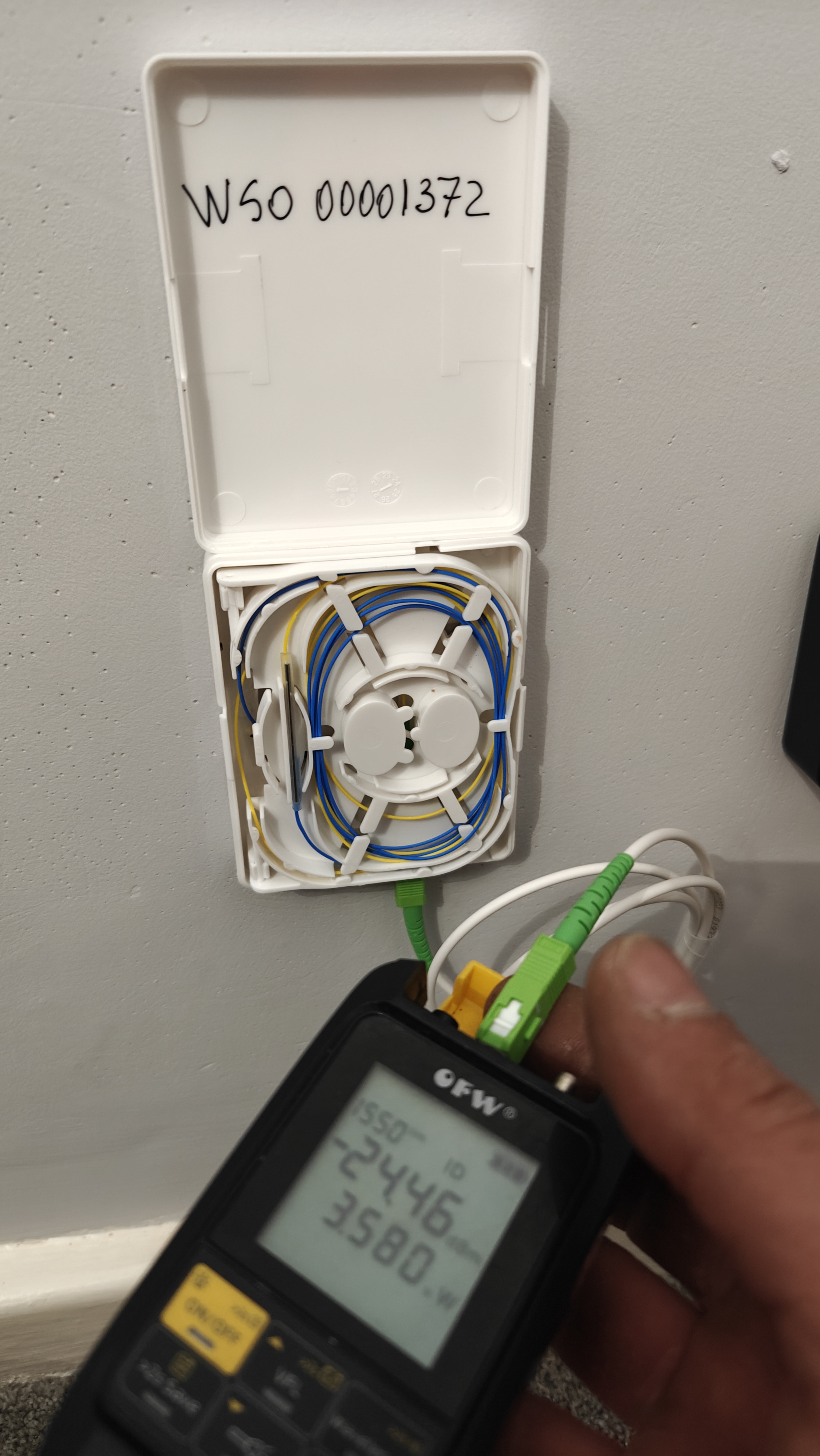
SPLICE at the rosseta - should not exceed 2db from what power reading you had at SB (Spliter Box)

PROVISION - take care when doing the provision, wait for the pages to load, depending on the signal might take a few seconds or more

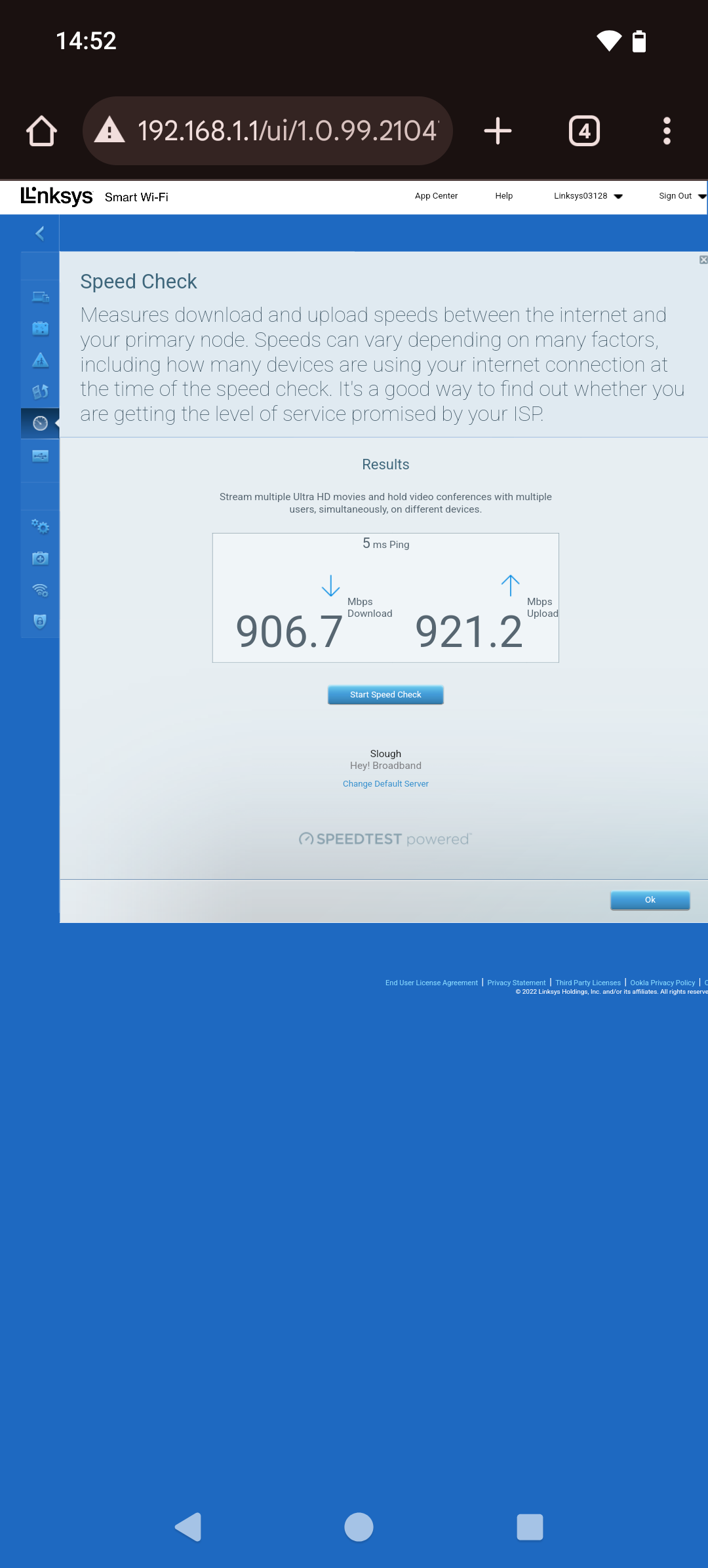
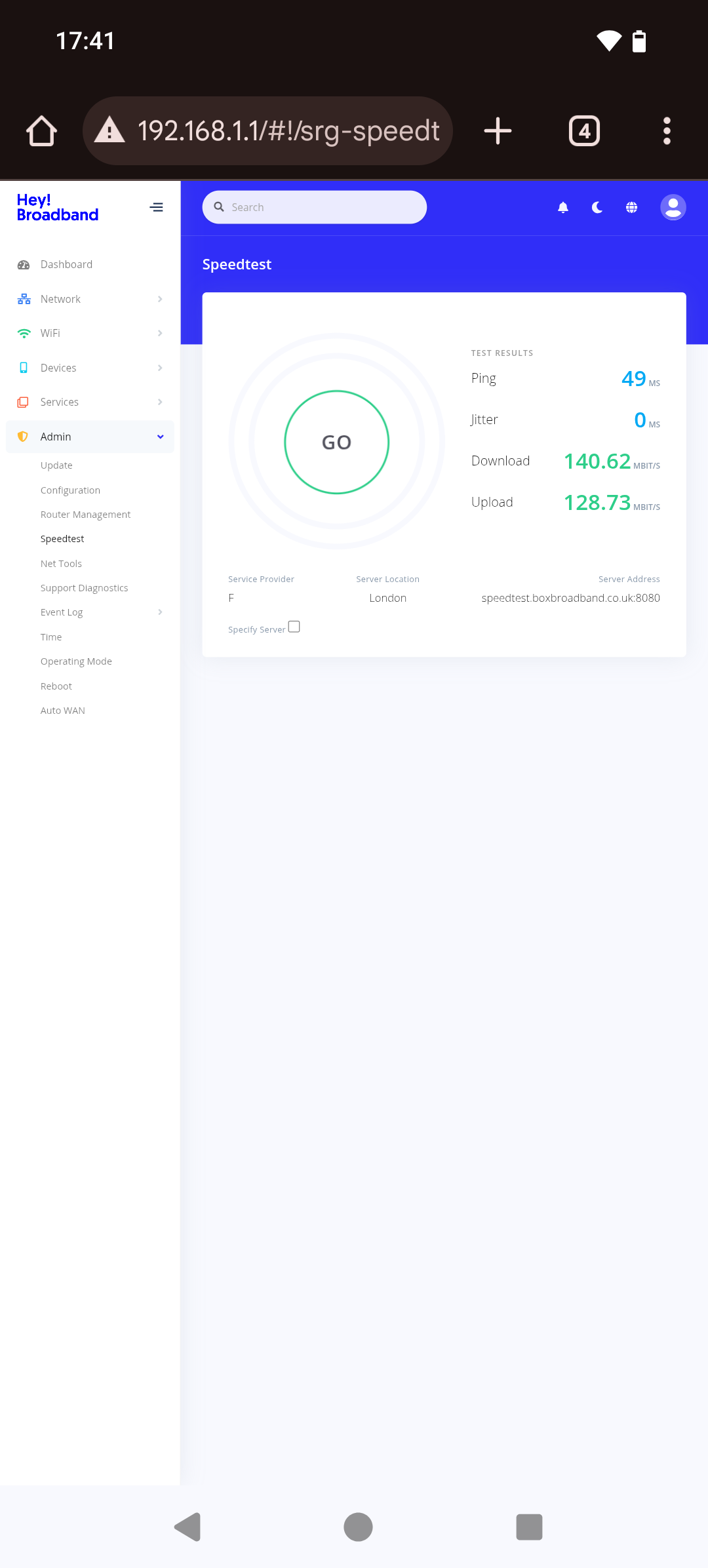
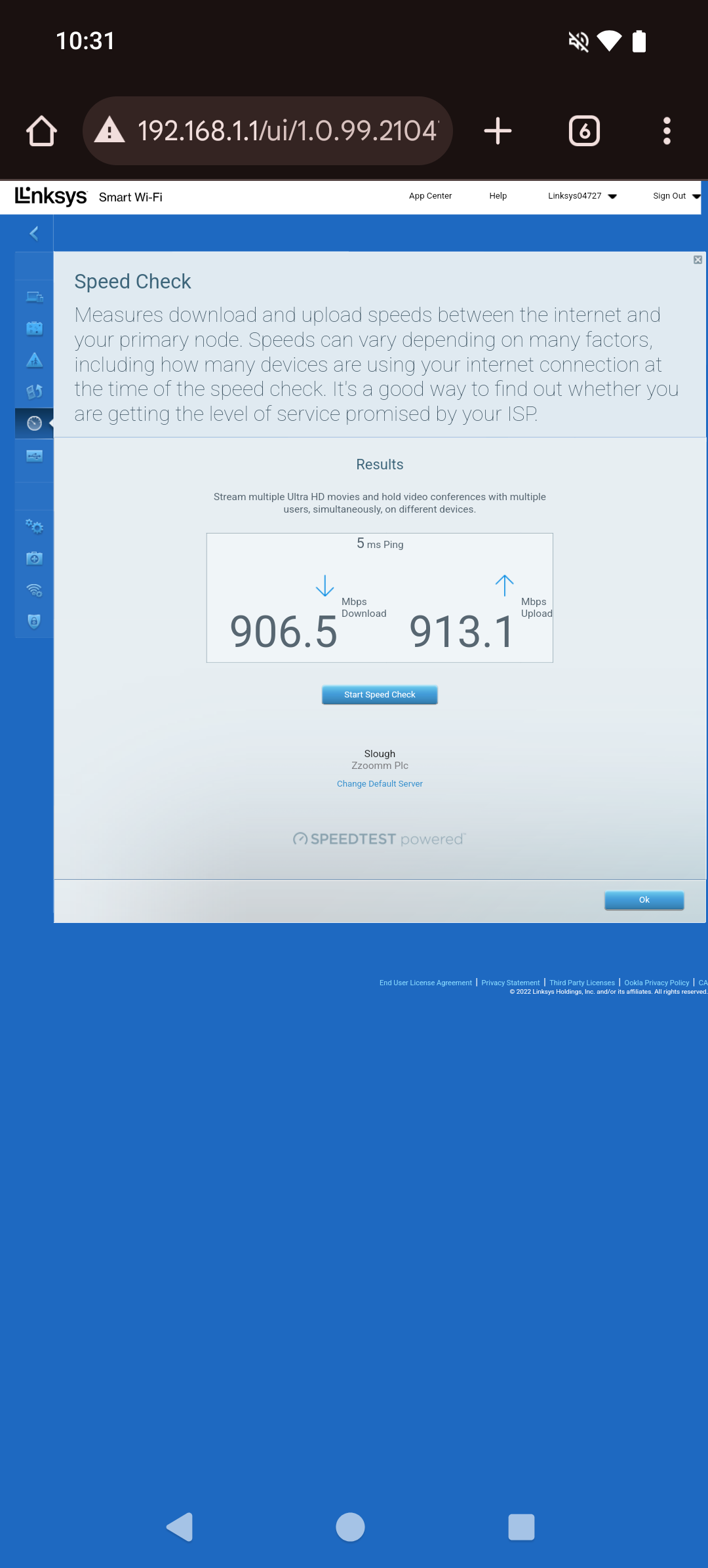
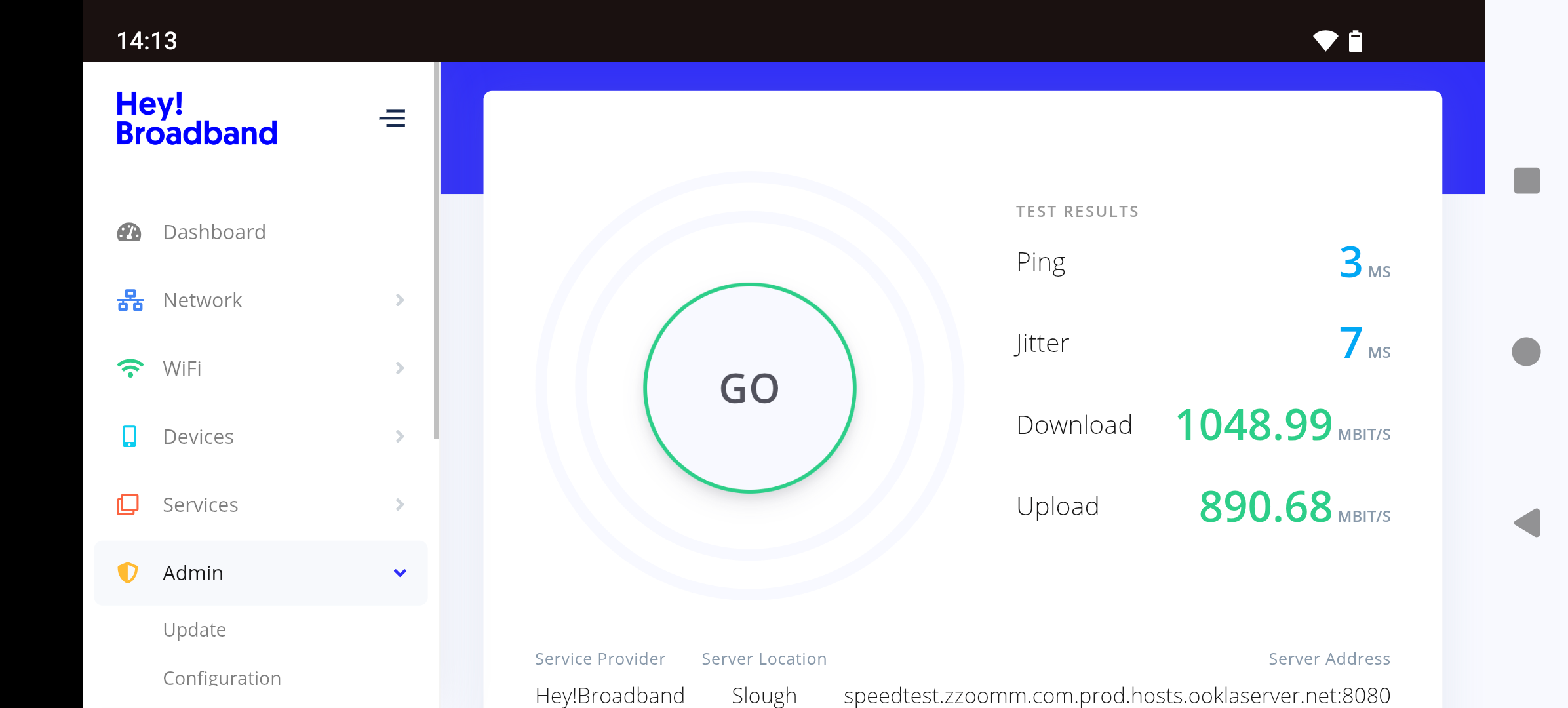
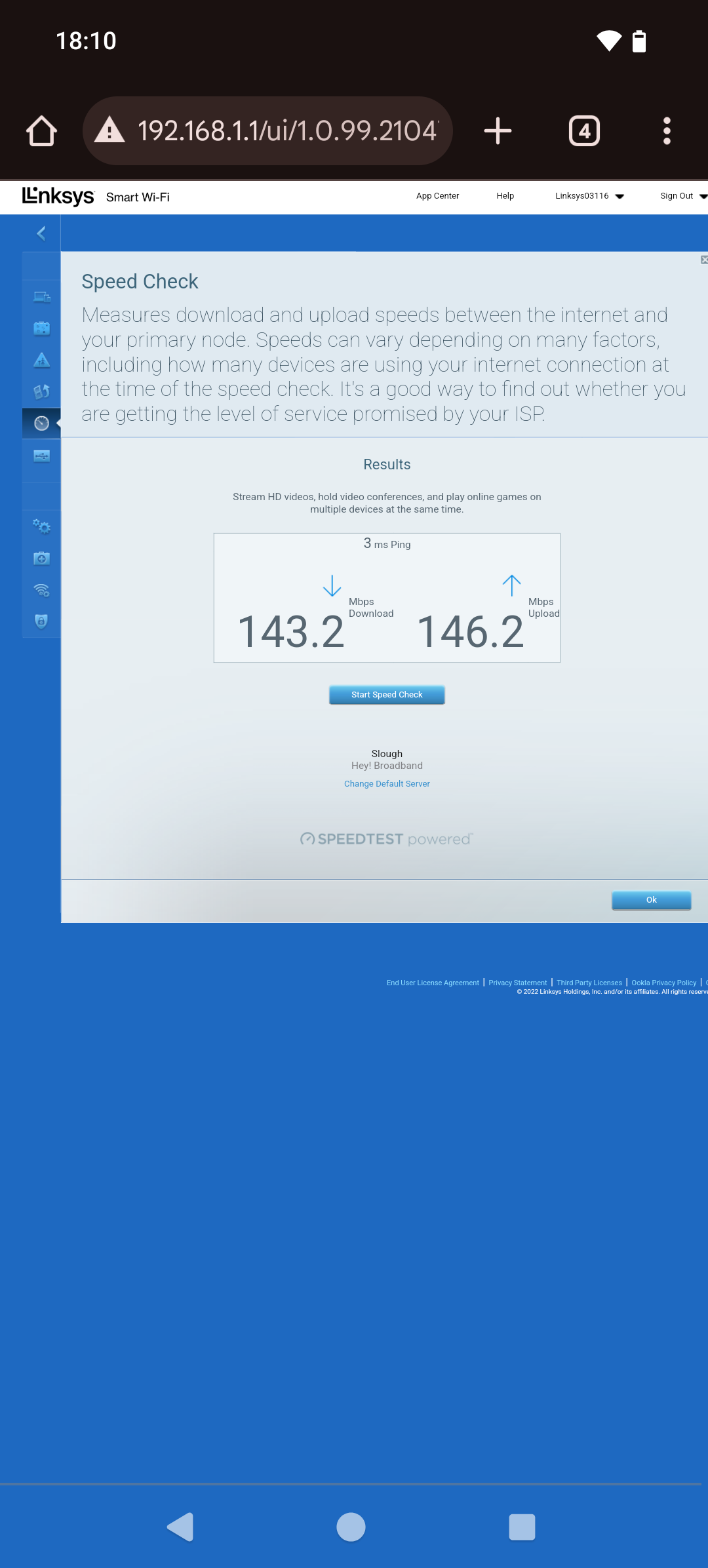
SPEED TEST - always on the router menu (no SpeedTest.net, or Fast.com), 192.168.1.1

SIGNATURE - get customer's signature and brief comments on your work

SAFETY CUTLTURE - upload all your required photos and download the complete report. Do this while connected to customer's new WiFi to avoid missing photo from the report.

FibreOS - upload photos of speed test, power reading in Service section. Report upload in Documents section. Fill in the Comments

Overhead Installation Checklist

Pre-Installation
Steps Description Photos Required
Preparation Confirm appointment details with the customer. N/A
Customer Confirmation Confirm appointment with the customer, and verify age and installation process awareness. N/A
Safety and Equipment Check Complete risk assessment and confirm all tools and equipment are ready. N/A
Customer Sign-Off Introduce yourself, show ID, confirm installation plan, and obtain router placement approval. N/A
Overhead Installation
Steps Description Photos Required
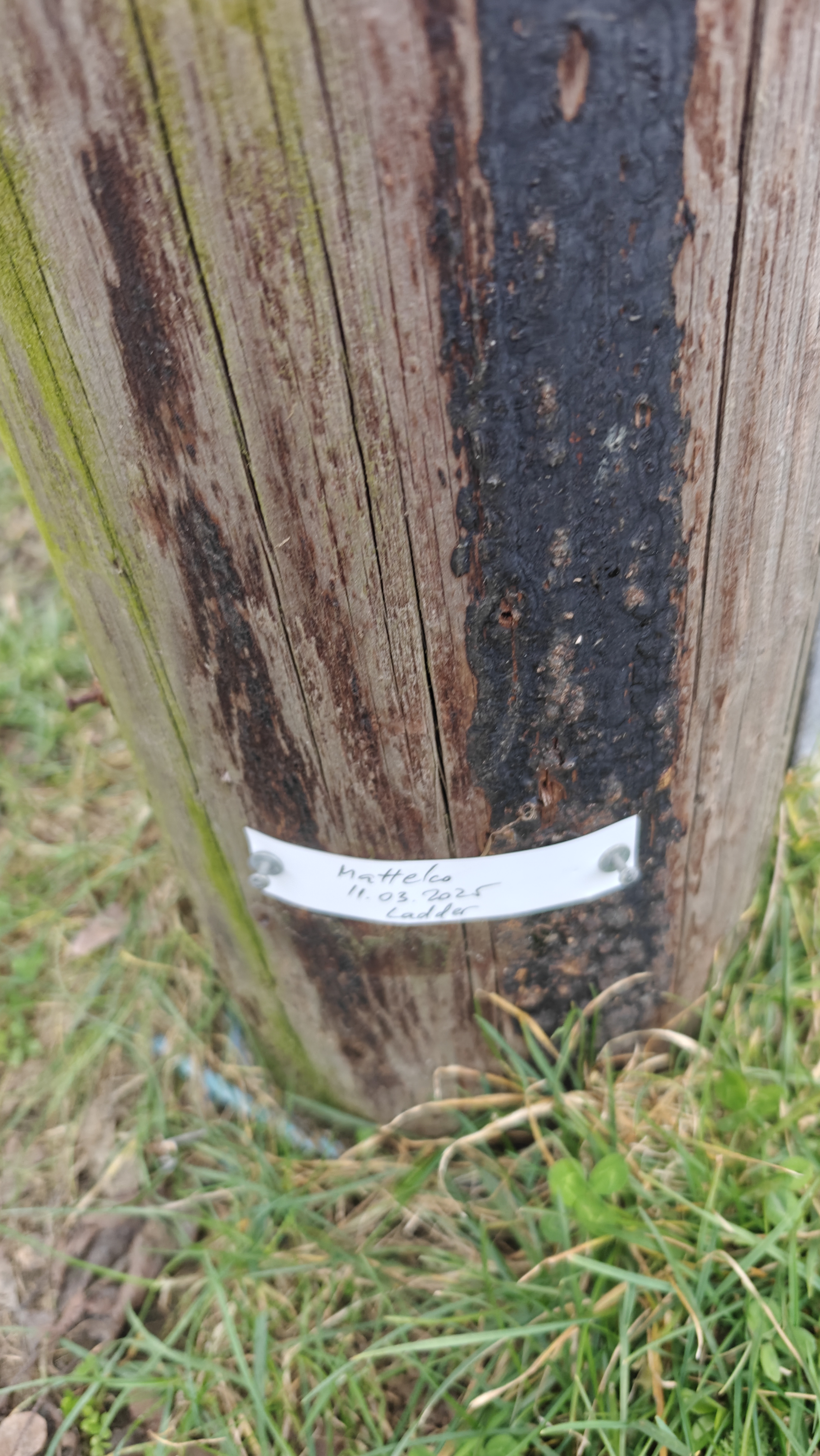
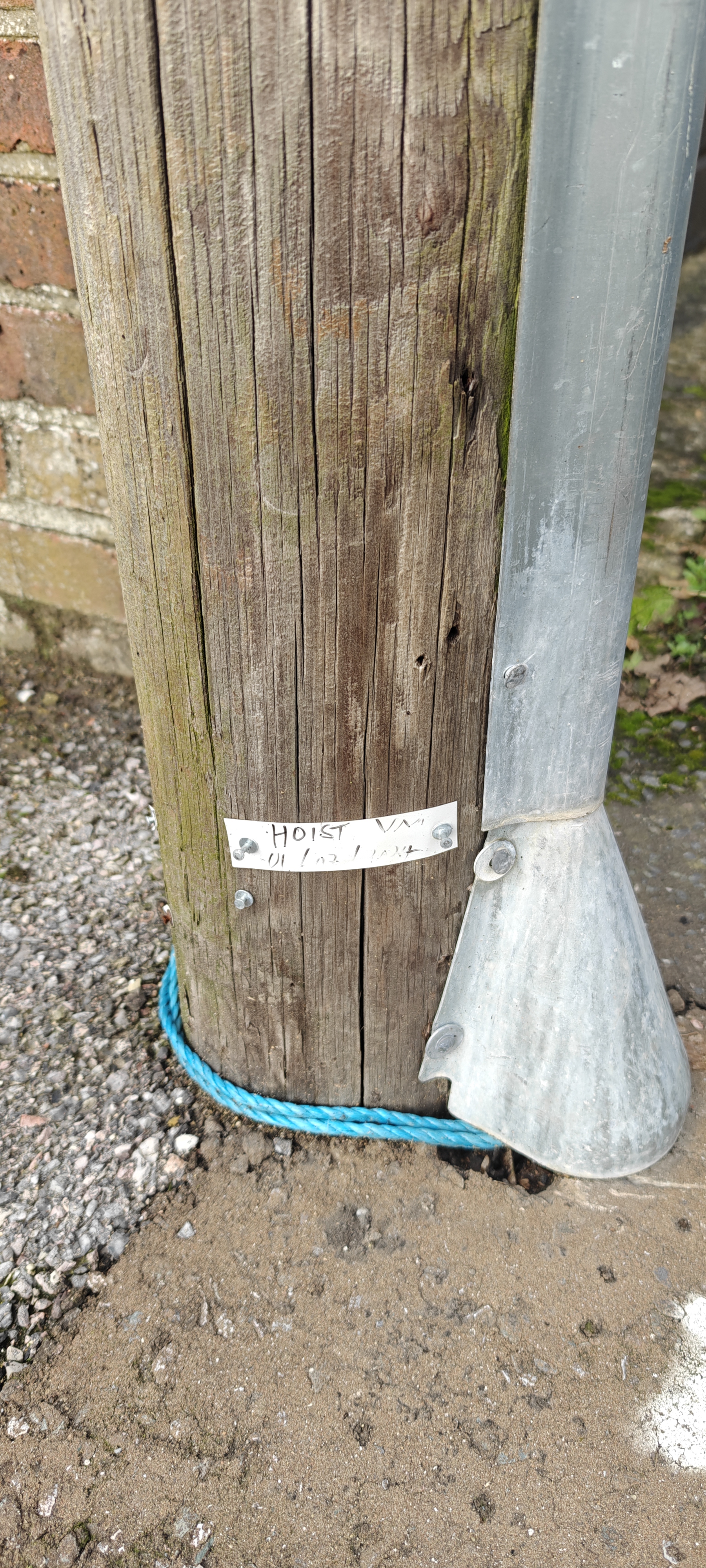
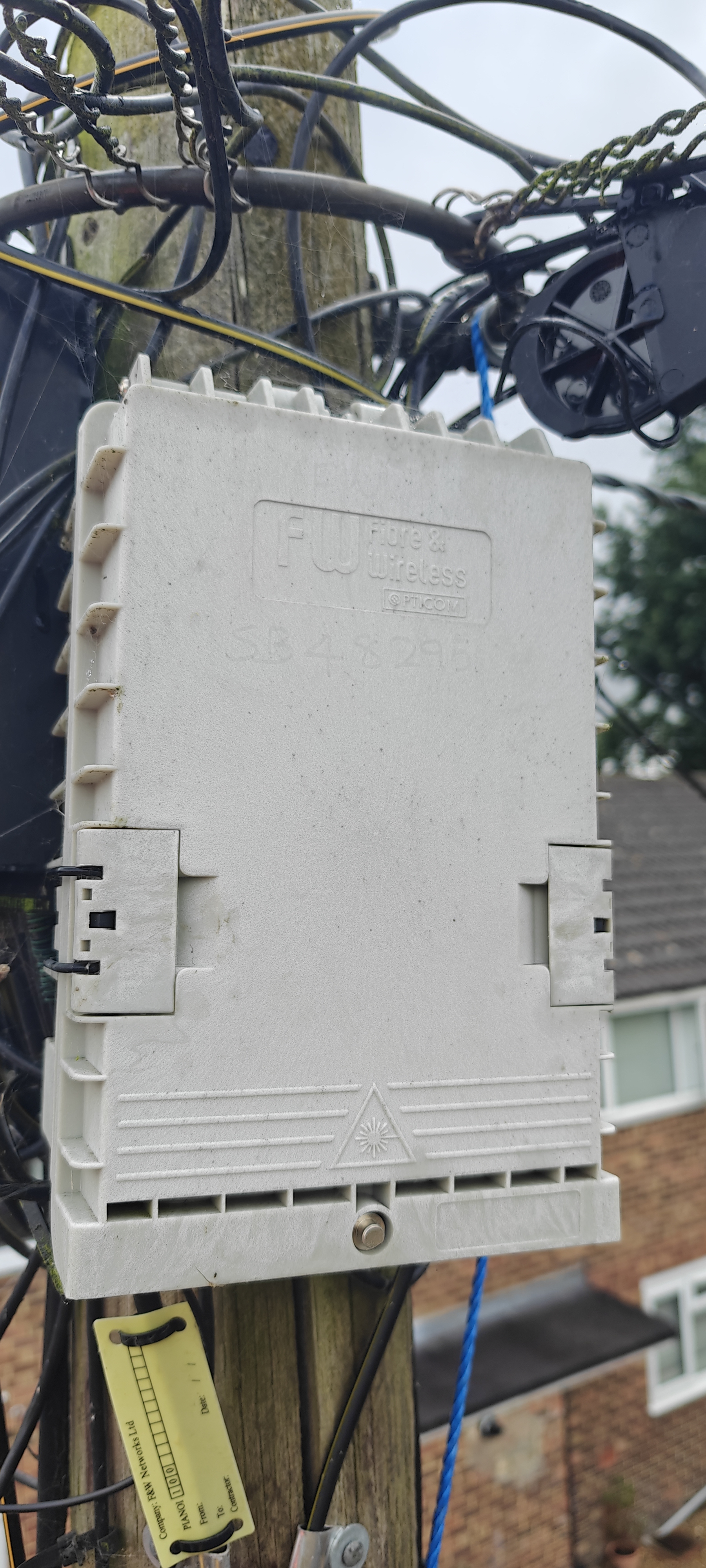
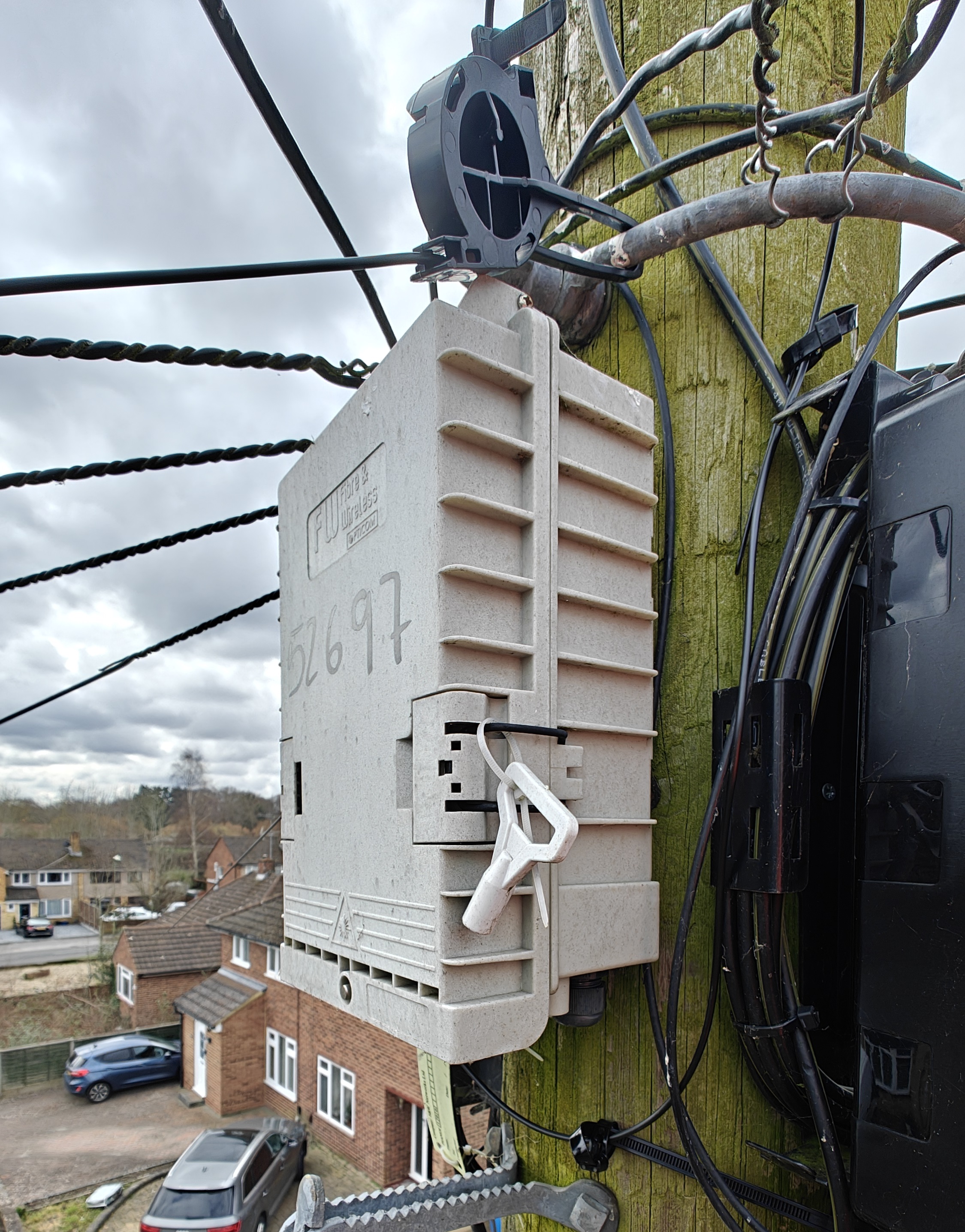
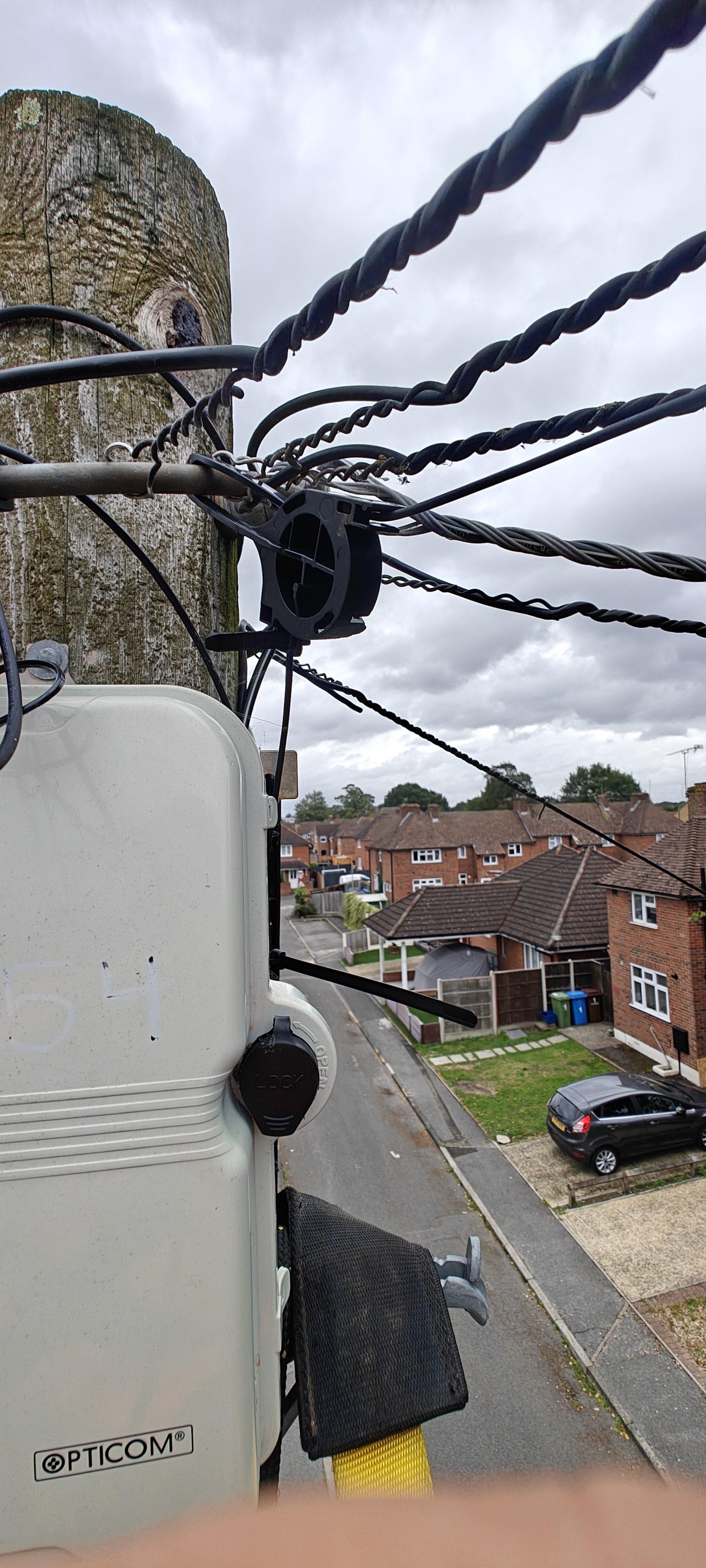
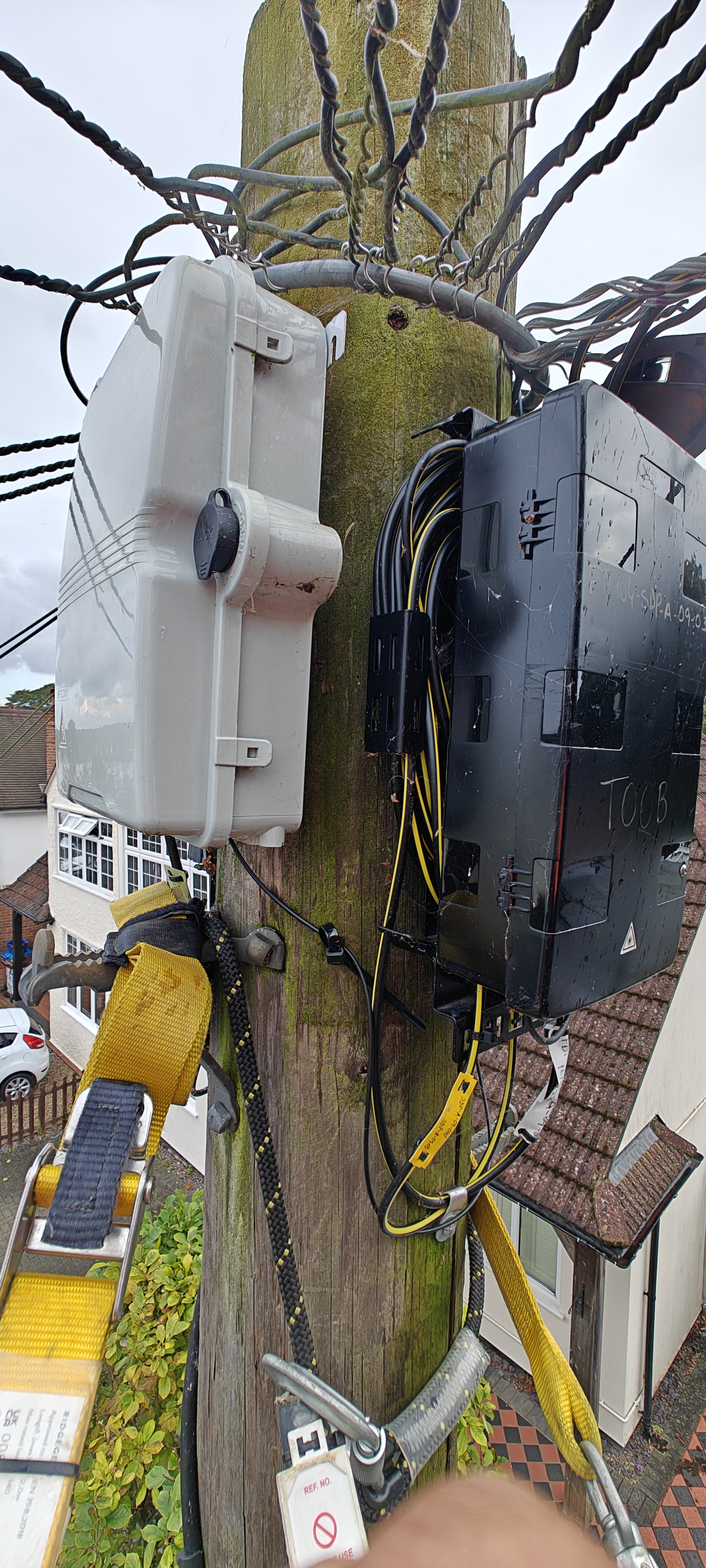
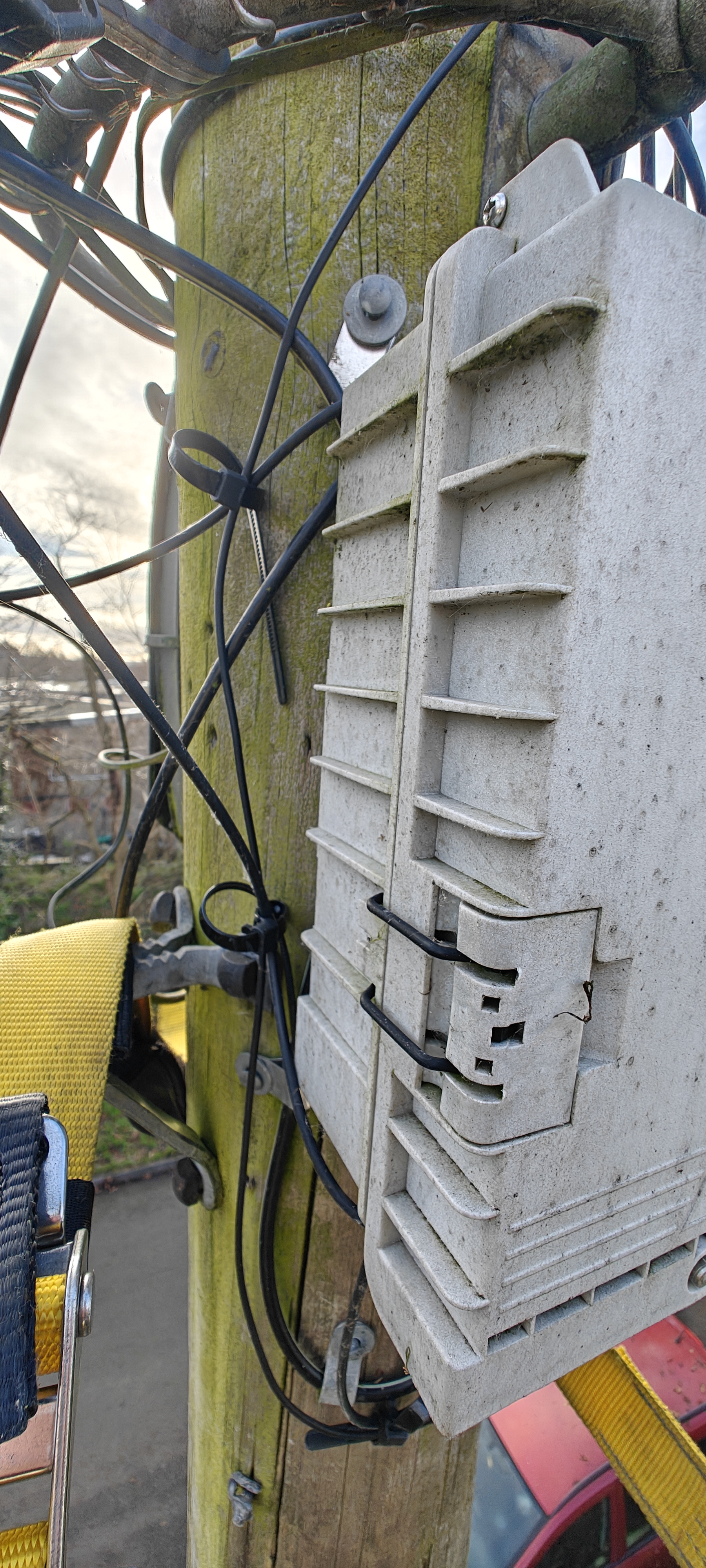
Pole Work Pre-climb safety check done? Take photos of pole labels and pre-climb label. Pre-climb labels, DP number, Splitter Box before
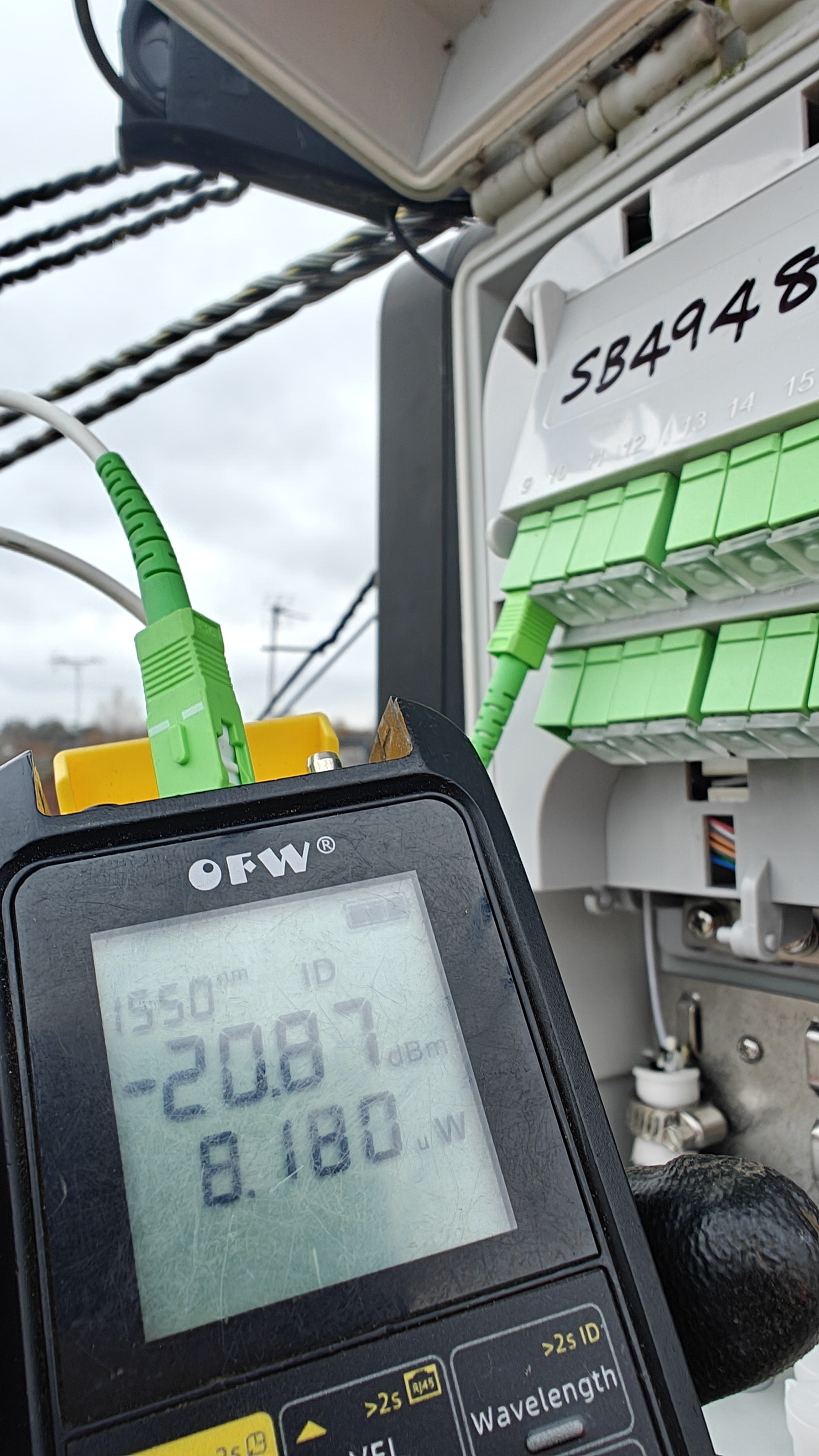
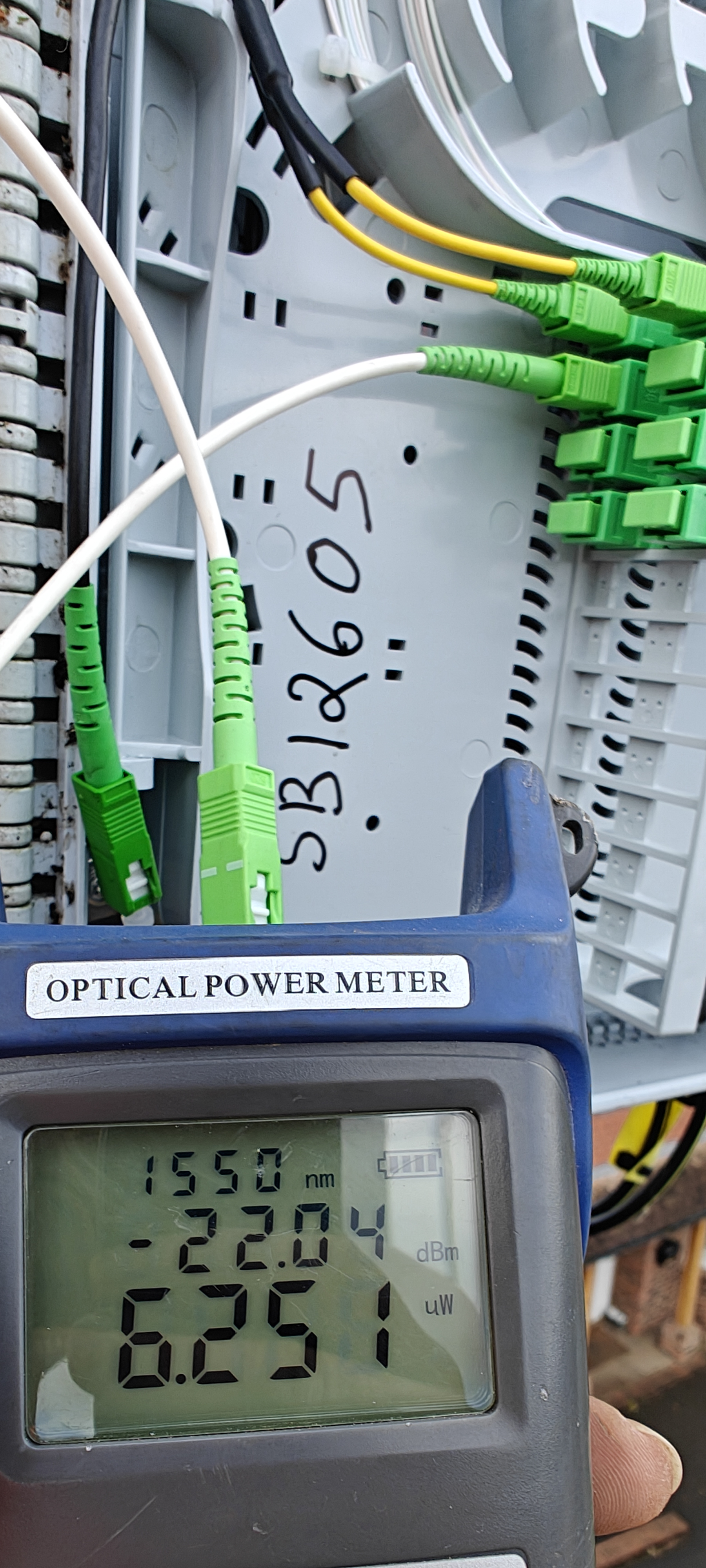
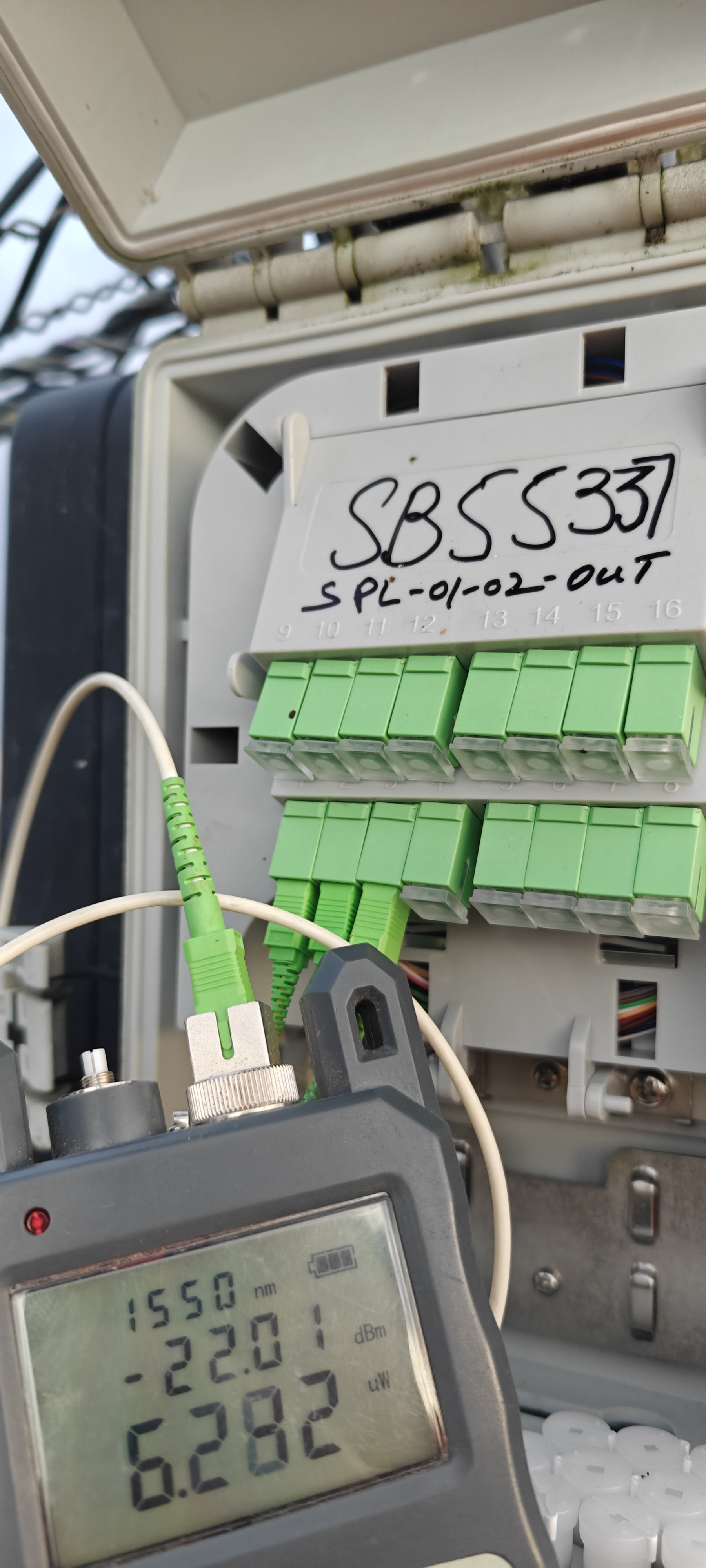
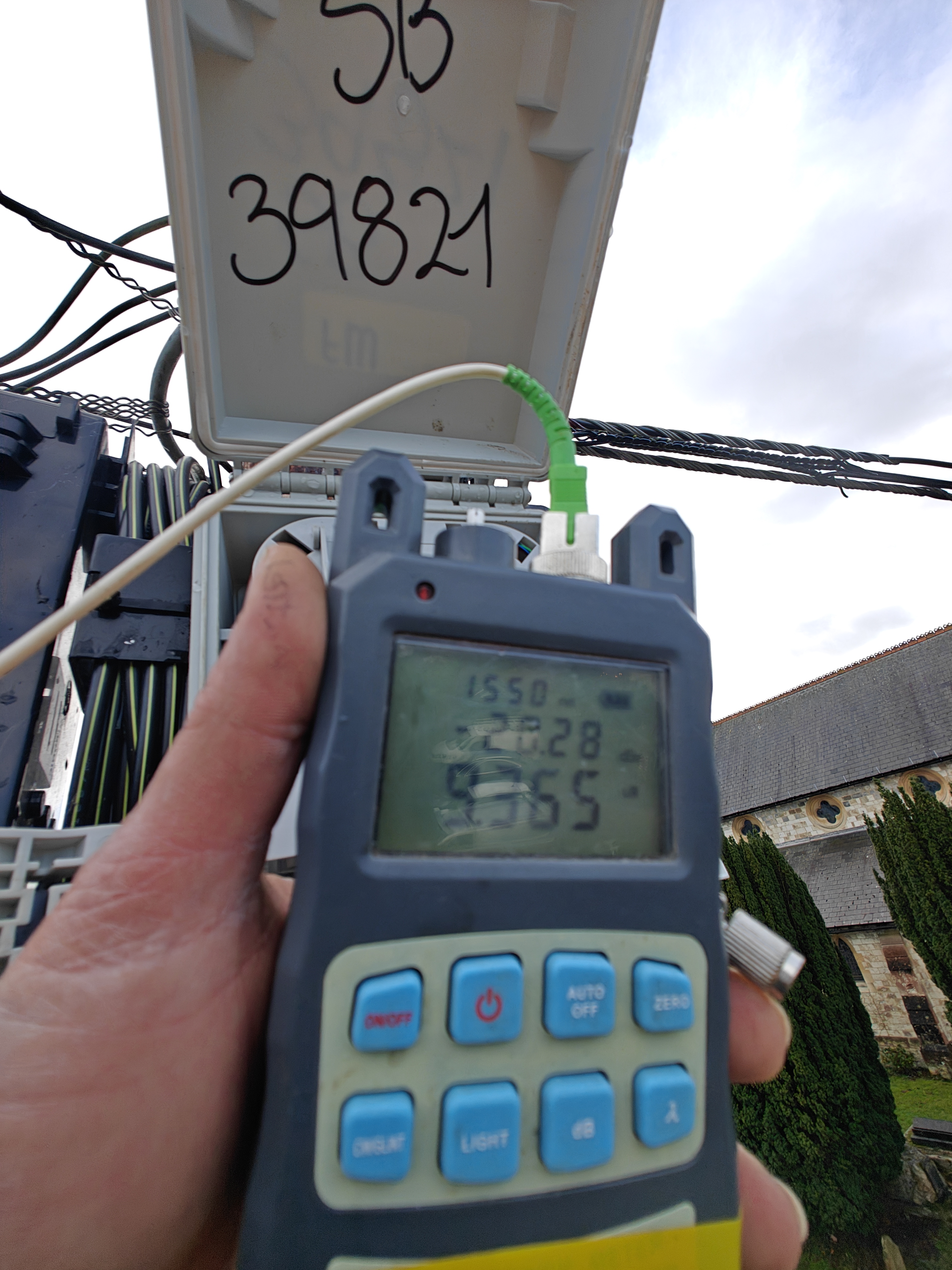
Power Meter Test Show Splitter Box ID and perform power test. Power meter reading showing Splitter Box ID.
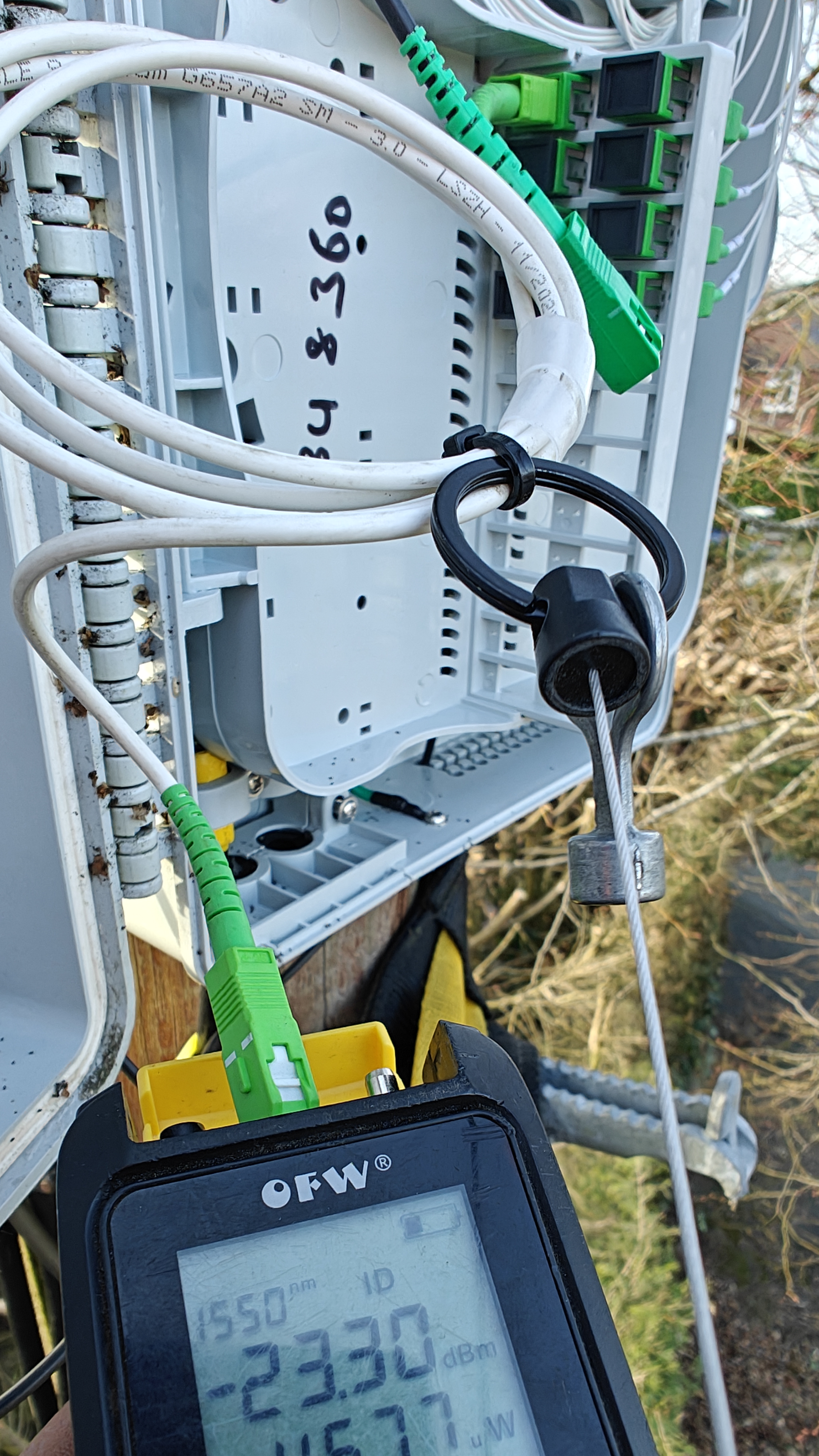
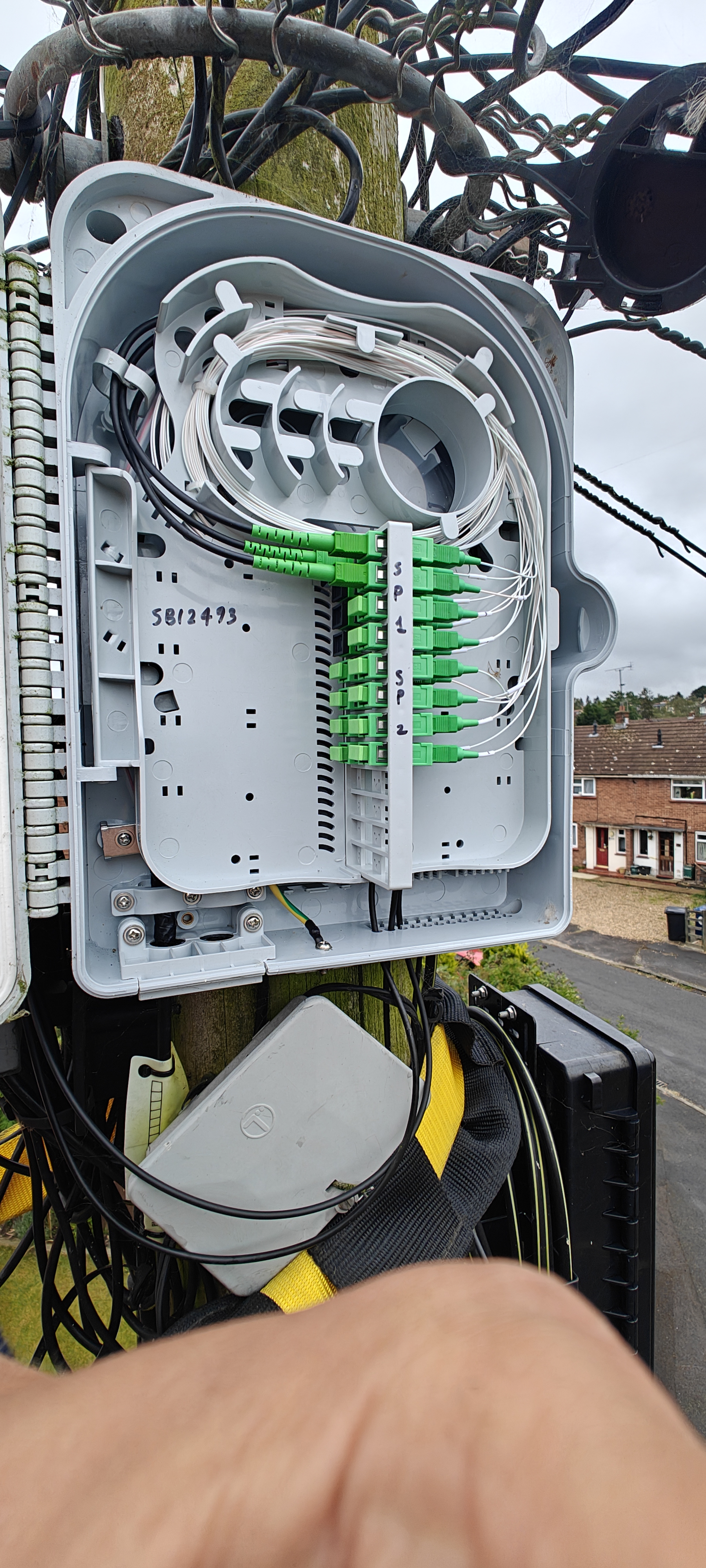
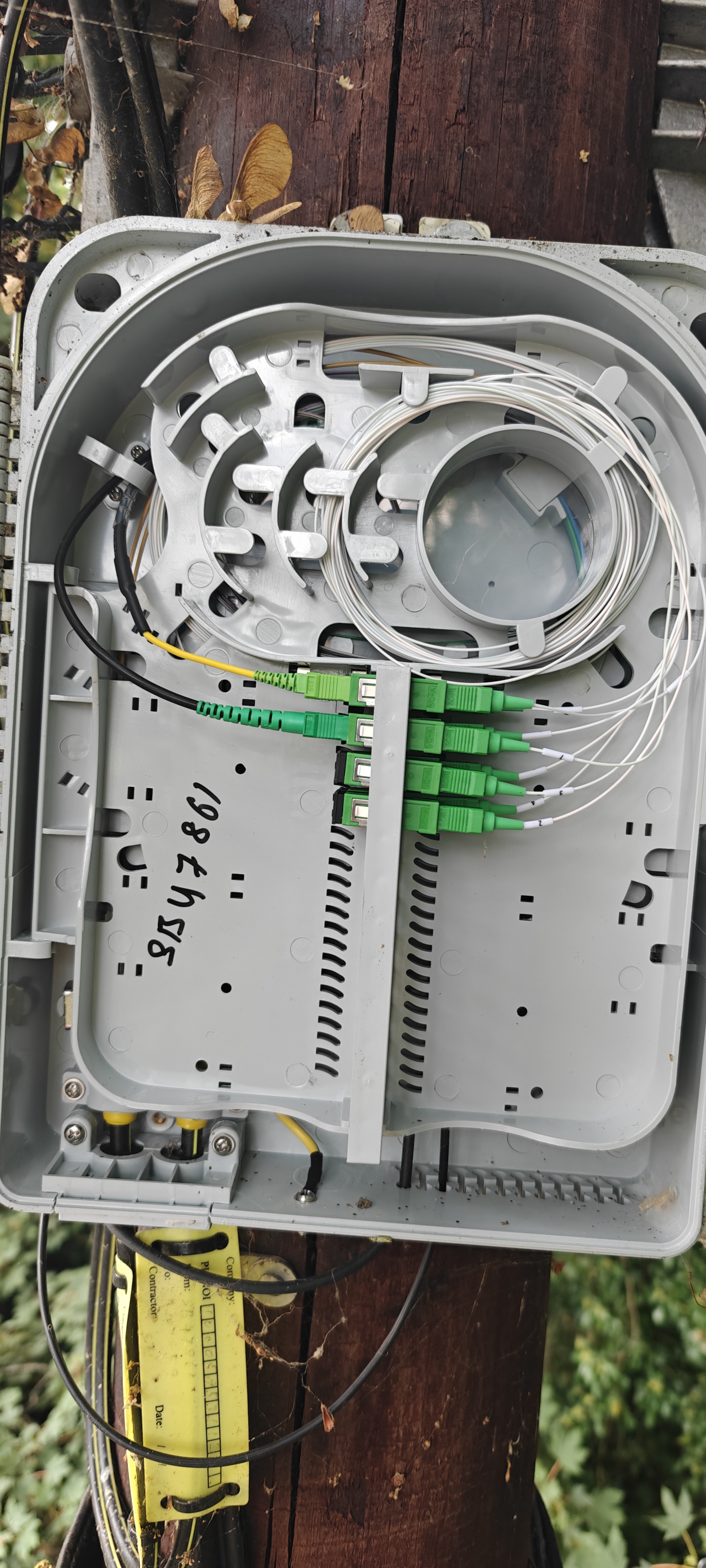
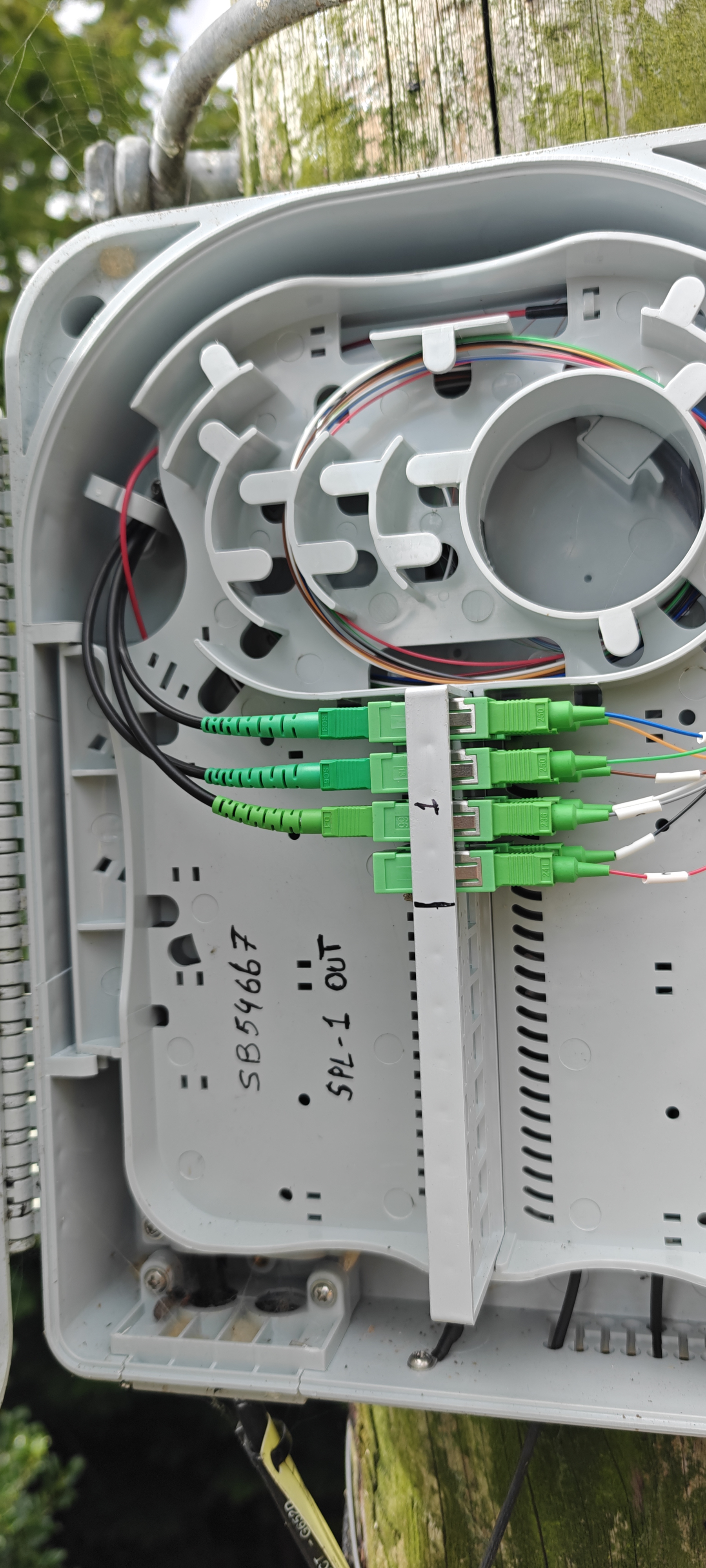
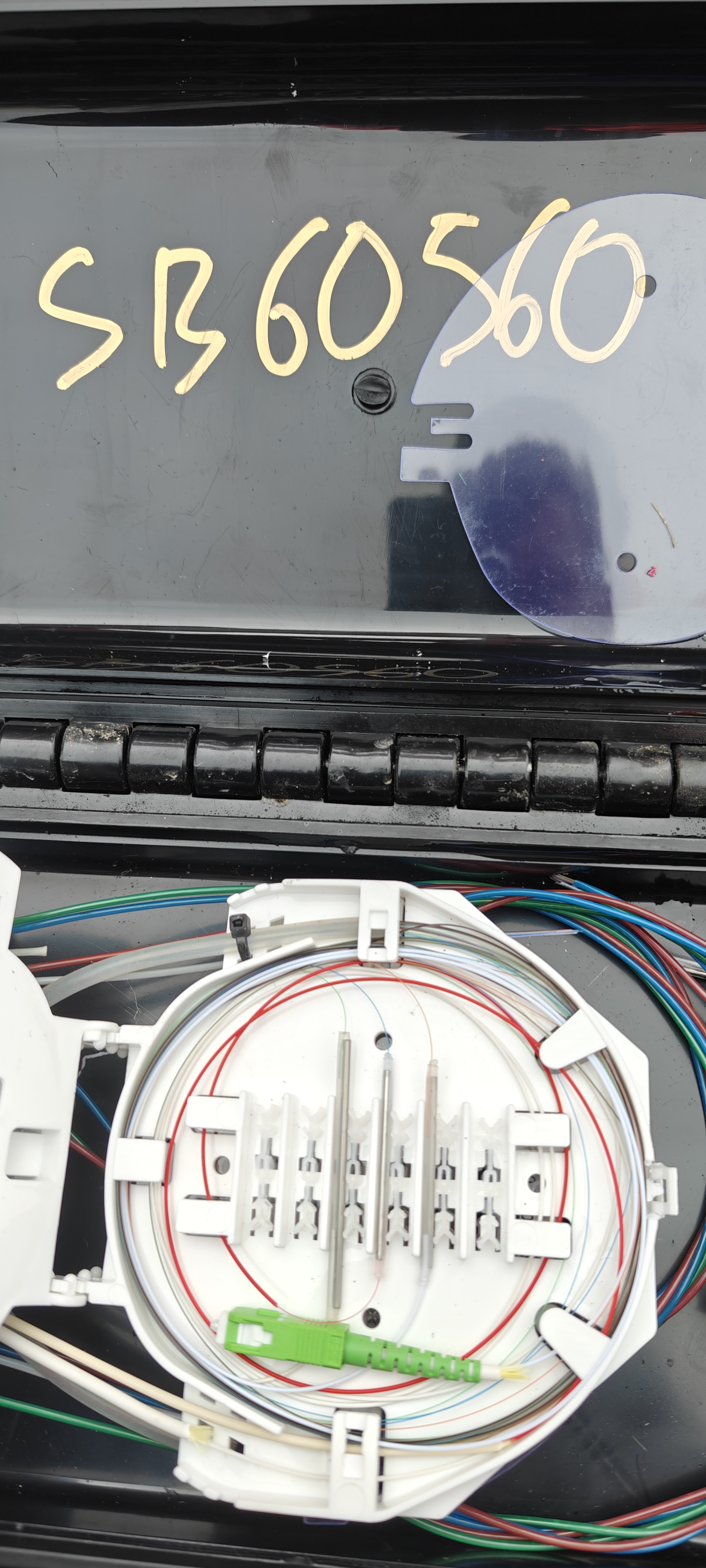
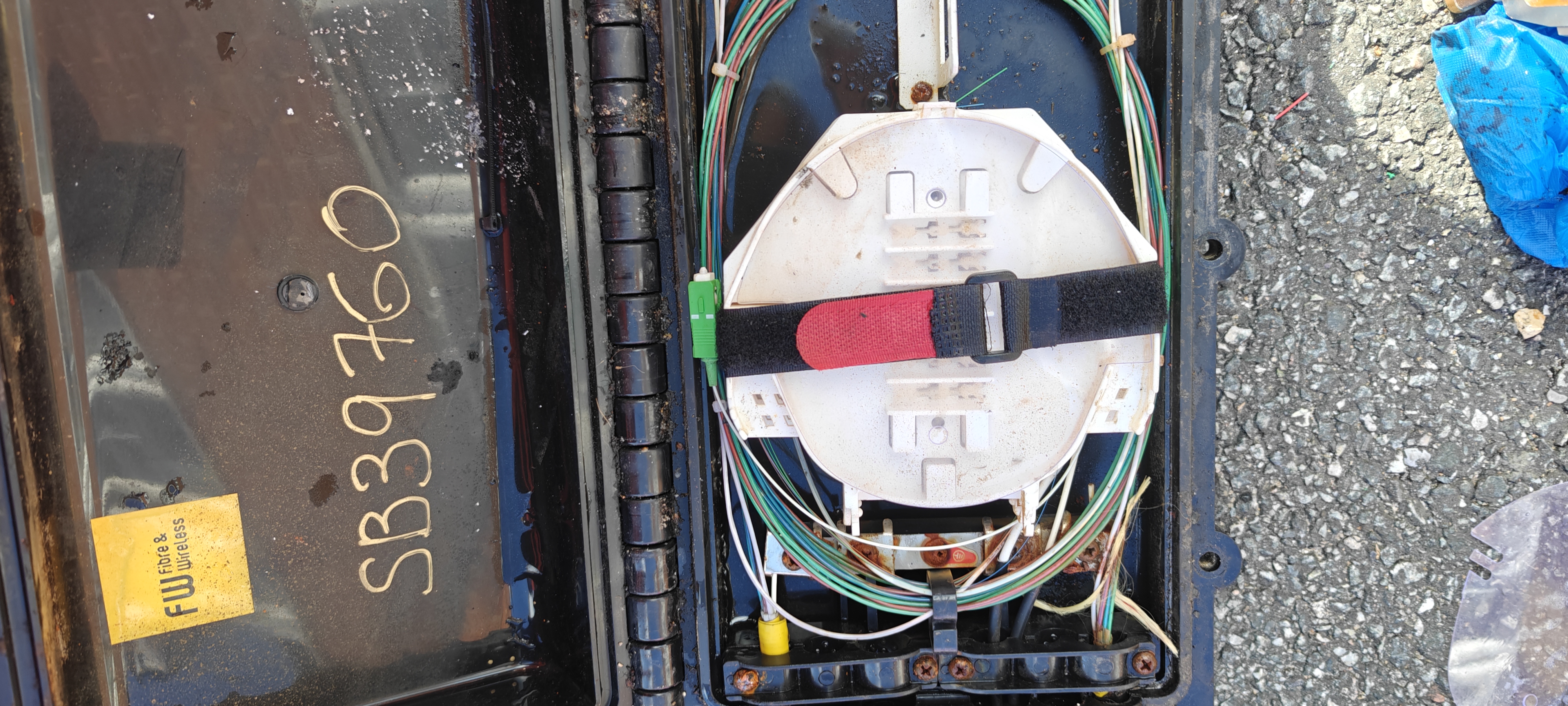
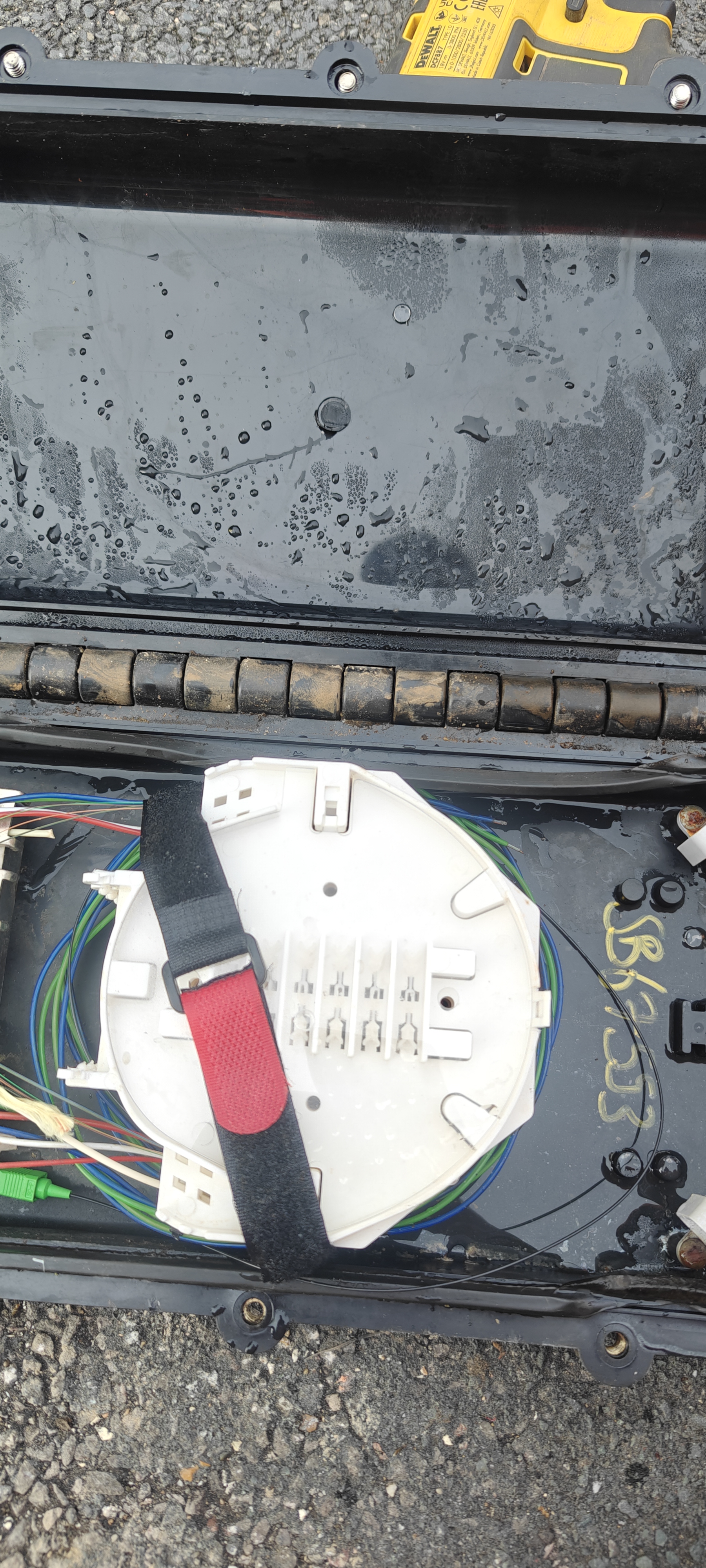
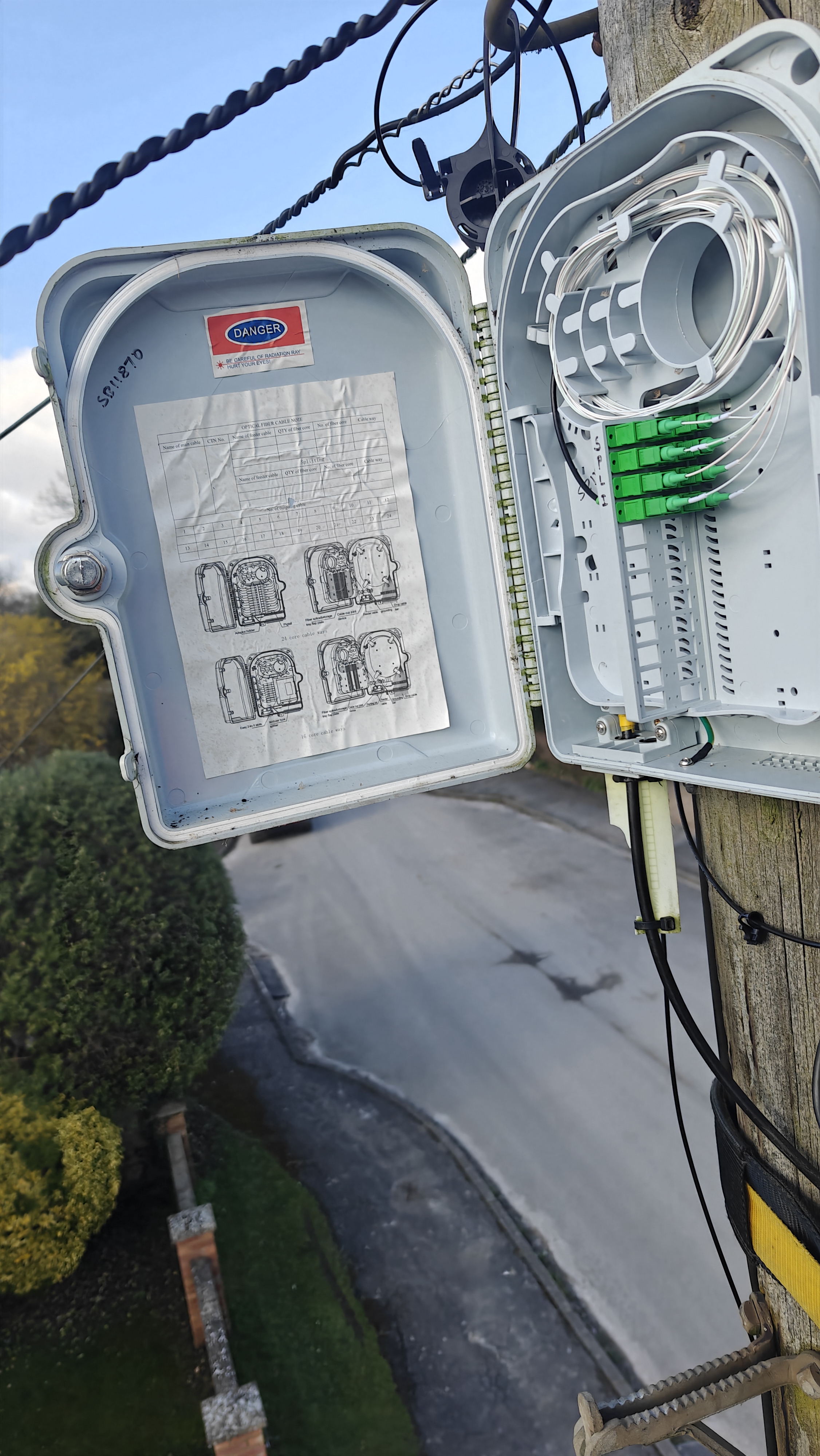
Open Splitter Box Show box ID and Customer Service Cable installed and secured. Open Splitter Box, cables secured.
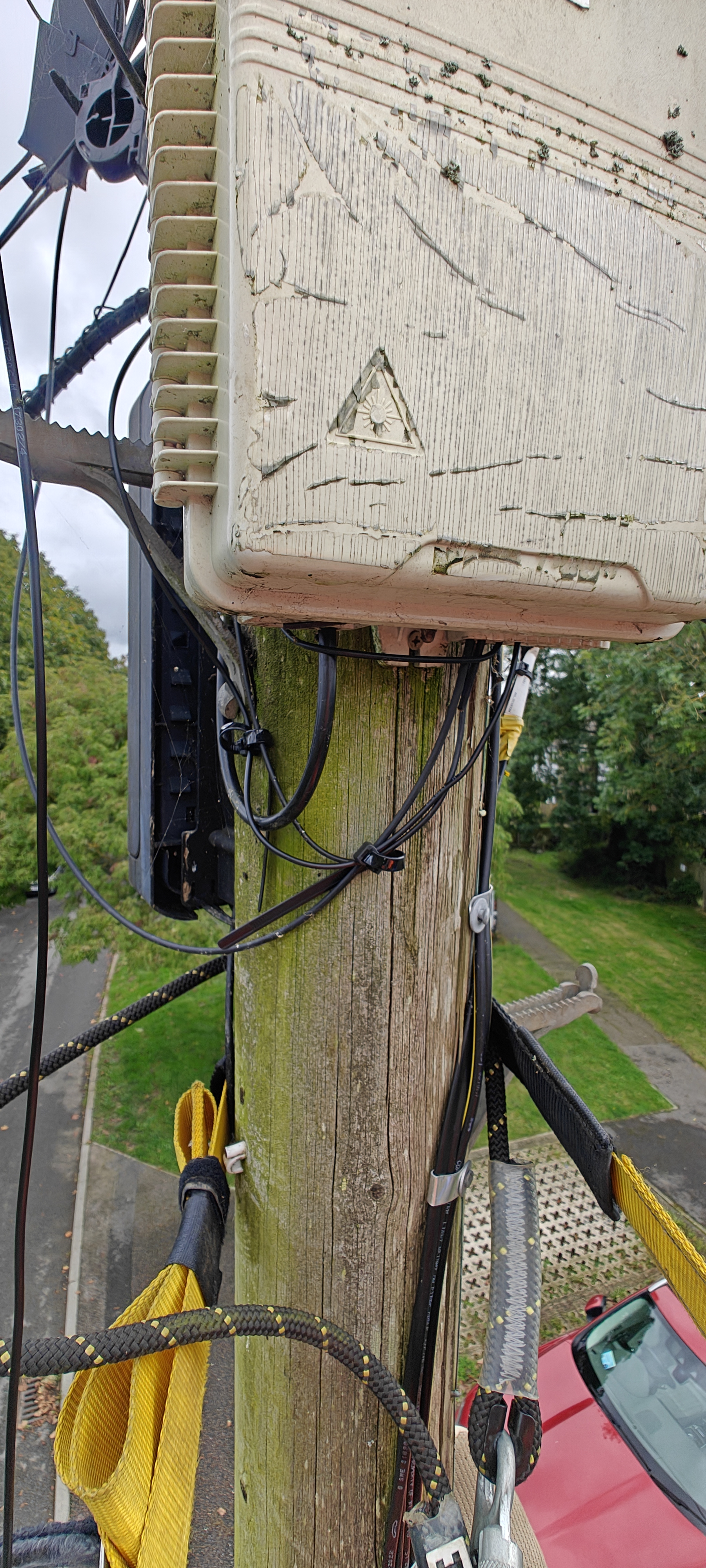
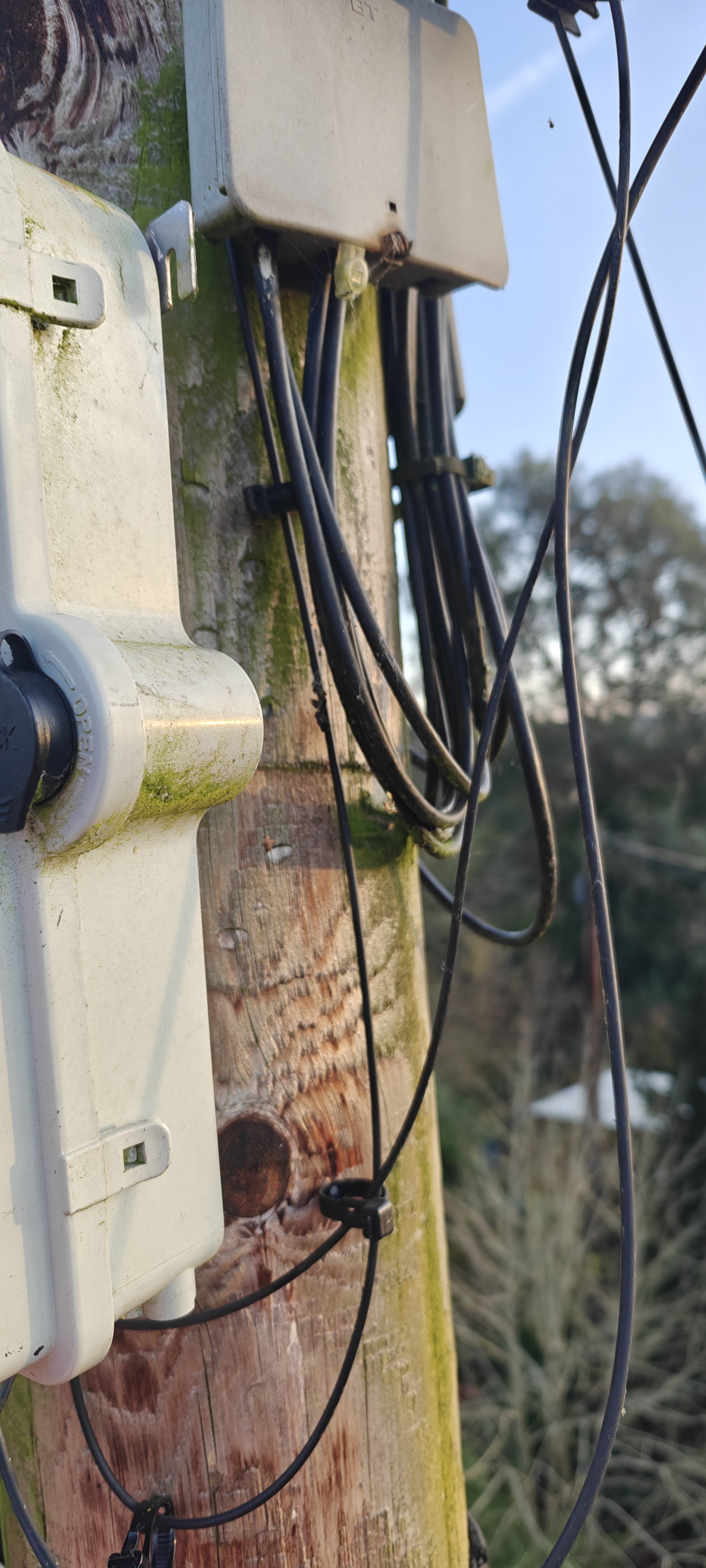
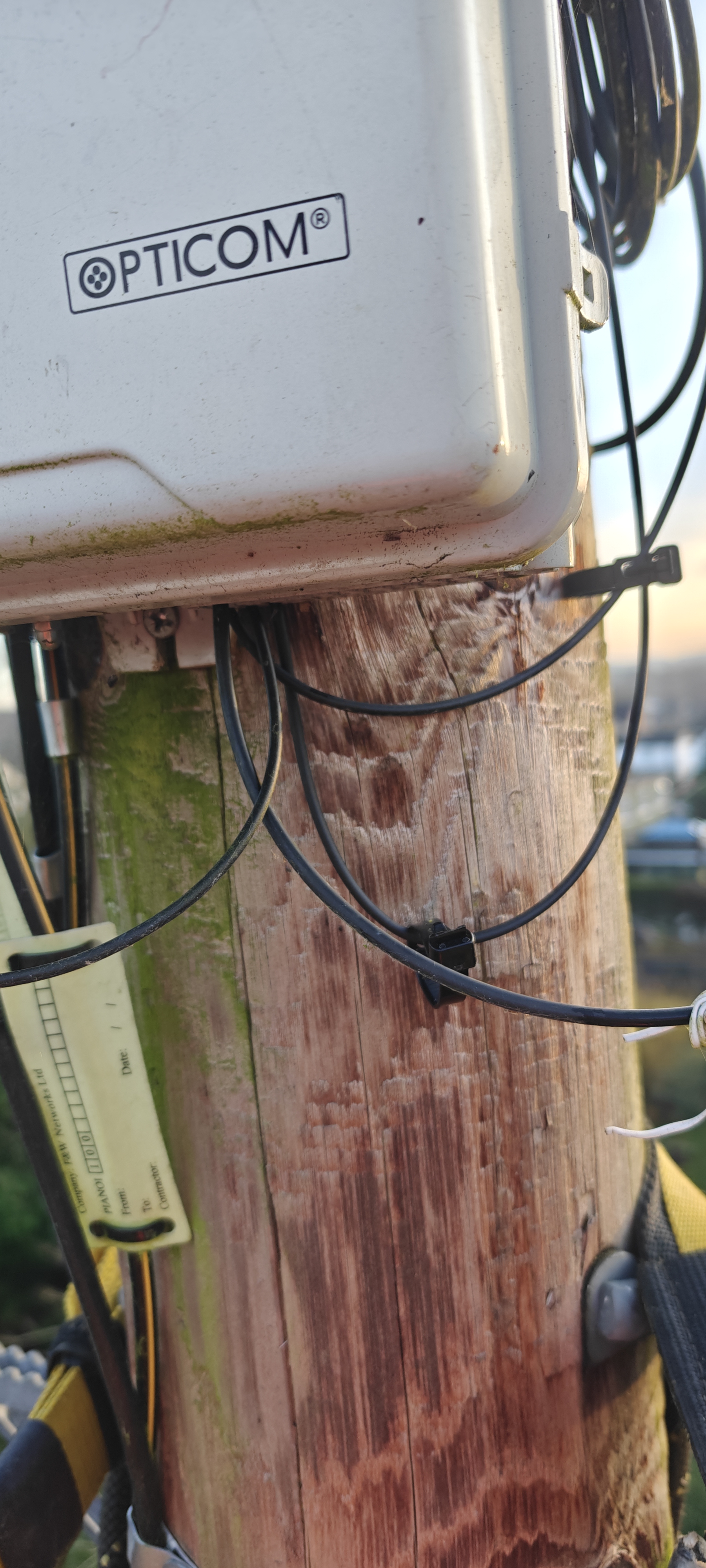
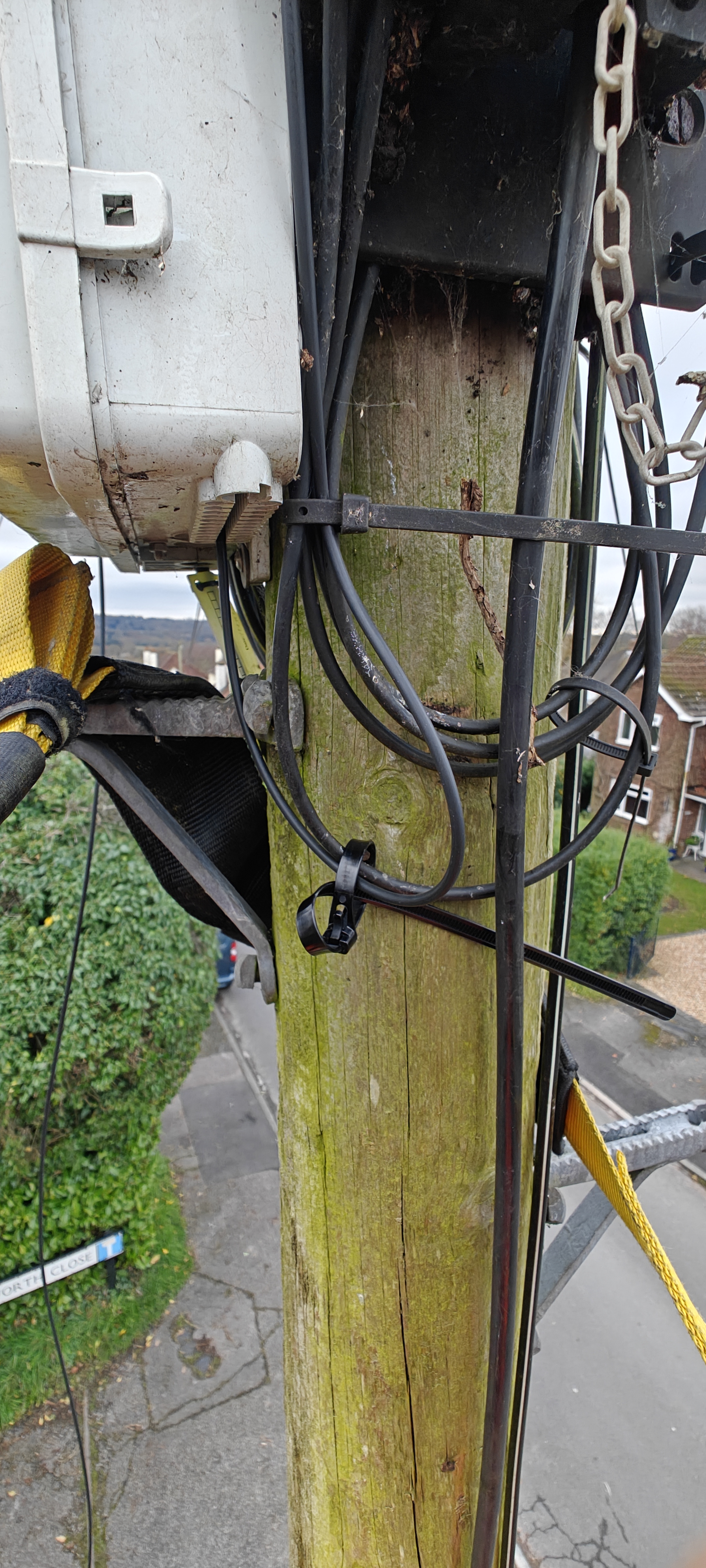
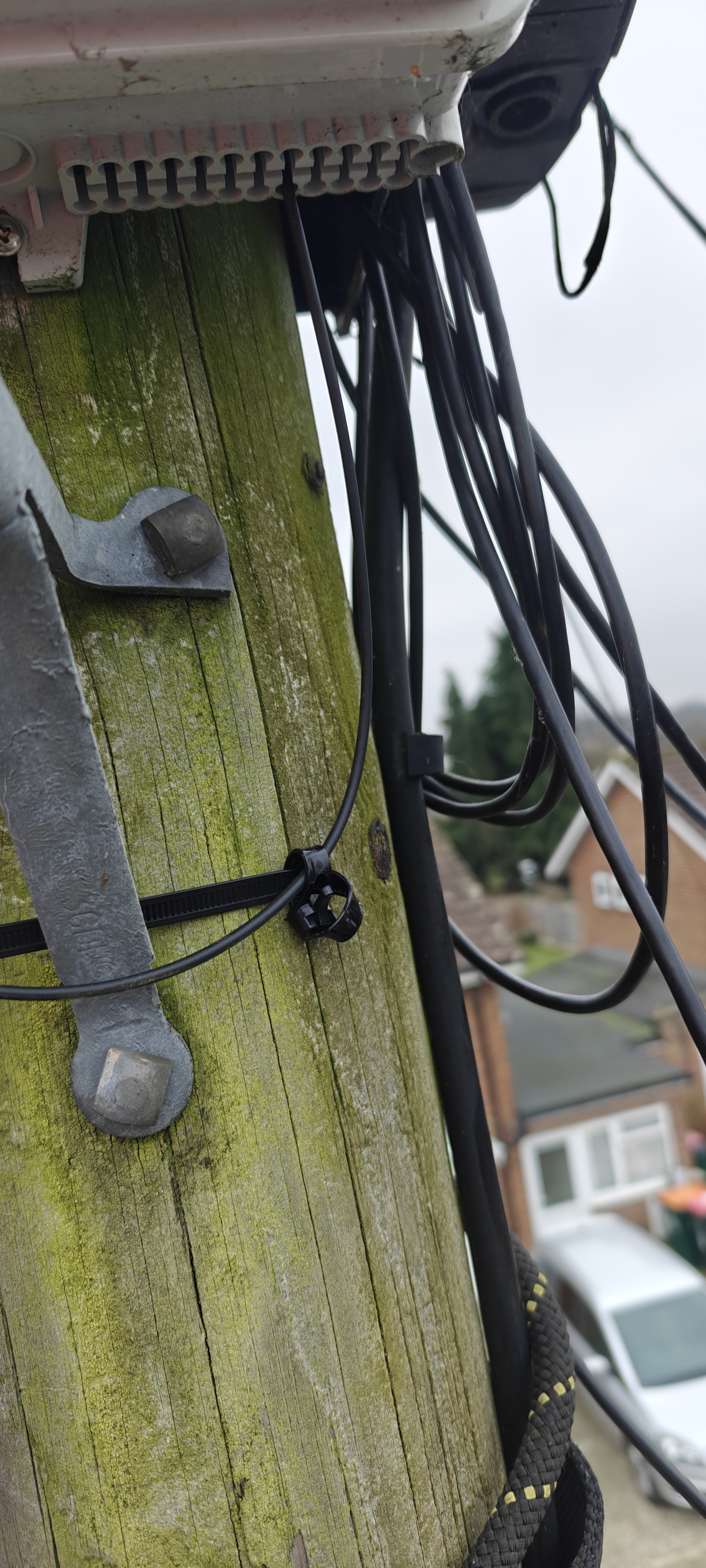
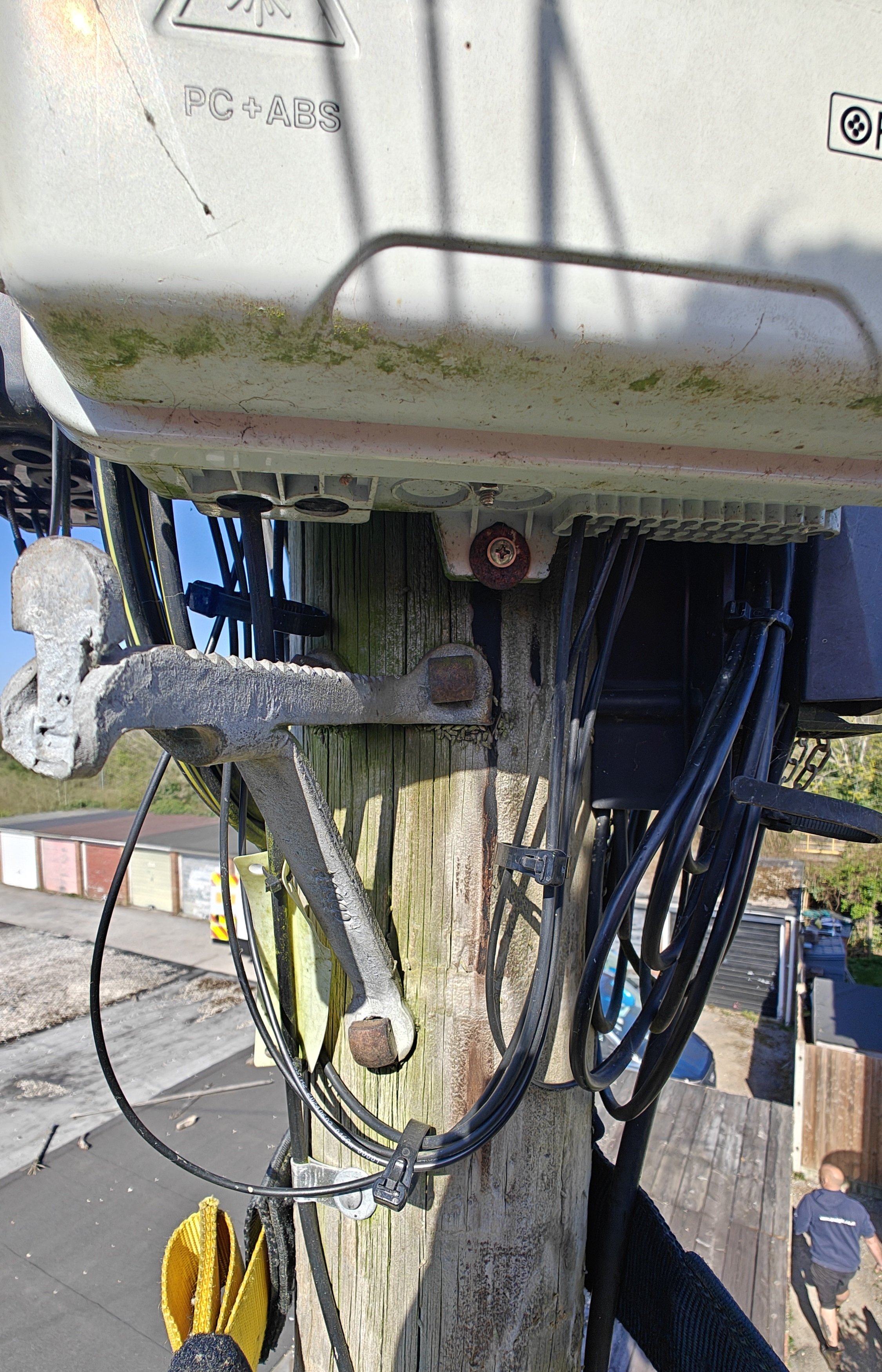
Cable Management Manage cables using provided ties and nails. Ensure all cables are secure. Cable management on pole, final condition of Splitter Box.
House Connection
Steps Description Photos Required
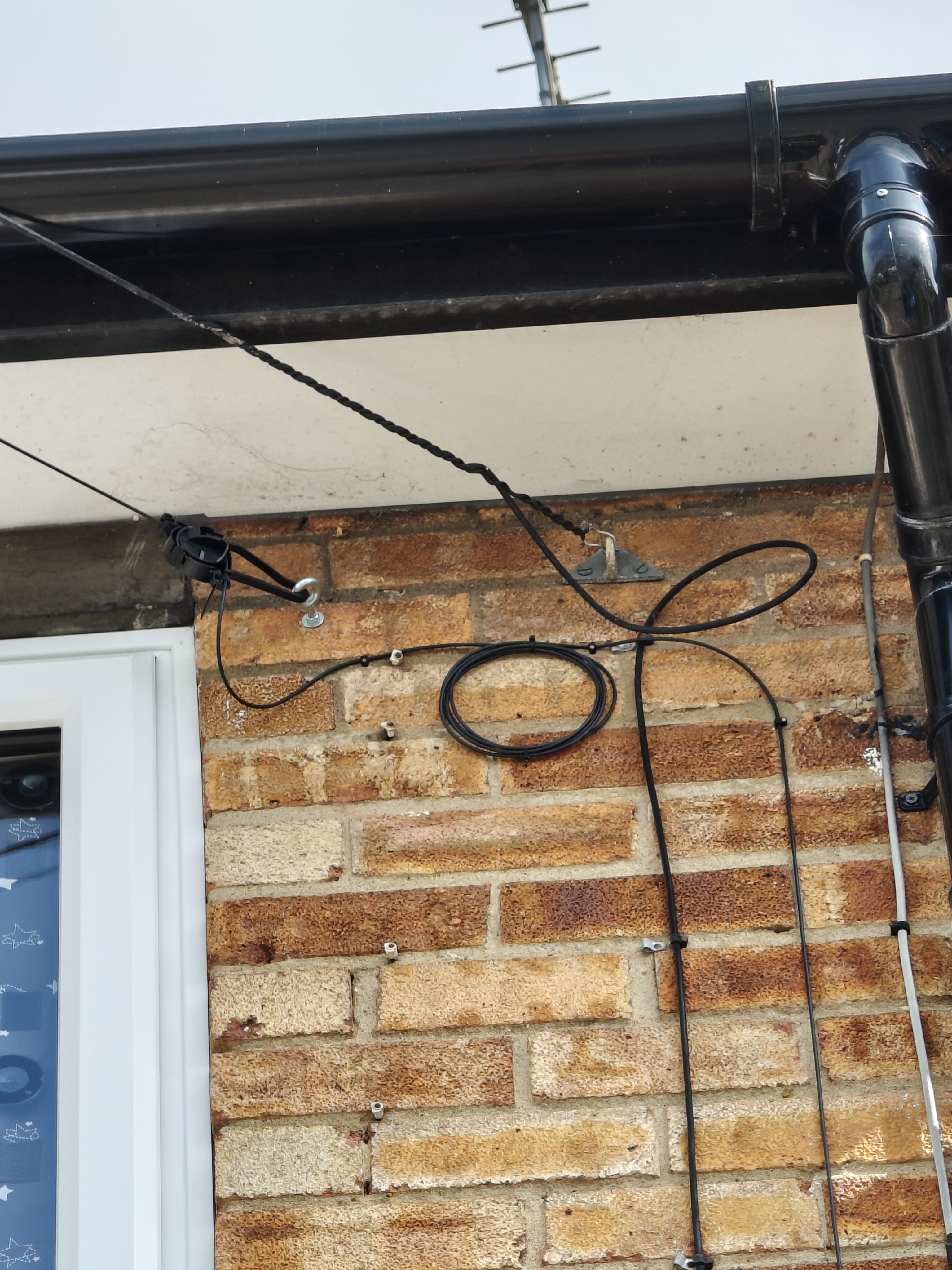
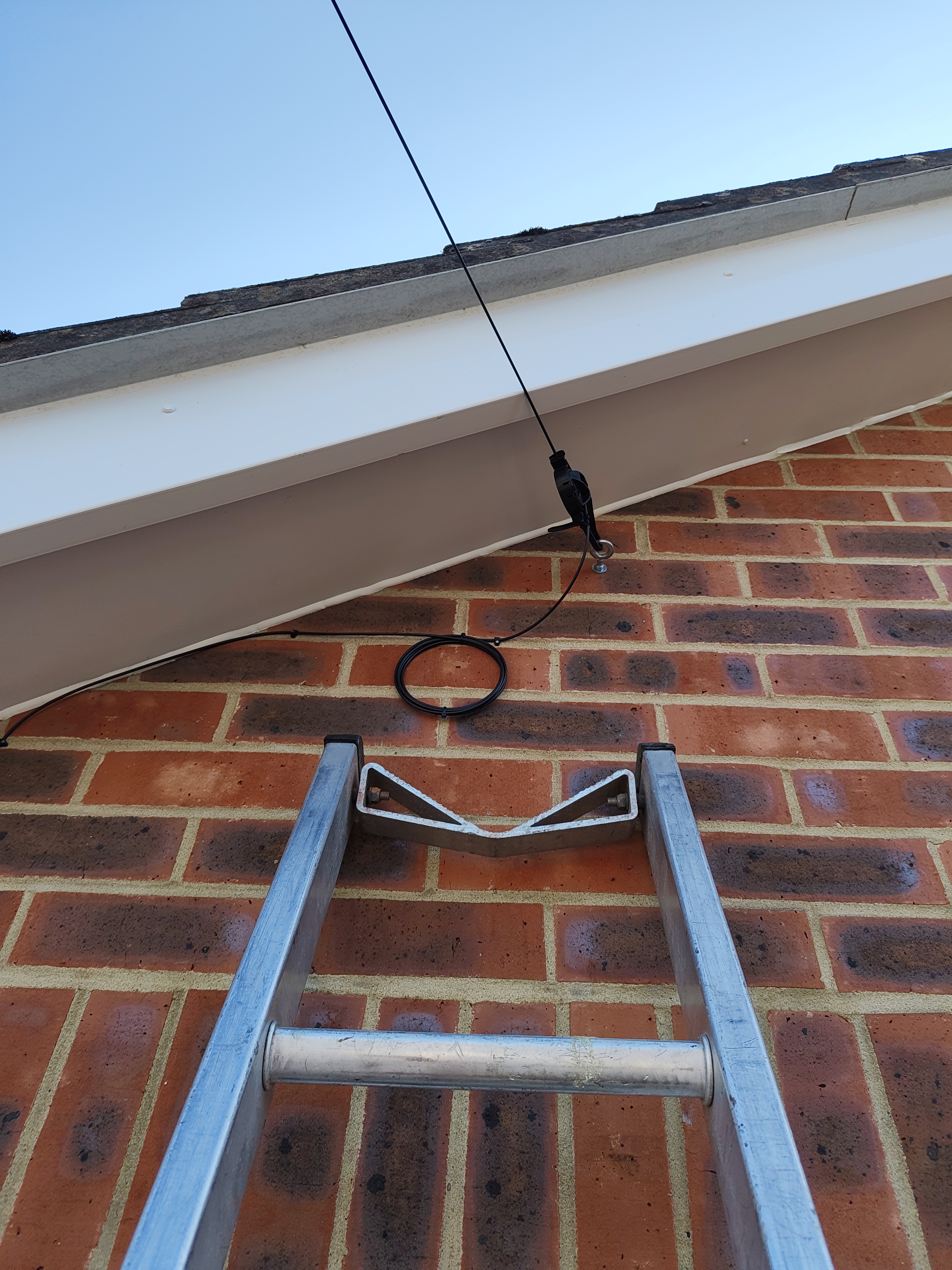
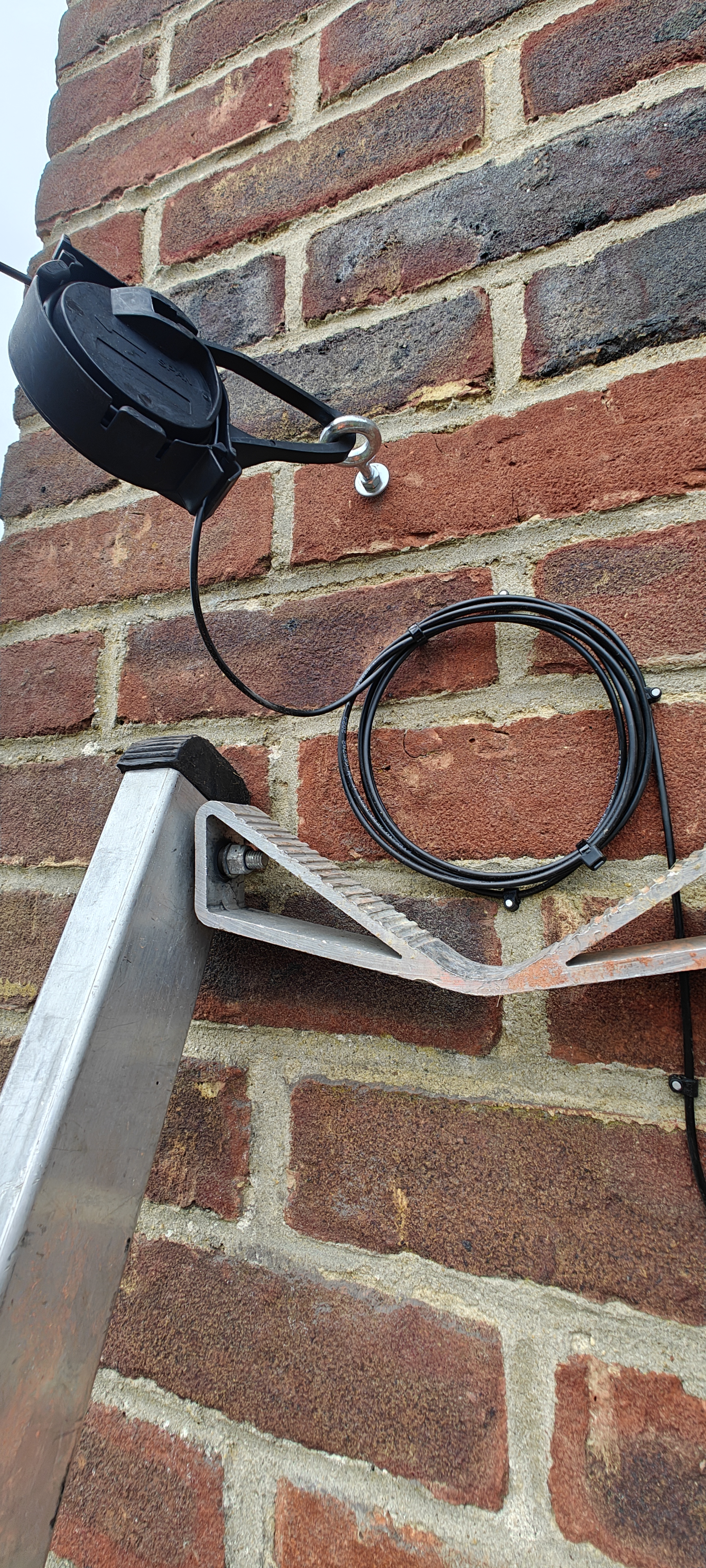
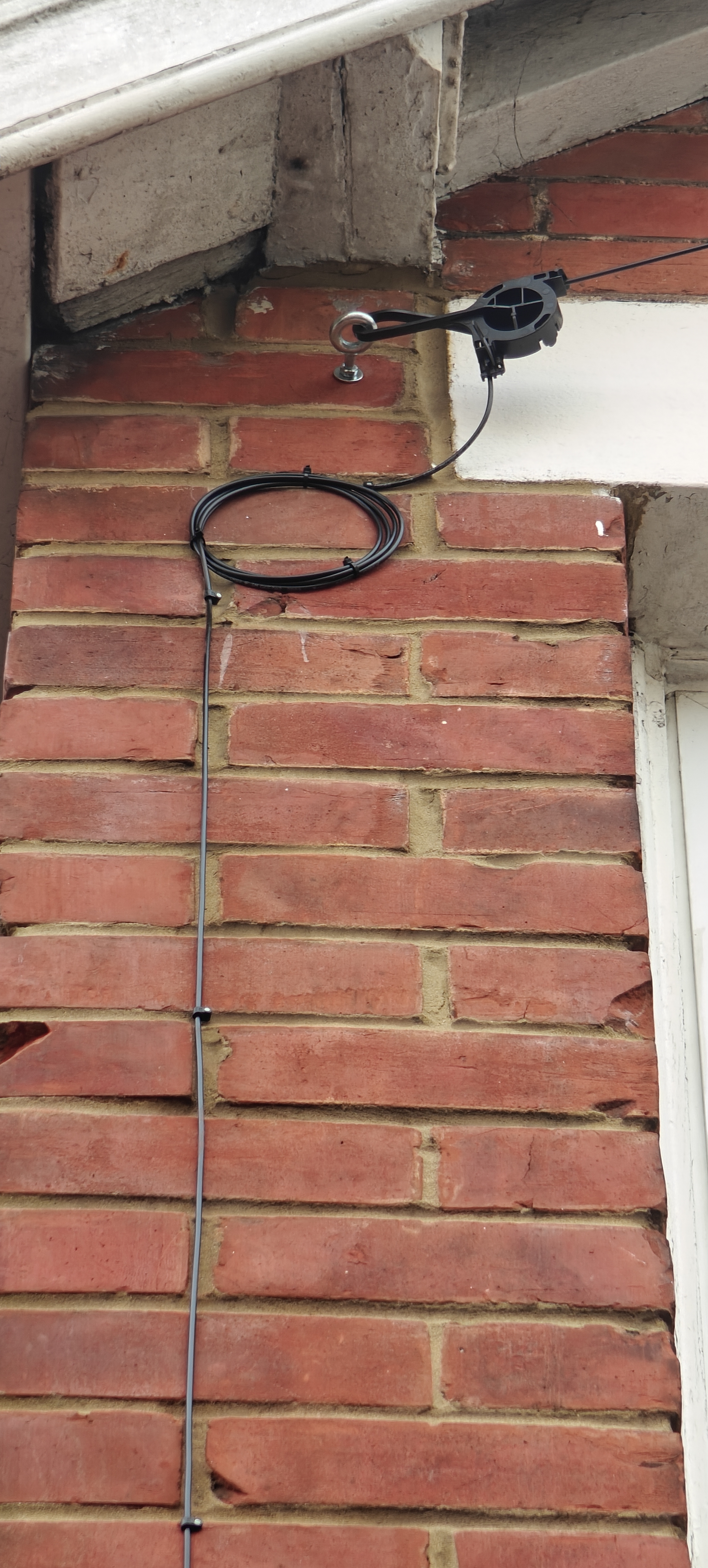
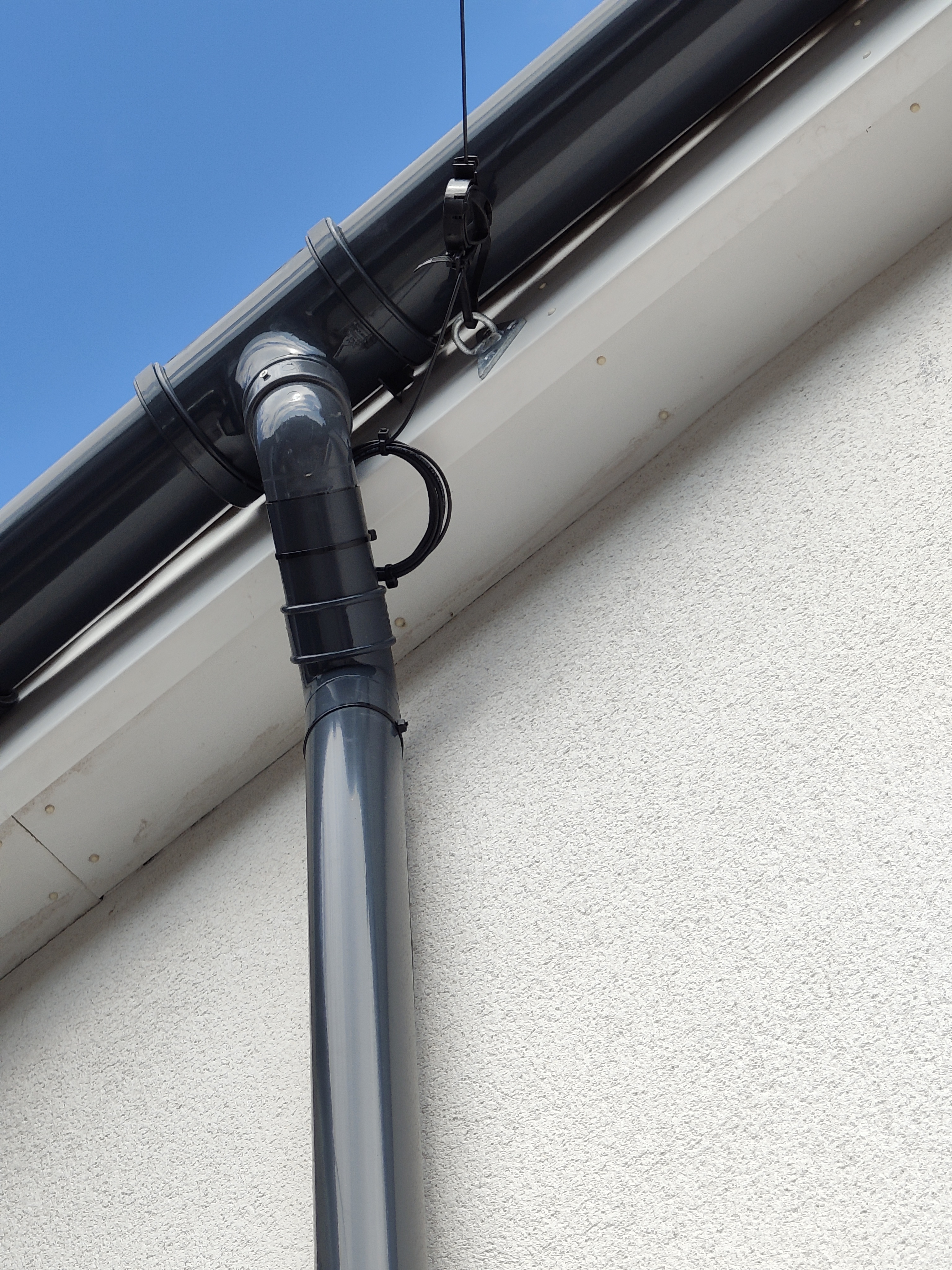
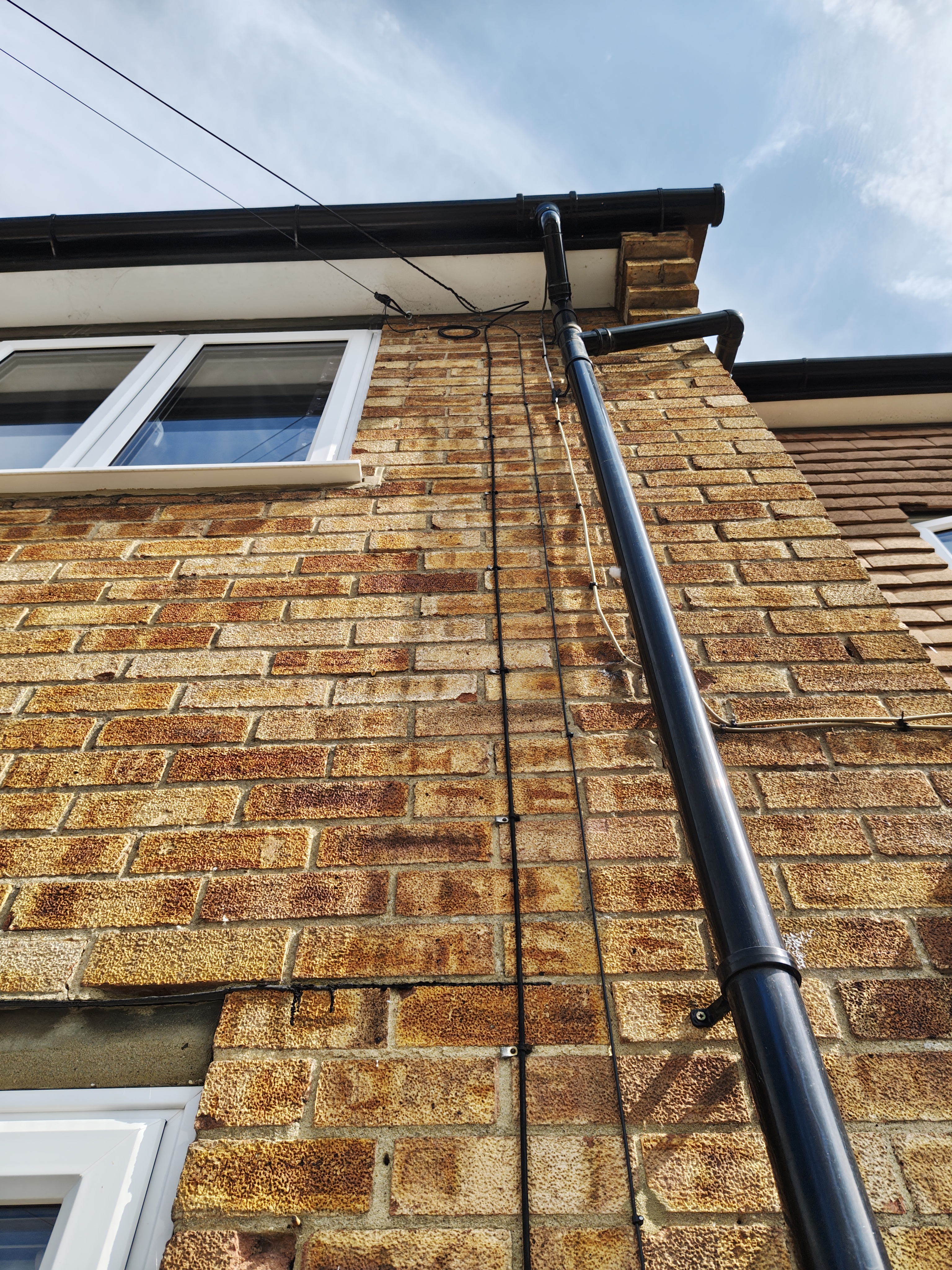
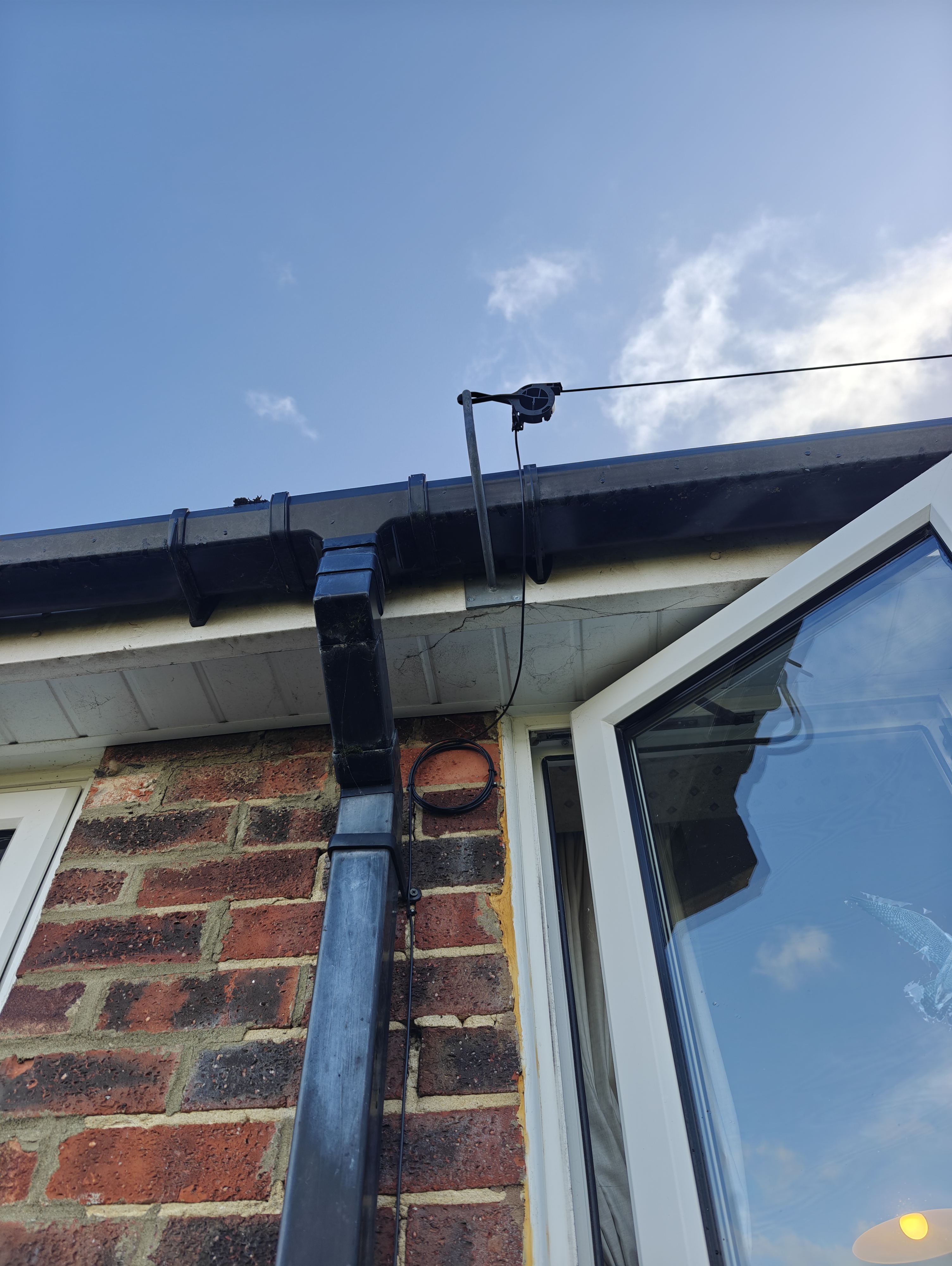
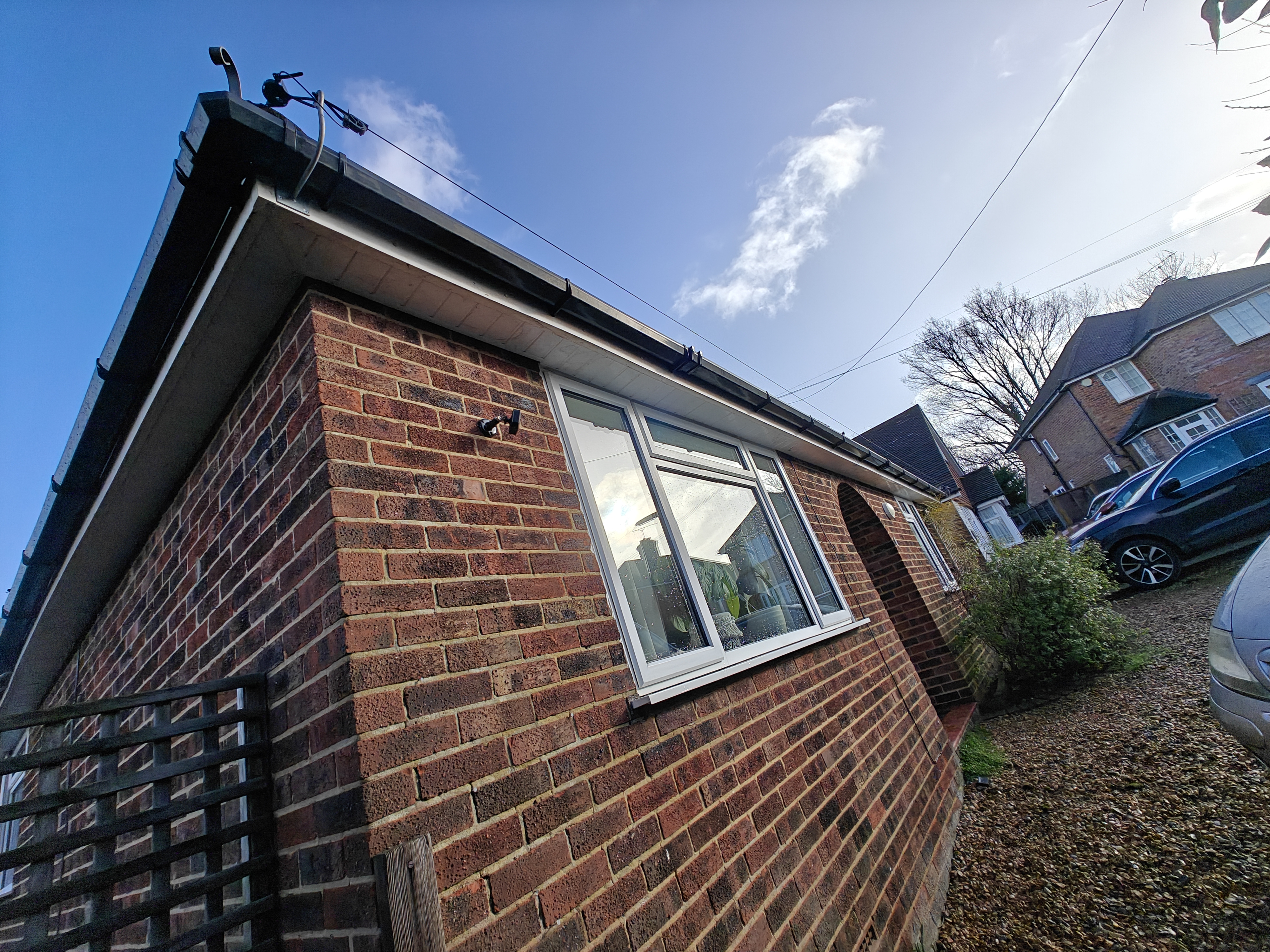
Bracket and Clamp Pull cable to house, secure with bracket and clamp. Leave a service loop. Cable management along fascia, service loop, clamp.
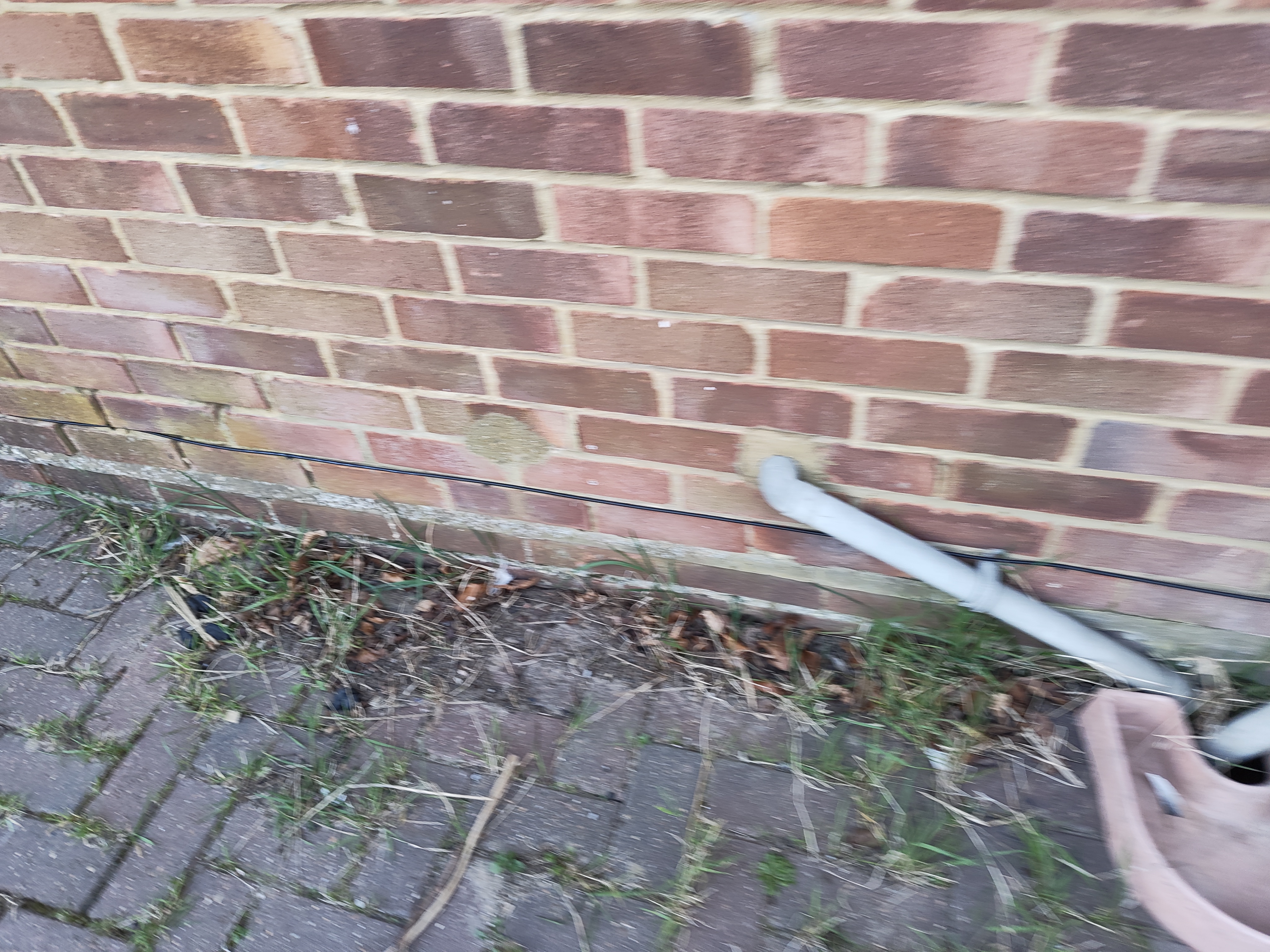
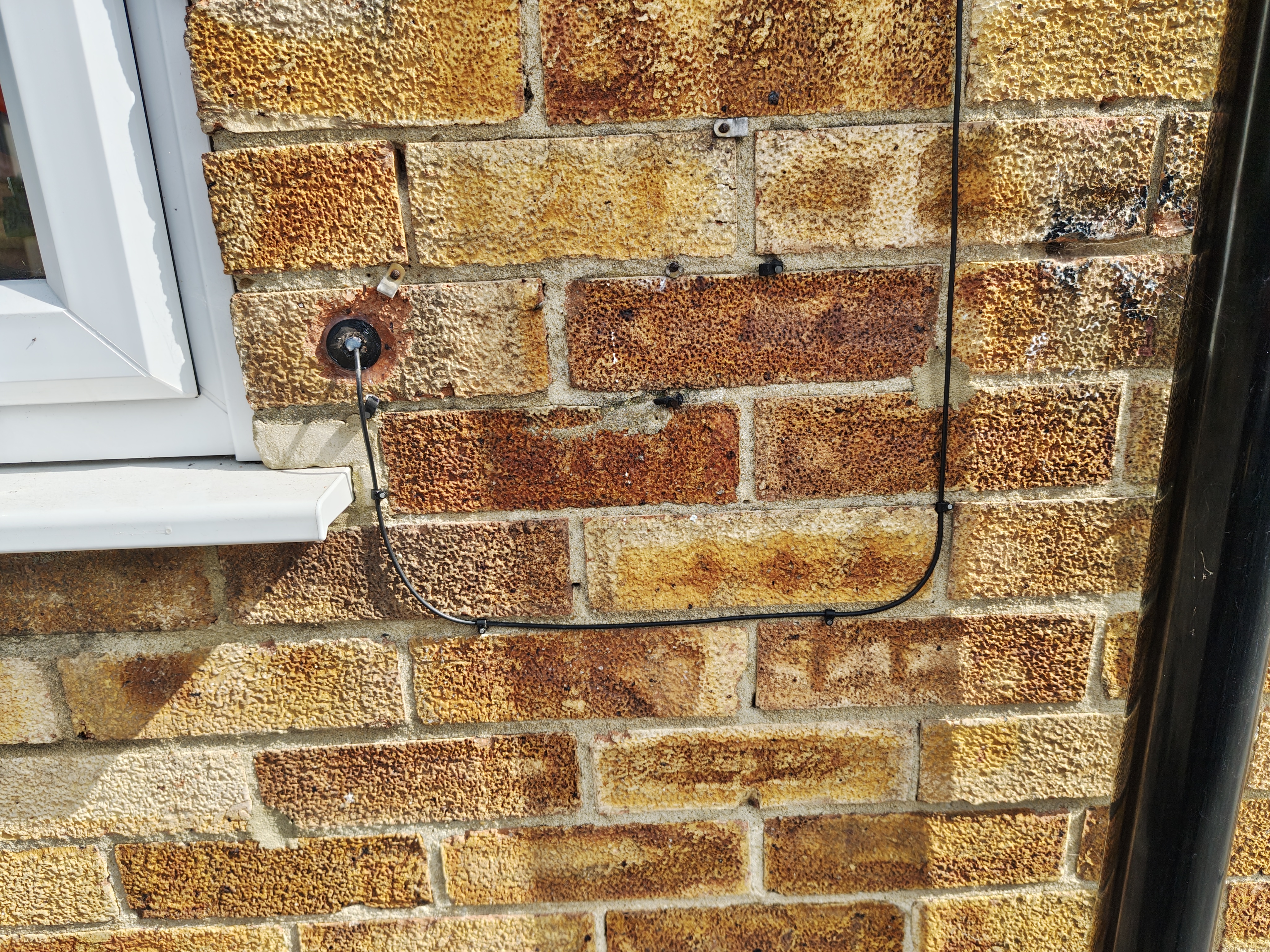
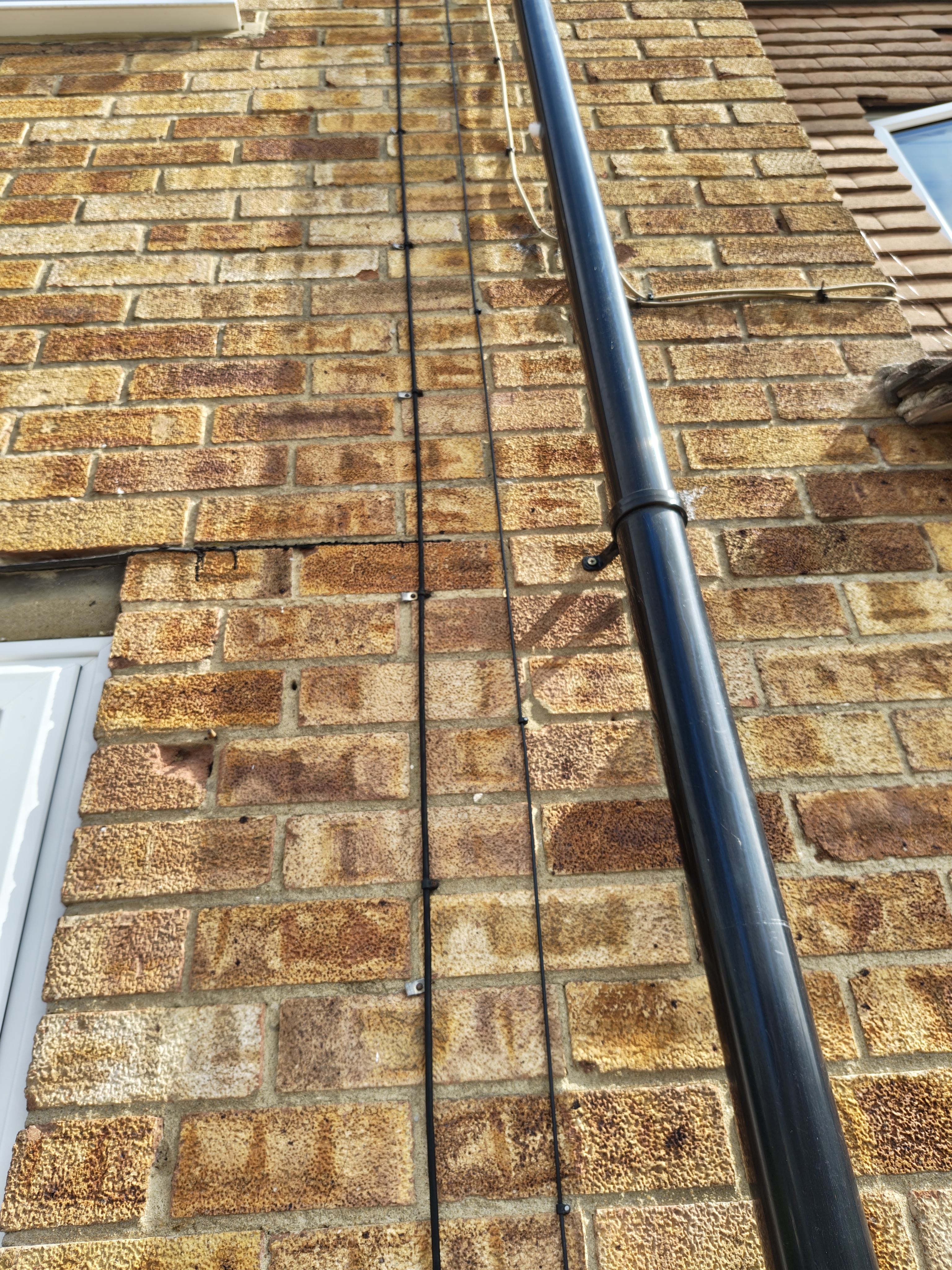
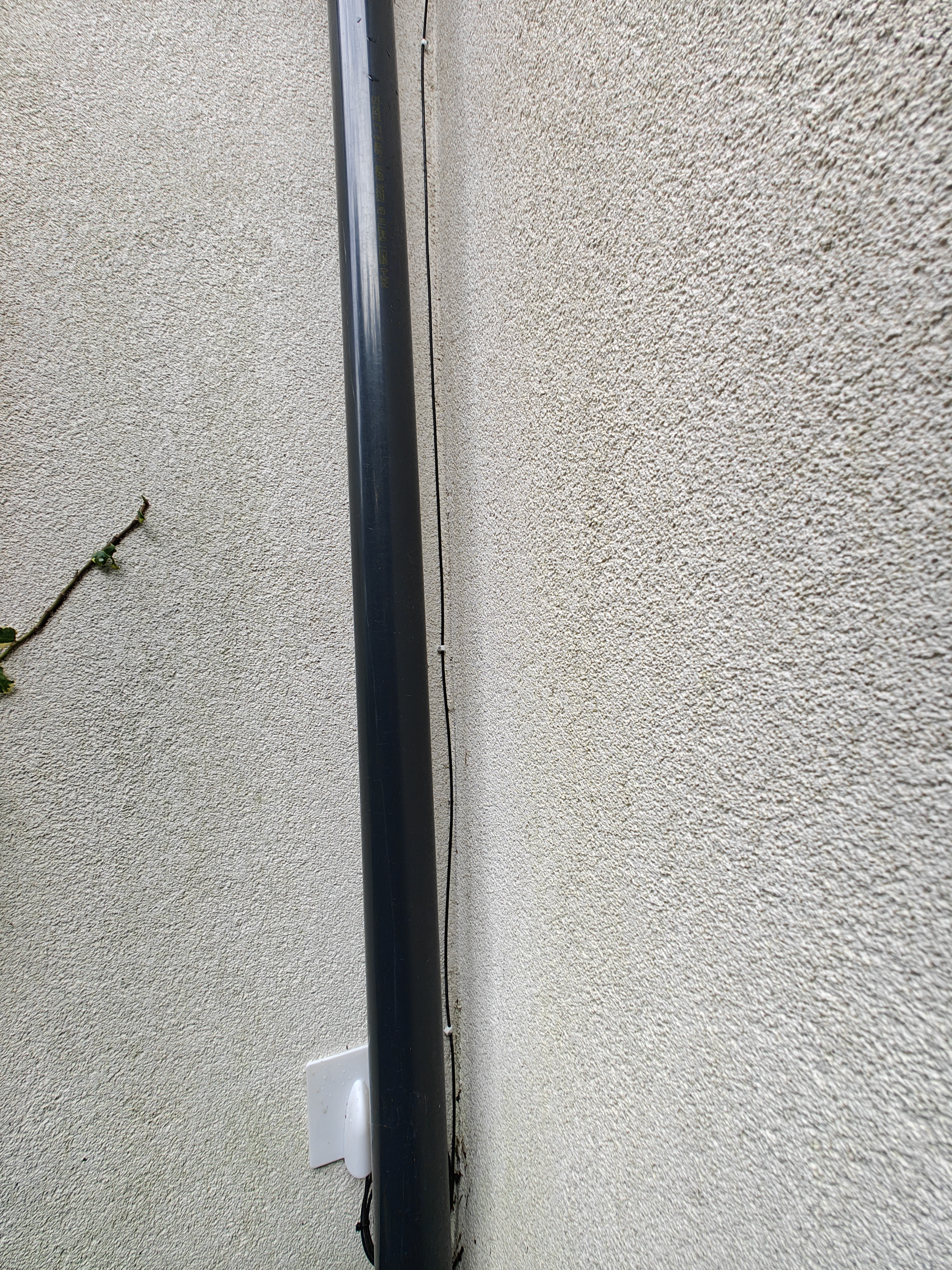
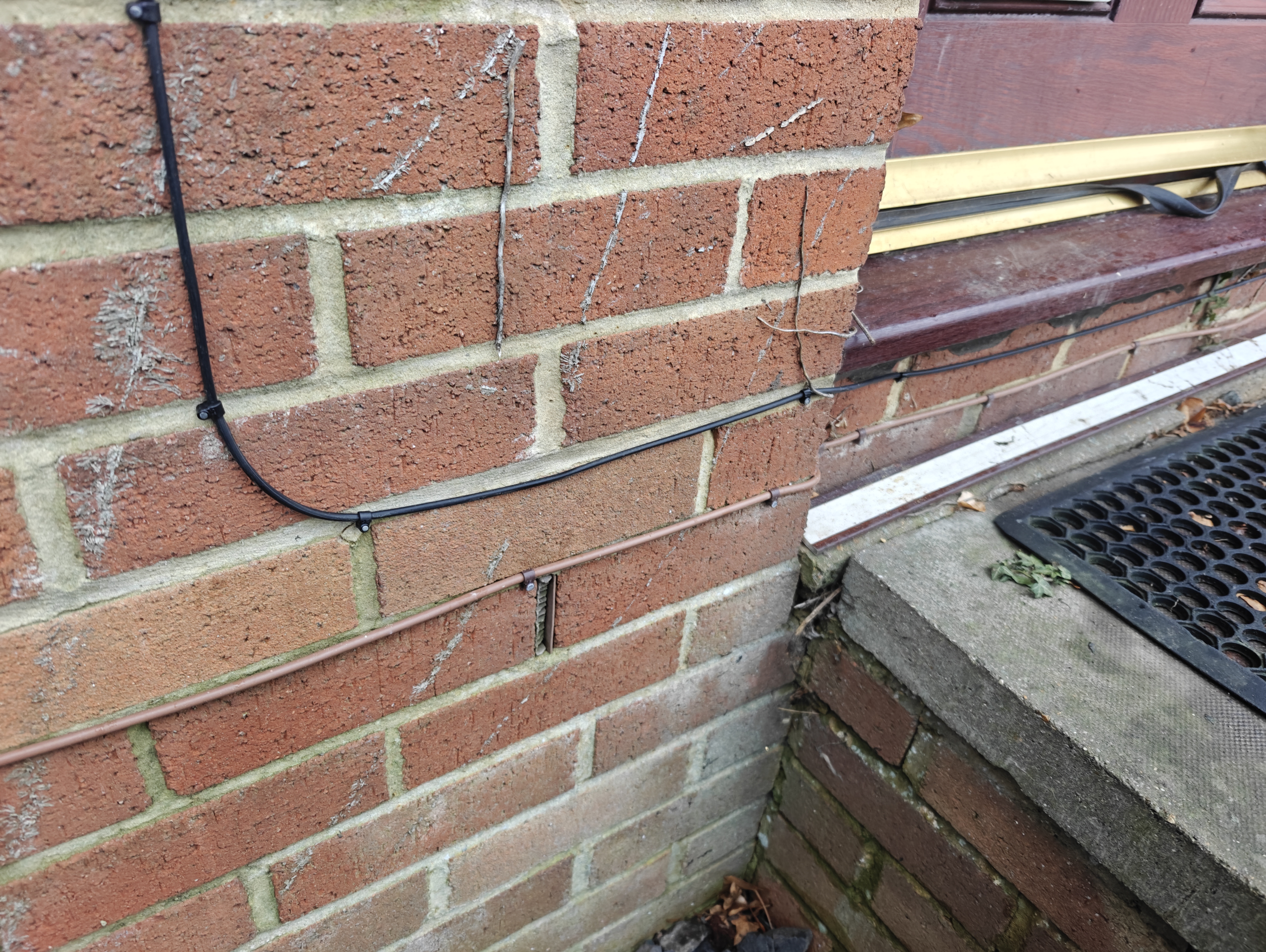
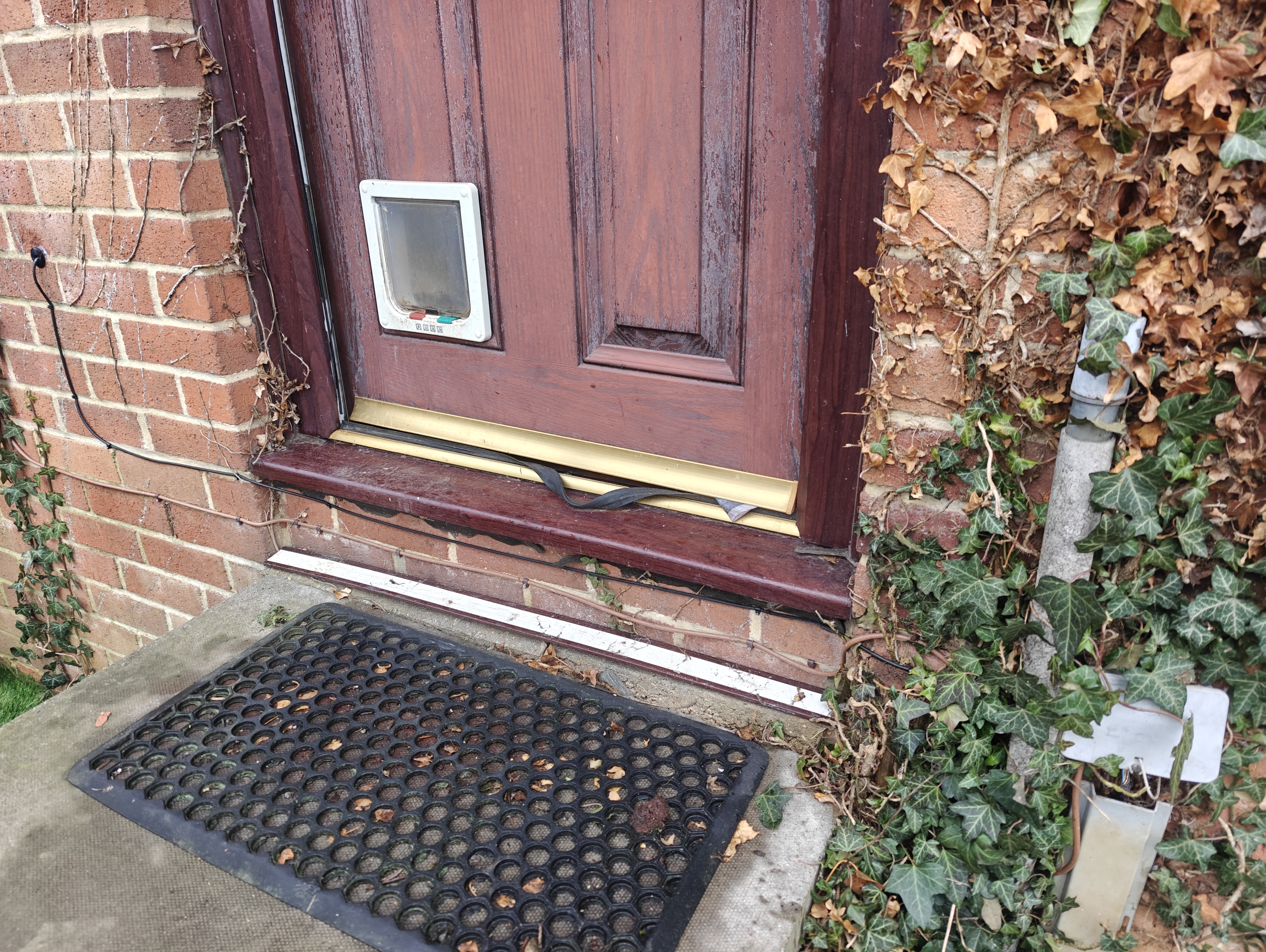
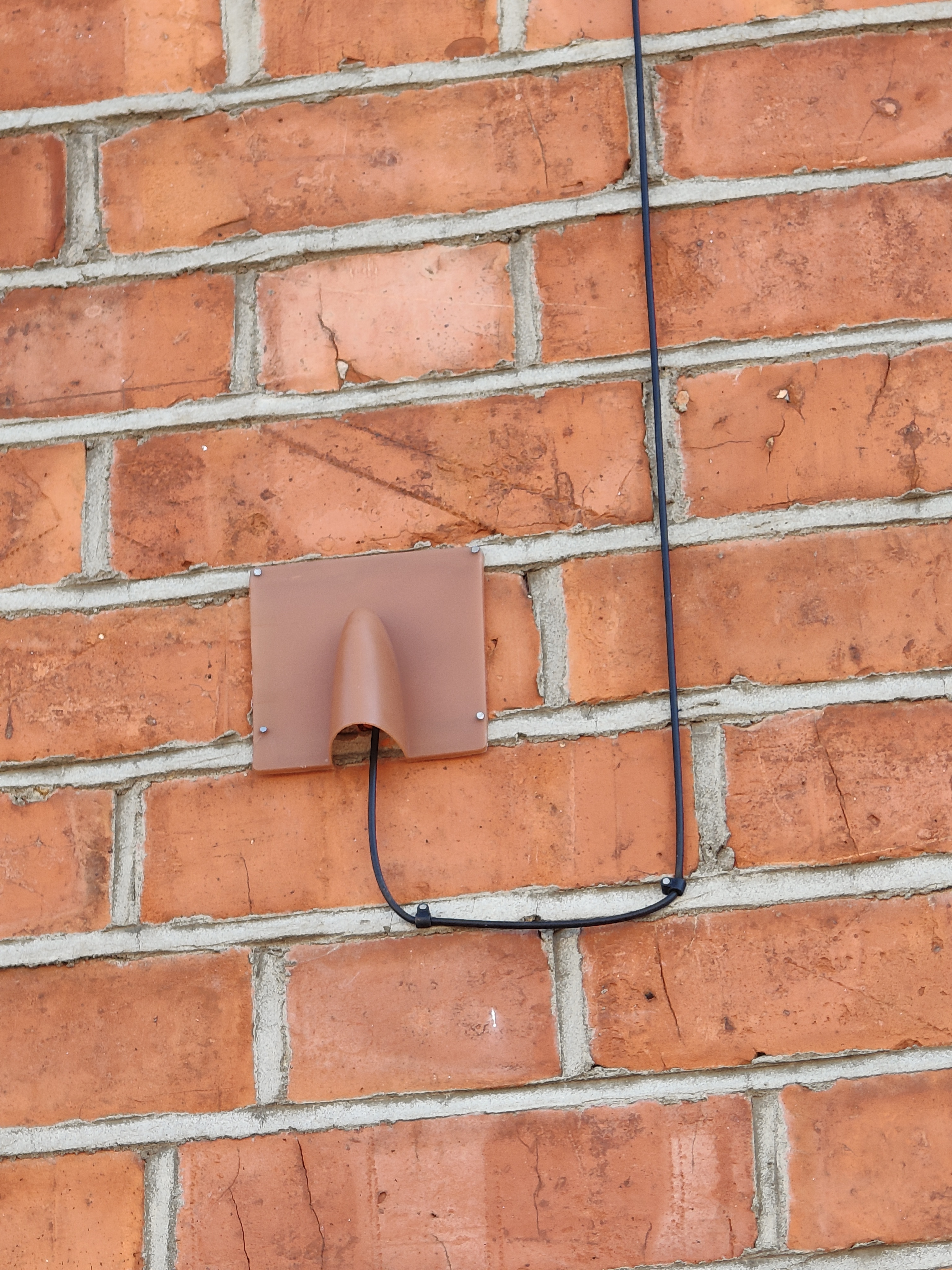
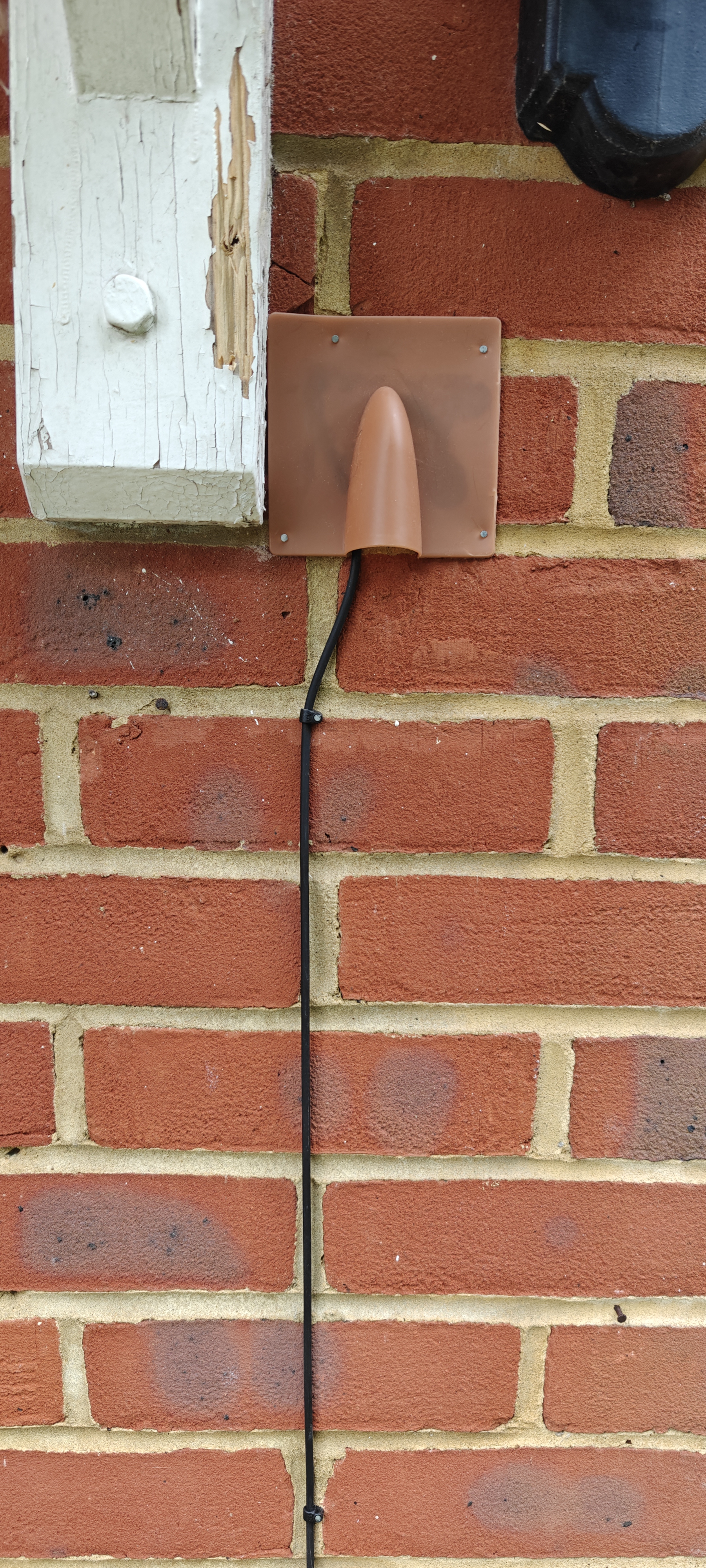
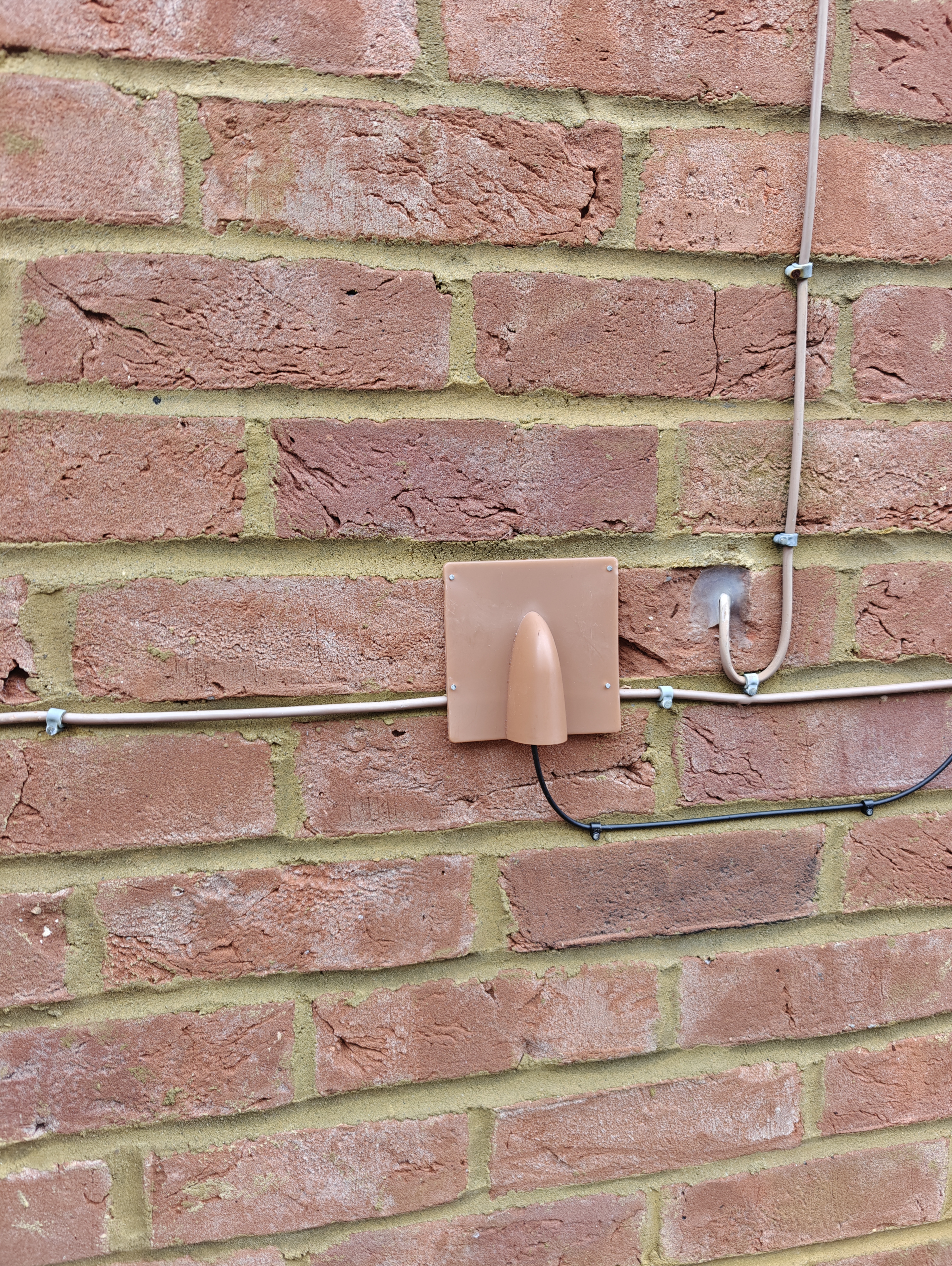
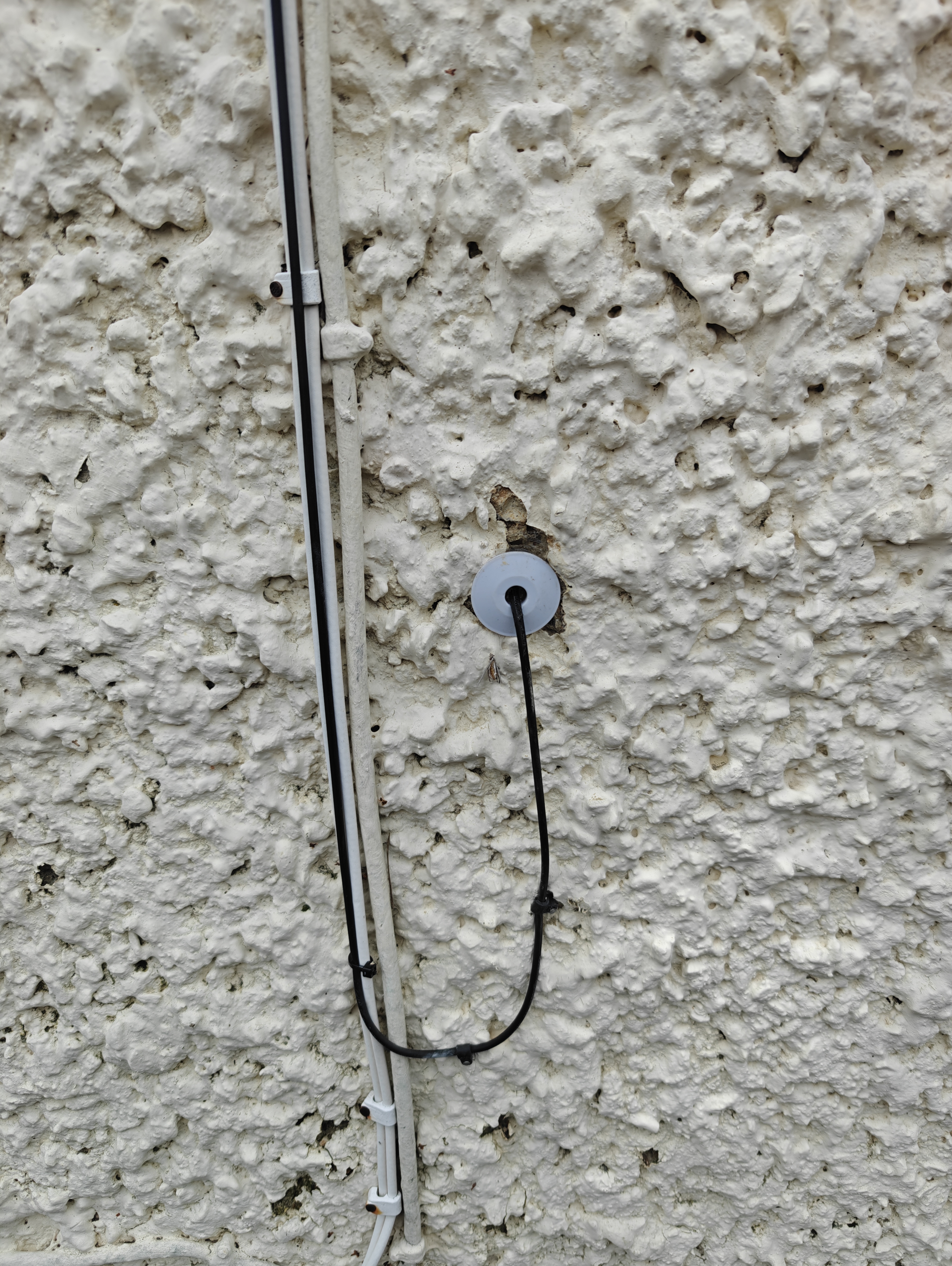
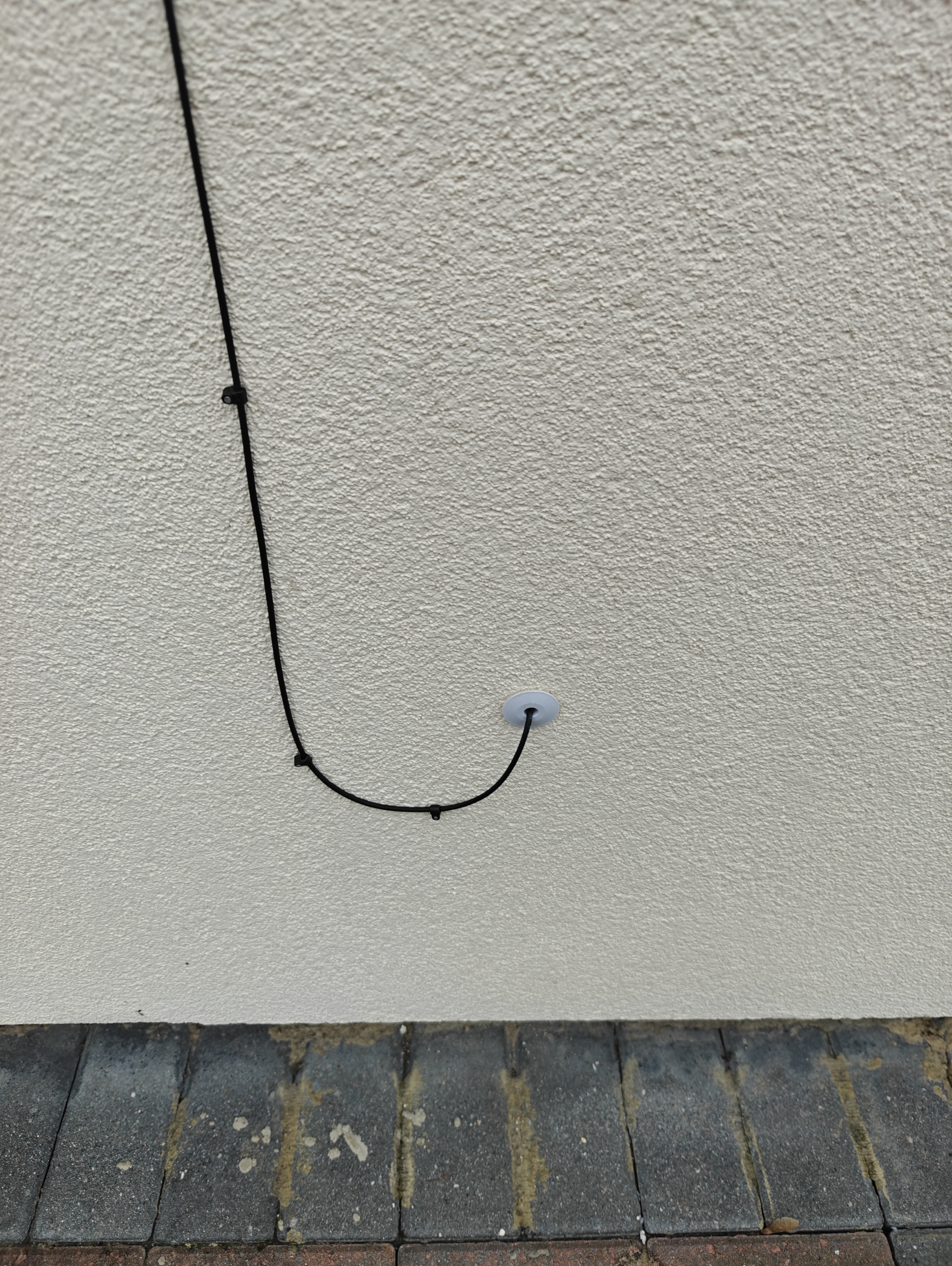
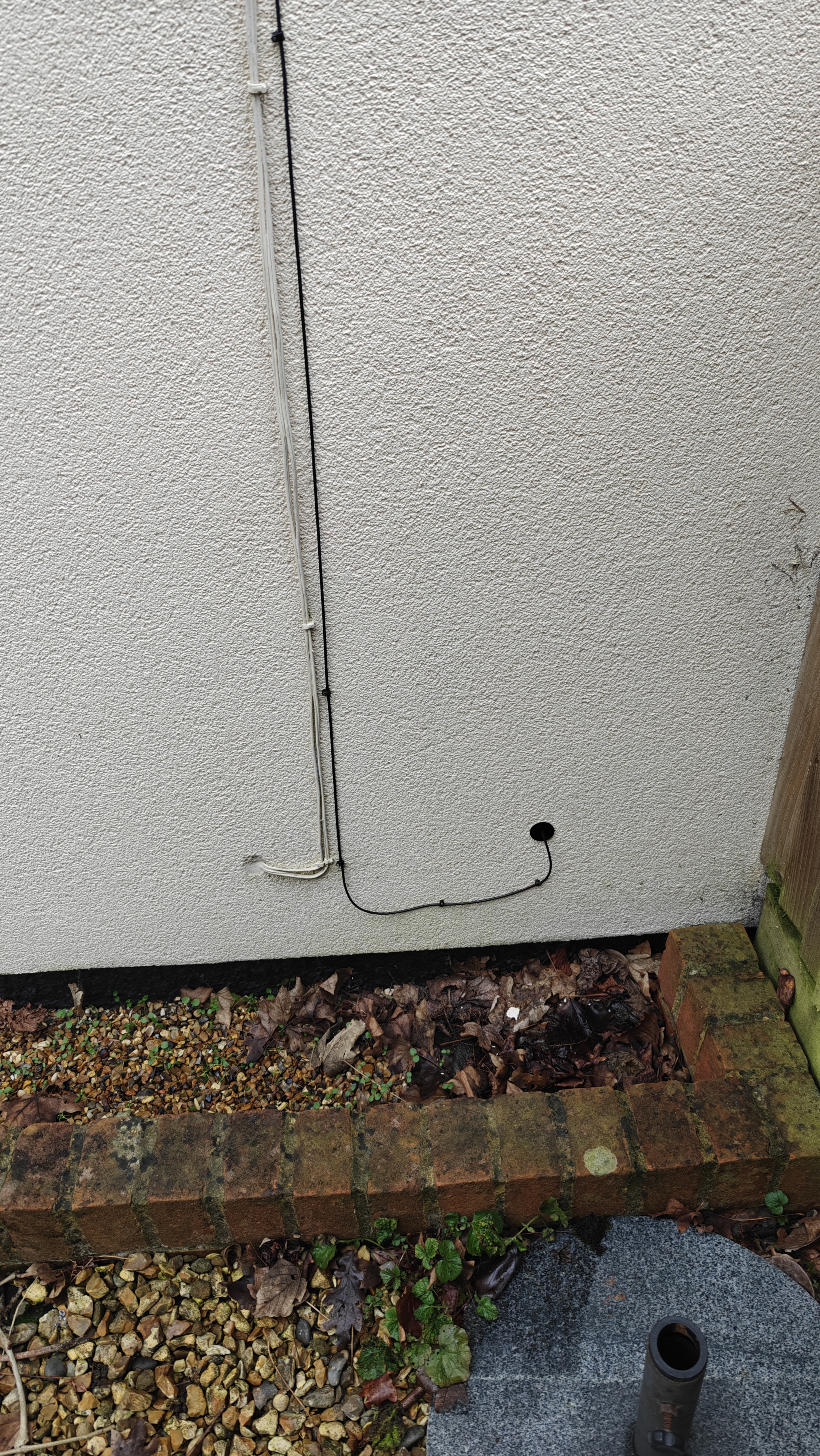
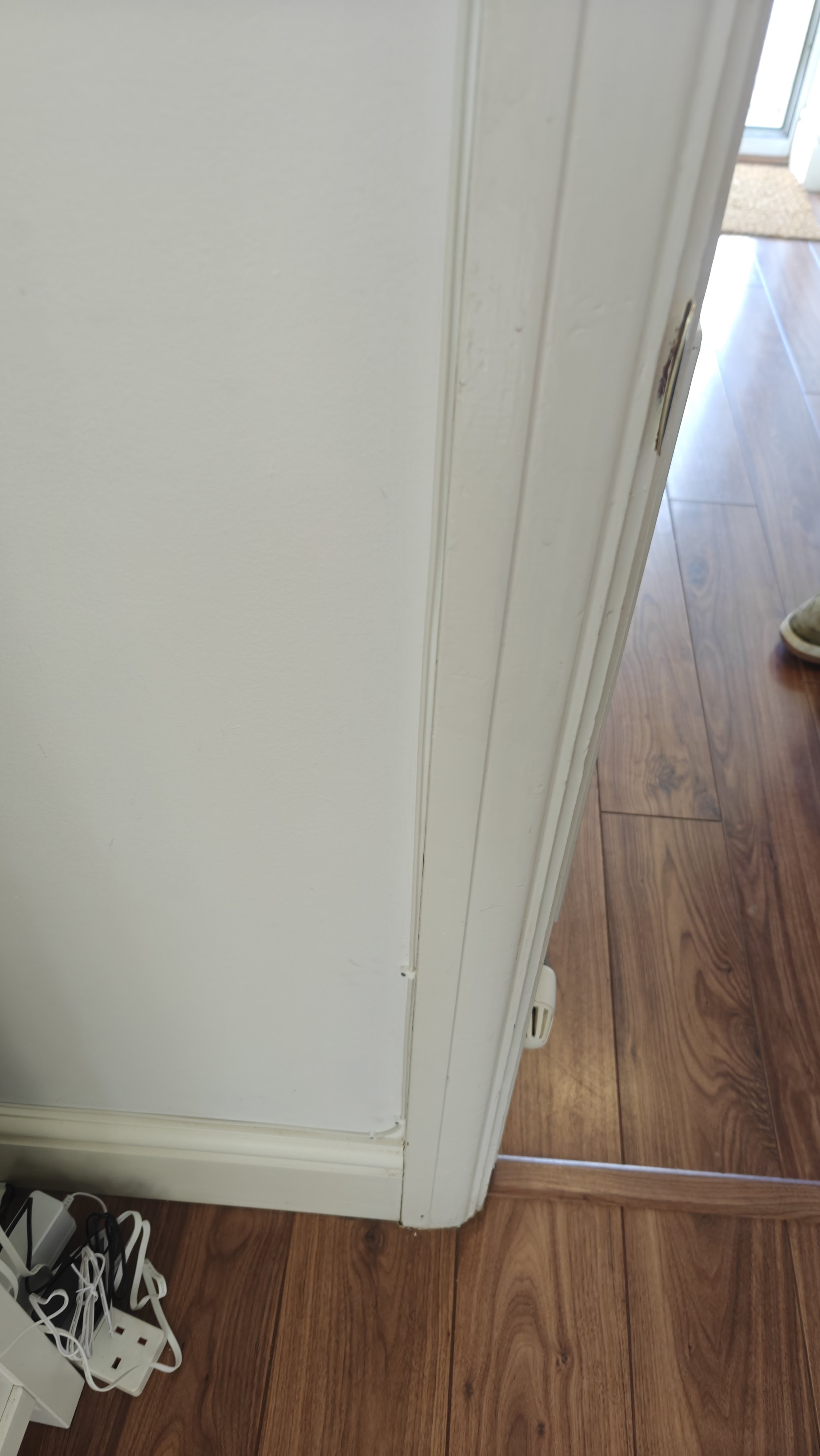
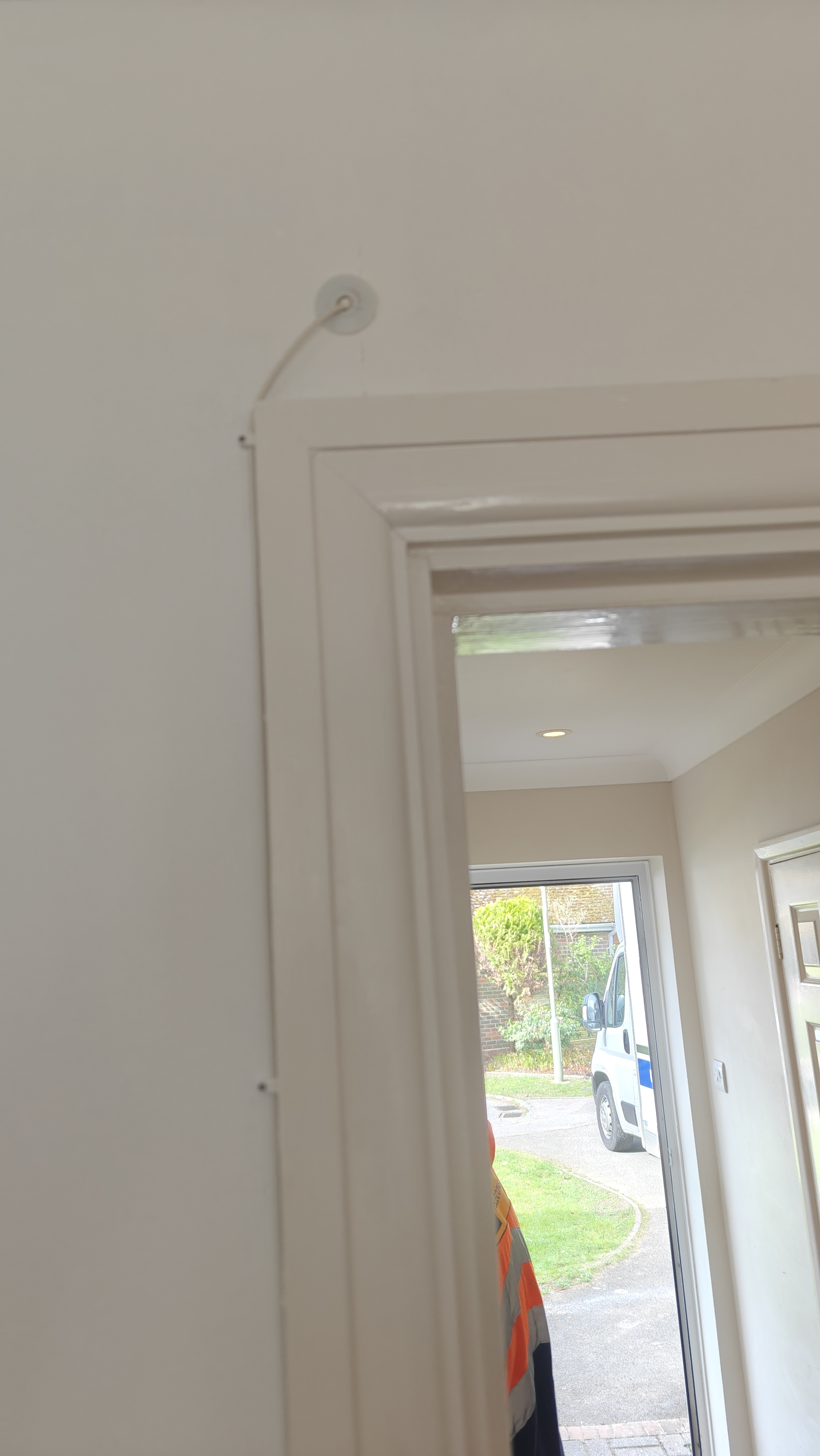
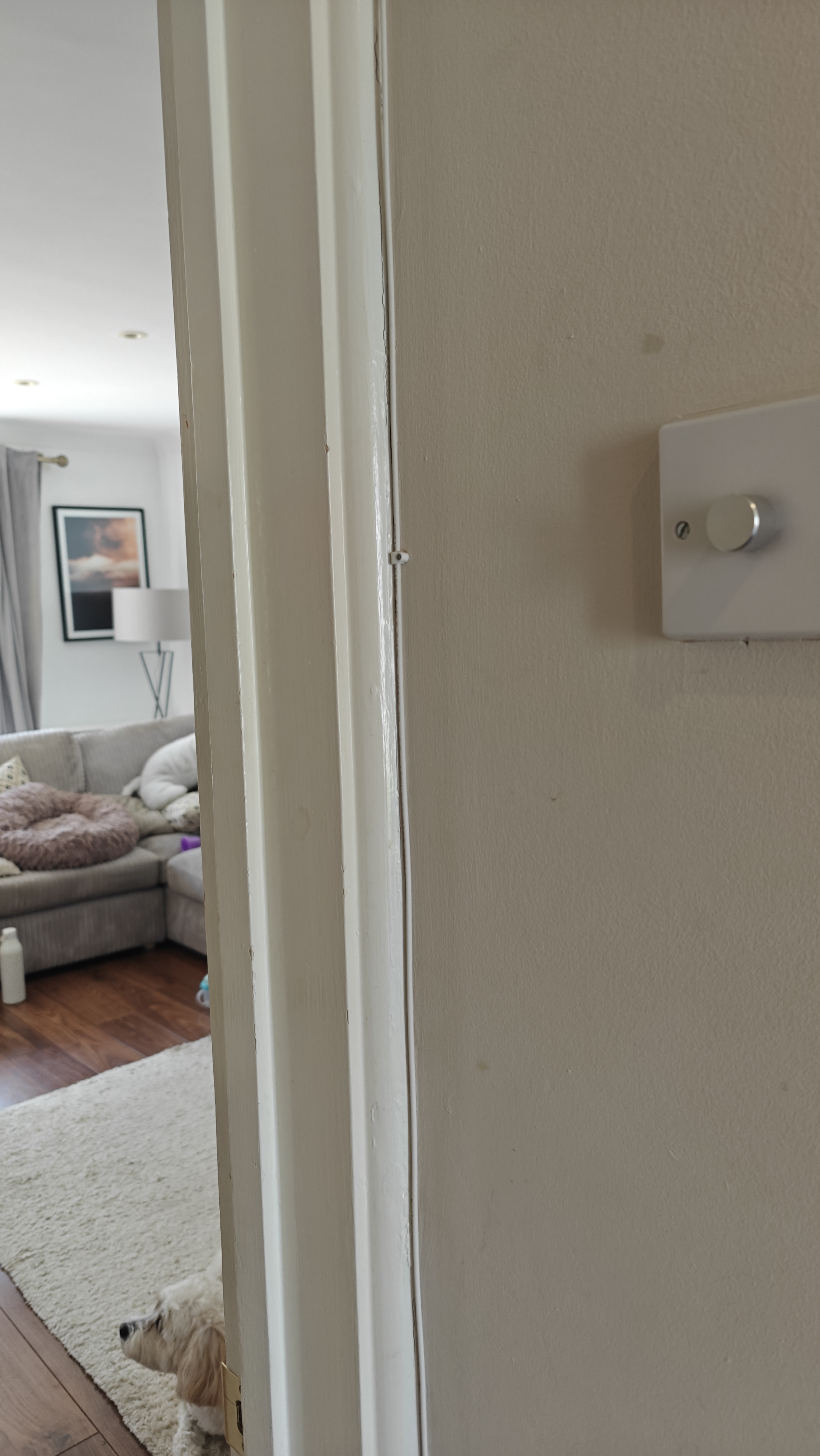
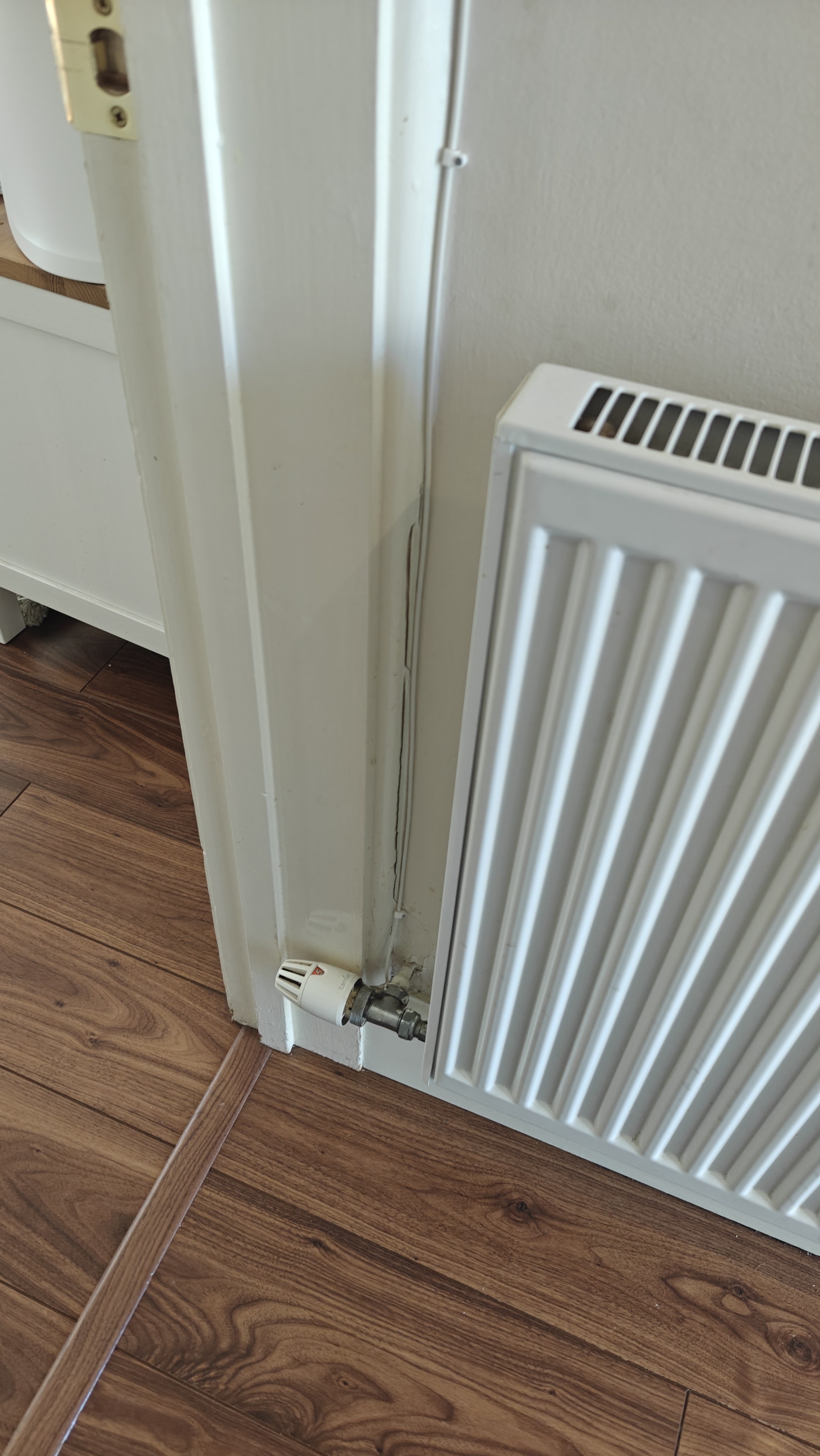
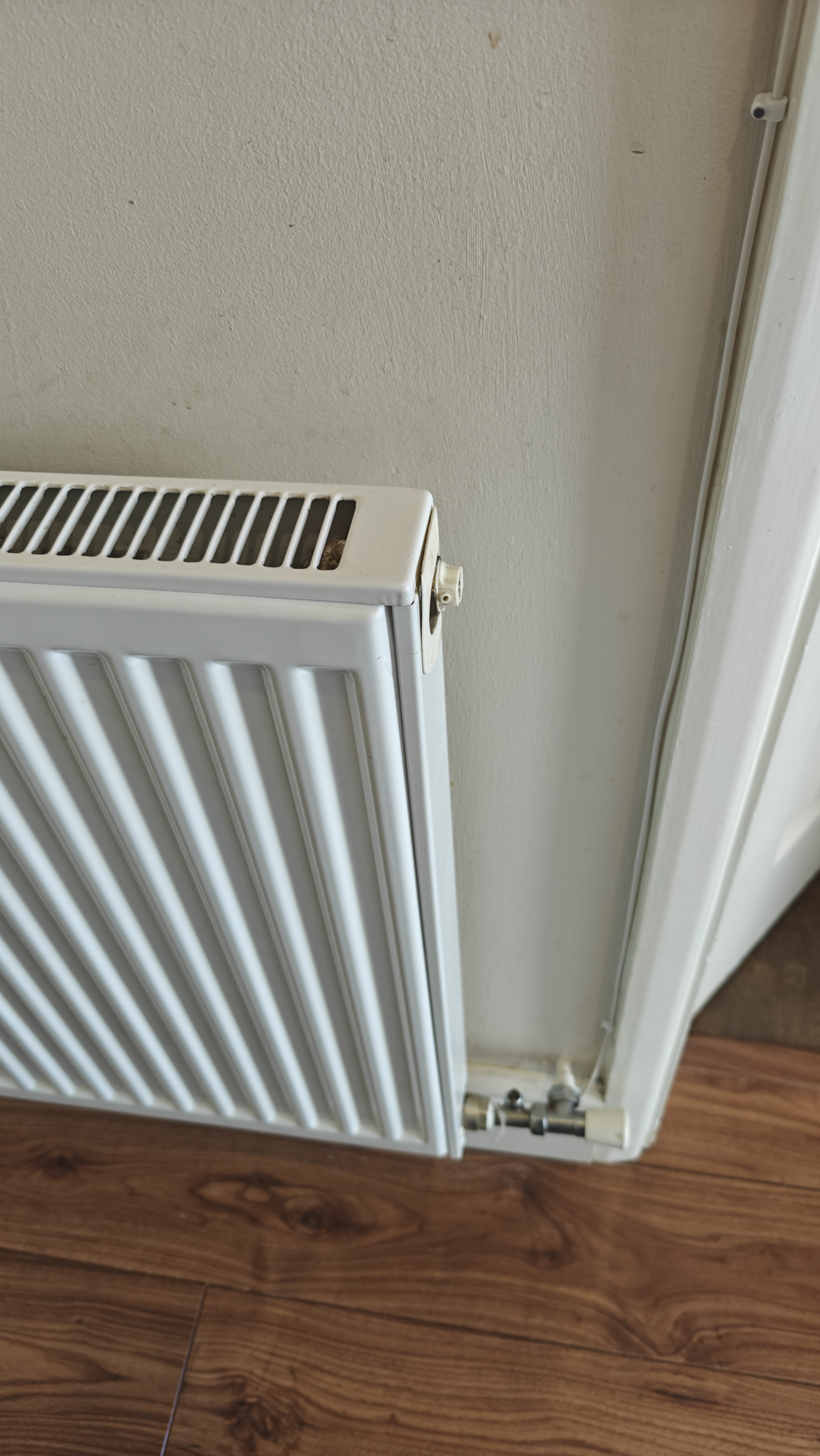
Cable Securing Secure along wall with cleats and make a drip loop for entry point. Cleated cable, drip loop, entire route to entry point.
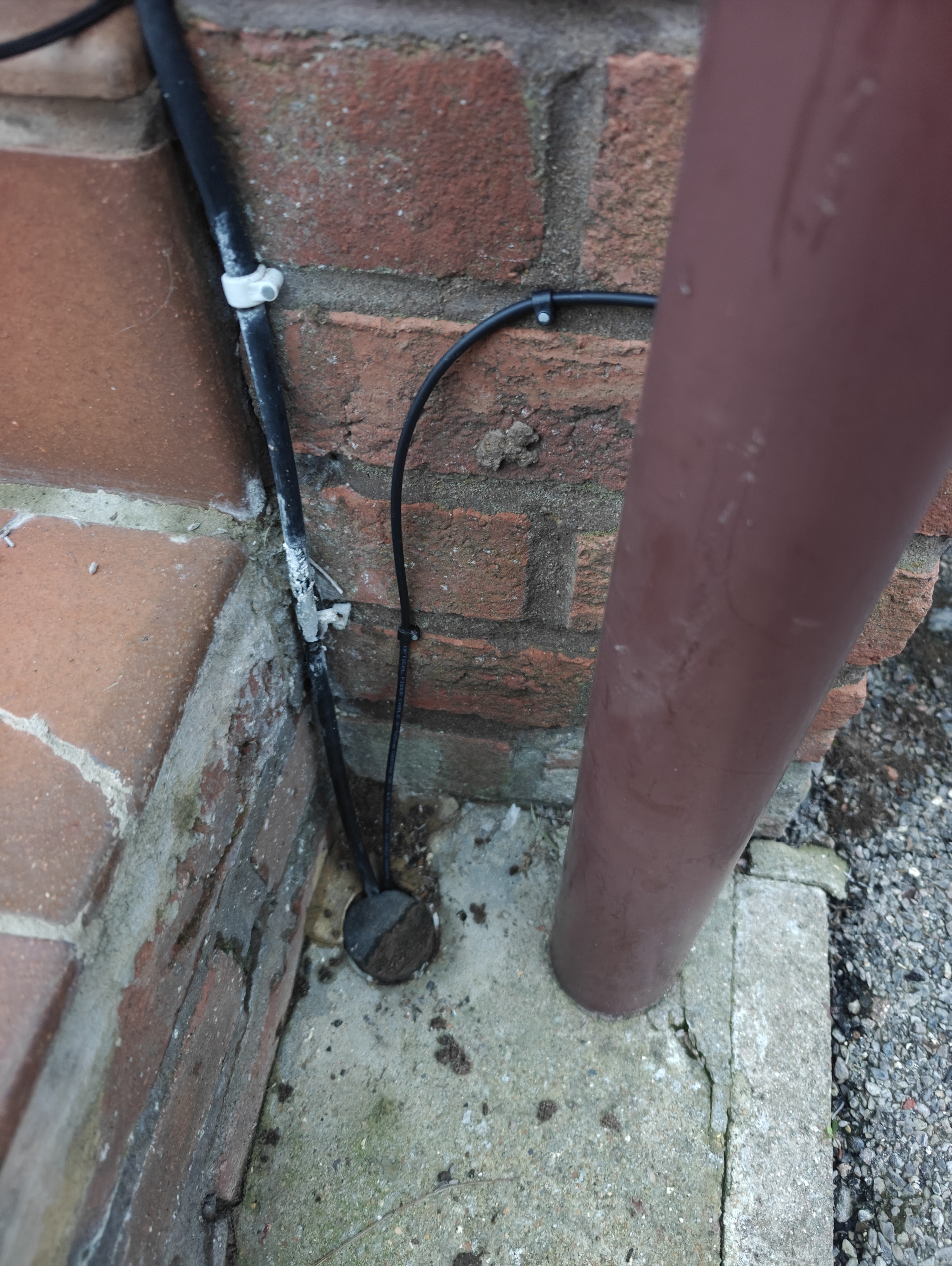
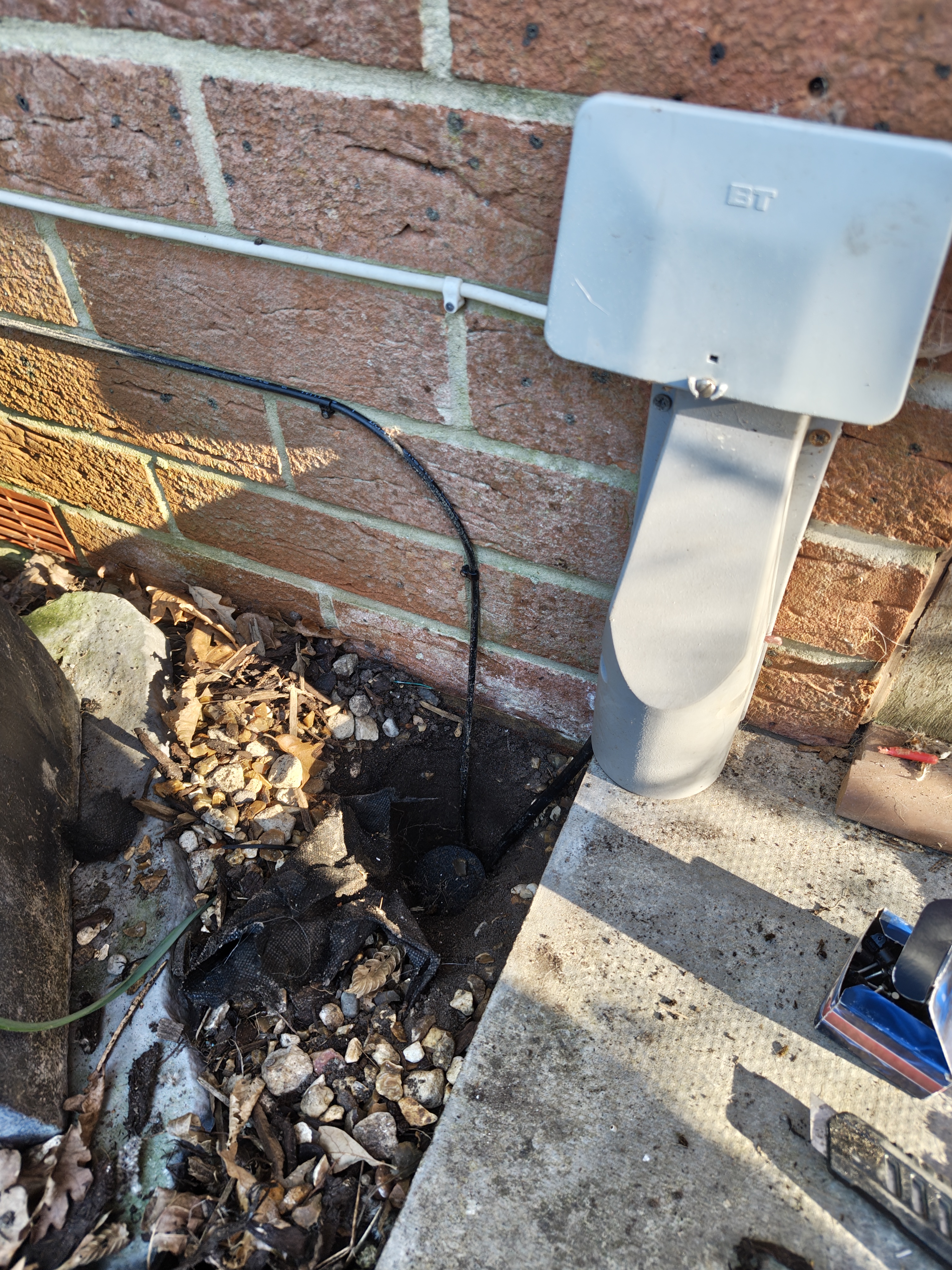
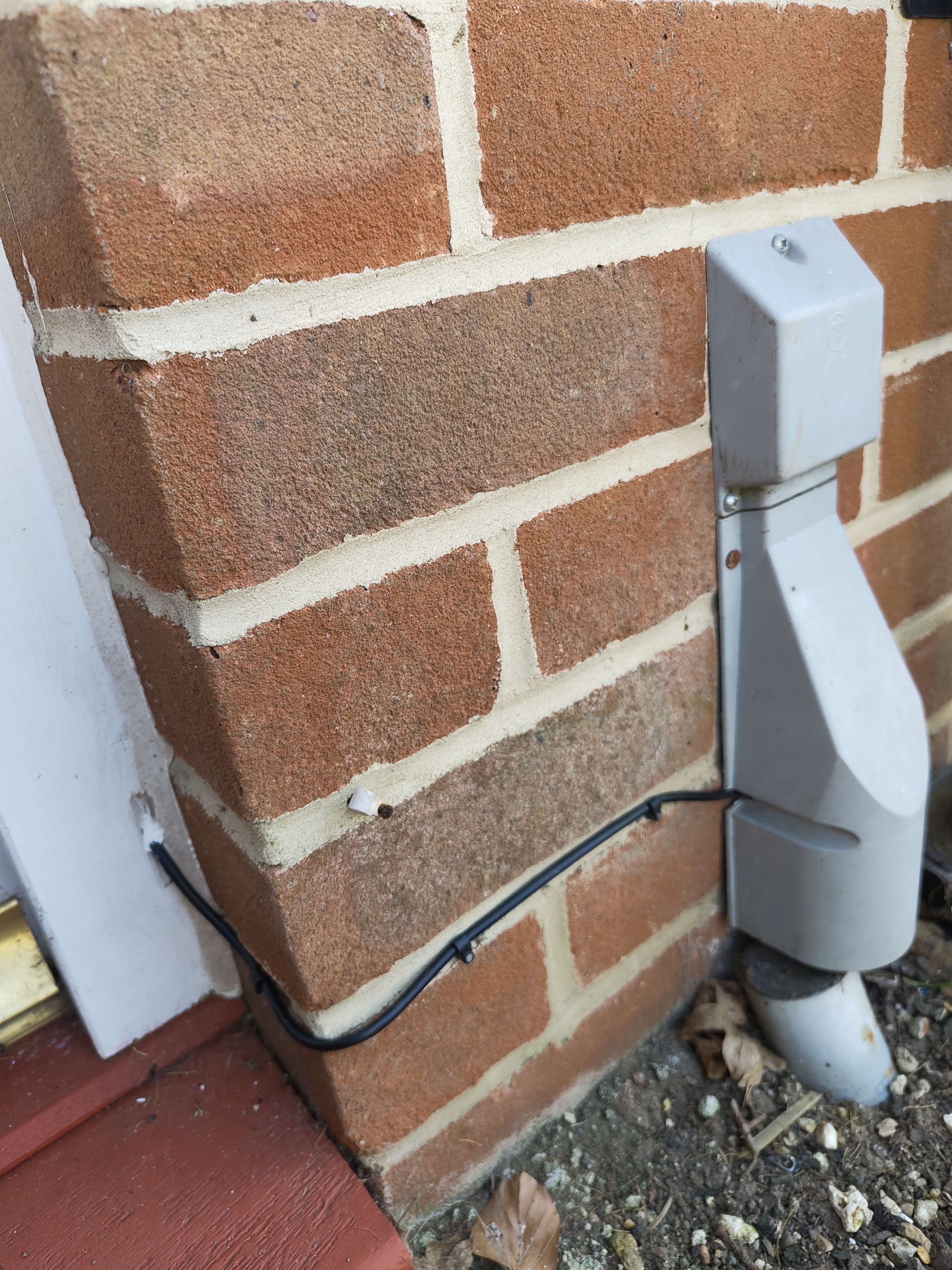
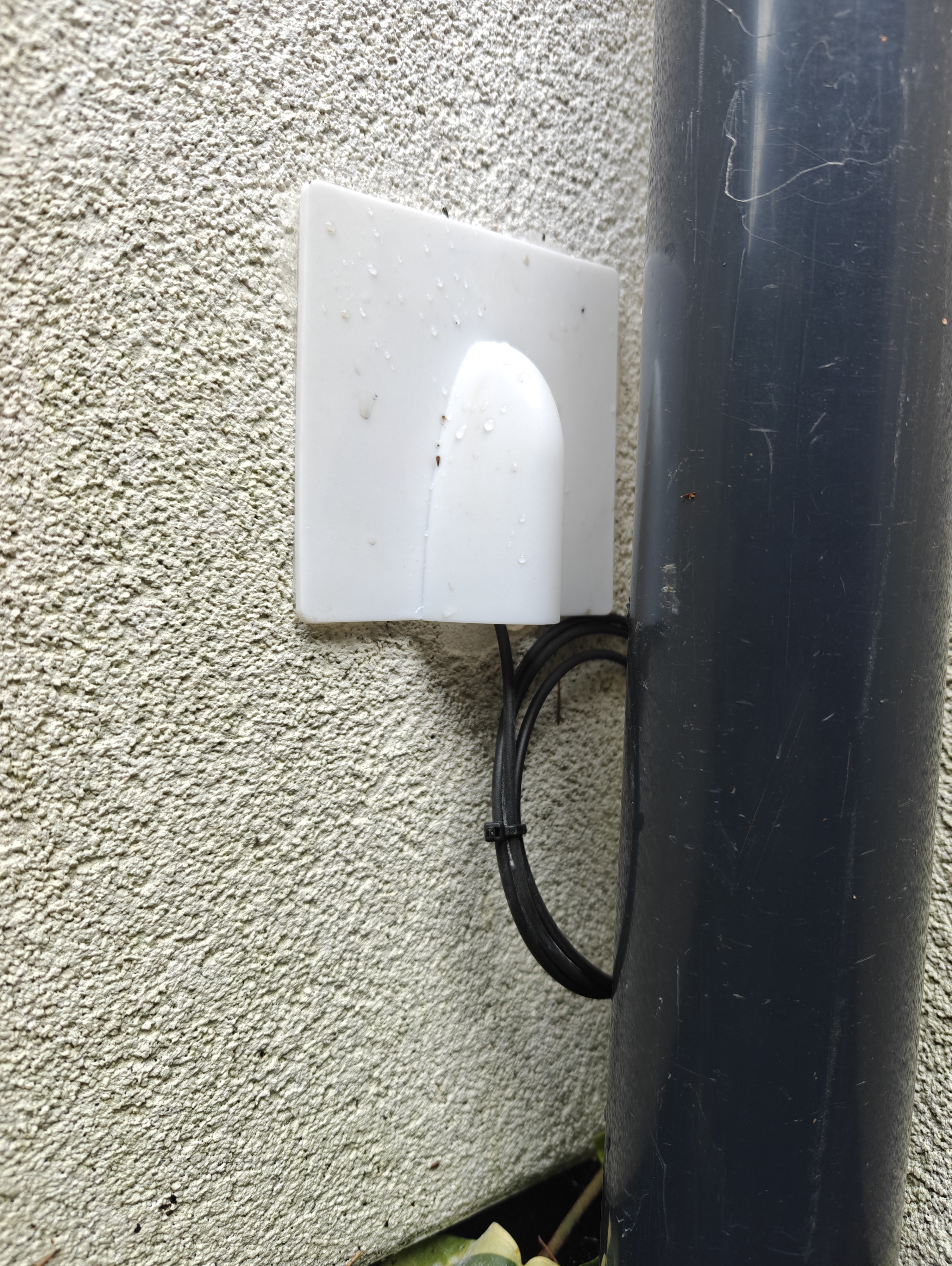
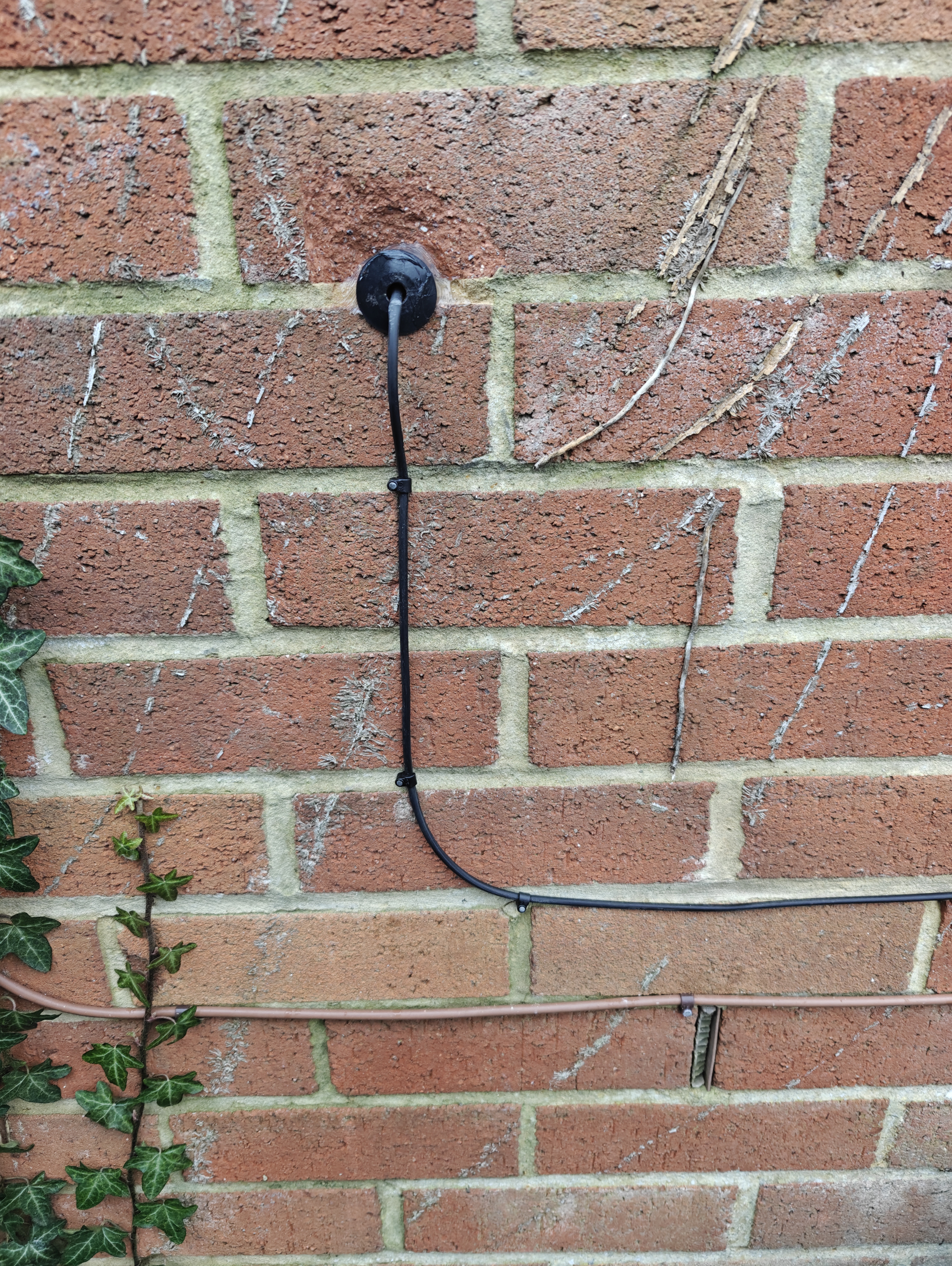
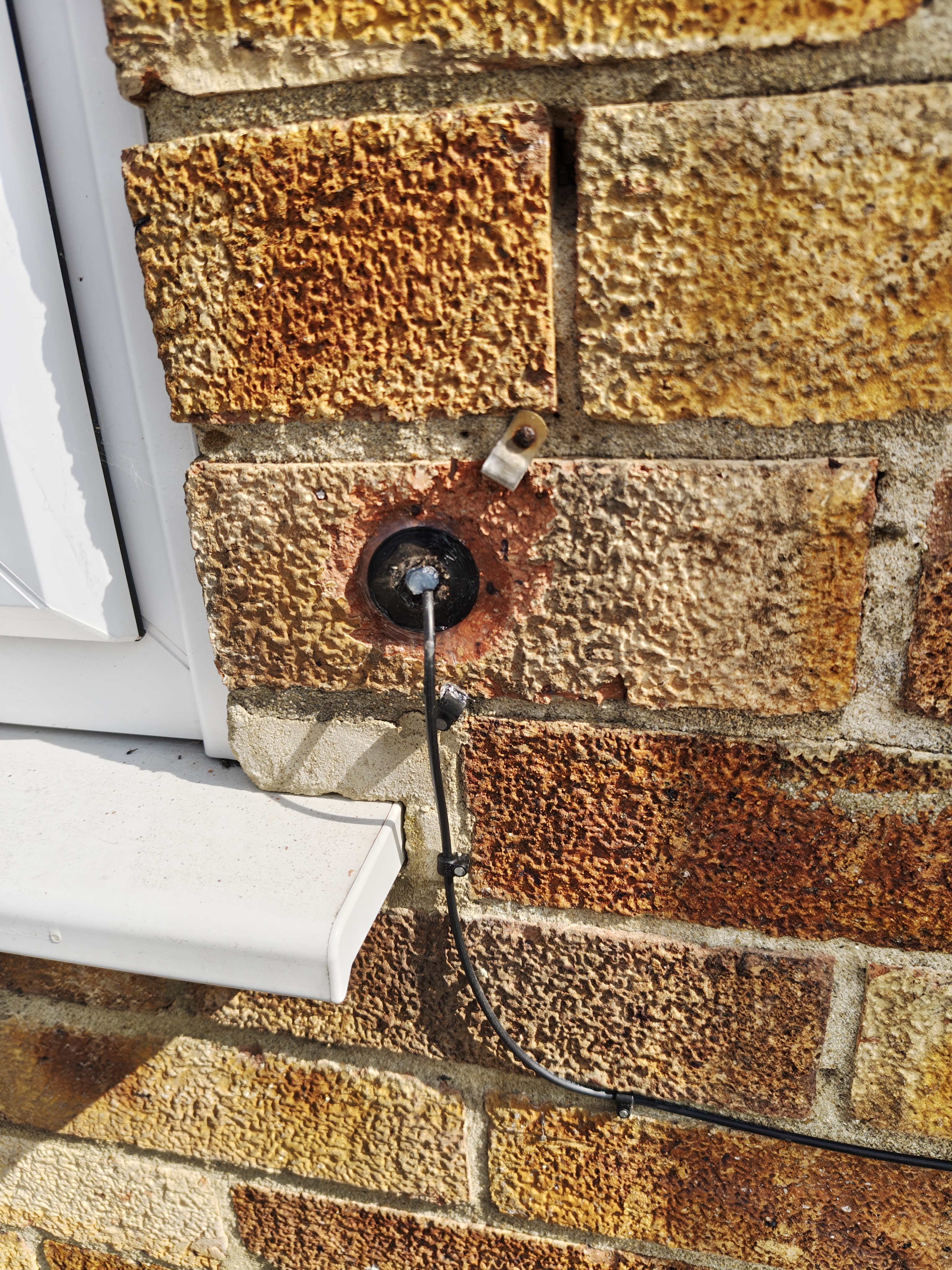
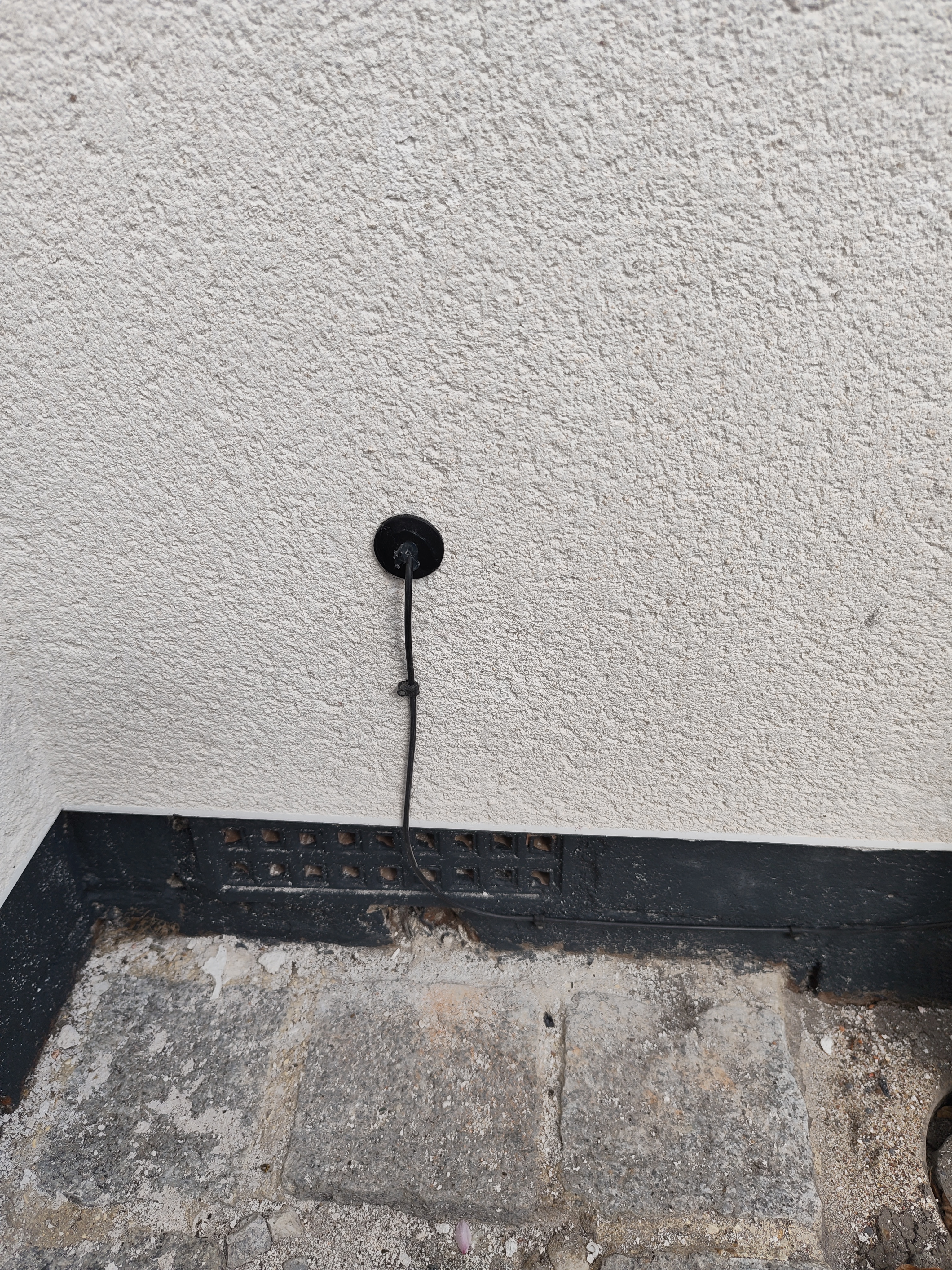
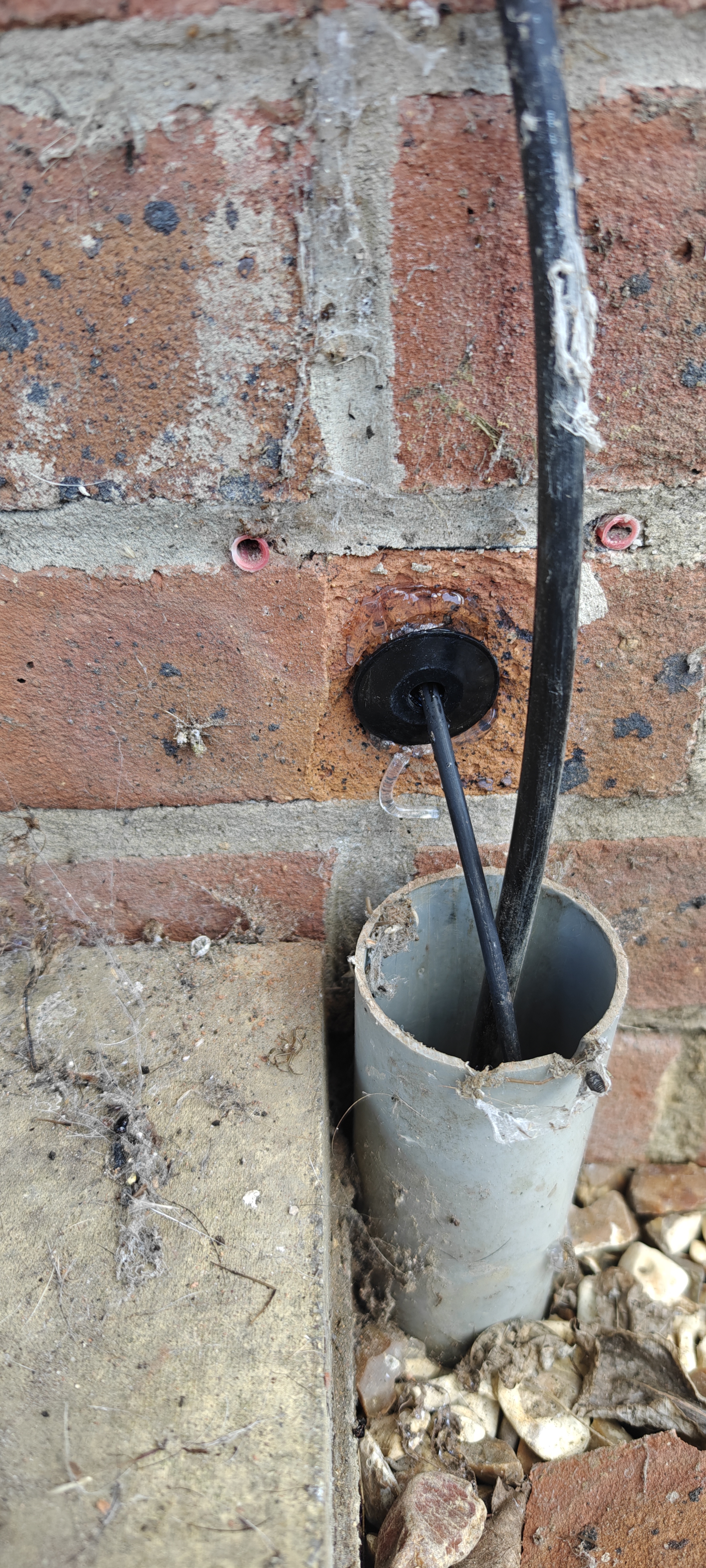
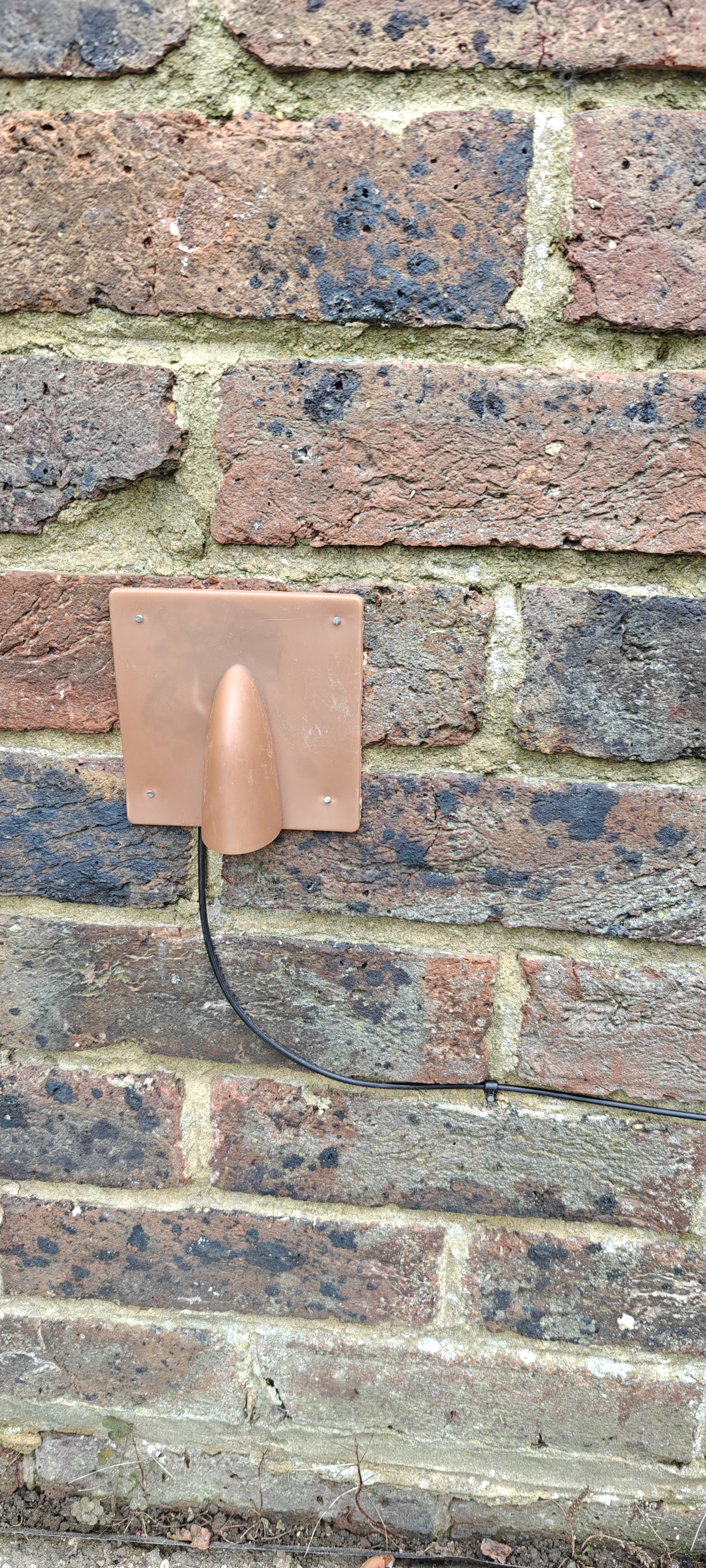
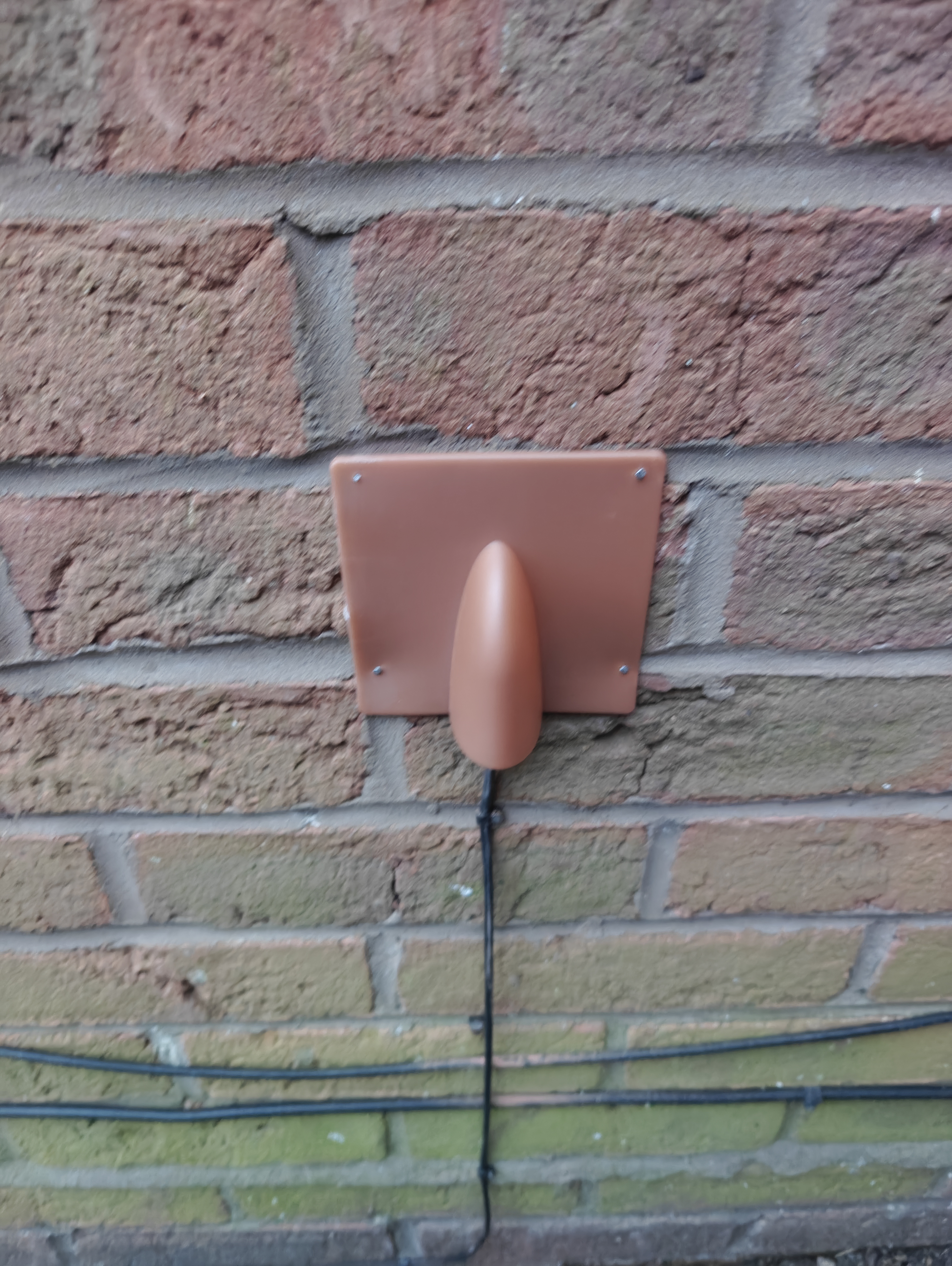
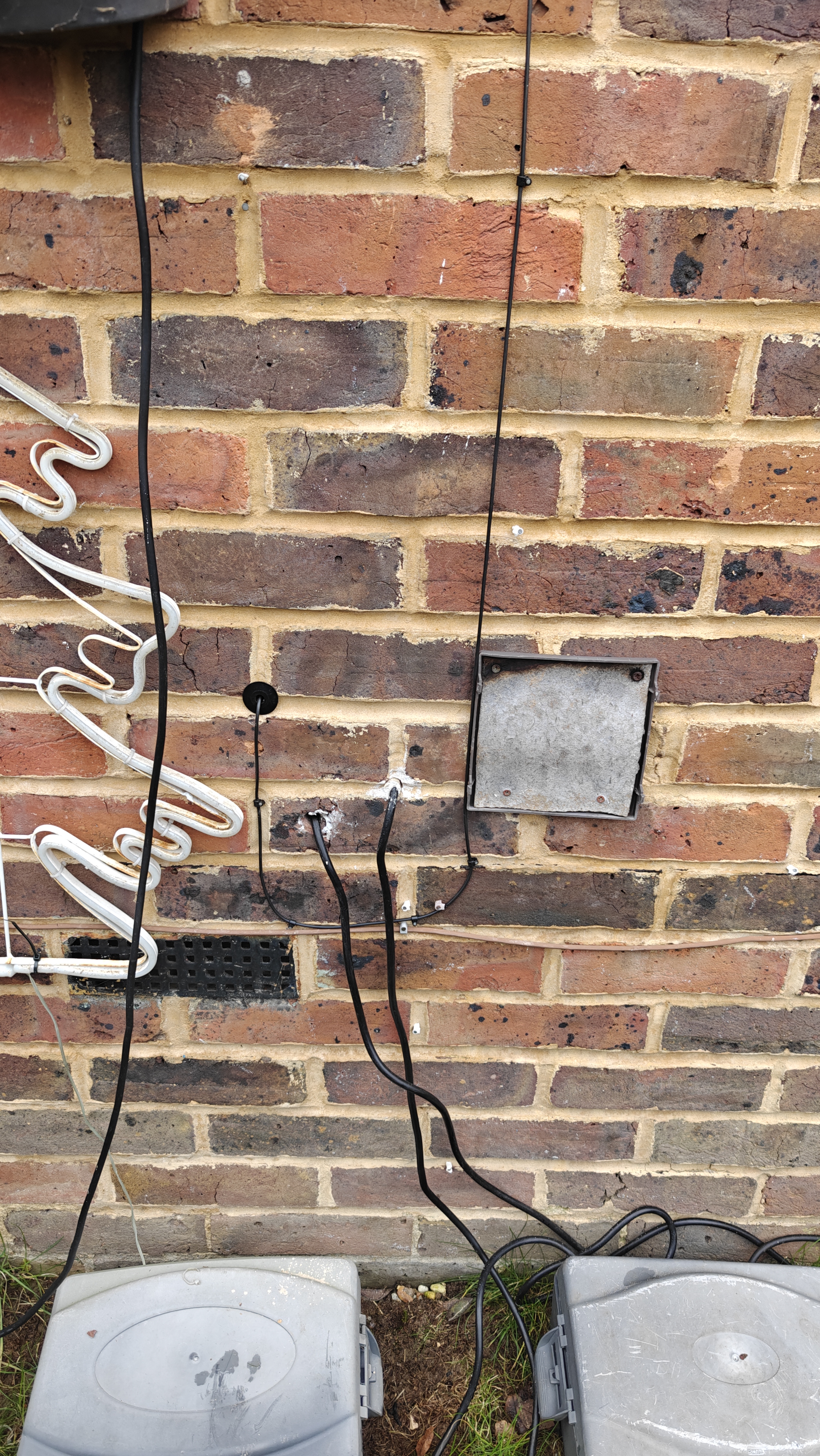
Seal Entry Point Seal hole with silicone and secure brick blast plate with nails. Brick blast or grommet secured with silicone.
Internal Setup and Testing
Steps Description Photos Required
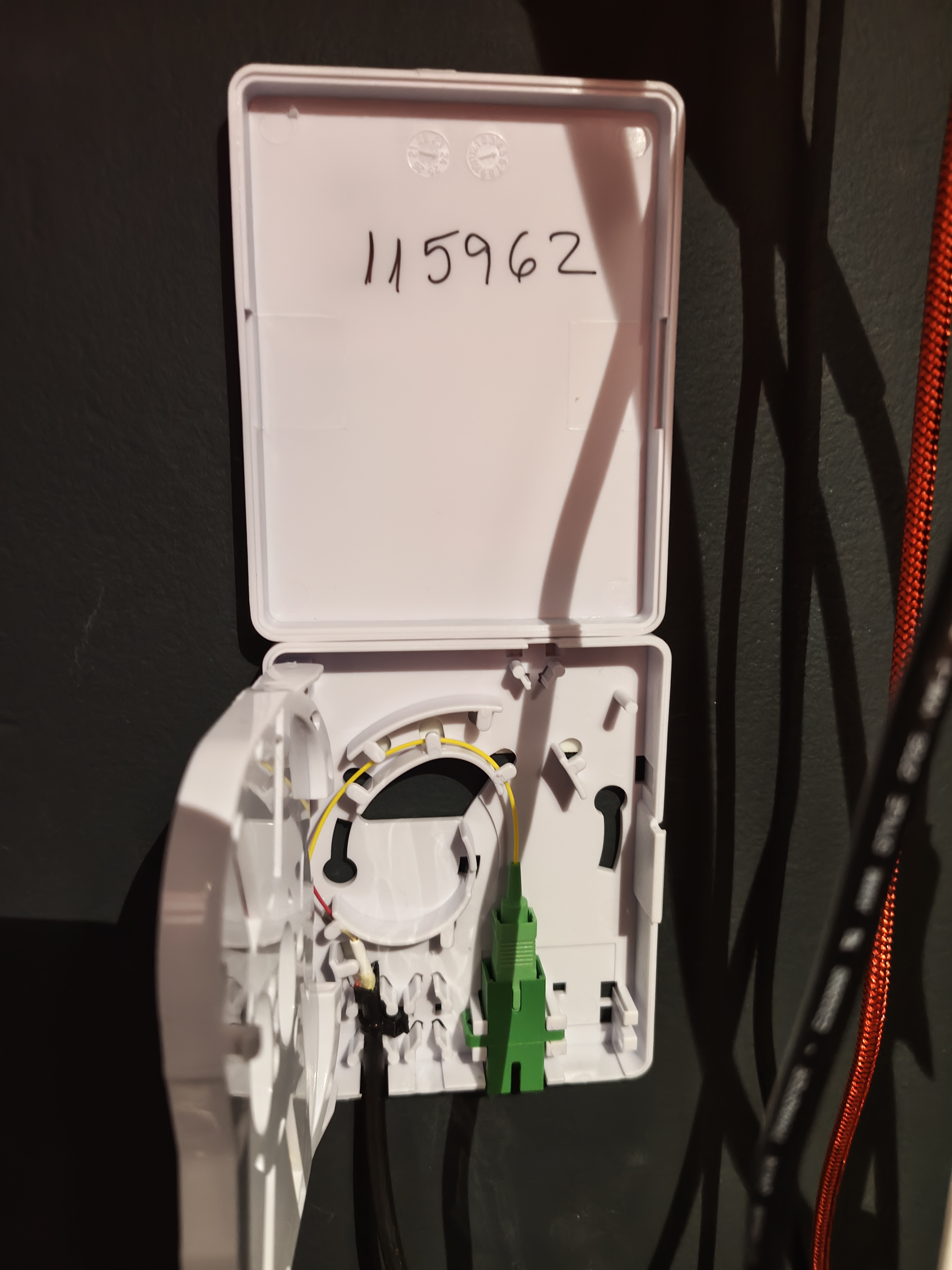
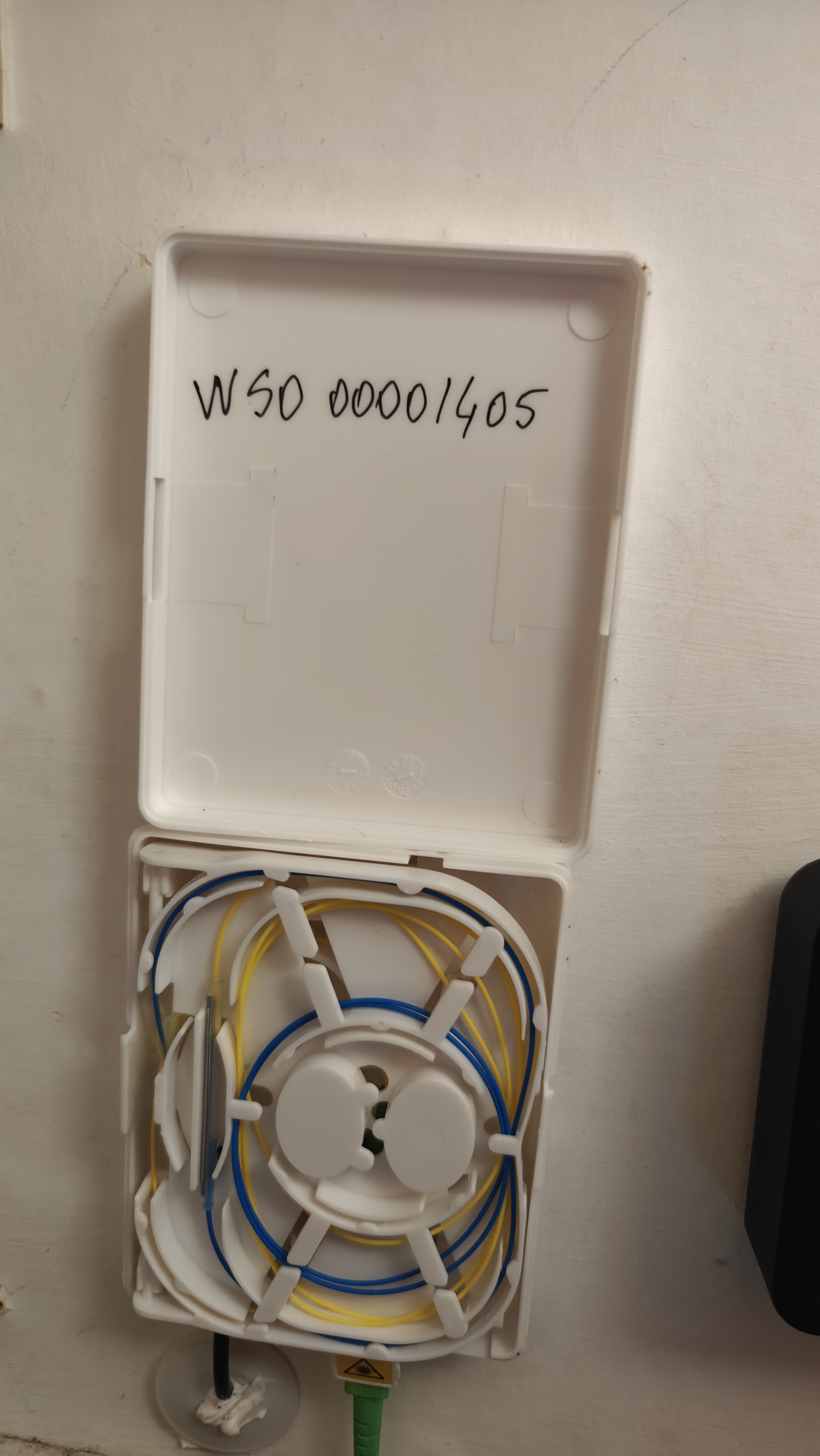
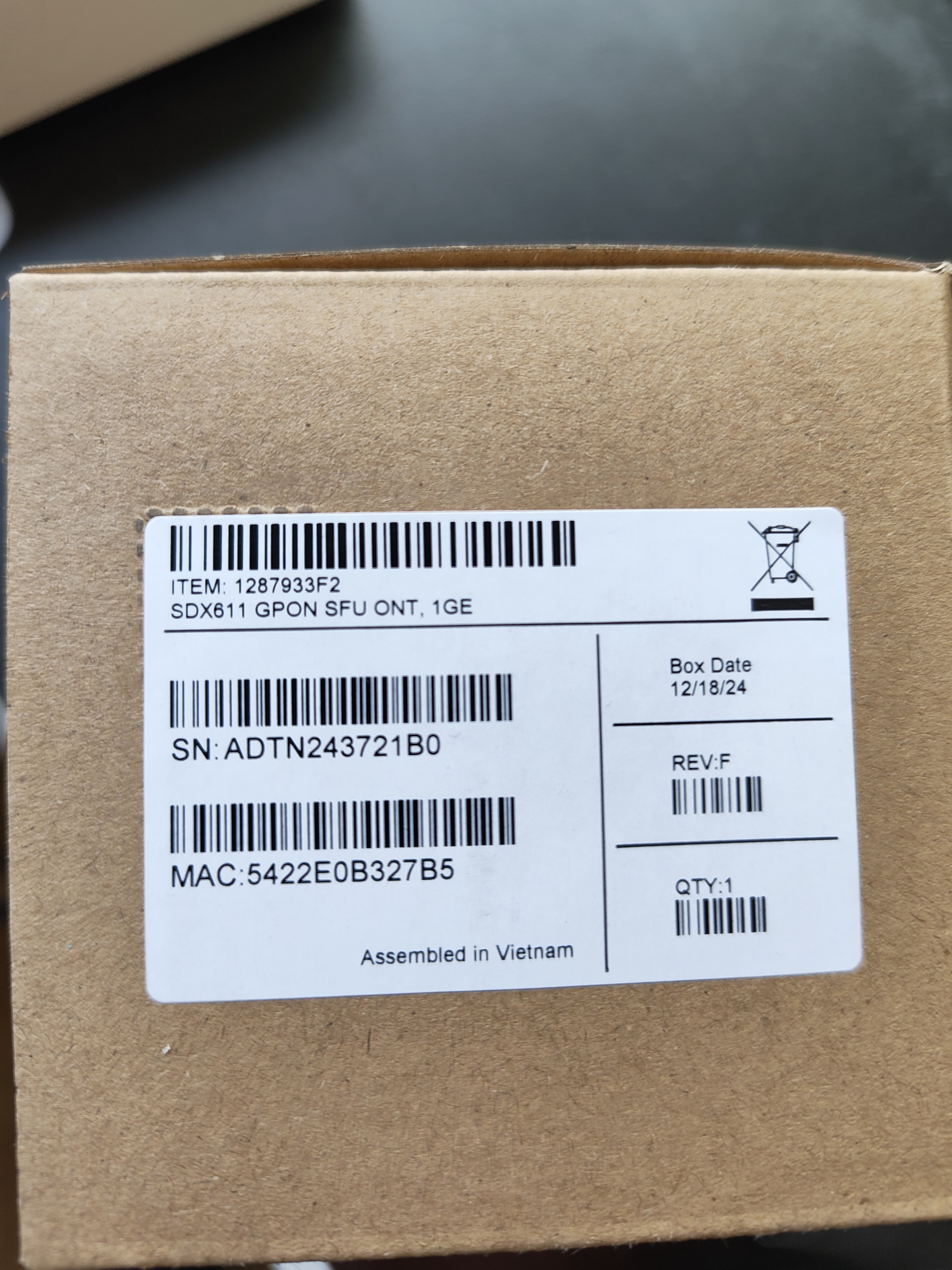
Rosetta Installation Drill hole, install rosetta, and splice cable neatly. Open rosetta, with white silicone, cable tie, tray neatly wrapped, Power reading, all with CUSTOMER ID showing.
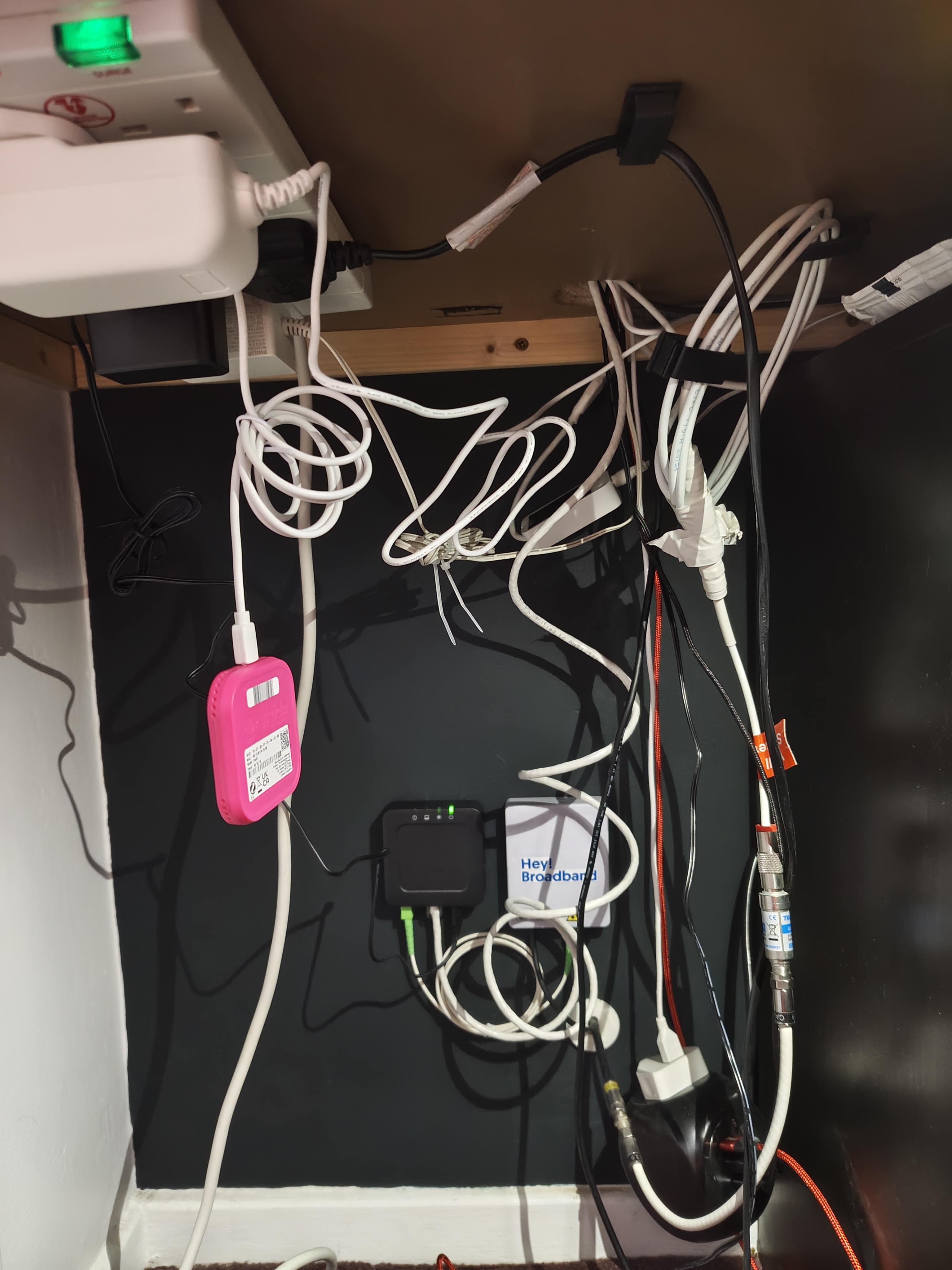
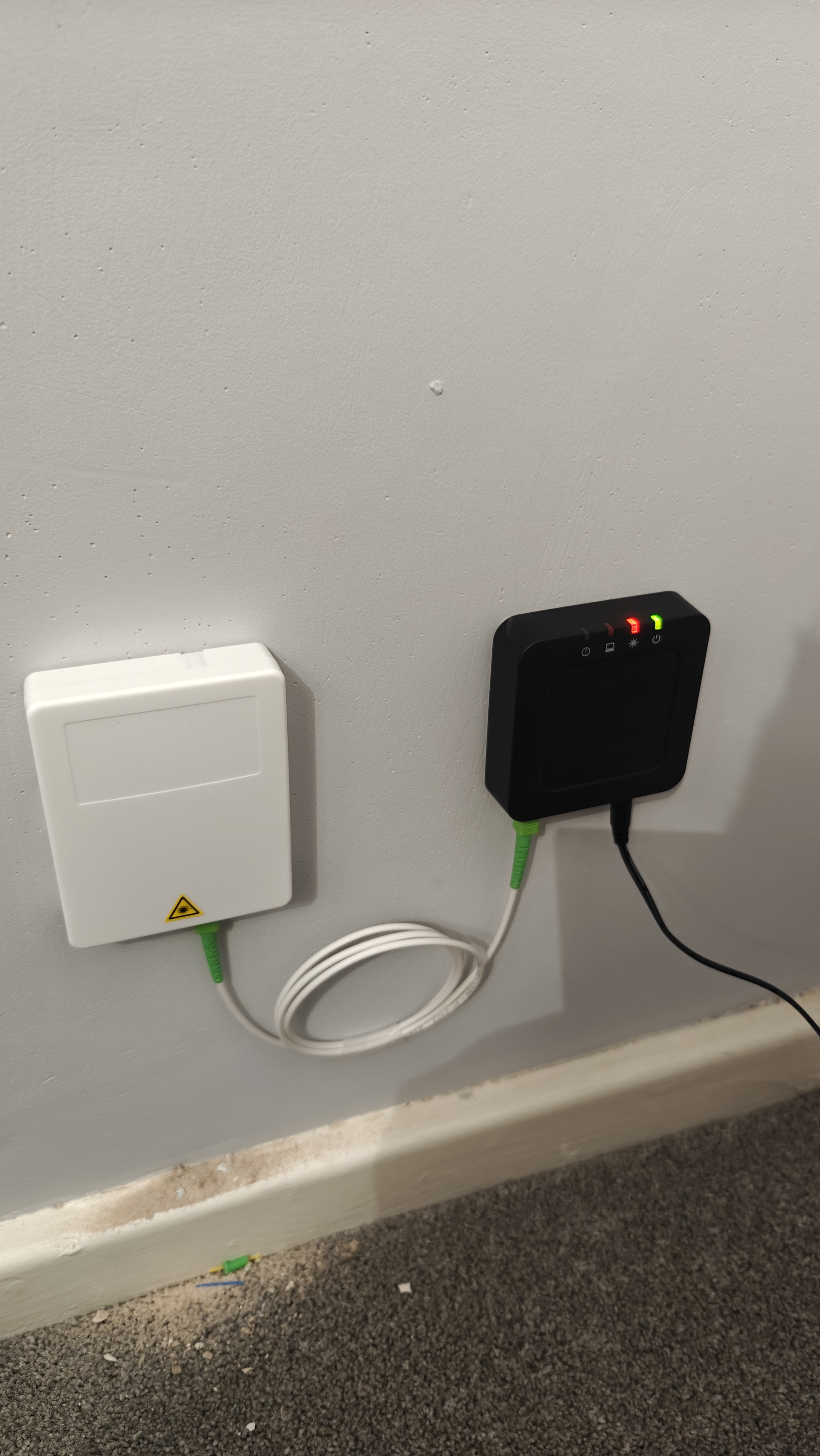
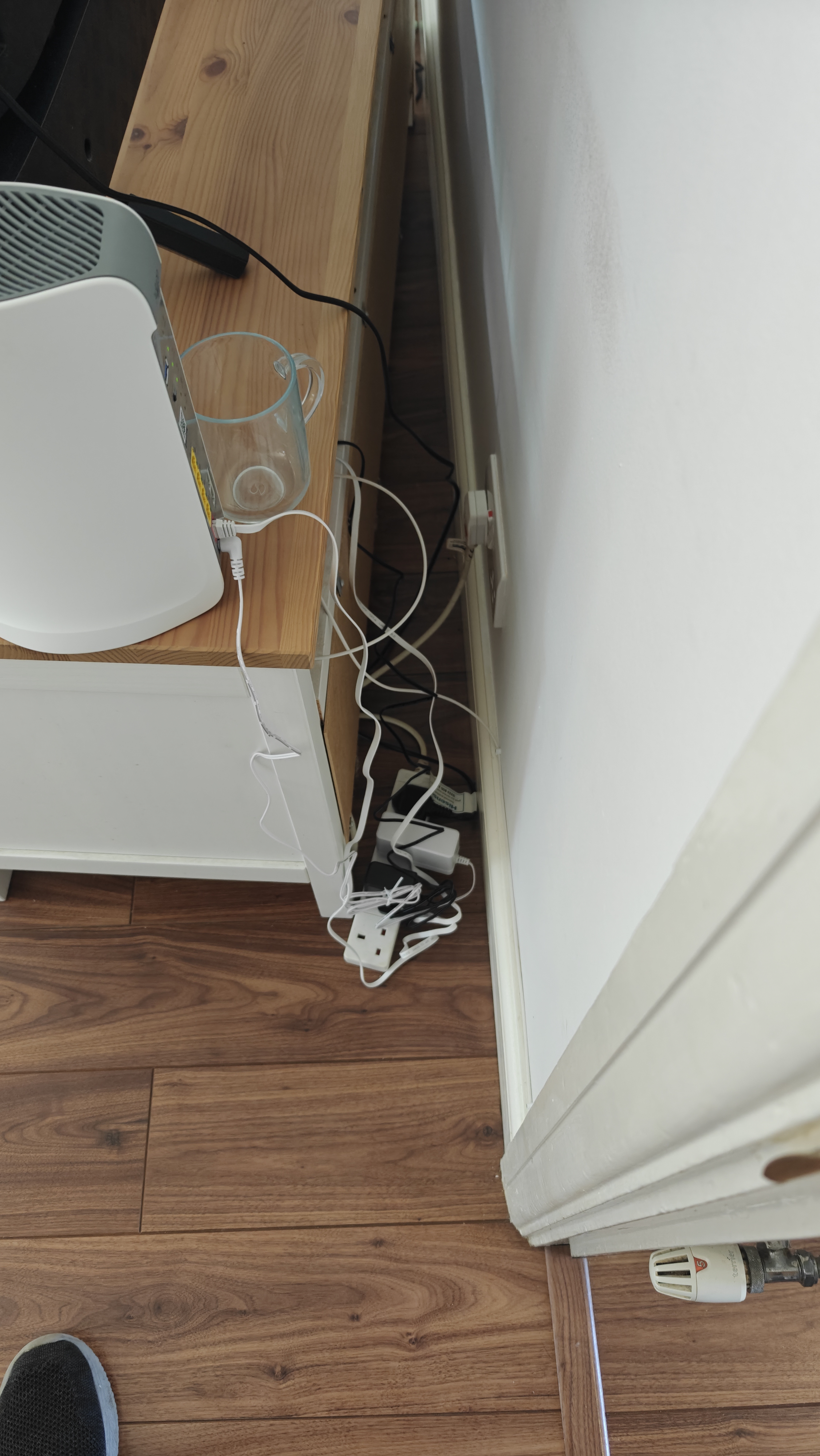
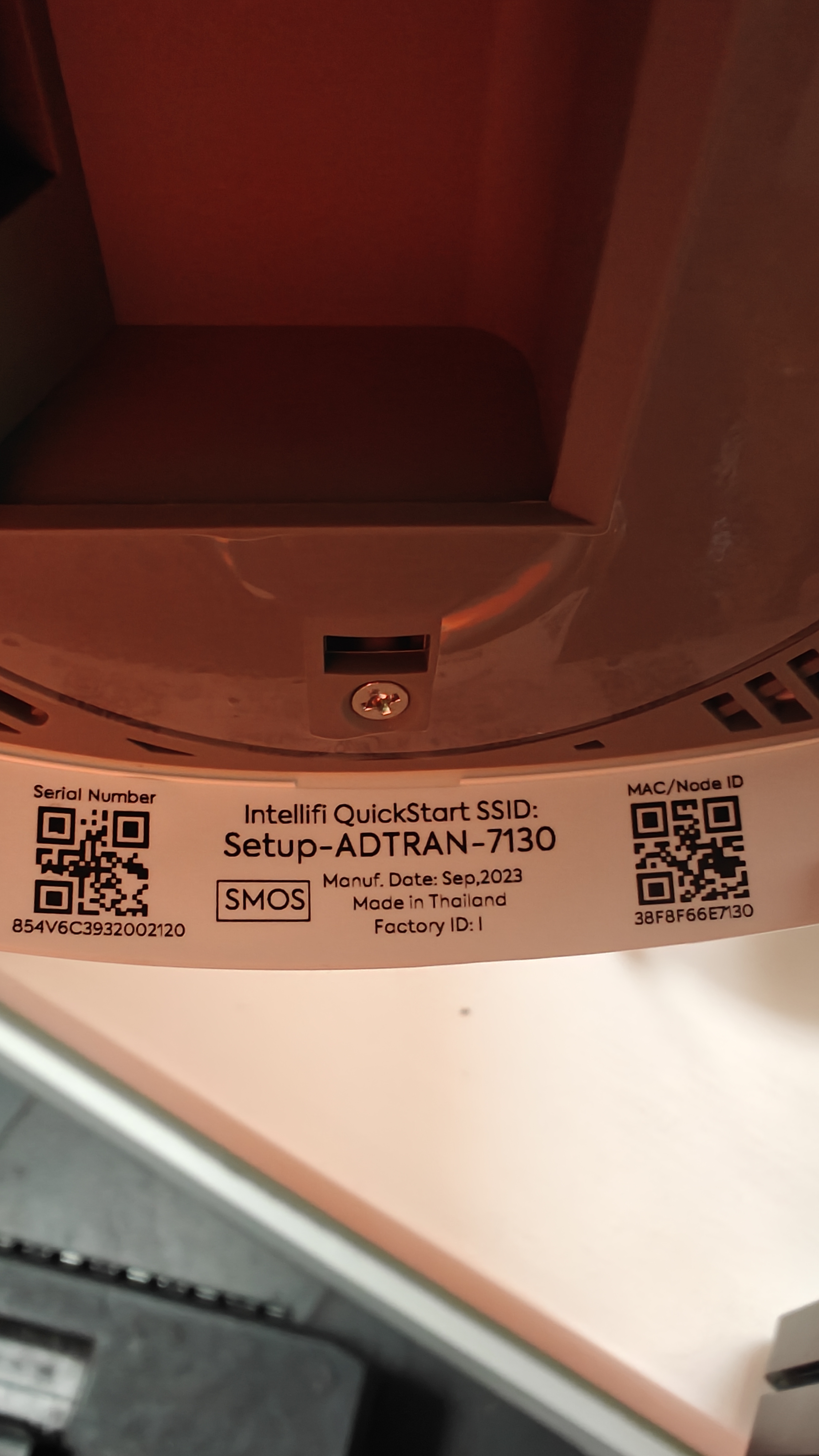
Router Setup Install router close to SFU, connect all cables, and power on. Router setup, closed rosetta with route, label on back of router clear and readable.
Speed Test Run speed test and record results for customer verification. Speed test result clear and readable.
Final Checks
Steps Description Photos Required
Quality Check Ensure all cables are secure, area is clean, and customer is satisfied. Overall installation view (inside and outside).

Underground Installation Checklist

Pre-Installation
Steps Description Photos Required
Preparation Confirm appointment details with the customer. N/A
Customer Confirmation Confirm appointment with the customer, and verify age and installation process awareness. N/A
Safety and Equipment Check Complete risk assessment and confirm all tools and equipment are ready. N/A
Customer Sign-Off Introduce yourself, show ID, confirm installation plan, and obtain router placement approval. N/A
Underground Installation Steps
Steps Description Photos Required
Chamber Work Open chamber, check splitter box. Any defects take photos with SB before doing anywork on it. Power meter reading showing SB ID.
Power Meter Test Show Splitter Box ID and perform power test. Splitter Box ID, power meter reading.
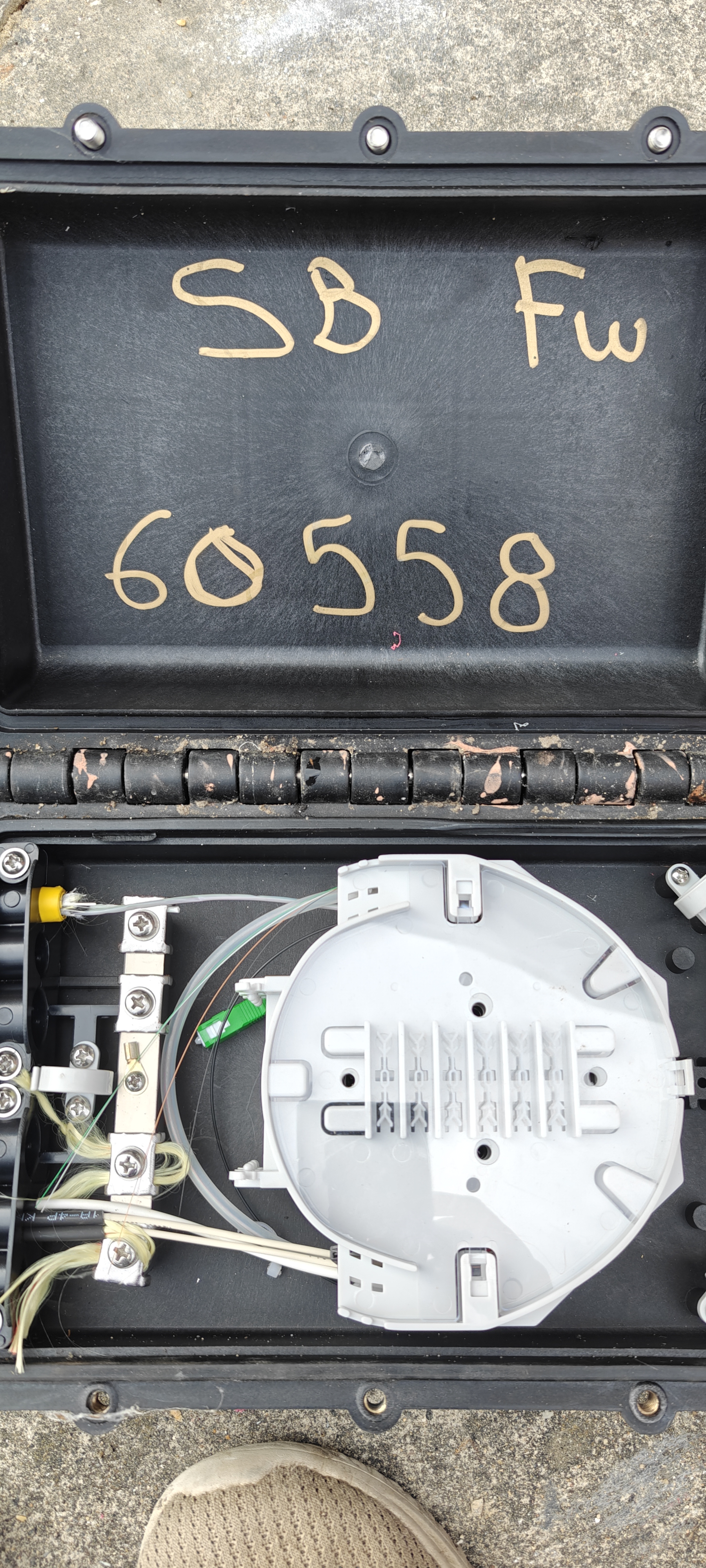
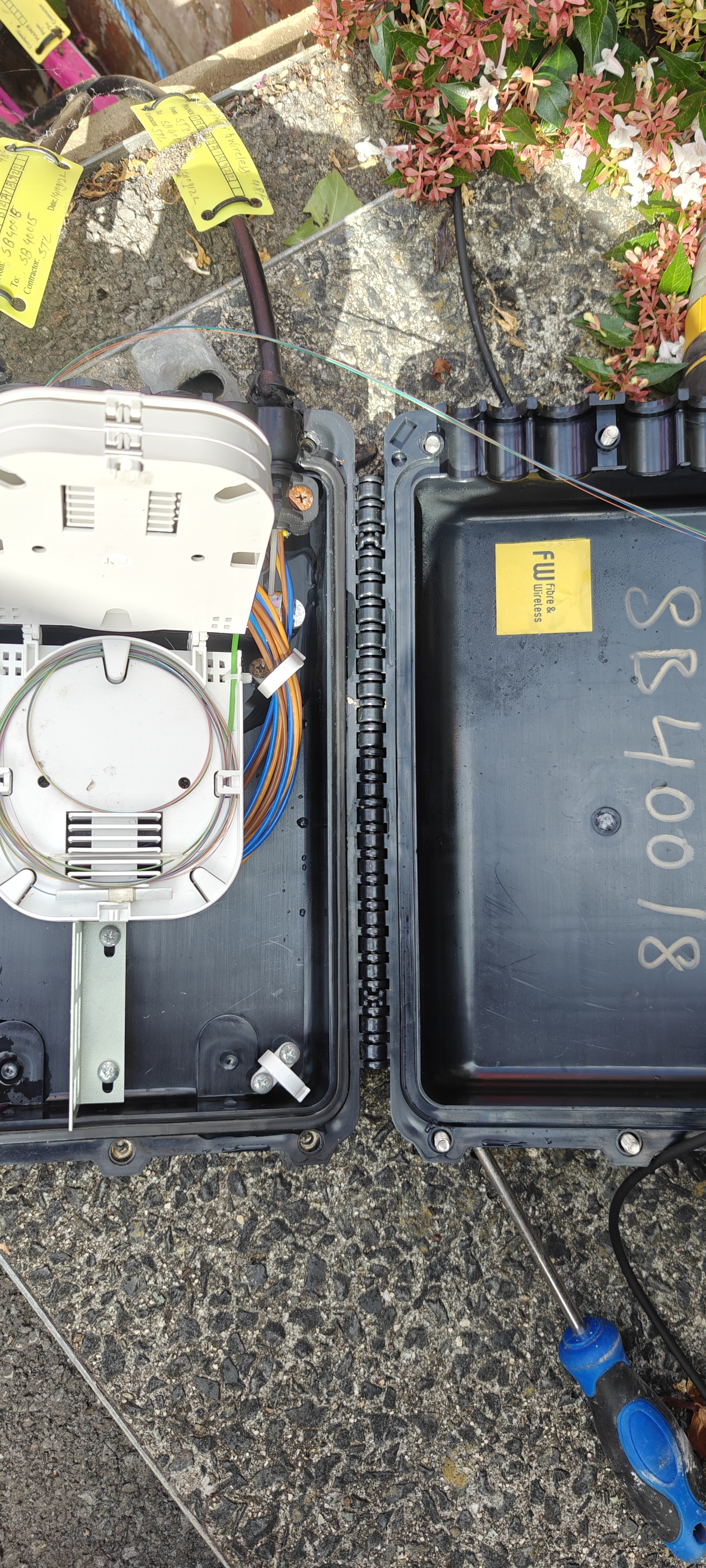
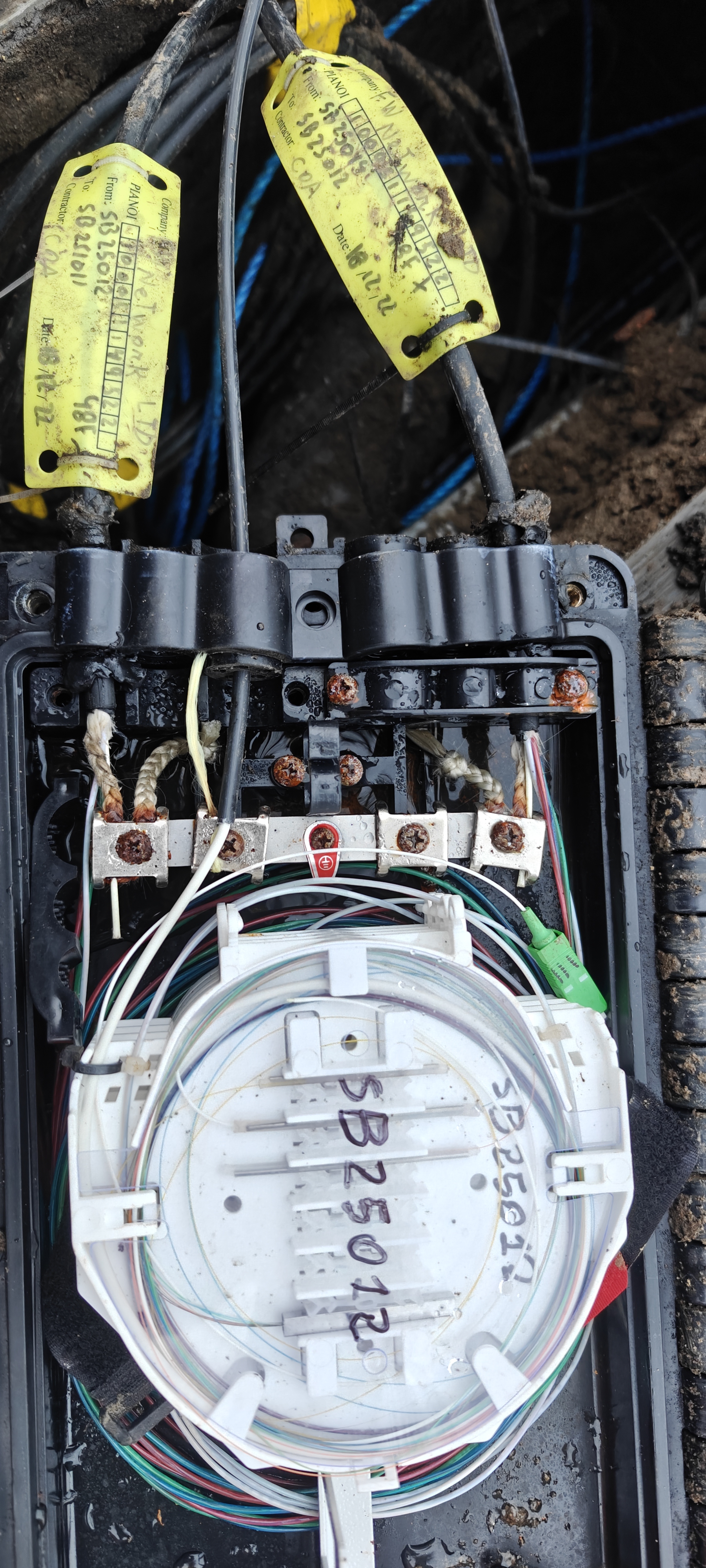
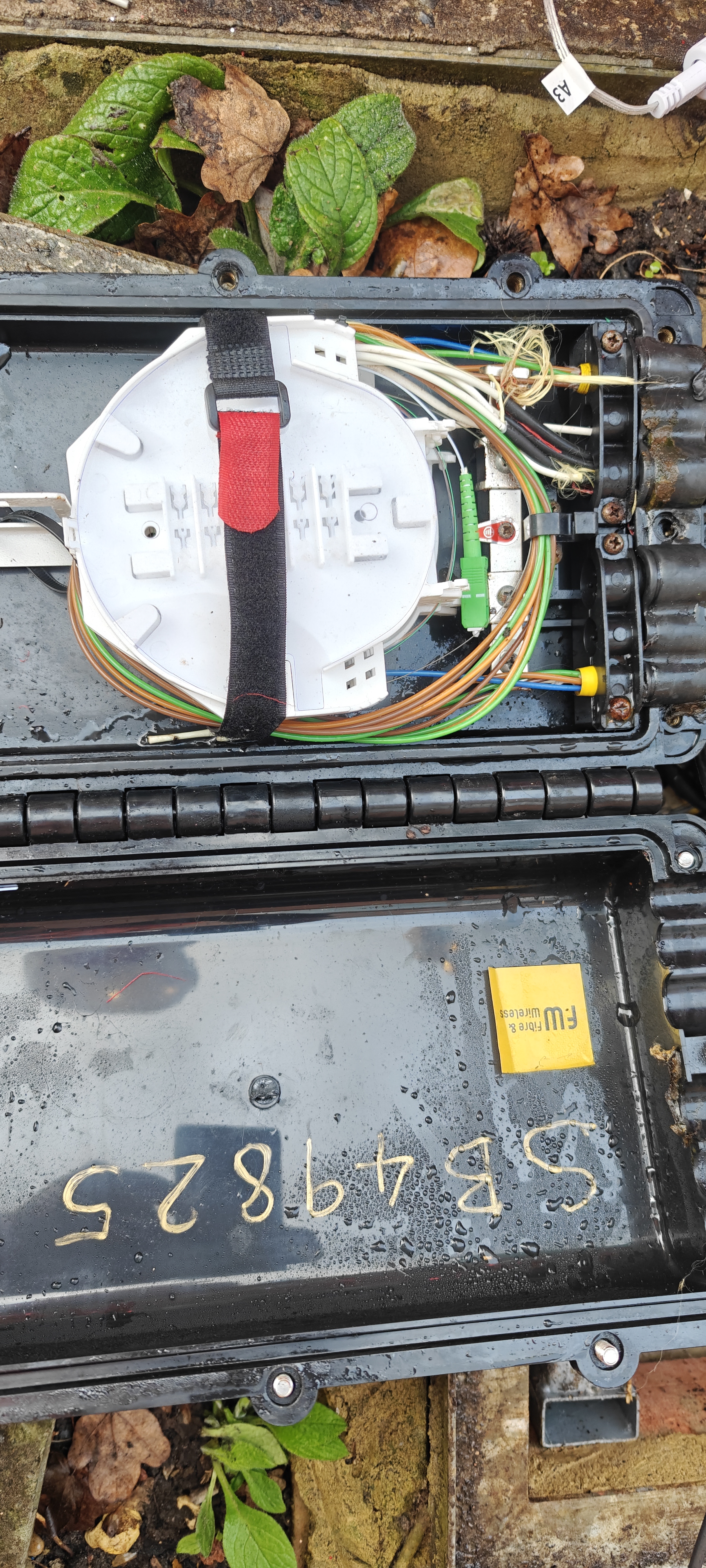
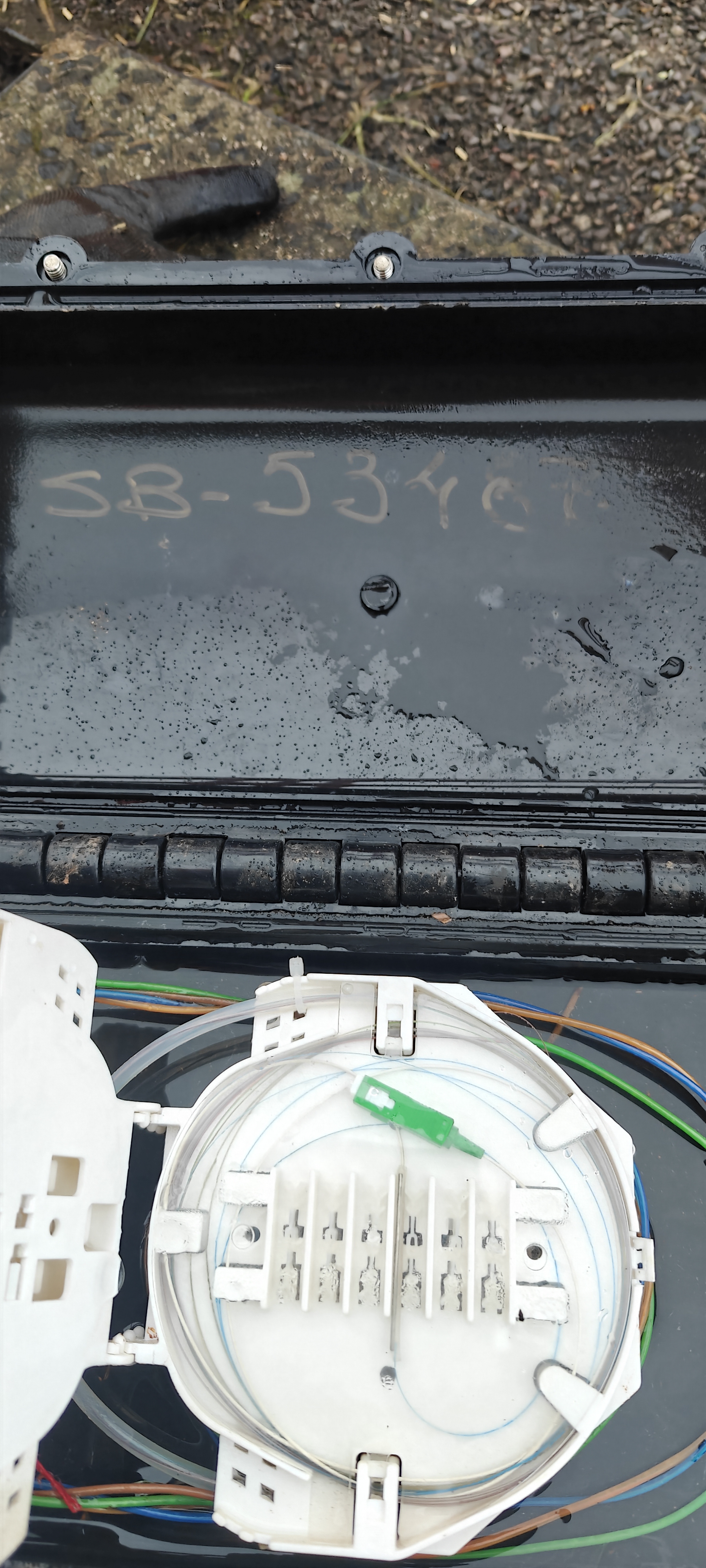
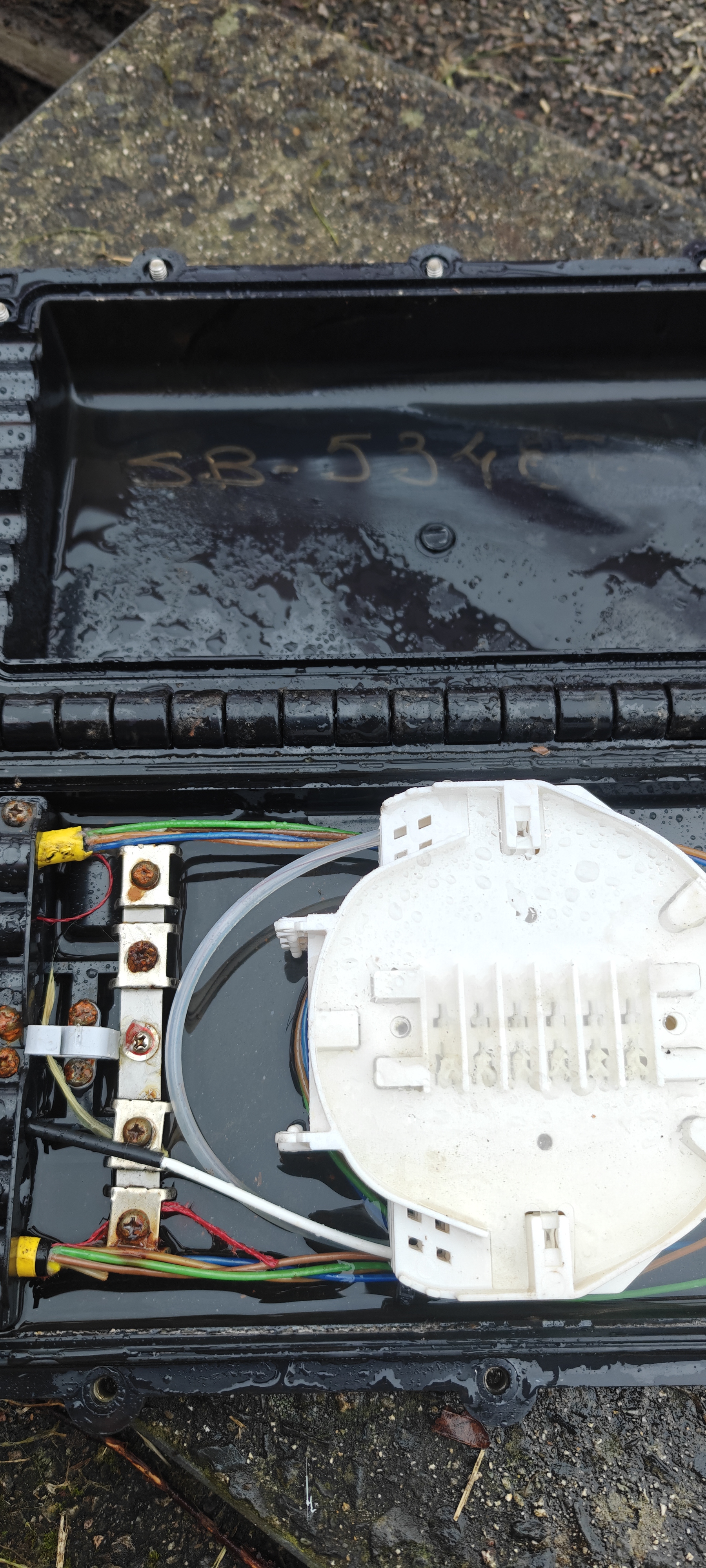
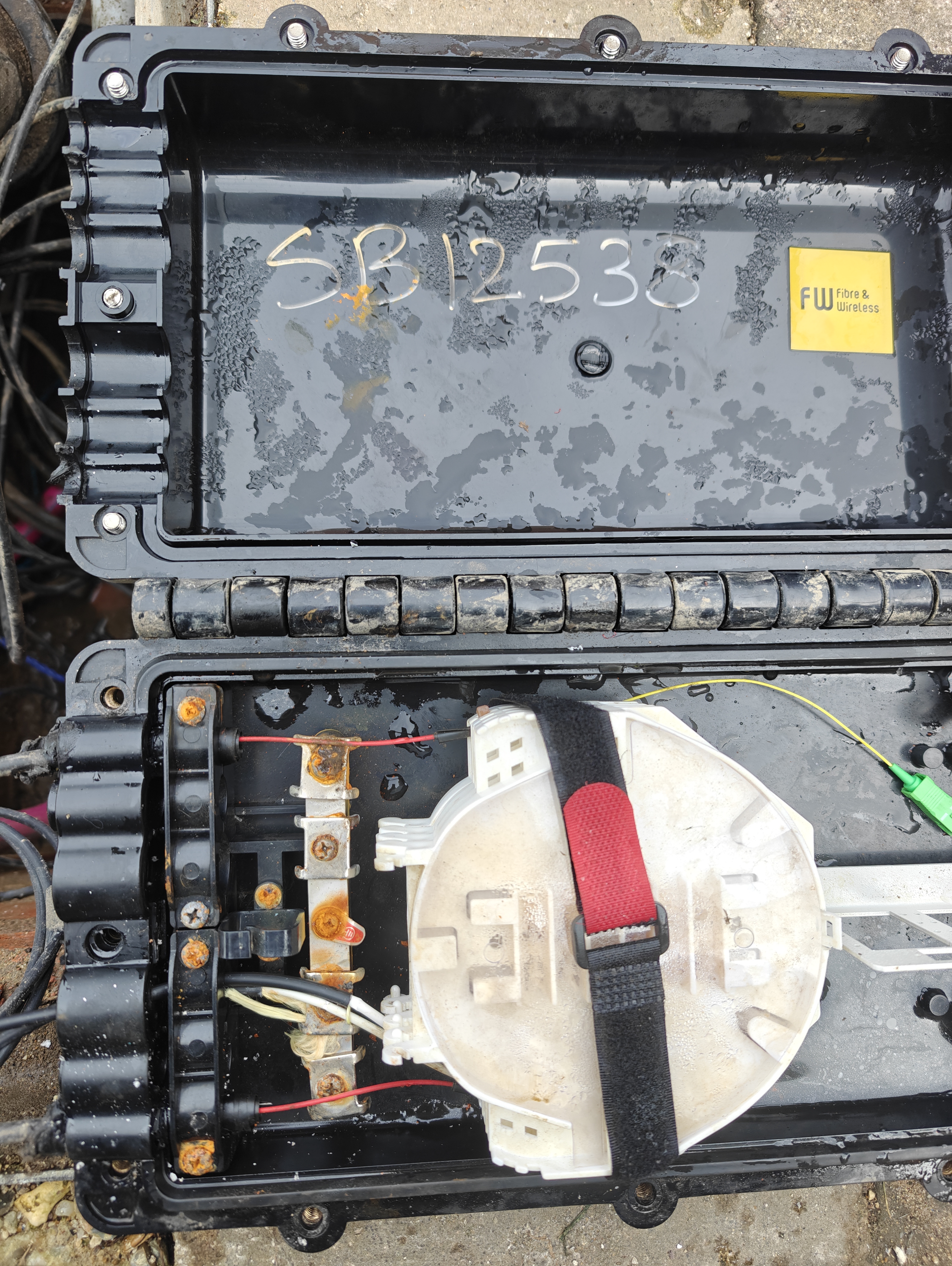
Open Splitter Box Show box ID with your work inside. Open Splitter Box showing your splice in the tray, trays secured, cable secured with kevlar, cable tied.
Final Condition Ensure cables are restrained with yellow tape, and close chamber lid. SB showing service loop with yellow tape, Closed chamber lid showing surroundings.
House Connection
Steps Description Photos Required
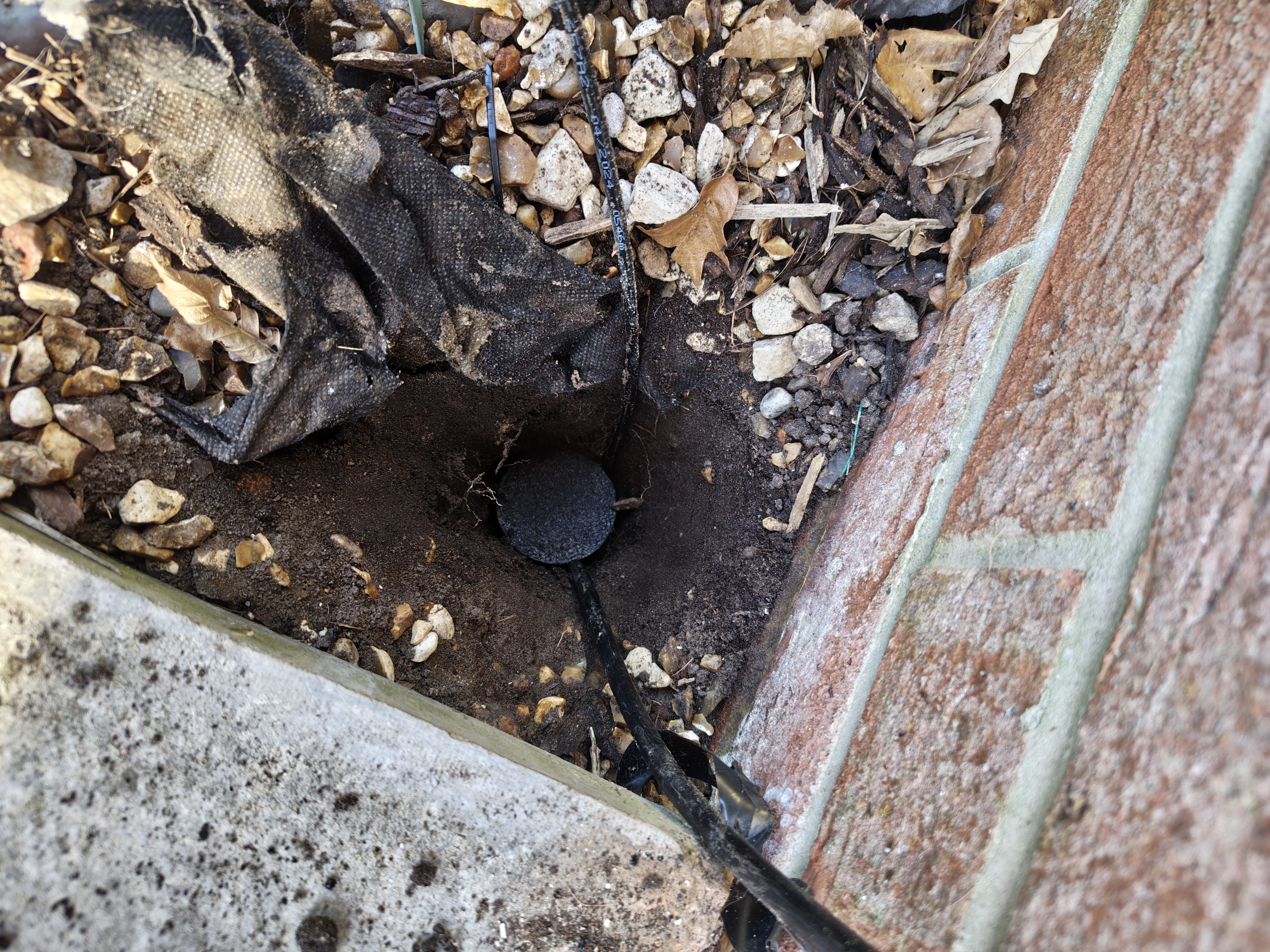
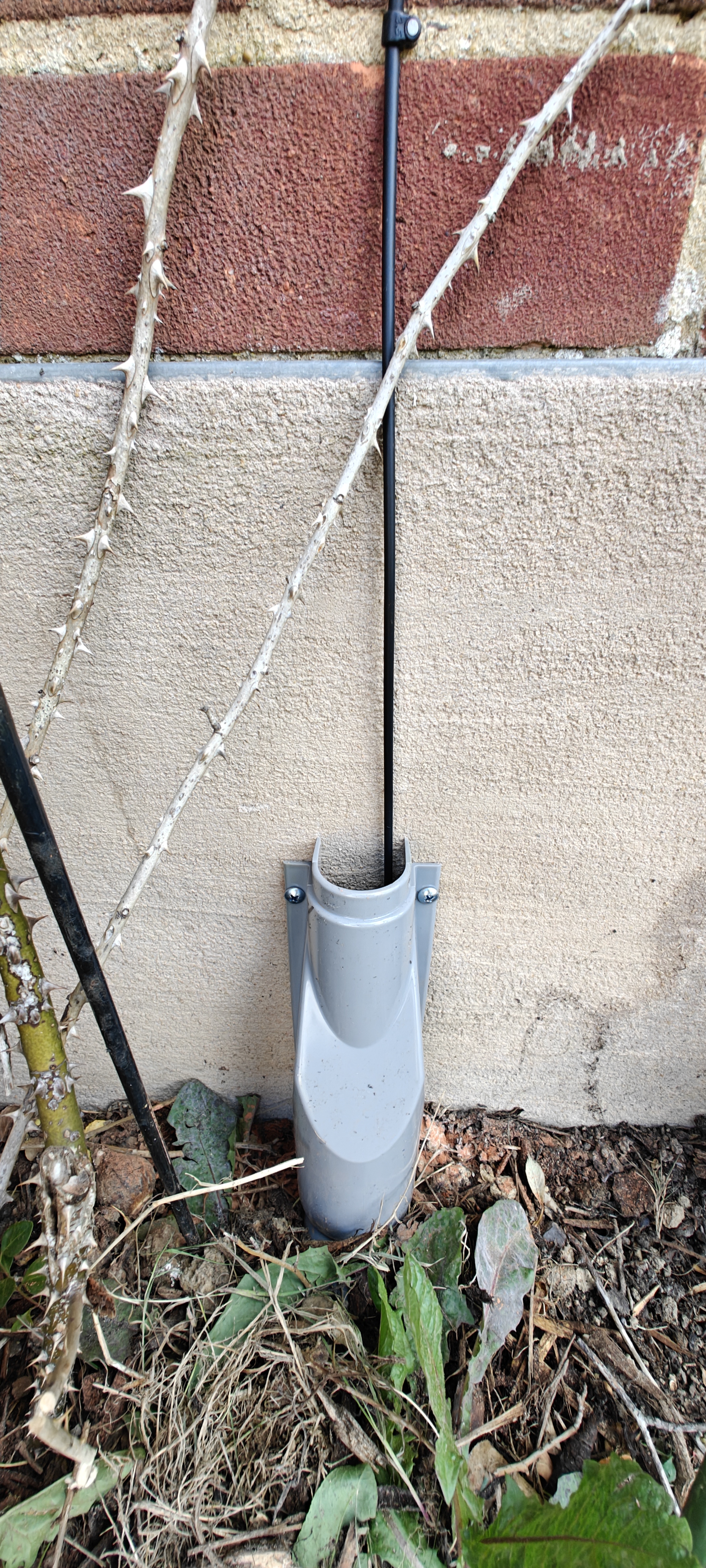
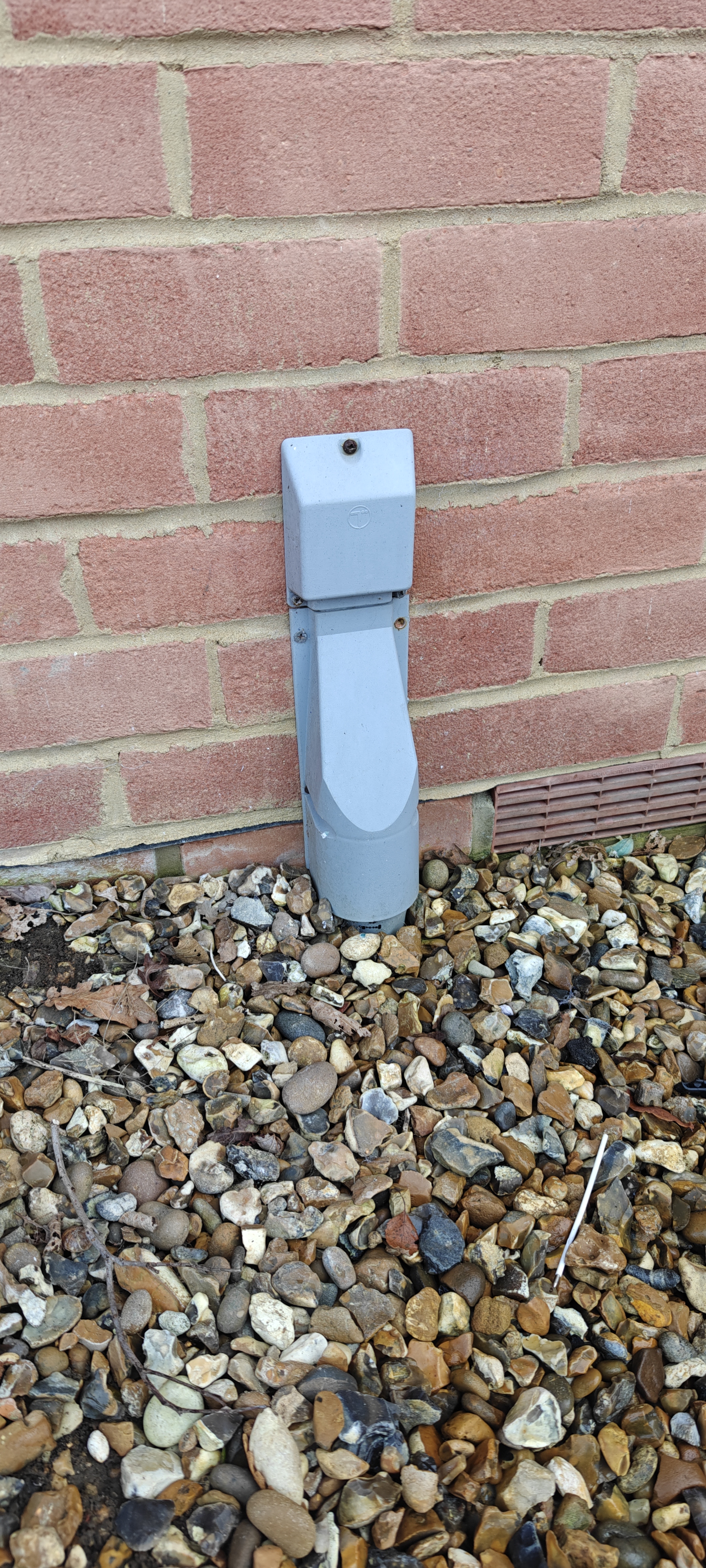
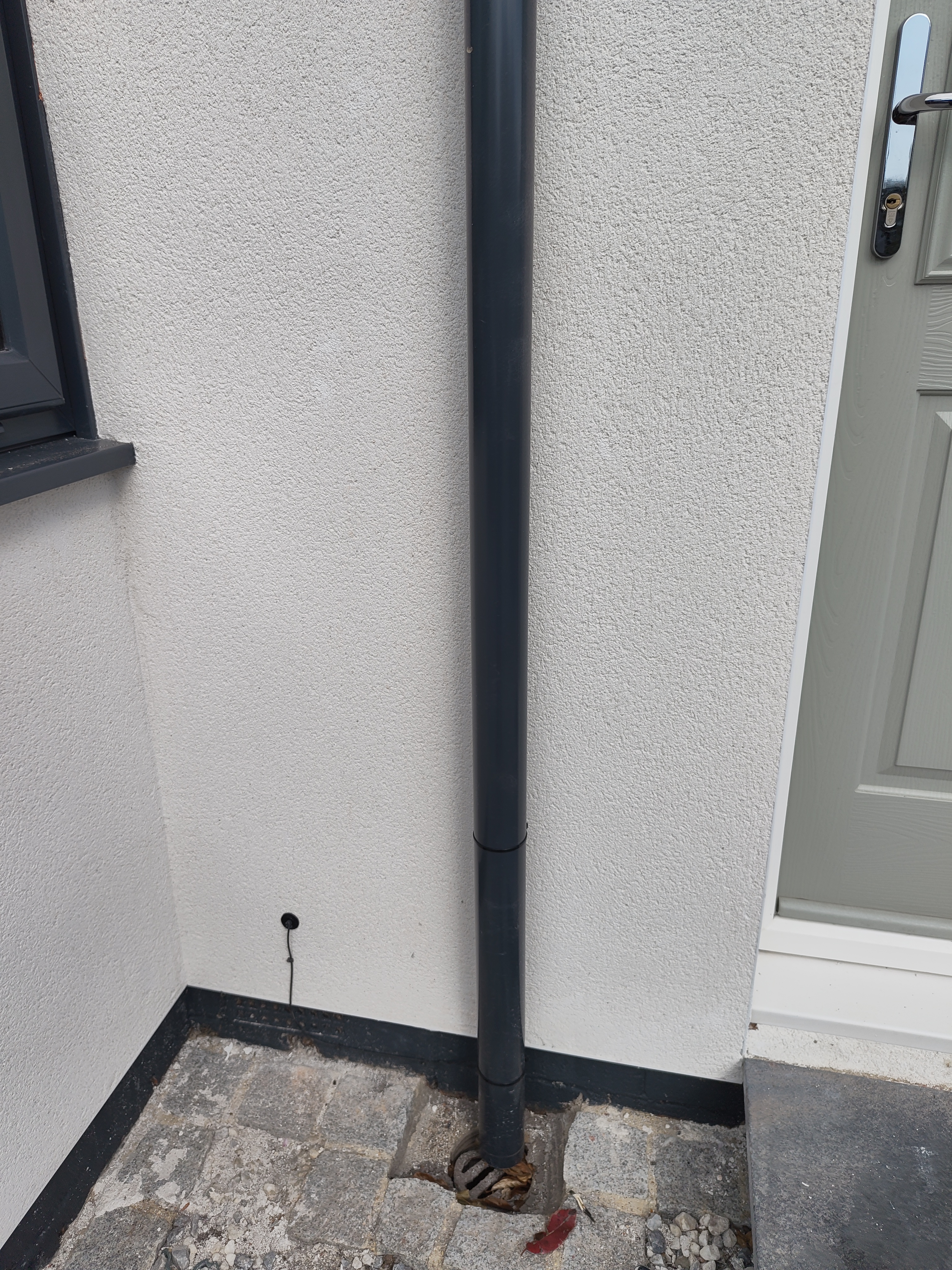
Cable Pull Pull cable to house, plug duct mouth, and secure with cleats. Duct mouth plugged, duct capped, cable route with cleats.
Seal Entry Point Seal hole with silicone and secure brick blast plate with nails. Brick blast or grommet secured with silicone.
Internal Setup and Testing
Steps Description Photos Required
Rosetta Installation Drill hole, install rosetta, and splice cable neatly. Open rosetta, with white silicone, cable tie, tray neatly wrapped, Power reading, all with CUSTOMER ID showing.
Router Setup Install router close to SFU, connect all cables, and power on. Router setup, closed rosetta with route, label on back of router clear and readable.
Speed Test Run speed test and record results for customer verification. Speed test result clear and readable.
Final Checks
Steps Description Photos Required
Quality Check Ensure all cables are secure, area is clean, and customer is satisfied. Overall installation view (inside and outside).

Photo Checklist

Overhead Installation - Pole (Before)
Photo Requirement Description
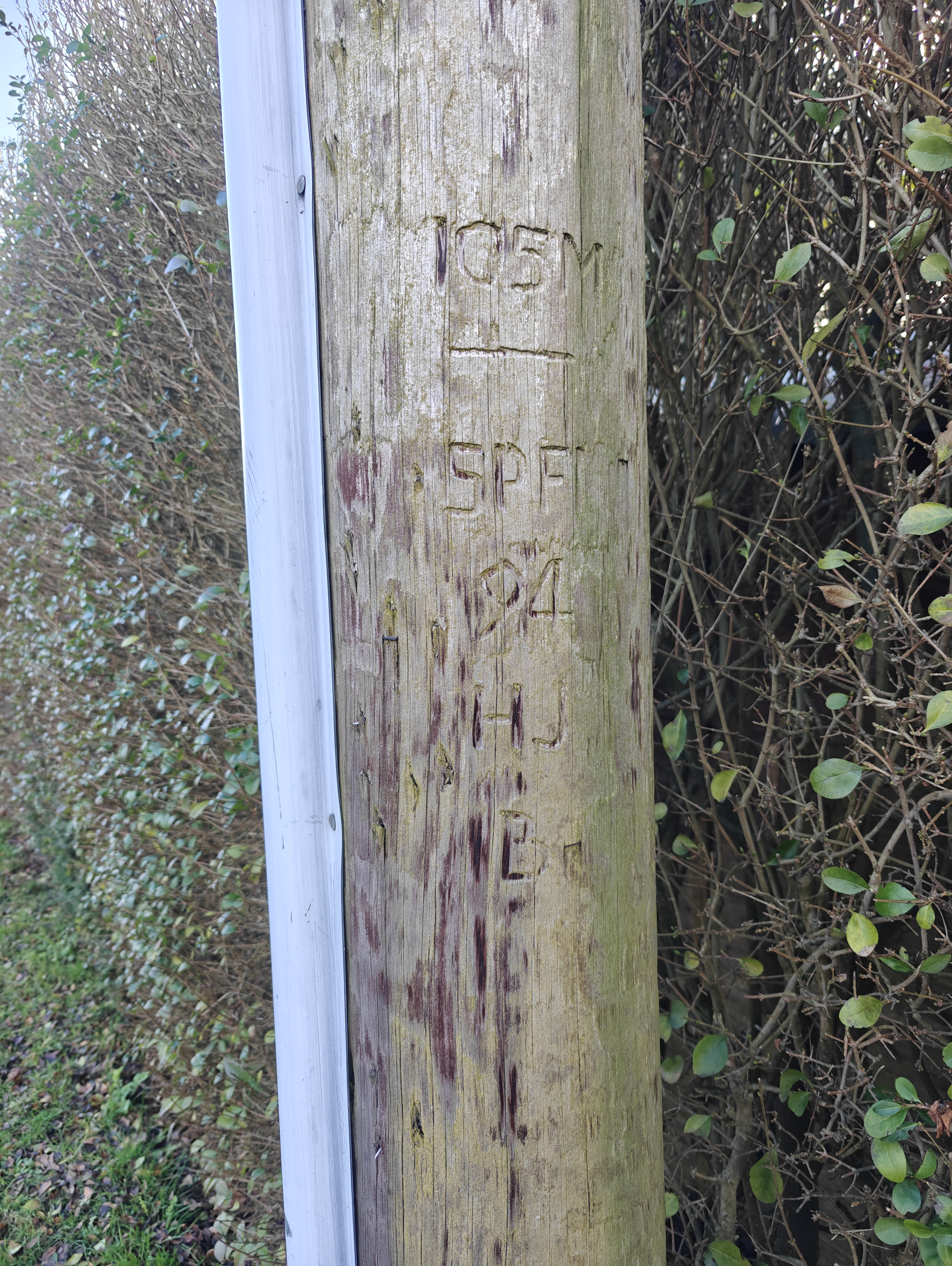
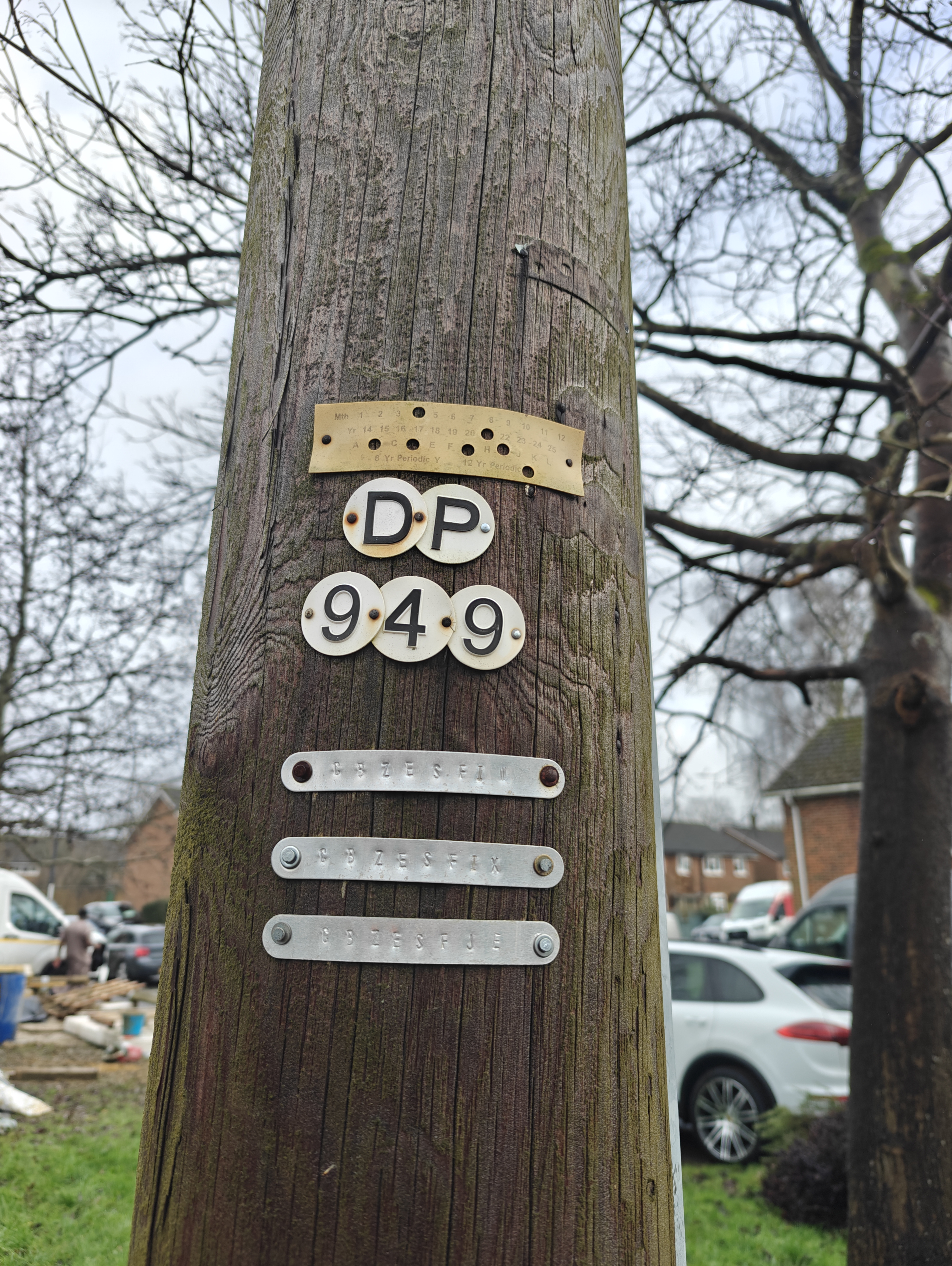
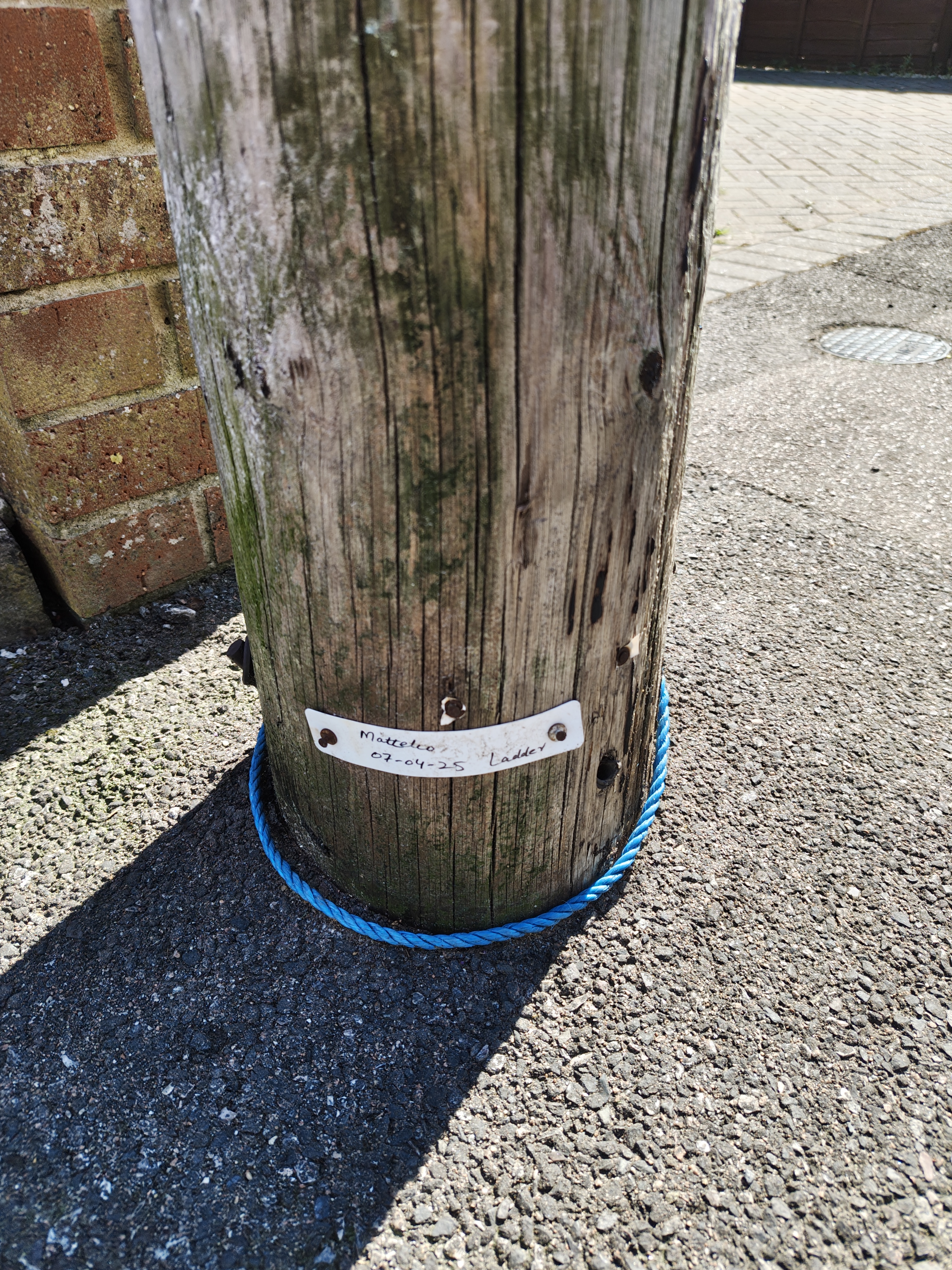
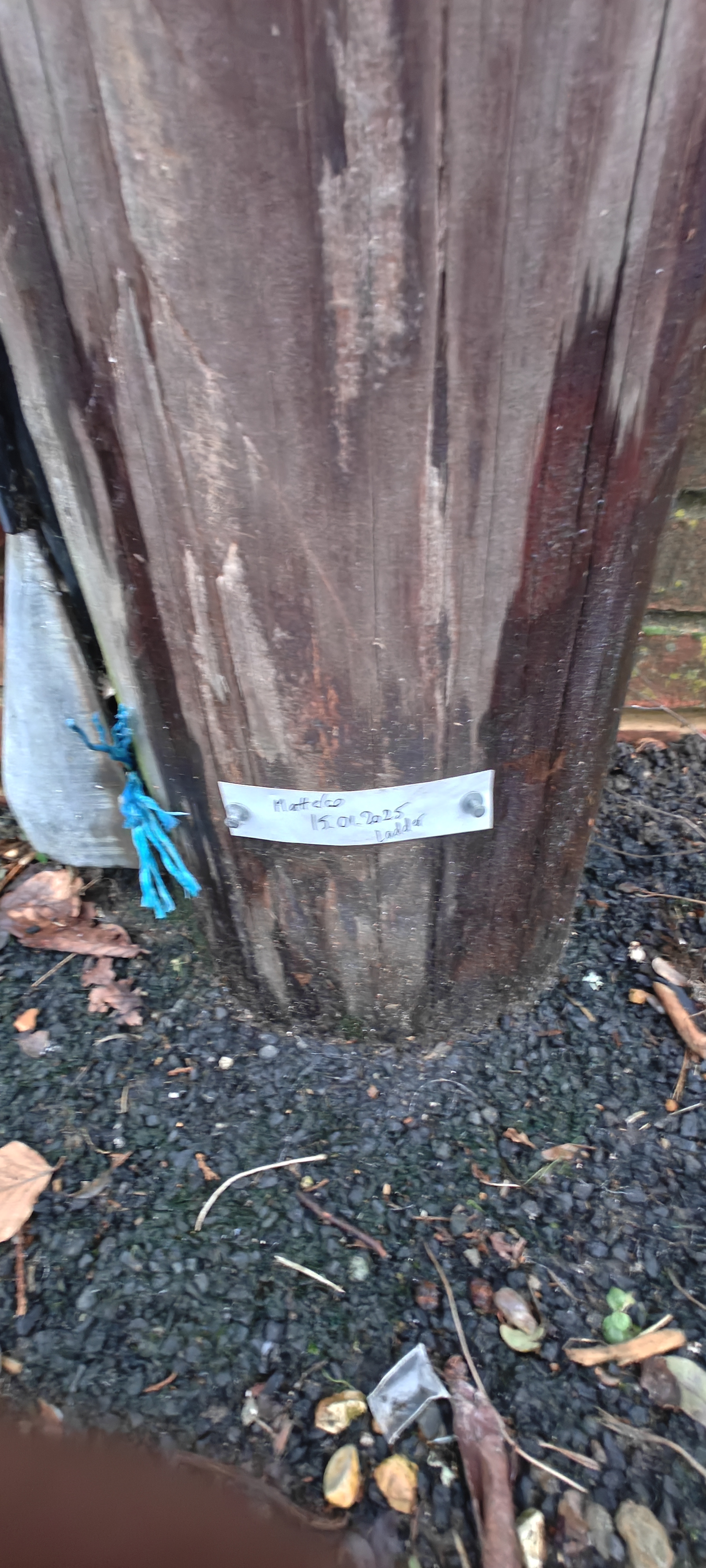
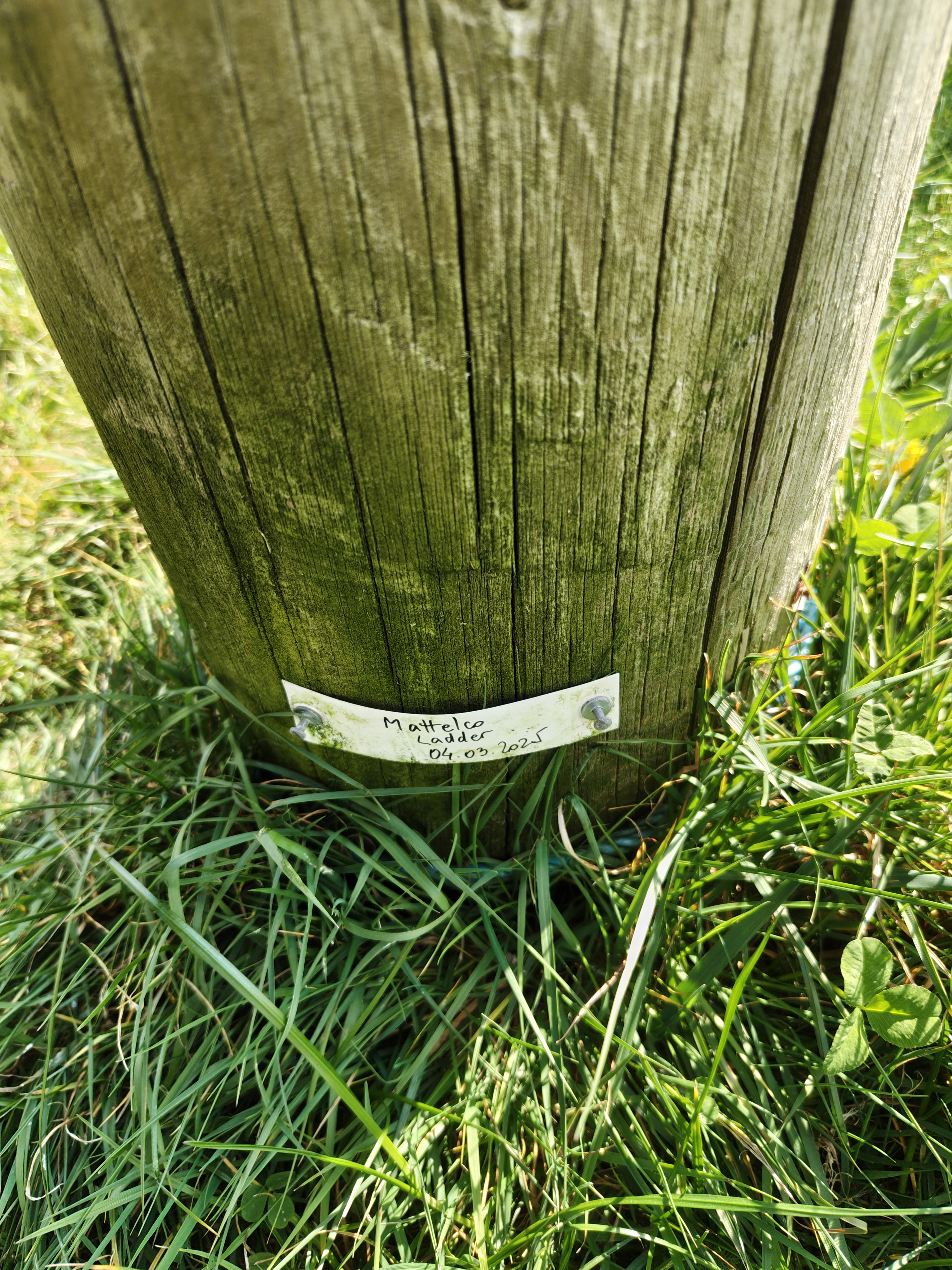
Pole DP Number Take a photo of the pole’s DP number, label test, and any other label present.
Pre-Climb Label Close-up of the pre-climb label on the pole.
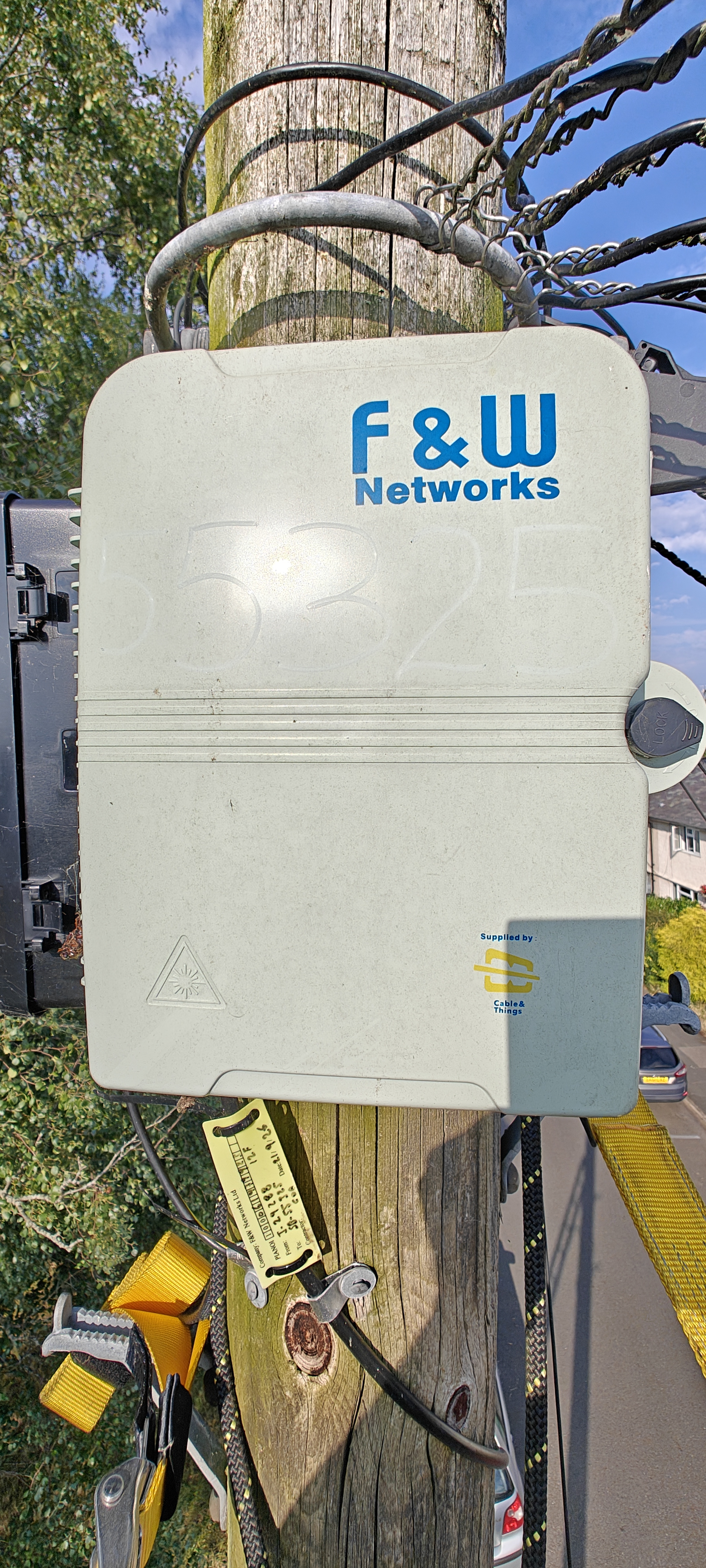
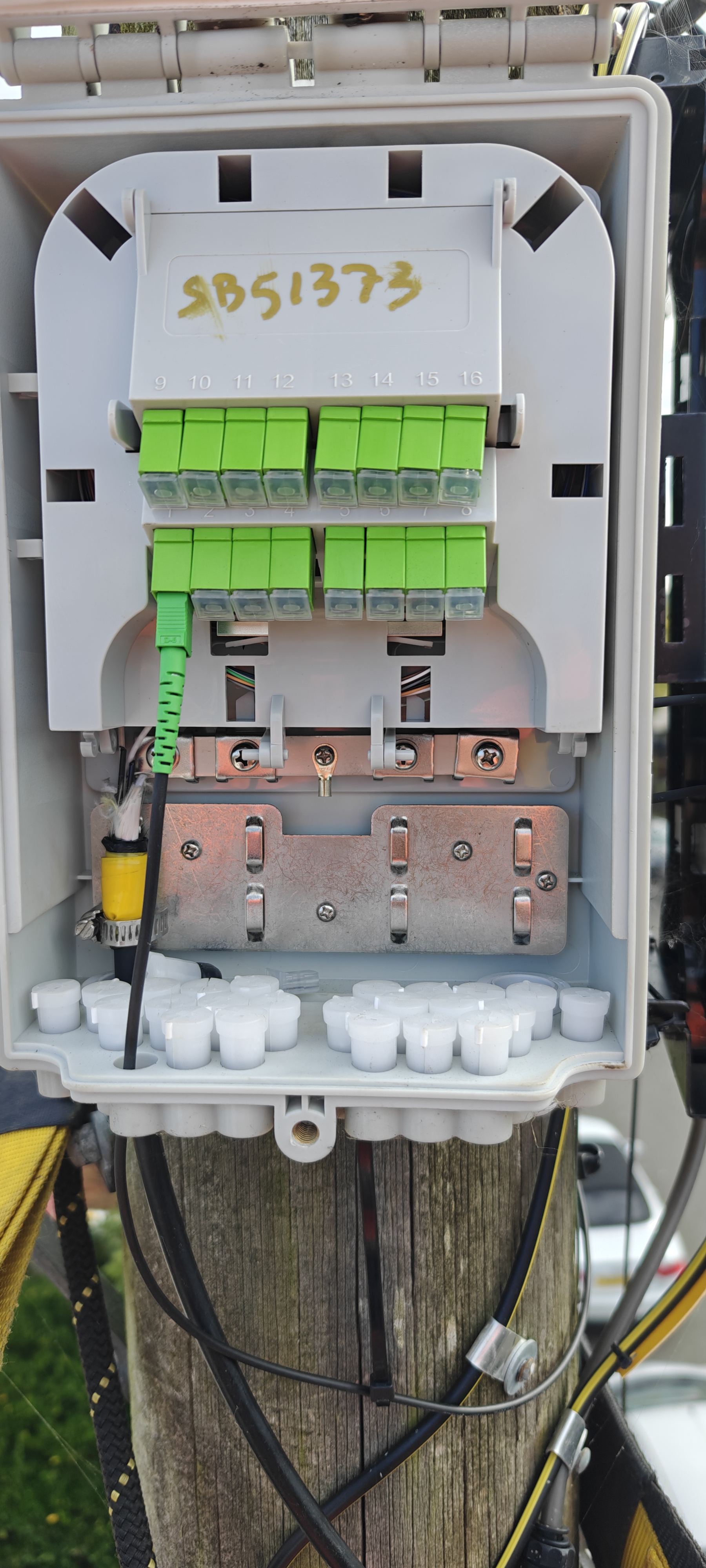
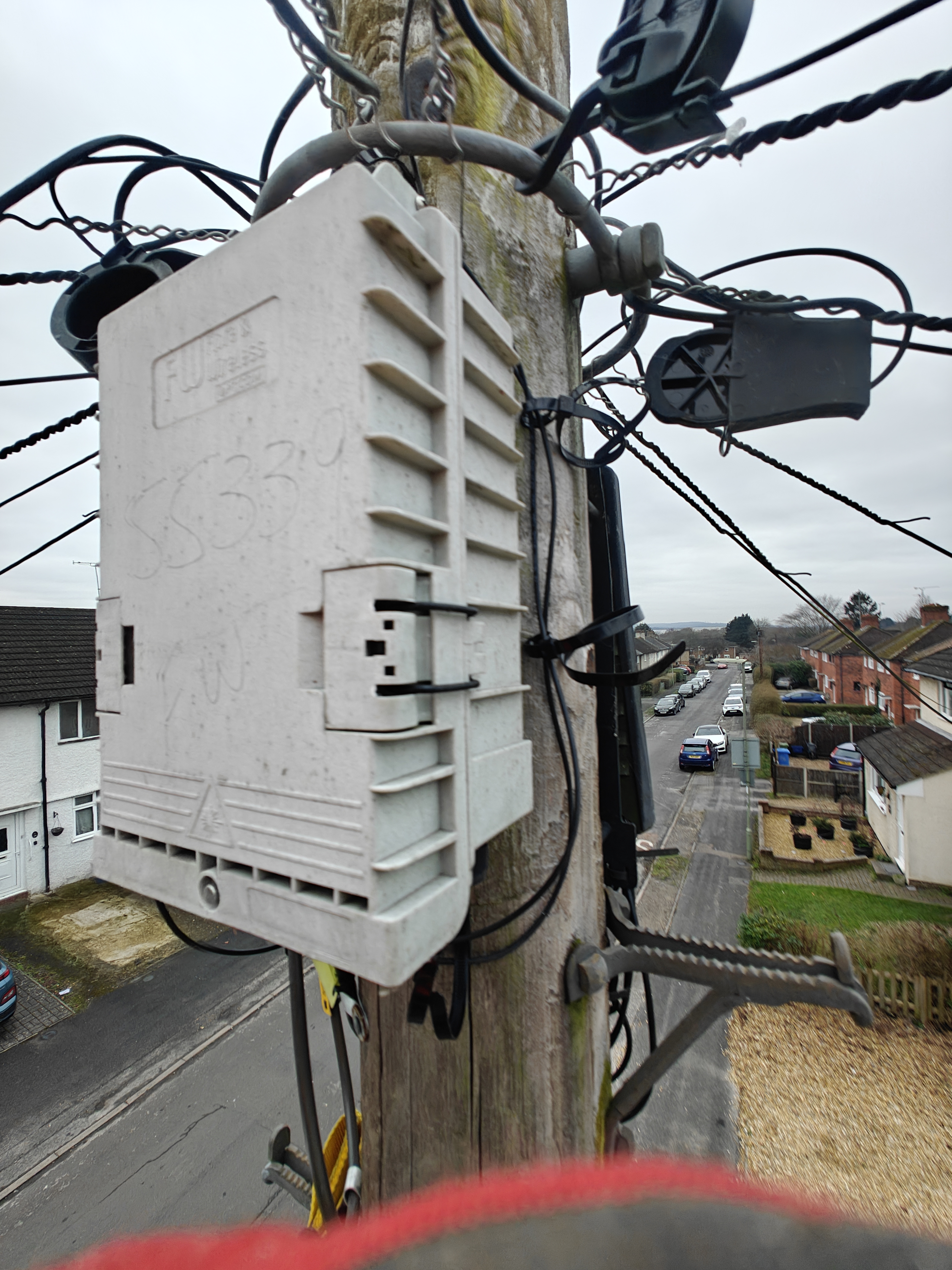
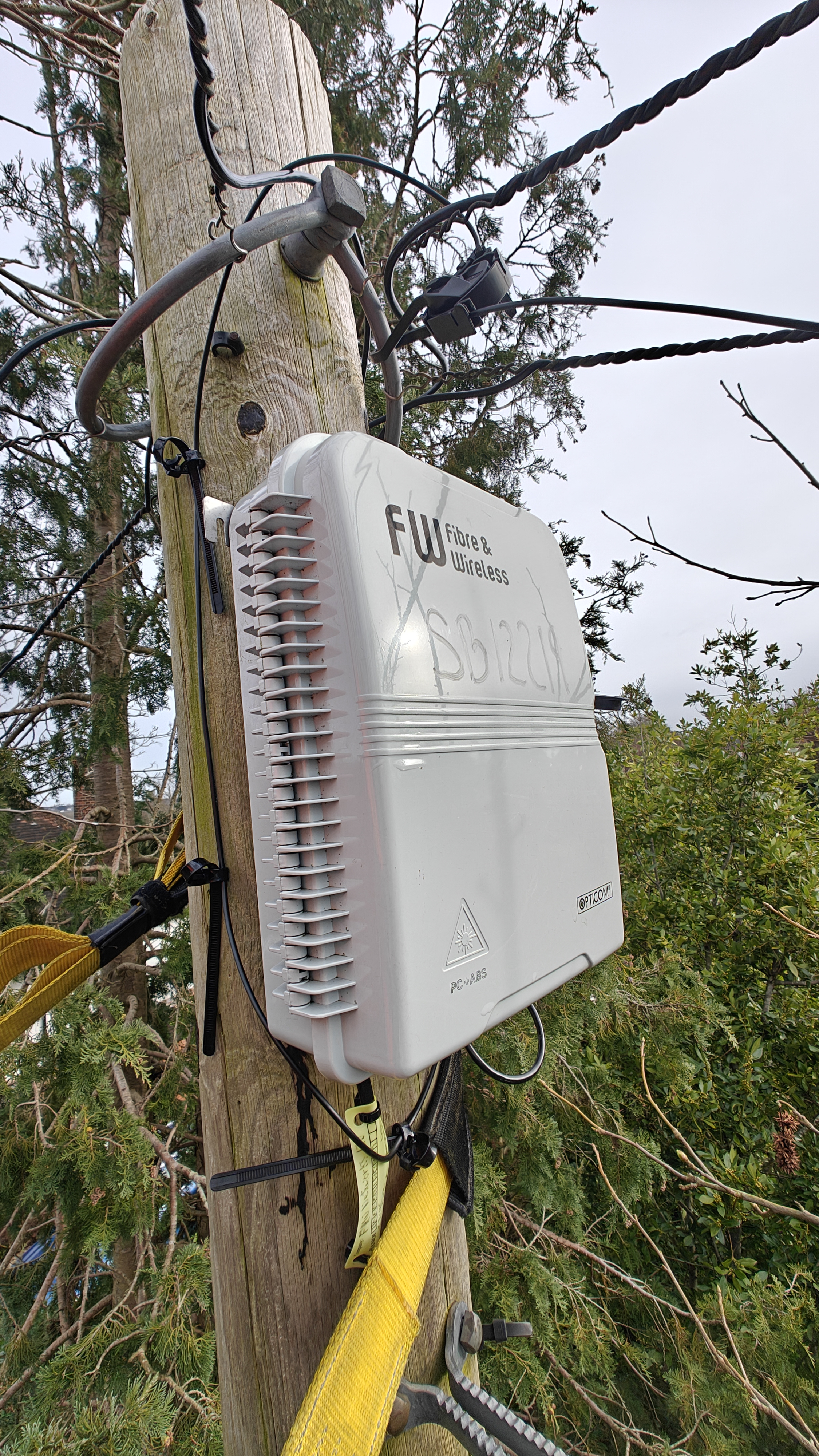
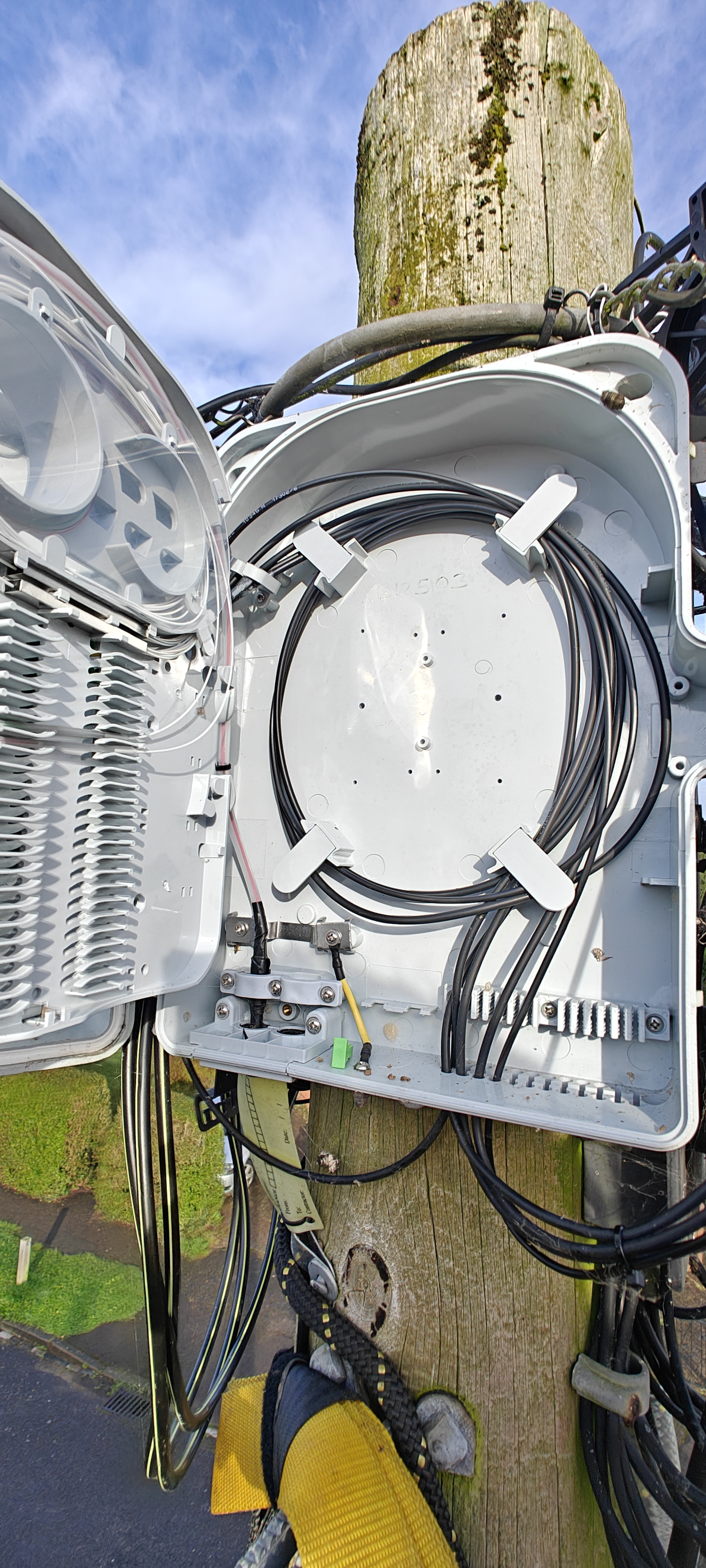
Splitter Box (SB) ID Photo of the Splitter Box ID and its current location on the pole.
Power Meter Test Show the power meter test result, including the Splitter Box ID.
Surrounding Area General photo of the pole and surrounding area.
Overhead Installation - Pole (After)
Photo Requirement Description
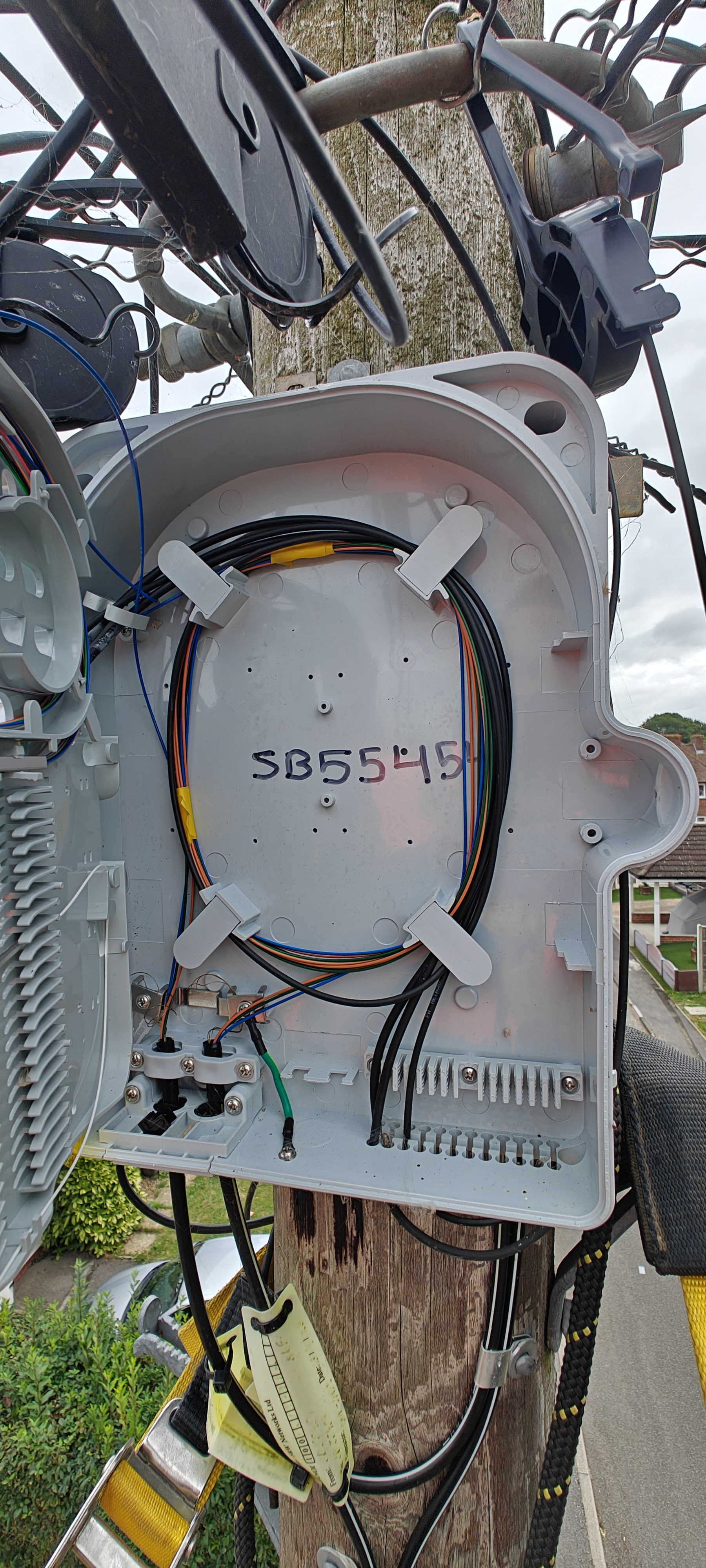
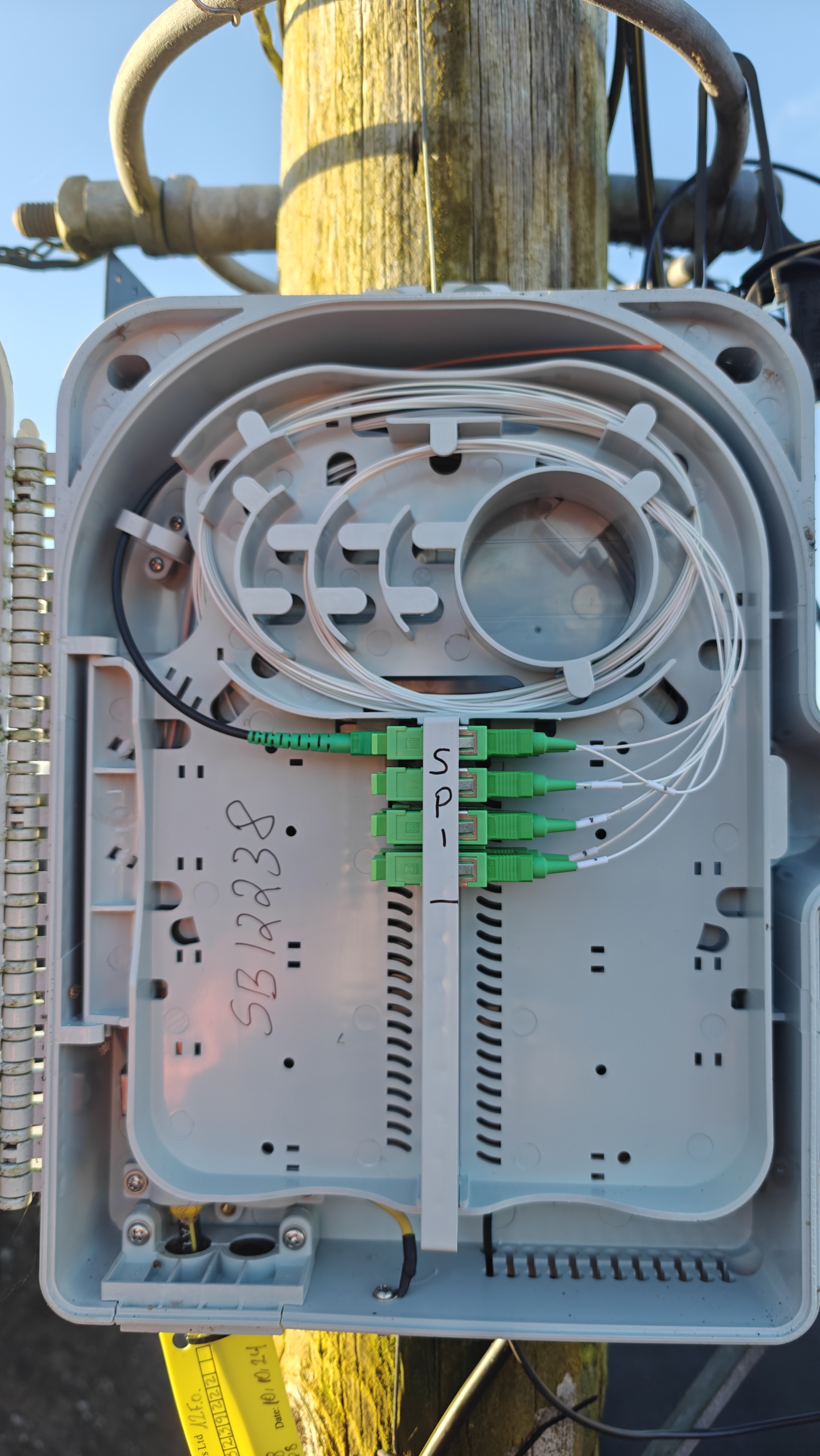
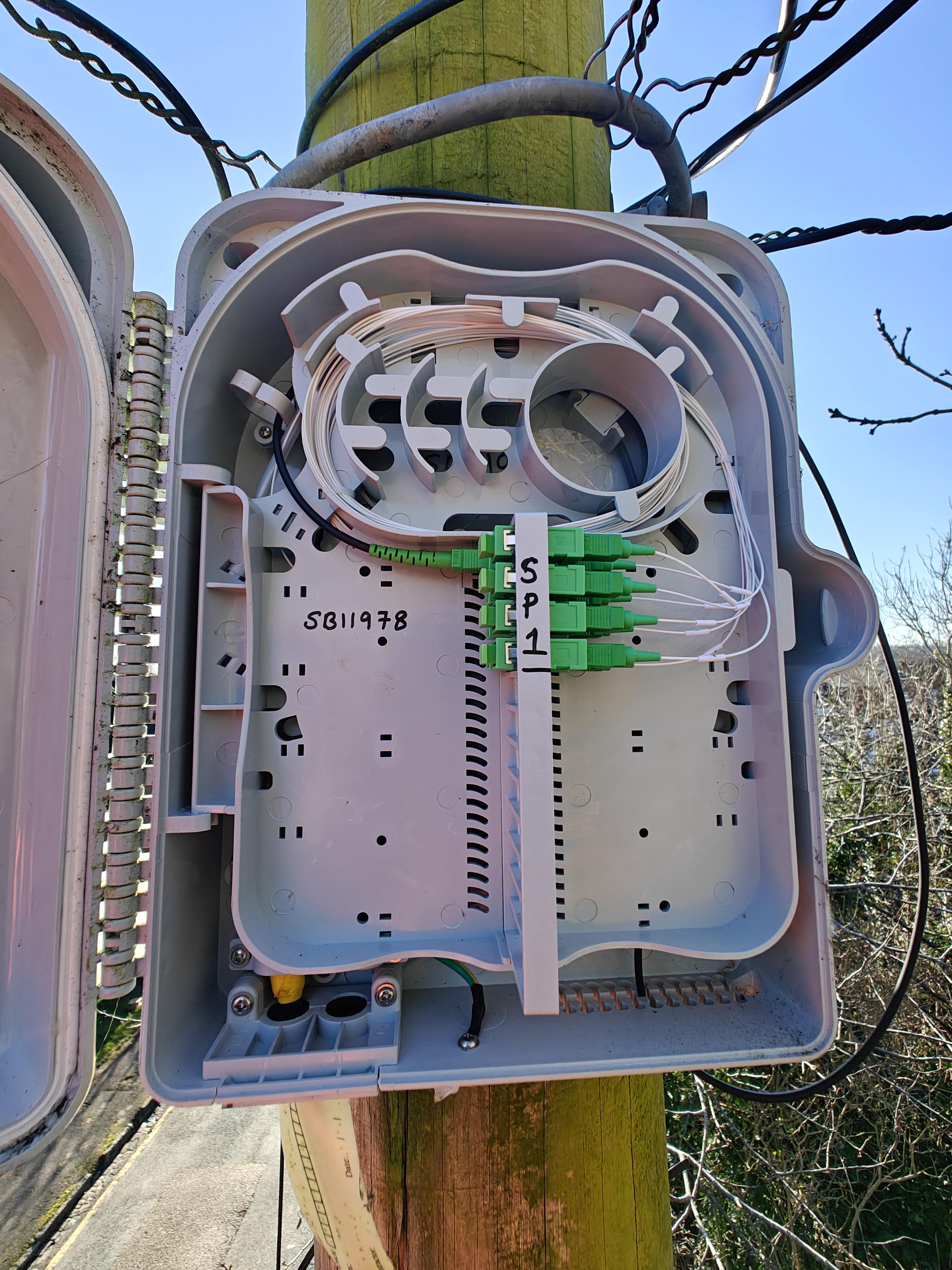
Splice Tray Photo of the working tray showing the splice done and secured.
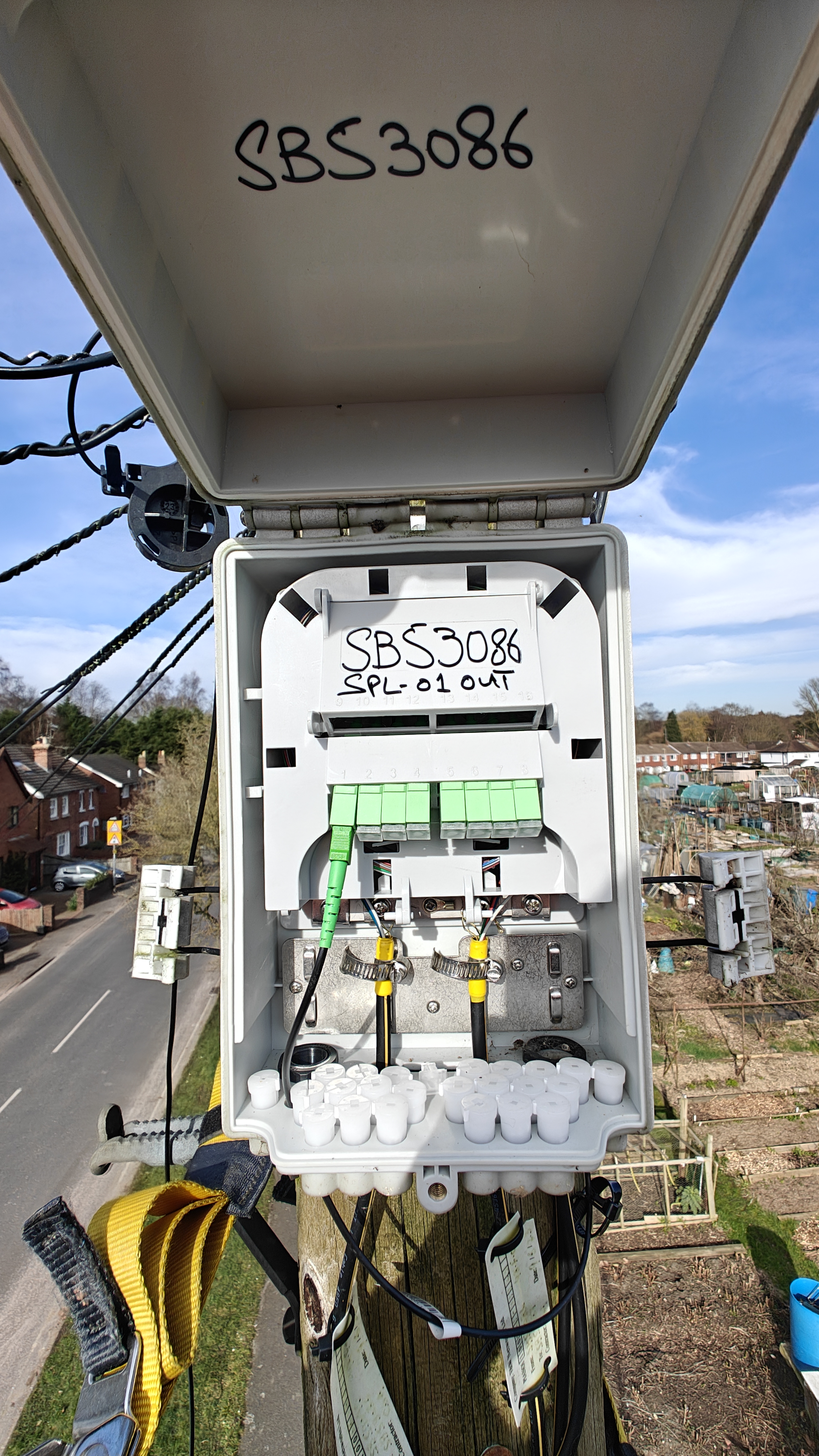
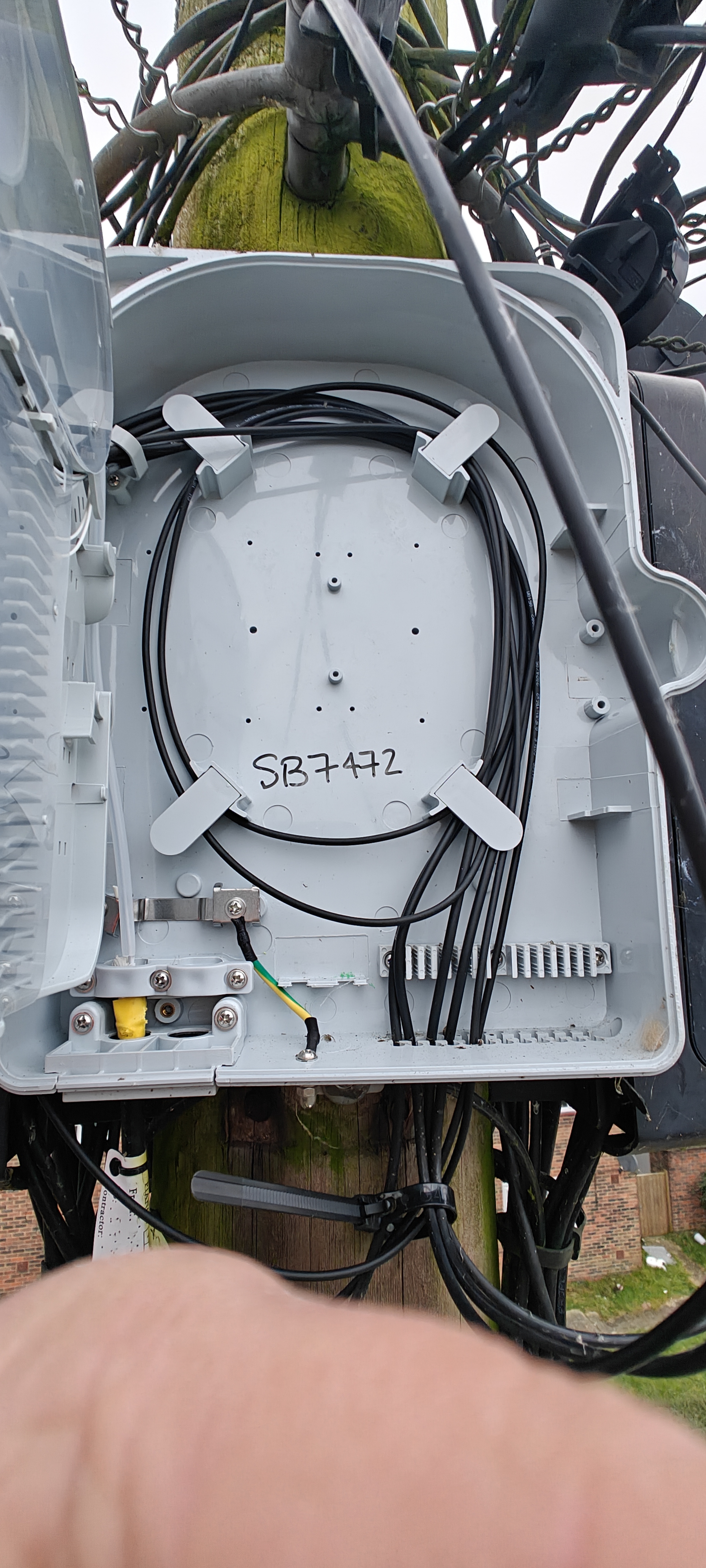
Open Splitter Box Show the Splitter Box ID and the Customer Service Cable installed and secured.
Drop Mandrel Clamp Photo of the Drop Mandrel Clamp used on the pole.
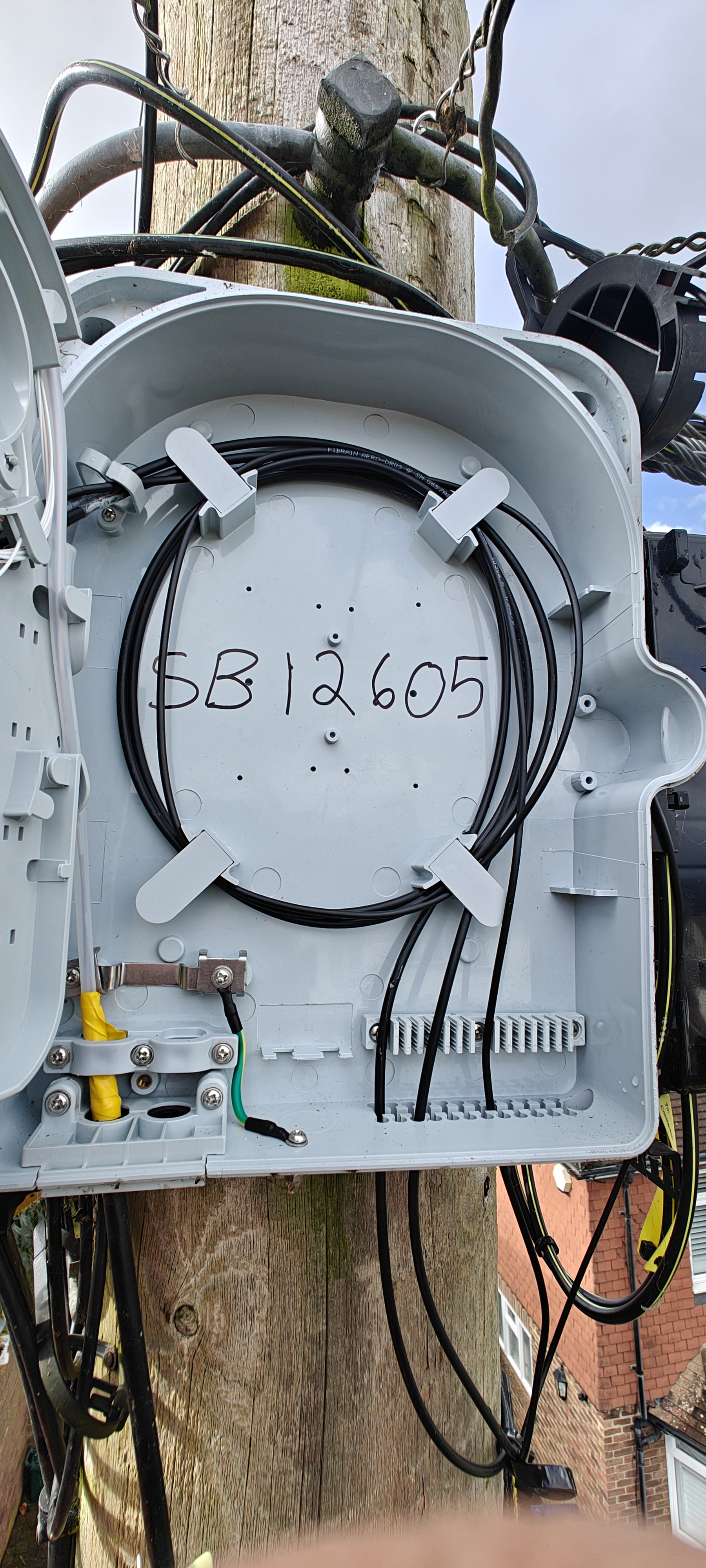
Cable Management Photo showing cable ties and nails used for cable management.
Underground Installation - Chamber (Before)
Photo Requirement Description
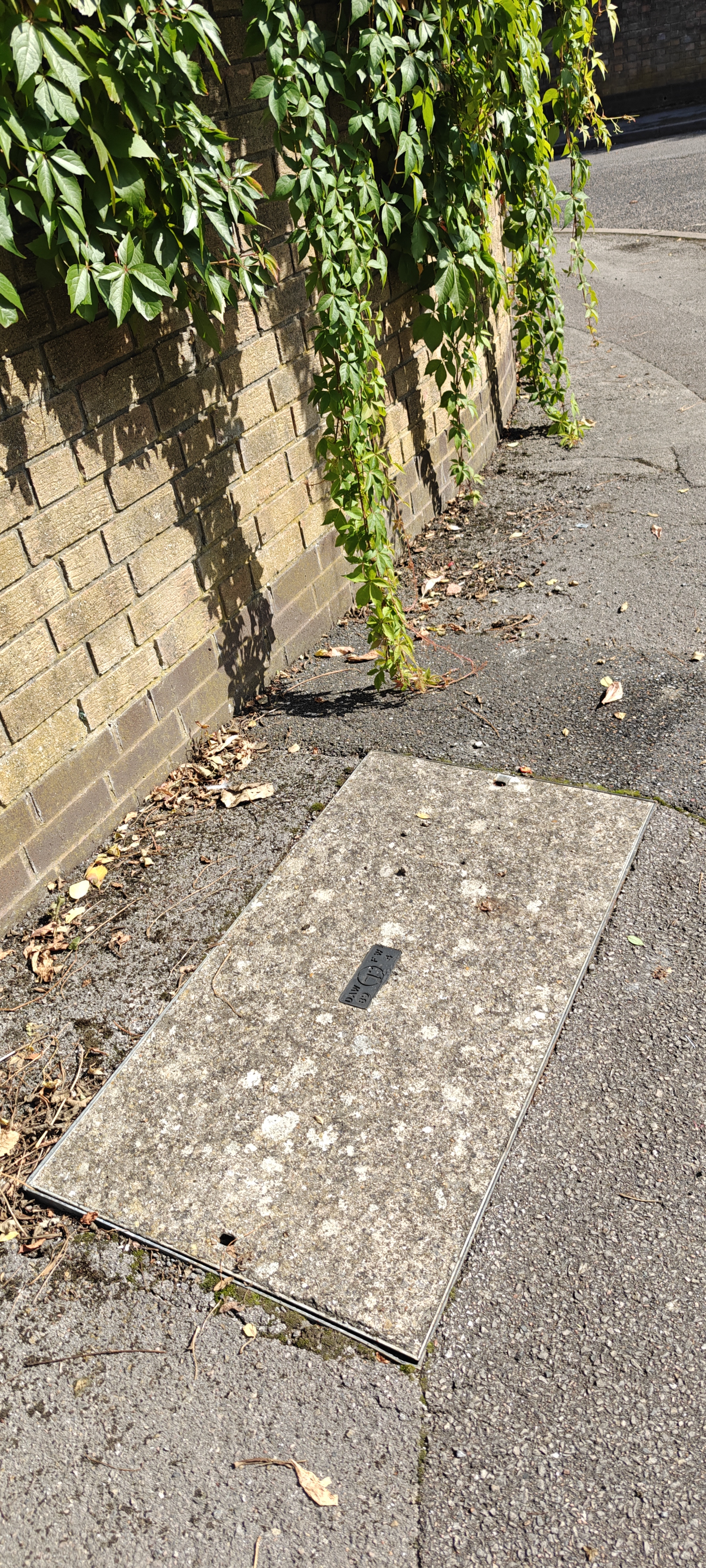
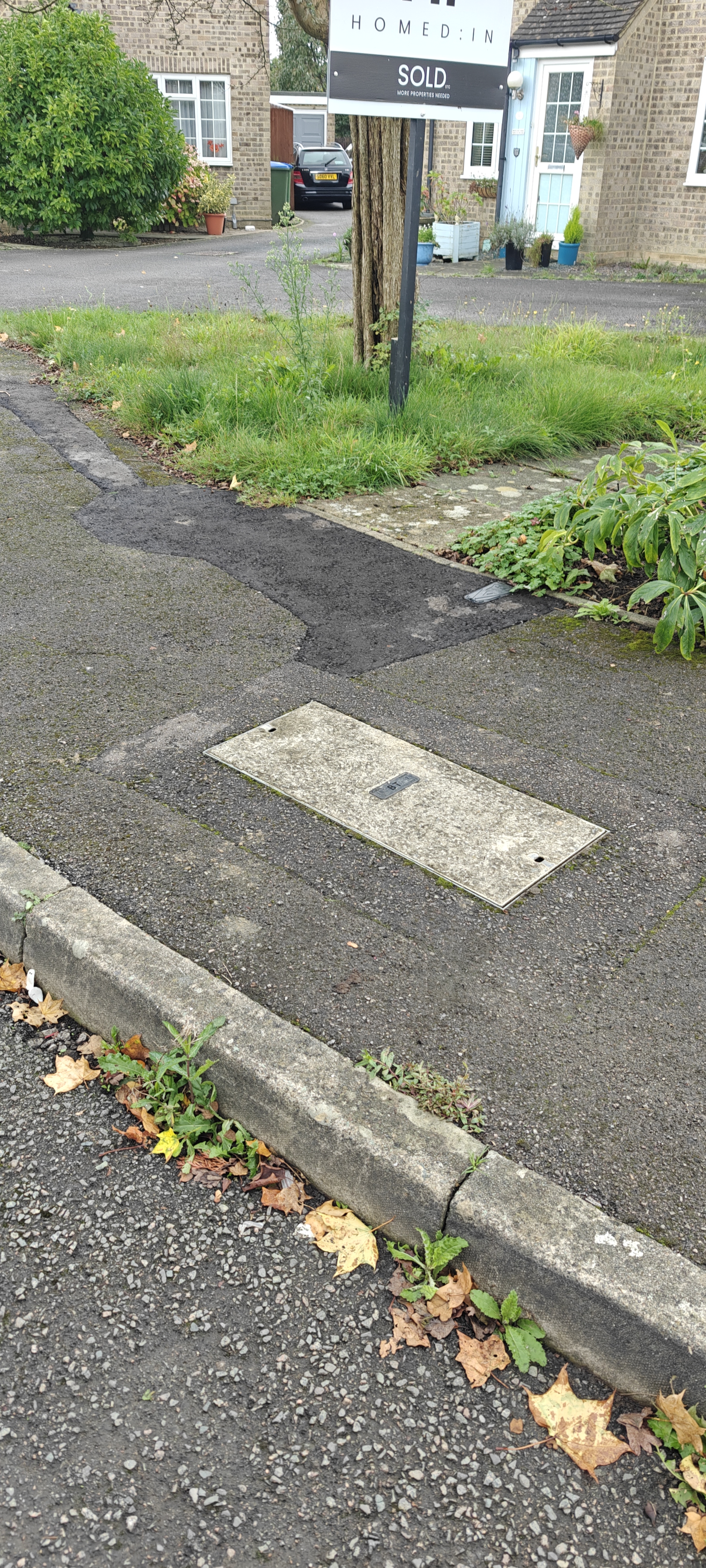
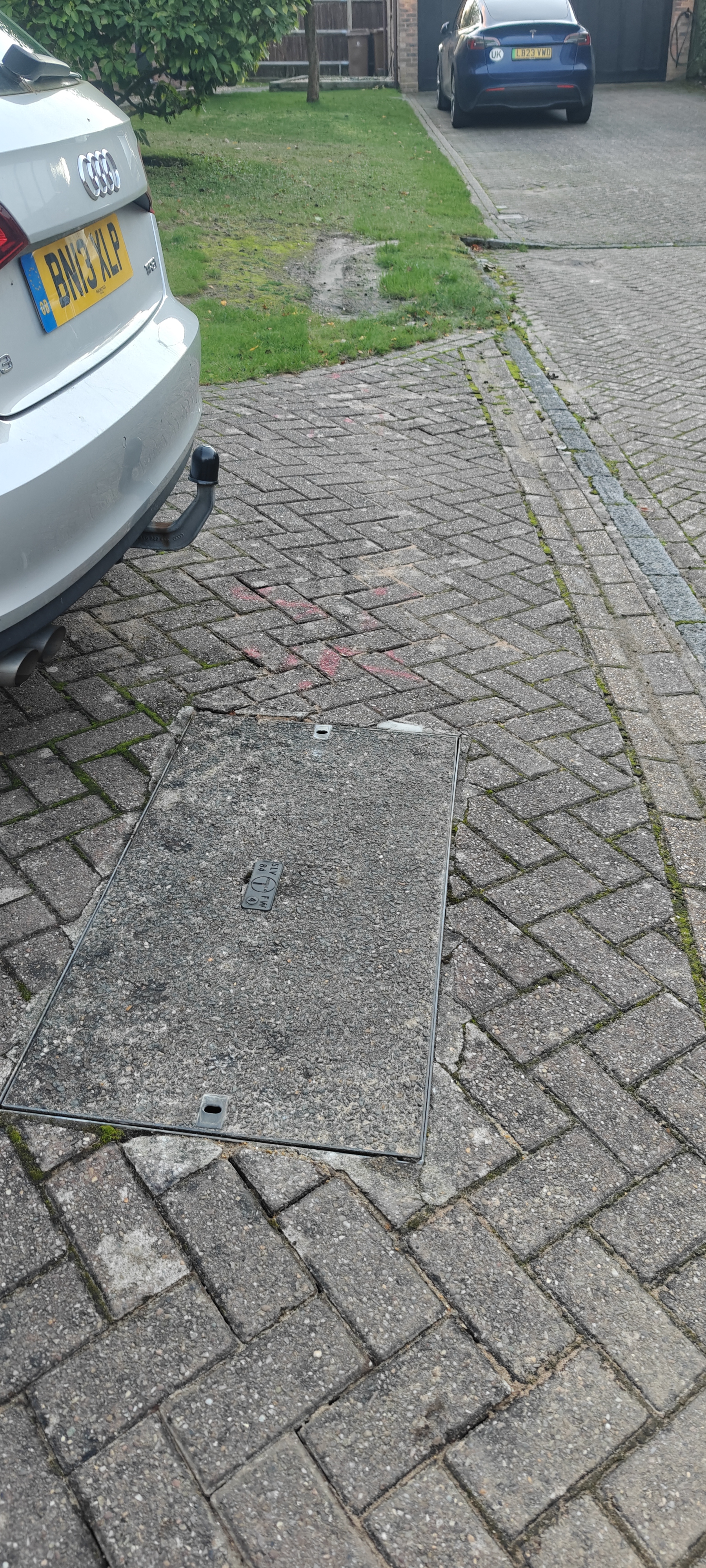
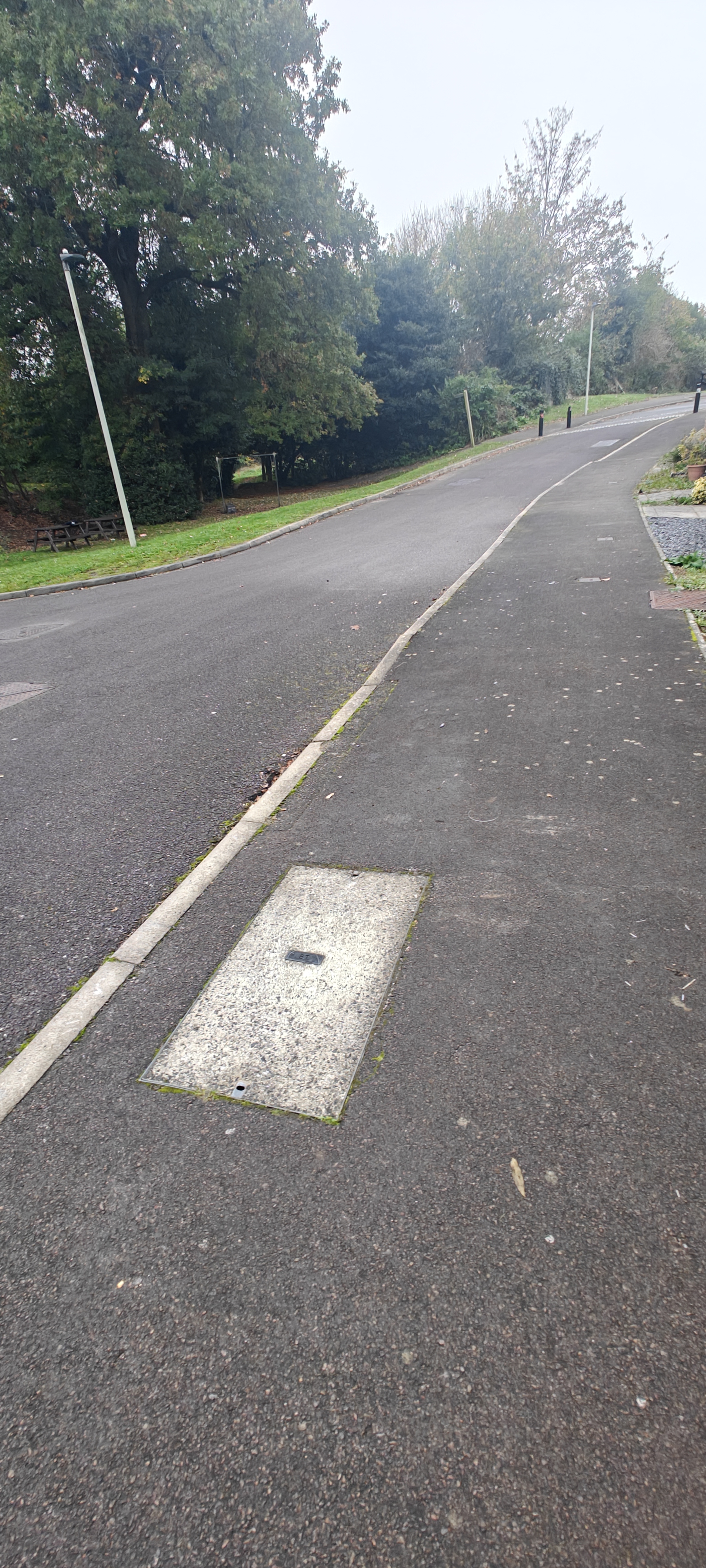
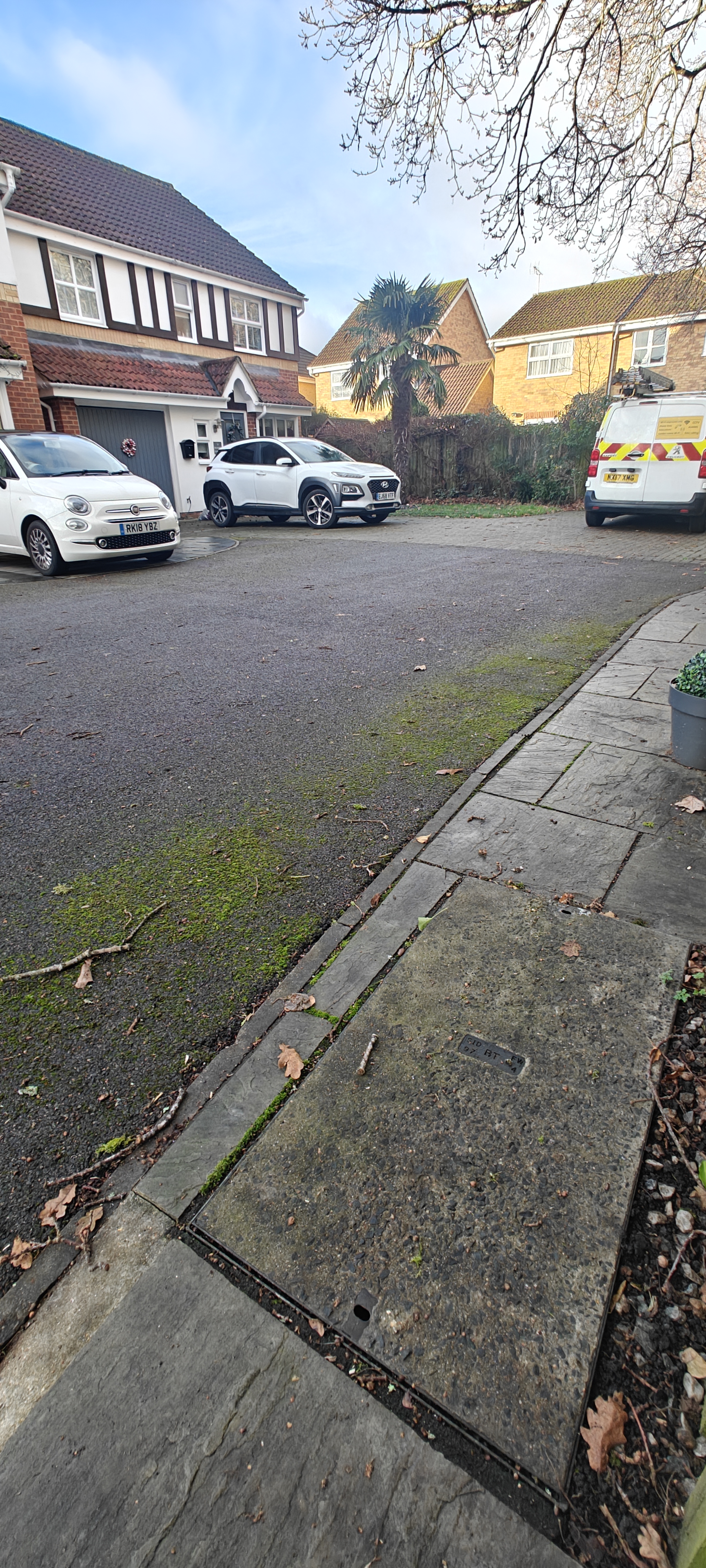
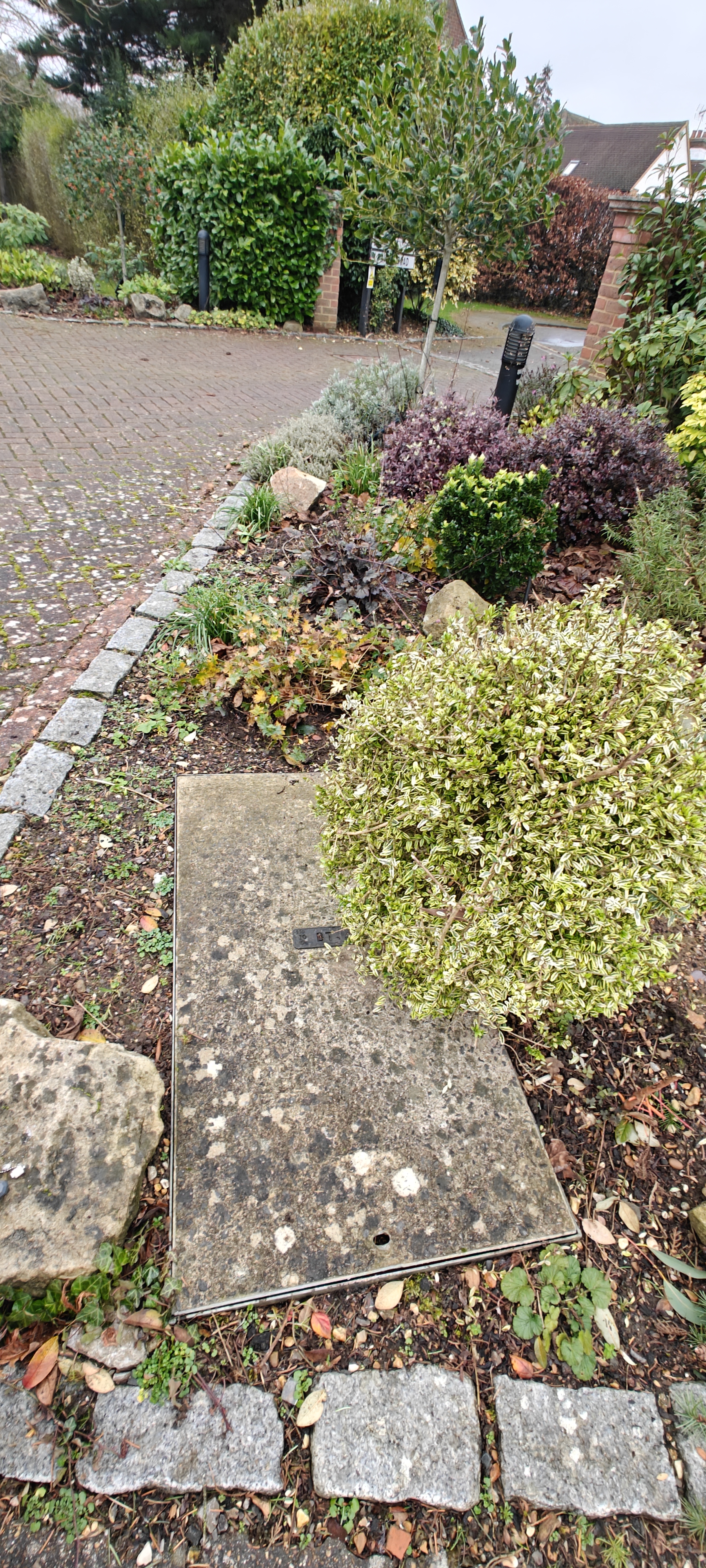
Chamber Lid Close-up of the chamber lid with inserts and markings visible.
Open Chamber Photo showing the open chamber with the Splitter Box and its cables’ current condition.
Power Meter Test Show the power meter test result, including the Splitter Box ID.
Underground Installation - Chamber (After)
Photo Requirement Description
Closed Splitter Box Photo showing the closed Splitter Box with ID visible, and cables restrained with yellow tape.
Chamber Lid Closed Photo of the closed chamber lid showing the surroundings.
House Connection (After - OH or UG)
Photo Requirement Description
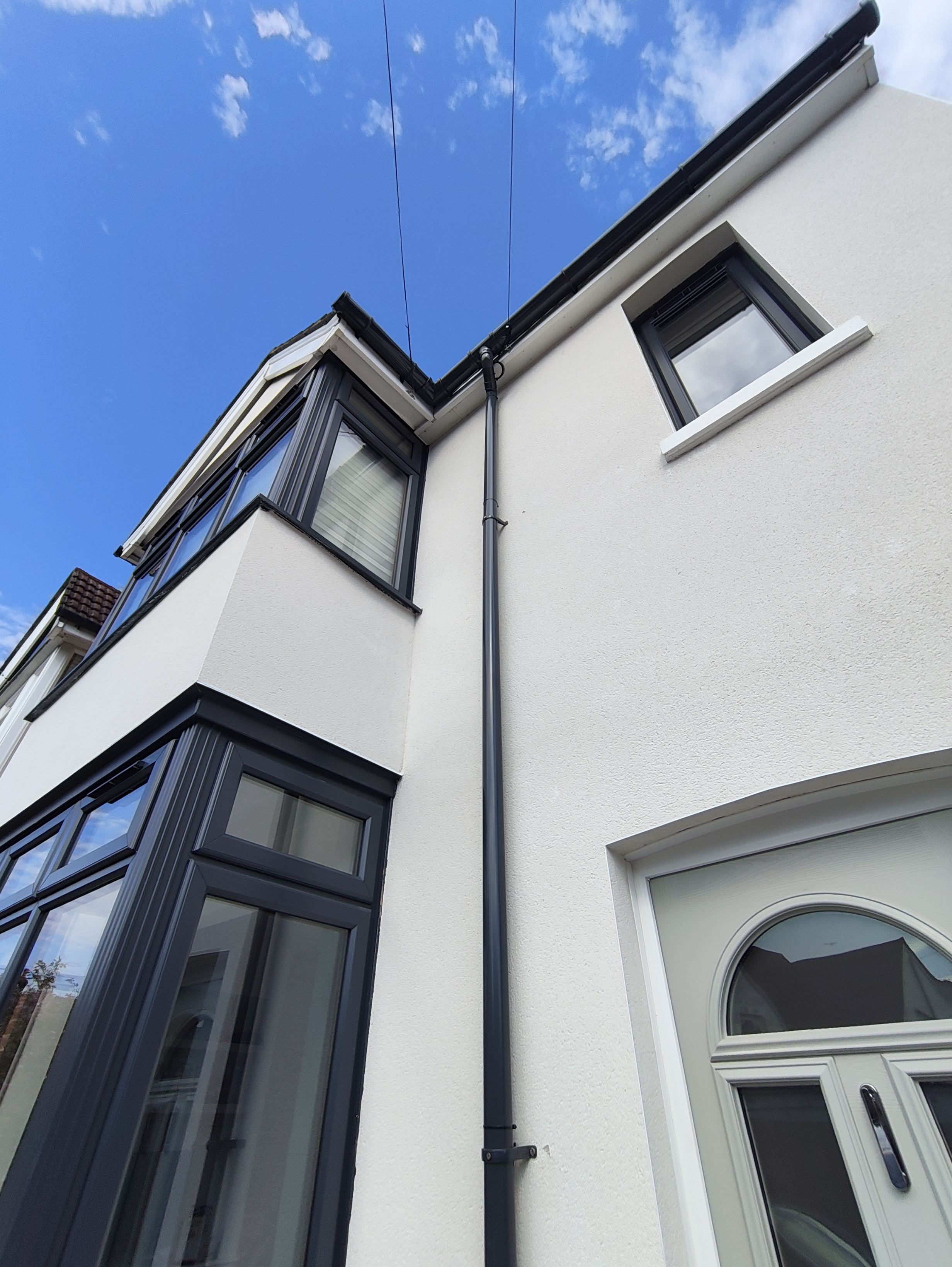
Bracket and Clamp Photo showing the cable secured with a bracket and tensioned using a clamp on the house’s fascia.
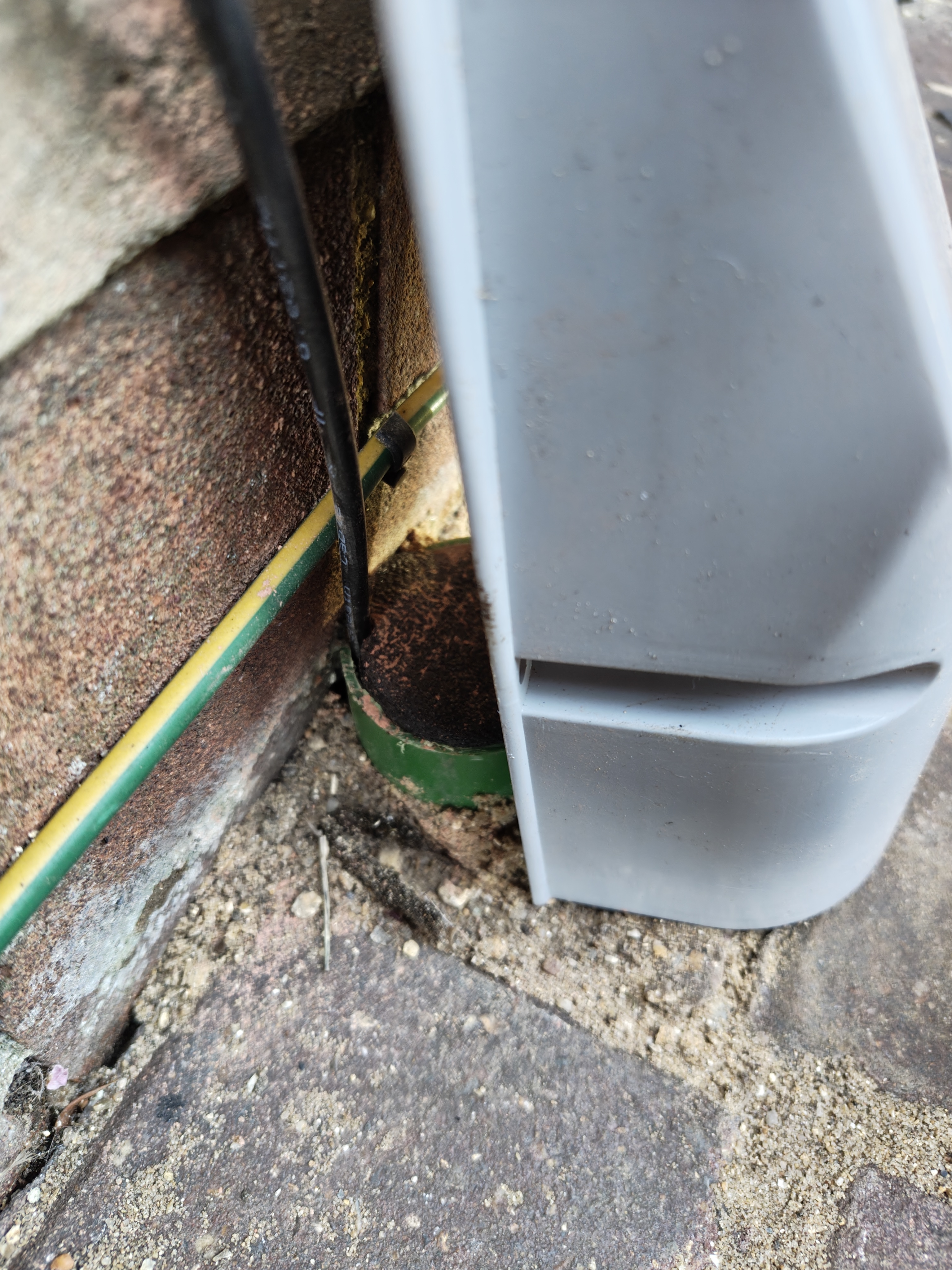
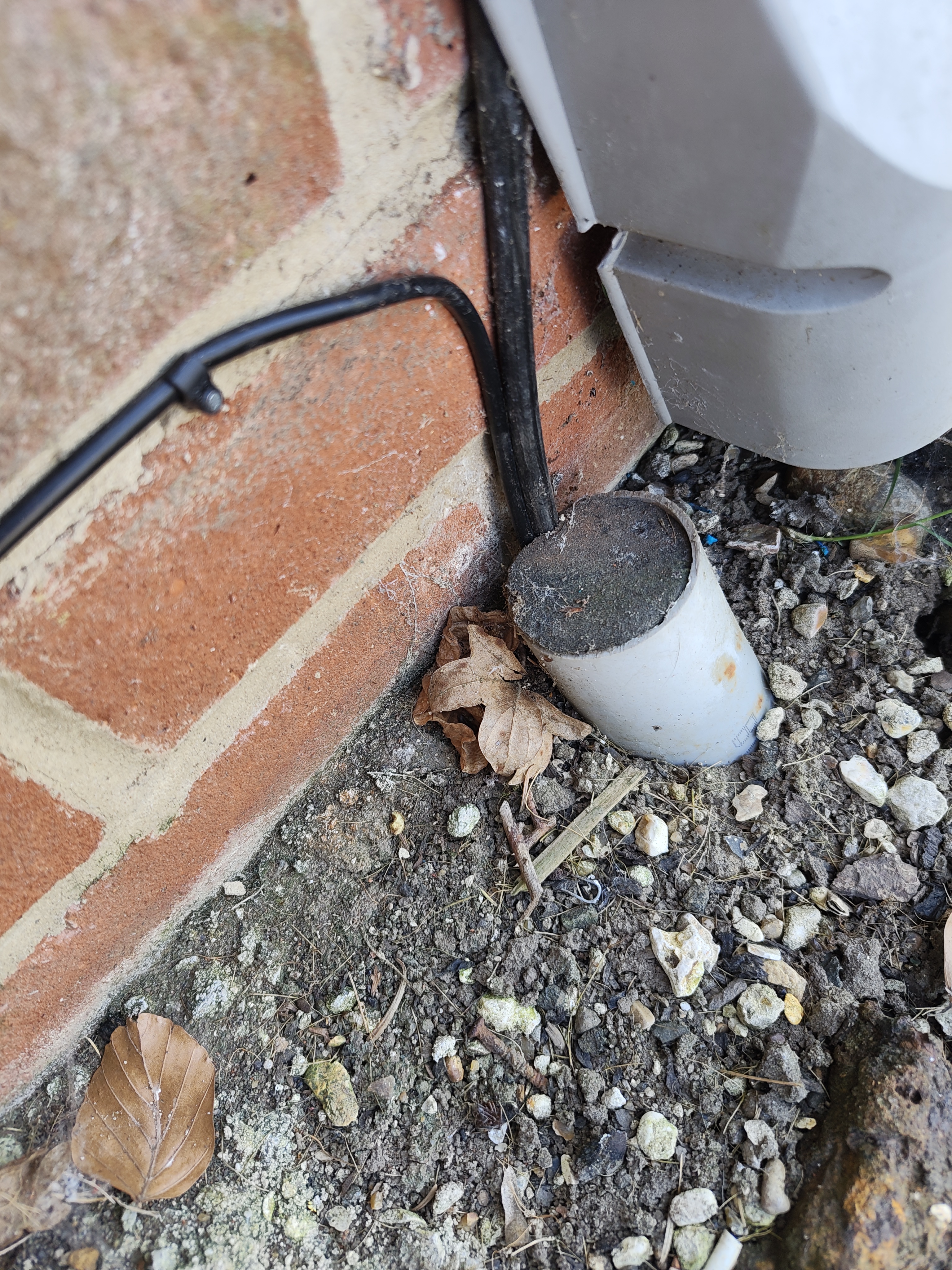
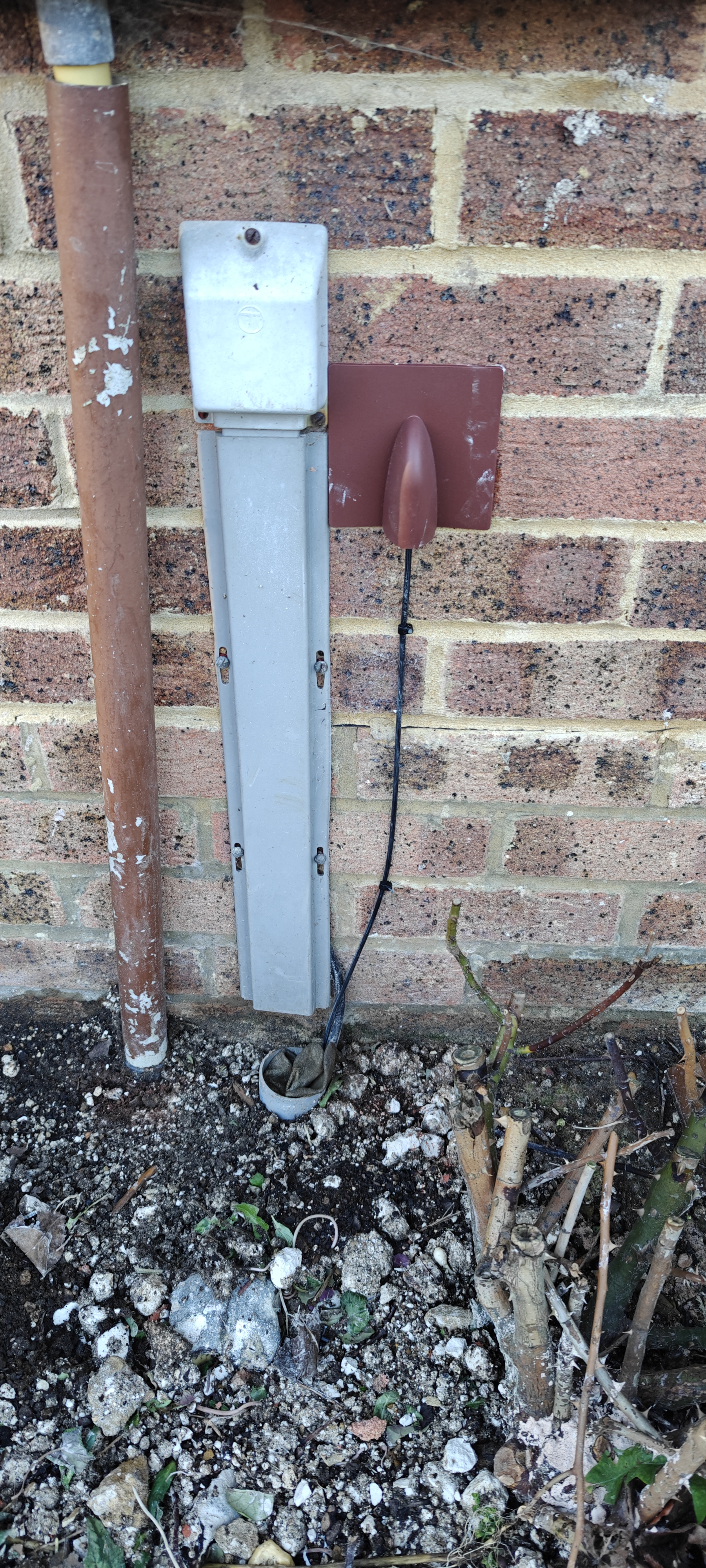
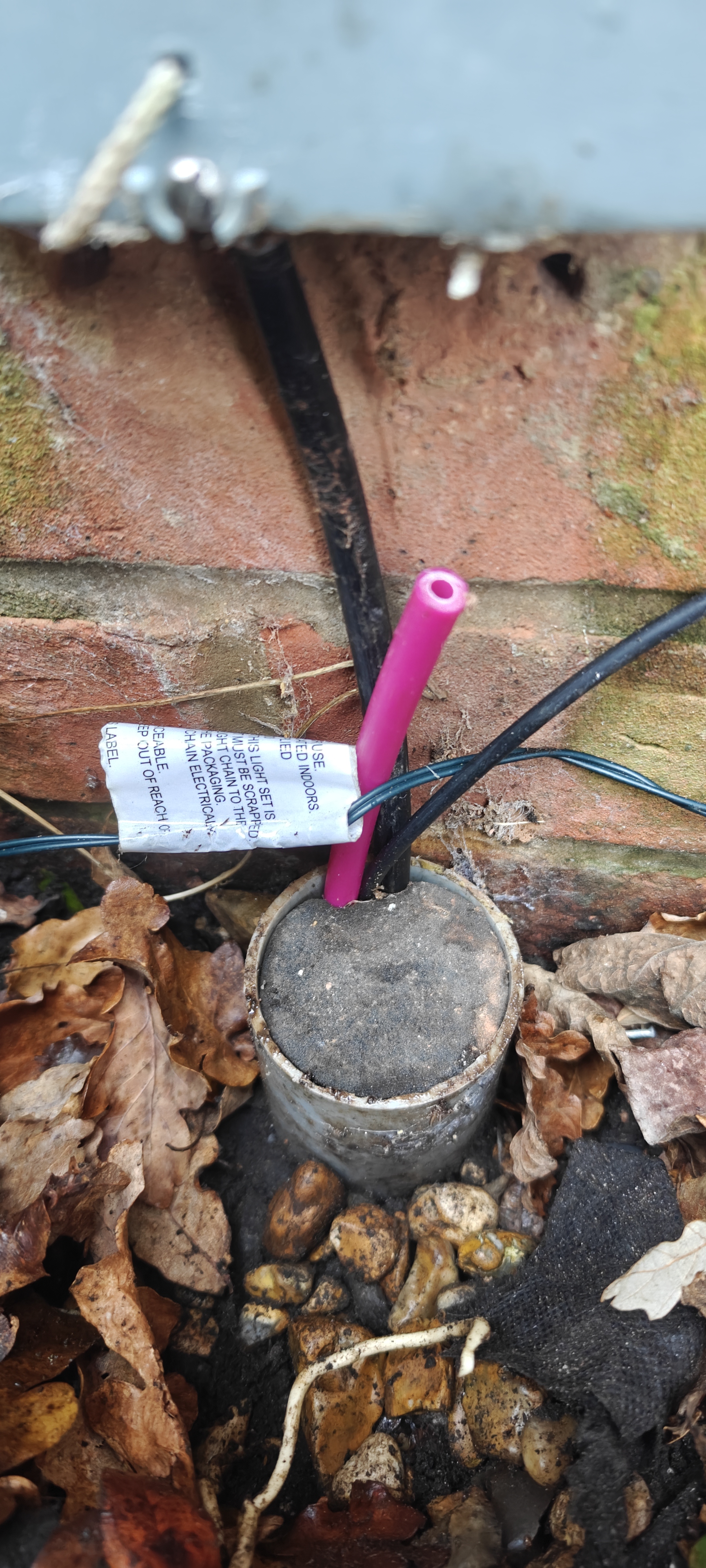
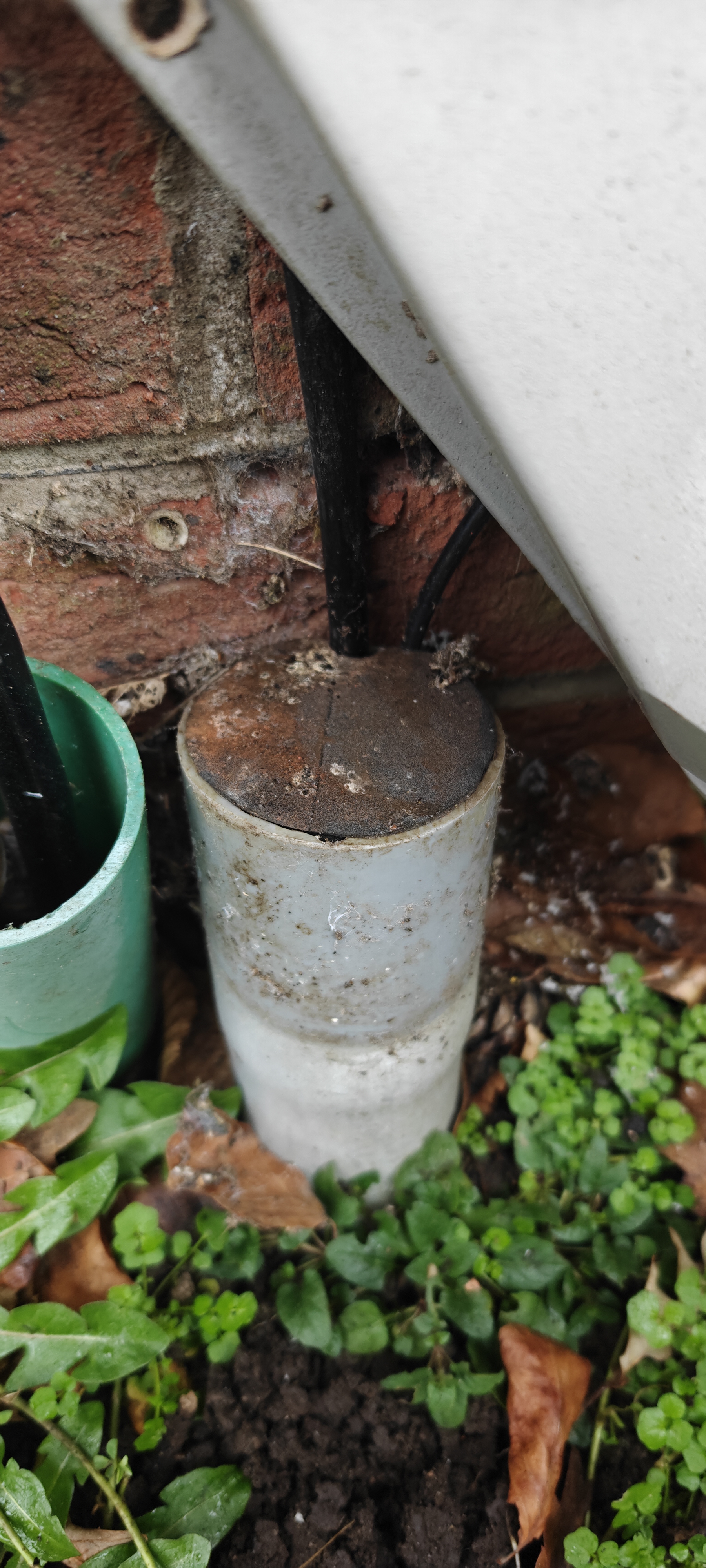
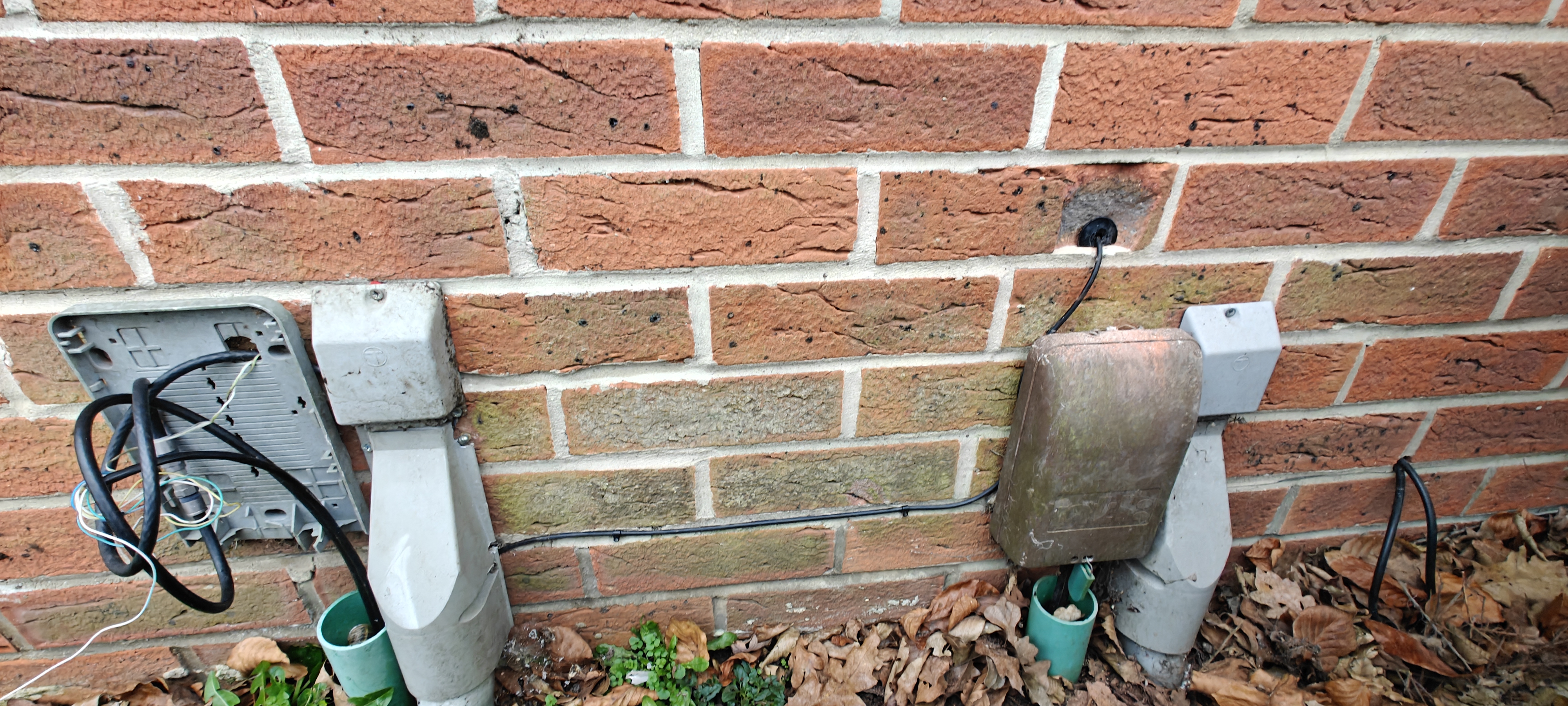
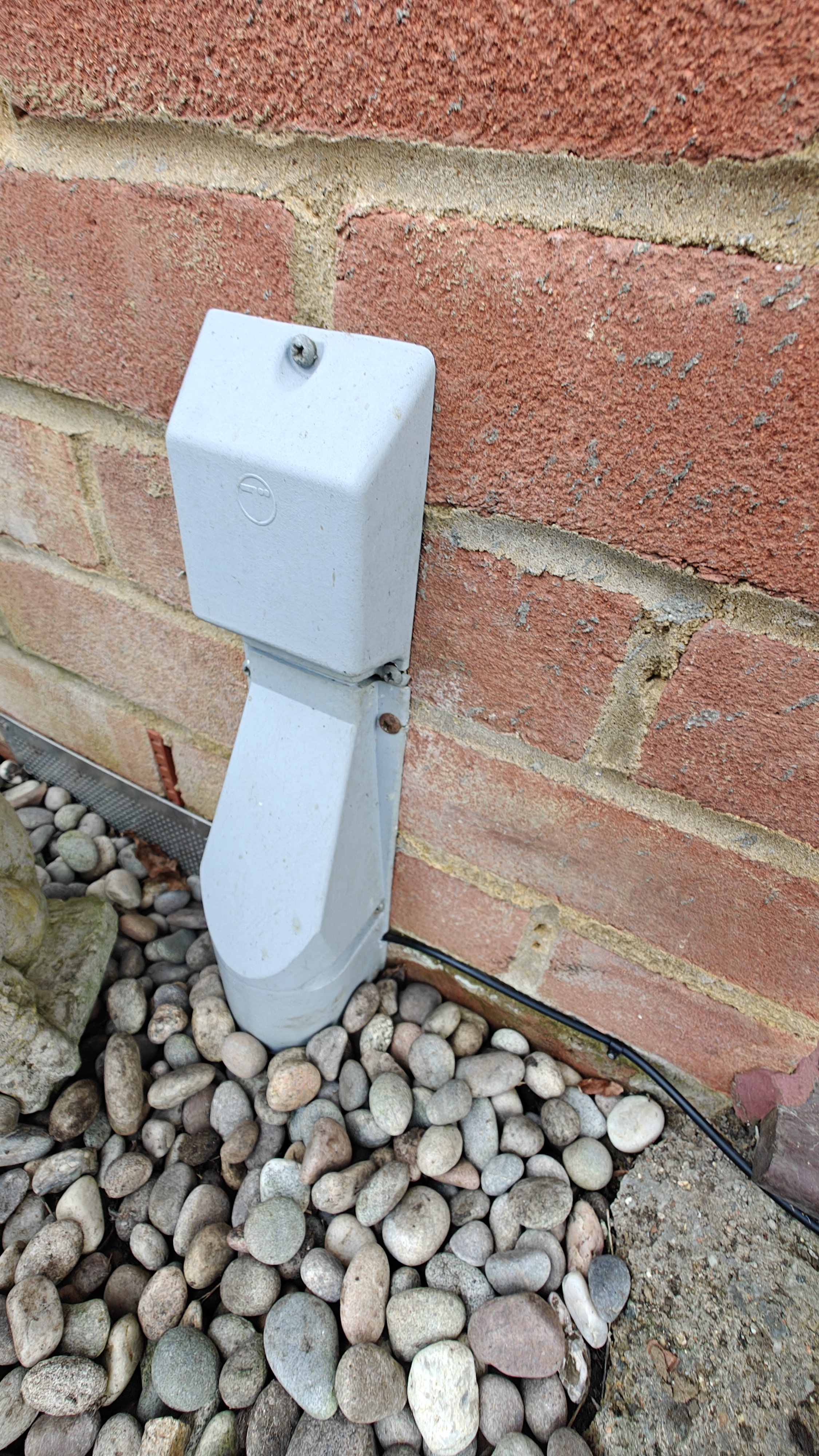
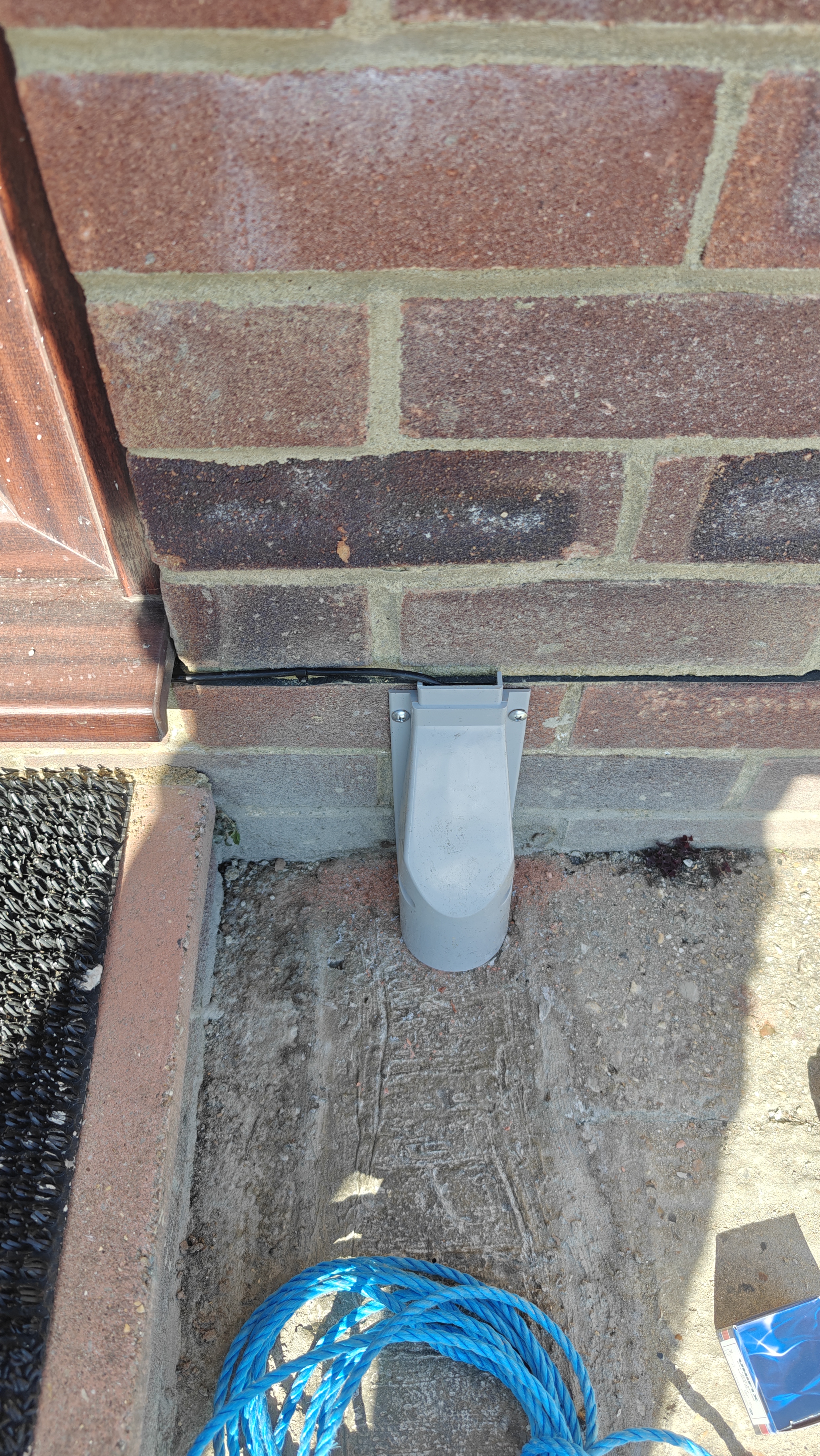
Duct exit Pull cable to house, cover the duct's mouth with the plug (if apply), fix back the capping of the duct (if apply). Photos showing both (if apply)
Cable Route Photo of the entire route followed by the cable, cleated along the wall.
Entry Point Sealed Photo of the brick blast or grommet secured with silicone.
Drip Loop Photo of the drip loop at the entry point of the house.
Internal Setup and Testing (After)
Photo Requirement Description
Rosetta Installation Open and closed rosetta showing the Customer Code and cable connections.
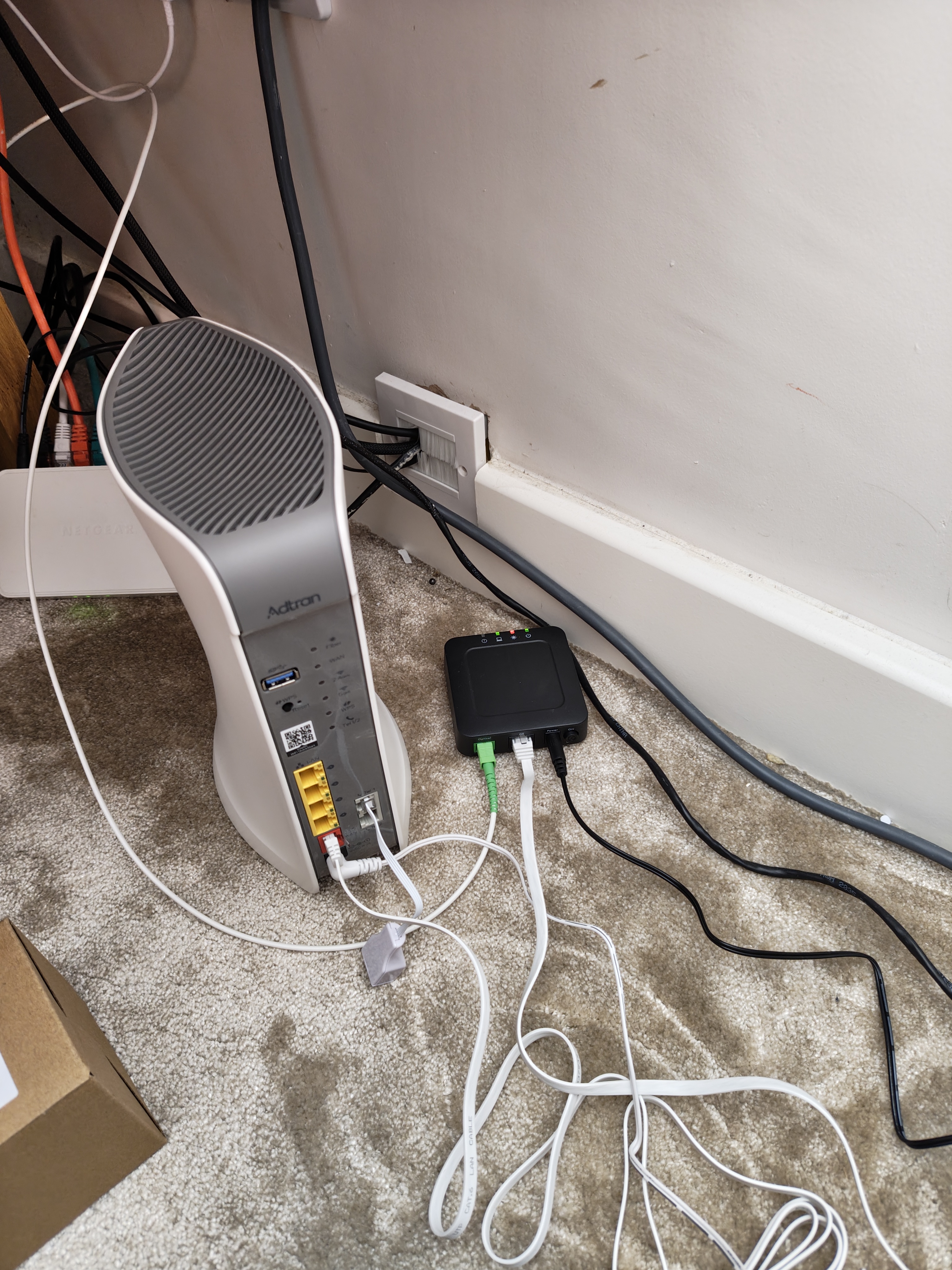
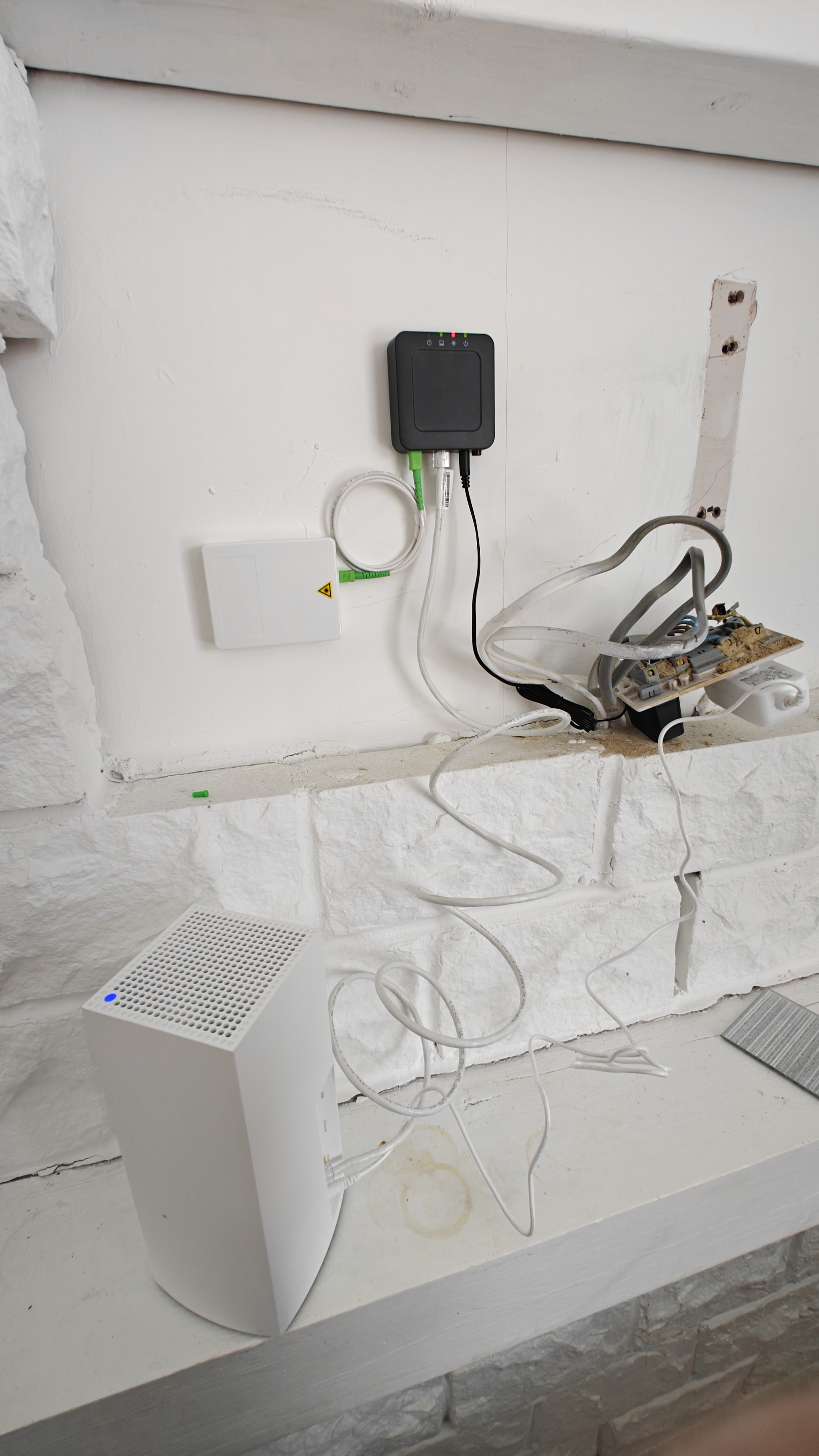
Router Setup Photo of the router and SFU with all necessary cables connected and lights on.
Speed Test Photo of the speed test result, clear and readable.

Template 1

Hi [Customer Name], it’s [Engineer’s Name], your engineer for tomorrow’s fiber installation! I’ll be arriving around [Scheduled Time]. To help me complete the work smoothly, please make sure there’s clear access to the area where the router will be installed. If you have any questions or need to make changes, just reply here, and I’ll do my best to accommodate. Looking forward to getting you connected!

Template 2

Hi [Customer Name], I’m [Engineer’s Name], and I’ll be handling your installation tomorrow. I’m planning to arrive around [Scheduled Time]. The setup usually takes about [Estimated Duration], and I’ll walk you through everything once it’s done. If there are any specific requests or questions you have, feel free to reply here. I’m looking forward to setting up your connection and making sure everything works perfectly!

Template 3

Hello [Customer Name], this is [Engineer’s Name], your engineer for tomorrow’s appointment. I’m scheduled to arrive at [Scheduled Time]. We’ll be setting up your new fiber service, and I’ll need access to the entry point for cables and the preferred router location. If there’s anything you’d like me to know before I arrive, please let me know. I’m here to help make the process as smooth as possible!
COMPLETED - when everything is going to plan and customer is live when you leave

  • Upload photos of Speed test and Power level in Services section
  • Upload report from Safety Culture under Documents section
  • Fill in Comments section
  • Mark job as Completed
  • Press Apply, job done. Enroute the next job.
  • IN PROGRESS - every job that can be completed at a later time (not including SUPPORT ones)

  • Reasons - reschedule, new duct, duct interception, nobody in, cherry picker, cable routing, etc
  • Fill in the Technical Issues section, choosing the reason and filling in the notes. Also upload one photo to prove the reason
  • ADDITIONAL INFORMATION - this is where you need to chose a reason for why the job can not be completed on the day
  • Upload report (new duct, duct interception, etc) from Safety Culture under Documents section
  • Fill in Comments section, same as in the Technical Issues notes
  • Mark job as IN PROGRESS
  • Press Apply, job done. Enroute the next job.
  • SUPPORT - every job that can not be completed due to no power or other technical issues

  • Reasons - no power, provision is not going through, router not getting the right speeds, etc
  • Fill in the Technical Issues section, choosing the reason and filling in the notes. Also upload one photo with the front door, showing house number.
  • TECHNICAL ISSUES - the moment you choose a reason the status of the job is going into FAILED
  • Upload report from Safety Culture under Documents section
  • Fill in Comments section, same as in the Technical Issues notes
  • Mark job as SUPPORT
  • Press Apply, job done. Enroute the next job.
  • FAILED - every job that is cancelled by the customer due to any reason

  • Fill in the Technical Issues section, choosing the reason and filling in the notes. Also upload one photo with the front door, showing house number.
  • Fill in Comments section, same as in the Technical Issues notes
  • Press Apply, job done. Enroute the next job.
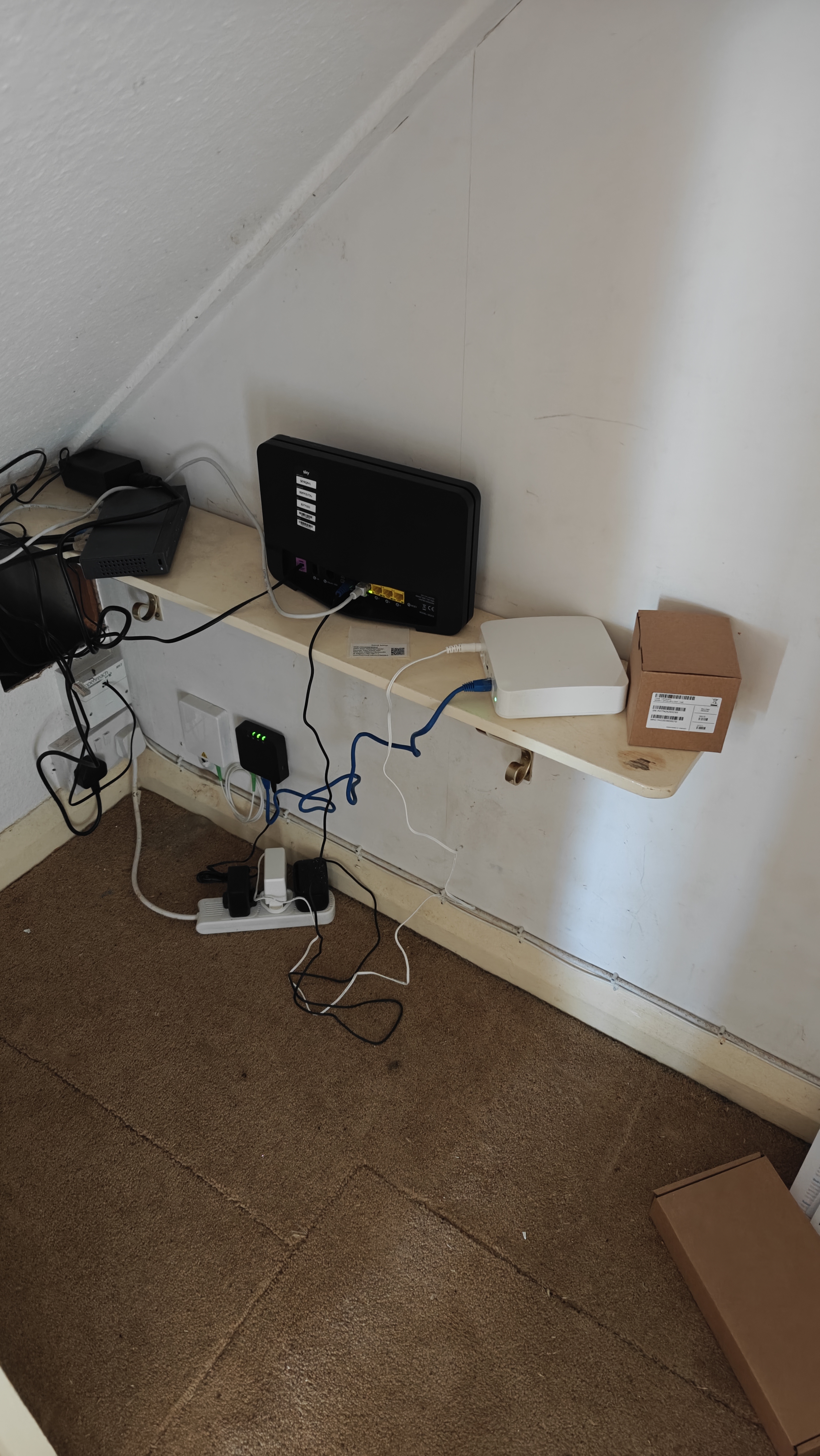
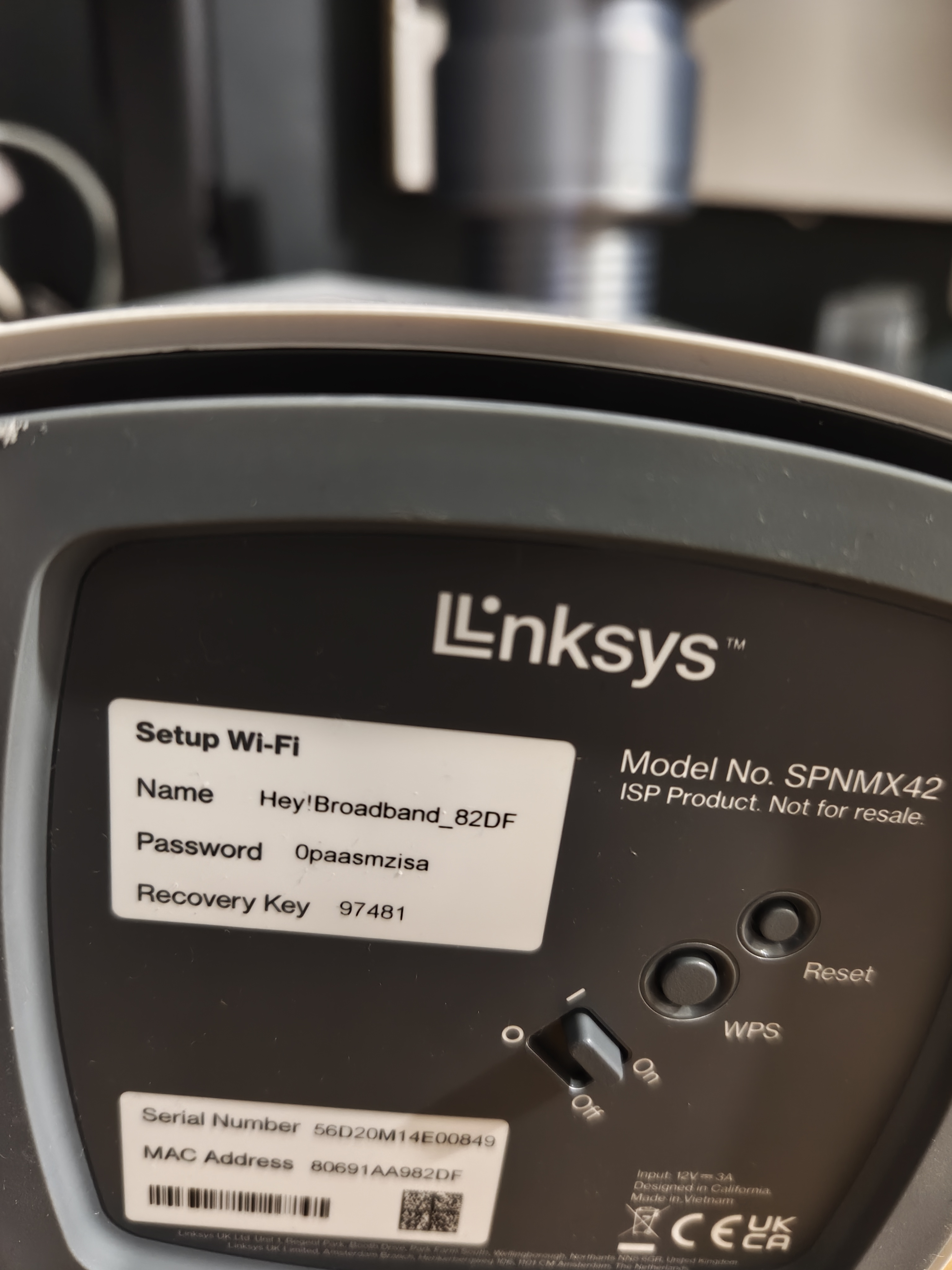
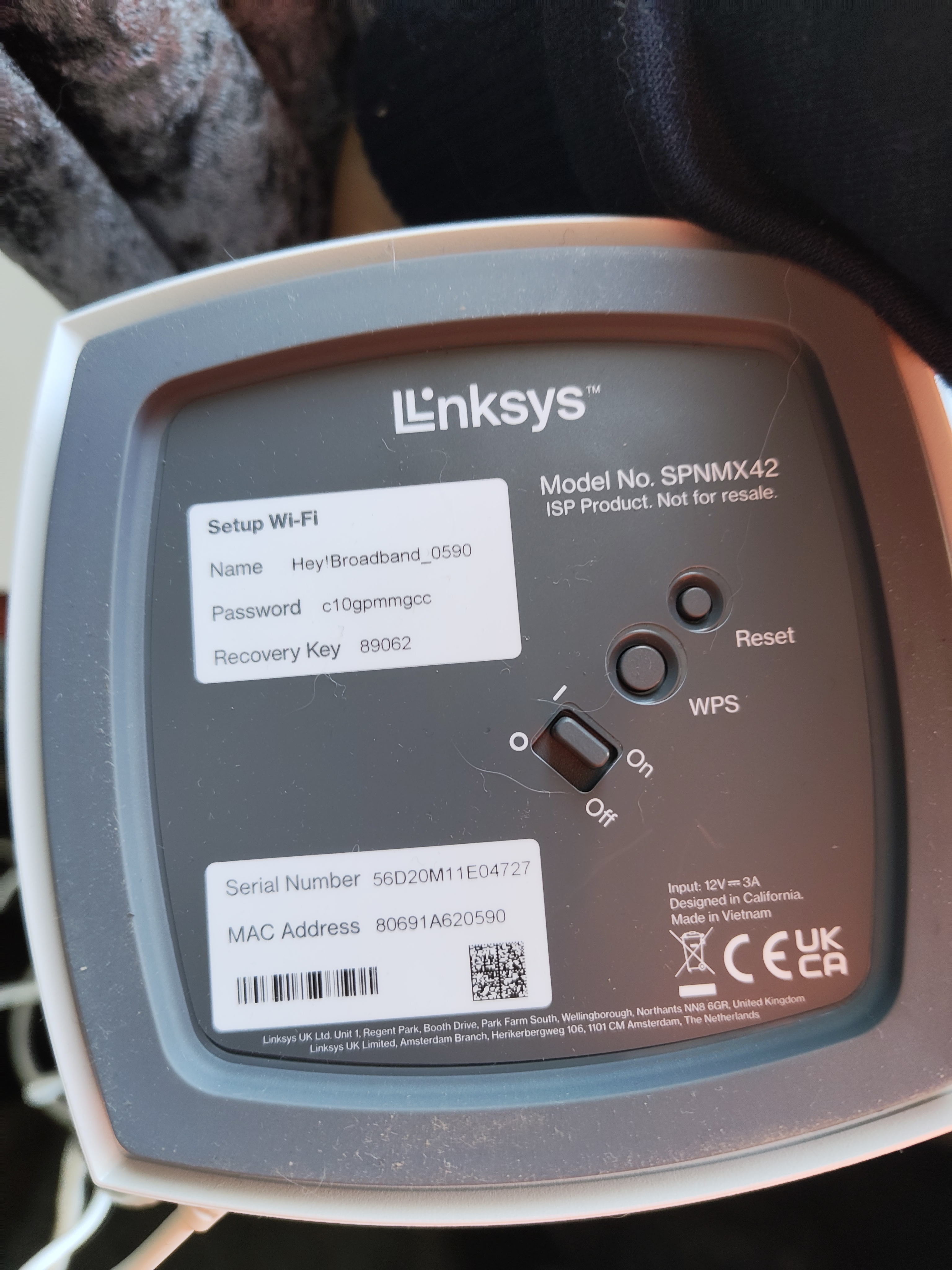
  • Broadband only - use any Router available. In type of router will appear Any

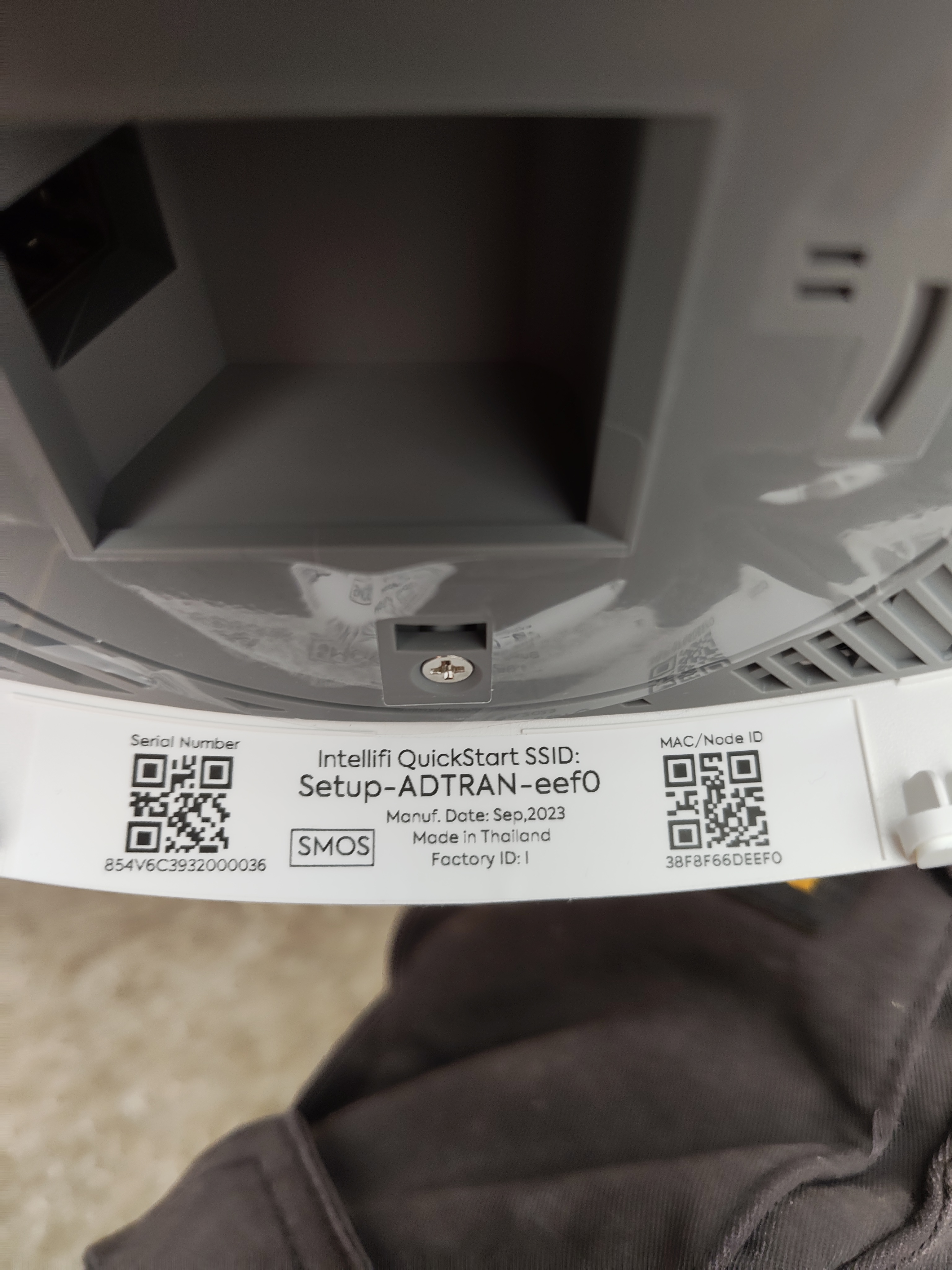
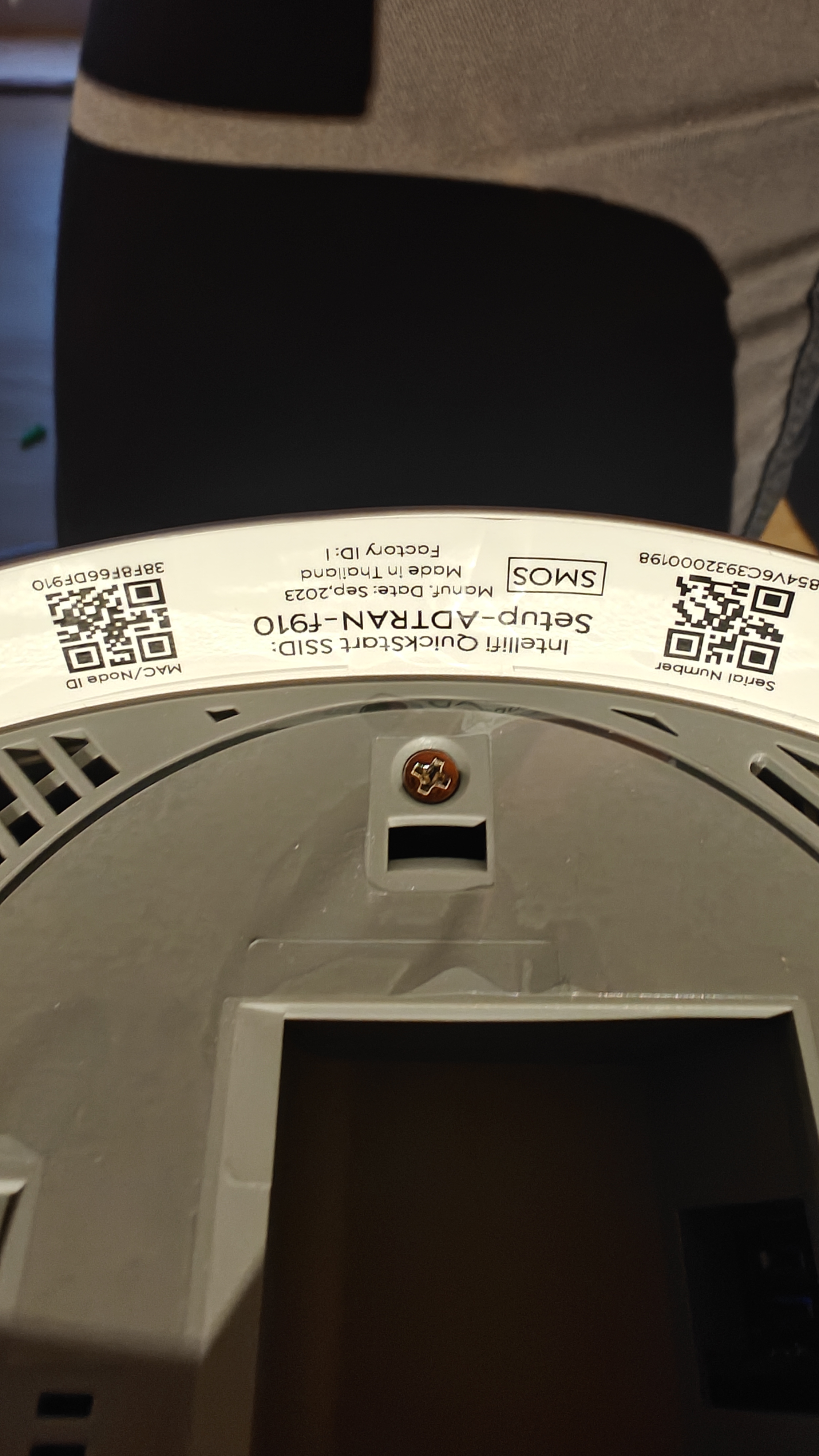
    Broadband with phone line - use Adtran Router. In type of router will appear Adtran

    Bridge mode - , no Router, just SFU. In type of router will appear Bridge Mode

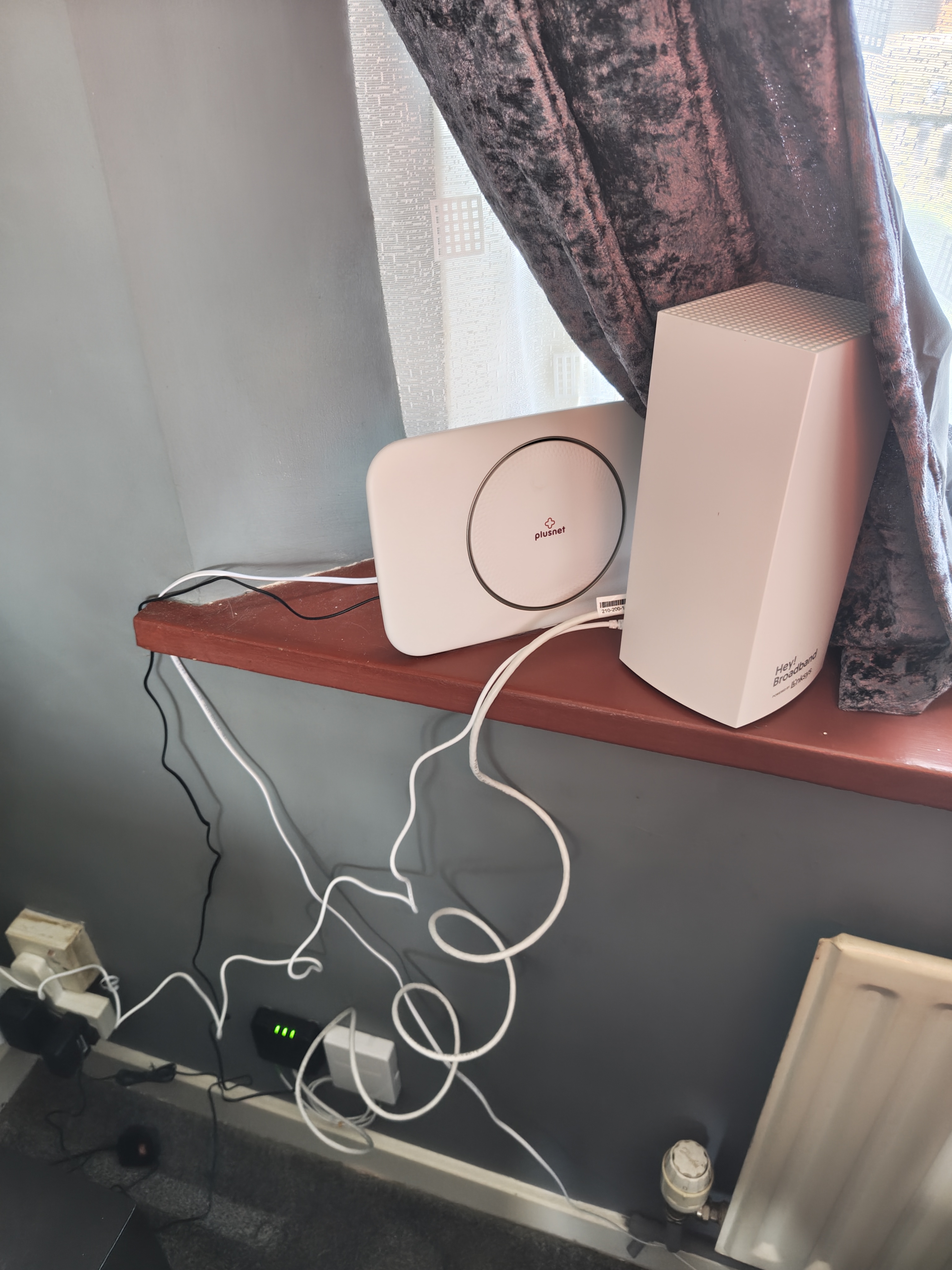
    Broadband with Smart WiFi - use any Router available along with at least two Plume pods. In type of router will appear Any with WiFi

    Broadband with phone line and Smart WiFi - use Adtran Router along with at least two Plume pods. In type of router will appear Adtran with WiFi

    WiFi - installation of Plume pods. Counts as a visit. In type of router will appear WiFi

    PID (Pre Installation Done) - cable installation is already done. Needs equipment and provision. Counts as a visit. In type of router will appear PID

    Fault - could be your fault (bad splice, kinked cable or patch lead, etc), or customer's fault. If it is customer's fault the visit is paid.

    There are a few scenarios when an Underground installation can not be completed.

    In Safety Culture depending on each scenario we will need a different set of photos.

    On the annotated photos you will need to draw where the blockage/new duct is with distances.

    In the reason section, in Safety Culture, add notes with description of the work required. Examples:

  • EX1: New duct required. 1m hard dig on public footway. 5m soft dig on private property.
  • EX2: New duct required to intercept - OSP:CND::34905187 - 60330 D54. 5m soft dig on private property.
  • EX3: Blocked duct. 2m from customer end.
  • For each one of them, if digging on private property is involved, we will need permission to dig signed on Safety Culture.

    Blocked duct - several situations here:

  • The duct is tarmacked/cemented over.
  • Blocked duct between swept-tee and customer end.
  • Blocked duct between the chamber and swept-tee.
  • Blocked duct between chambers.
  • Buried cable or no BT cable - NEW DUCT REQUIRED - two situations here:

  • New duct from customer to the chamber.
  • Duct interception: new duct from location agreed with the customer to where we need to intercept the duct on the pavement.
  • Pole check phone number

  • 08000858262
  • APX Login - three users, as not all the builds are available on just one

    APX Login 1

    User1: mattelco.HI Password1: 24mattelco04

    APX Login 2

    User2: coaviewer Password2 cn25viewer**

    APX Login 3

    User3: davidqpantoja@openworldonline.com Password3: dqpopen65*

    APX link

  • https://fwnetworks.apx-gis.net/
  • Adtran Firmware update file:

  • https://drive.google.com/file/d/1v6BI9EuQNriXeoUpywtdVZXv_XqbnXwN/view?usp=sharing
  • Adtran support login:

  • User : support, password : fw-081007
  • For every completed/failed job you need to fill in this form for me. Please copy and paste the job number, don't type it yourself. That field is case-sensitive. Thank you very much for your time.
    Anything else just Call Me